Create an Ingestion Pipeline
An ingestion pipeline parses documents, splits content into chunks, optionally enriches or compiles it, and sends the results to an index. Create and manage pipelines under Agent > Ingestion pipeline.
Create a Pipeline
- Open Agent and select Ingestion pipeline, then click + to open the creation menu.
- Choose Create from blank, enter Name, and click Confirm.
- Open the created card. The canvas starts with Begin → Parser.
- Click Parser and configure the file types you need to process. Use its outgoing connection point to add Token chunker or Title chunker.
- Add Transformer if you need to enrich chunks, or Compiler for knowledge compilation. Connect the final processing step to Indexer.
- Configure each component and click Save draft. If Checklist appears, open it and resolve the reported configuration issues.
A basic flow is Begin → Parser → Token chunker → Indexer. Add optional processing steps according to your document requirements.
Start from a Template
Choose Create from template from the same creation menu, select a template, and follow the creation dialog. Open the resulting pipeline and review each component's models, prompts, and referenced resources before publishing it.
Start from a Built-in Pipeline
The same list includes Built-in pipelines, such as General, Q&A, Manual, and Table. Click a built-in card to inspect its configuration. The built-in preview is read-only. Use the card's Copy button to create an editable pipeline, then configure the copy for your documents.
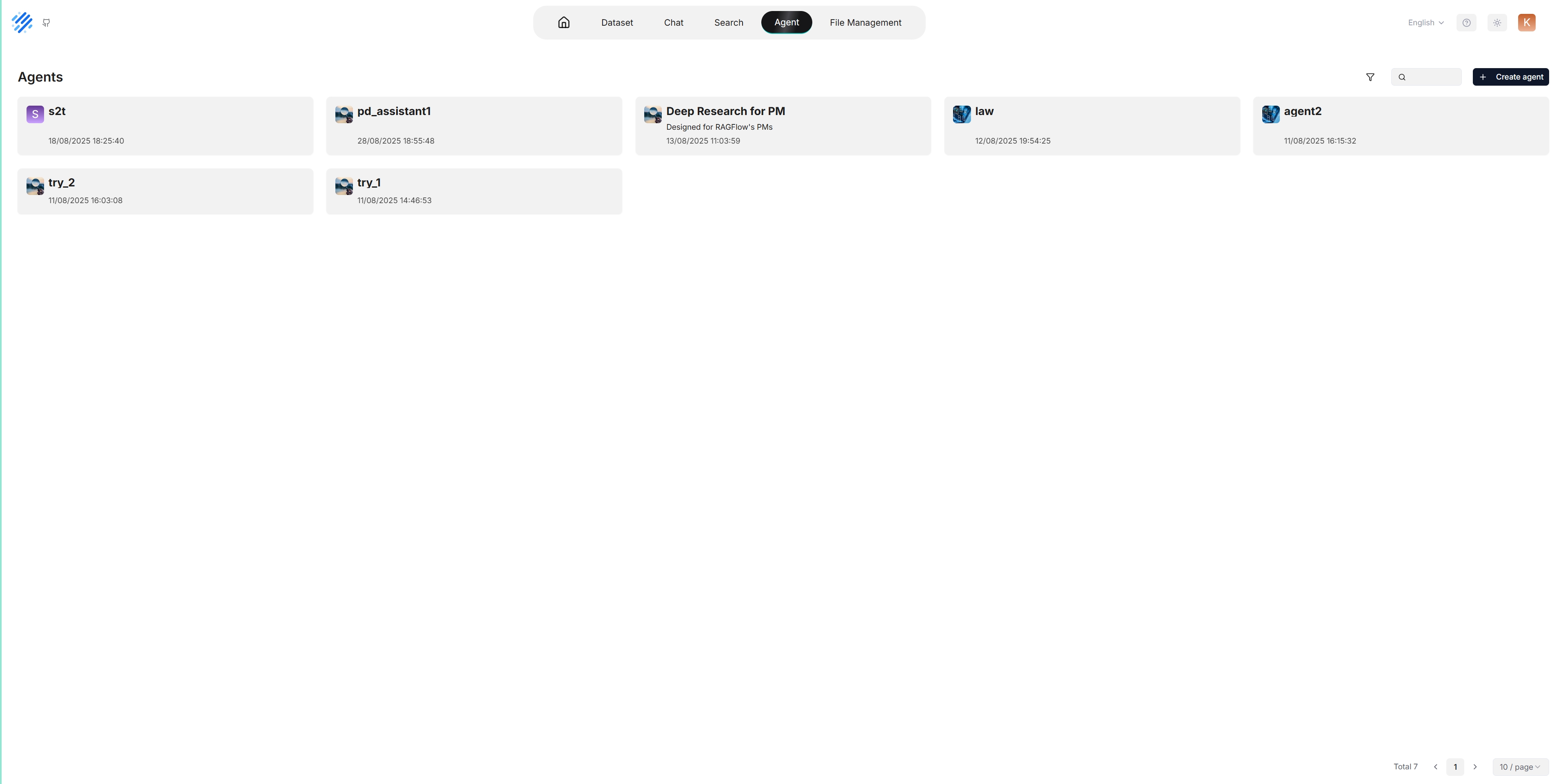
Pipeline Canvas Toolbar
An editable pipeline has Save draft, Publish, and Management in the upper-right corner. It has no Run or Launch button. Test document processing from a Dataset after selecting a published pipeline version.
| Button | When and how to use it |
|---|---|
| Save draft | Save the current pipeline configuration. The Autosaved time below the name shows the latest save. Saving a draft does not publish a version for a Dataset to select. |
| Publish | Publish the current configuration as a version. Optionally enter an Alias in the confirmation dialog, then click Confirm. Select this version in the target Dataset configuration. |
| Checklist | Appears when configuration issues are detected. Open it and click an issue to locate the affected component. Correct the configuration; the button disappears when no issues are detected. |
| Management | Open the pipeline's variables, version history, JSON export, or settings. |
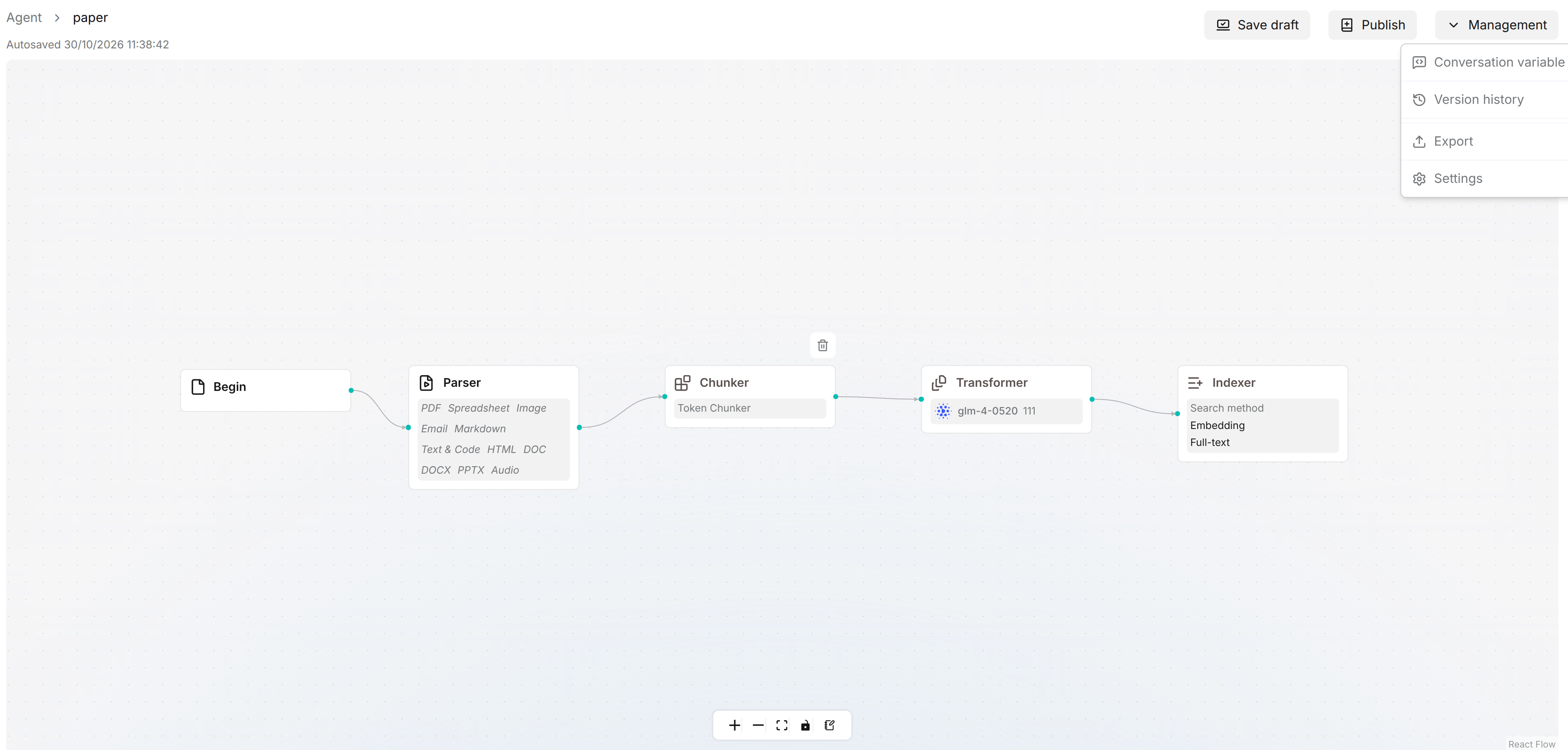
Management Menu
| Entry | What you can do |
|---|---|
| Conversation variable | Open the variable configuration provided by the editor. This menu entry does not start a conversation or parse a document. |
| Version history | Browse version records and inspect pipeline configurations. Use the version information to identify the configuration you intend to apply to a Dataset. |
| Export | Download the current pipeline canvas configuration as JSON. |
| Settings | Change the pipeline title, avatar, description, and access permissions for yourself or your team. Save the settings dialog to apply changes. |
Publish and Apply a Pipeline
- Complete the component configuration and connections, then click Save draft.
- Resolve any issues shown in Checklist.
- Click Publish, optionally enter an Alias, and click Confirm.
- In the target Dataset's Configuration, open Parsing mode, expand the custom pipeline, select a published version within that dropdown, and click Save. If it shows No published versions, publish the pipeline first.
- Validate the pipeline with a small sample before processing more files.
Publishing another version does not switch the version already selected by a Dataset. To apply an update, select the new version under the pipeline in Configuration > Parsing mode and click Save, then parse the documents that need the updated processing.
Import and Export a Pipeline
To export, open an editable pipeline and choose Management > Export. The browser downloads the current canvas configuration as a JSON file.
To import, select Agent > Ingestion pipeline, choose Import JSON file from the creation menu, enter Name, upload the pipeline JSON under DSL, and click Save. Open the imported card and check models, compilation template groups, and other referenced resources. These resources are not transferred by importing JSON. Save the draft, publish a version, and validate it in a test Dataset before use.