Configure the Transformer Component
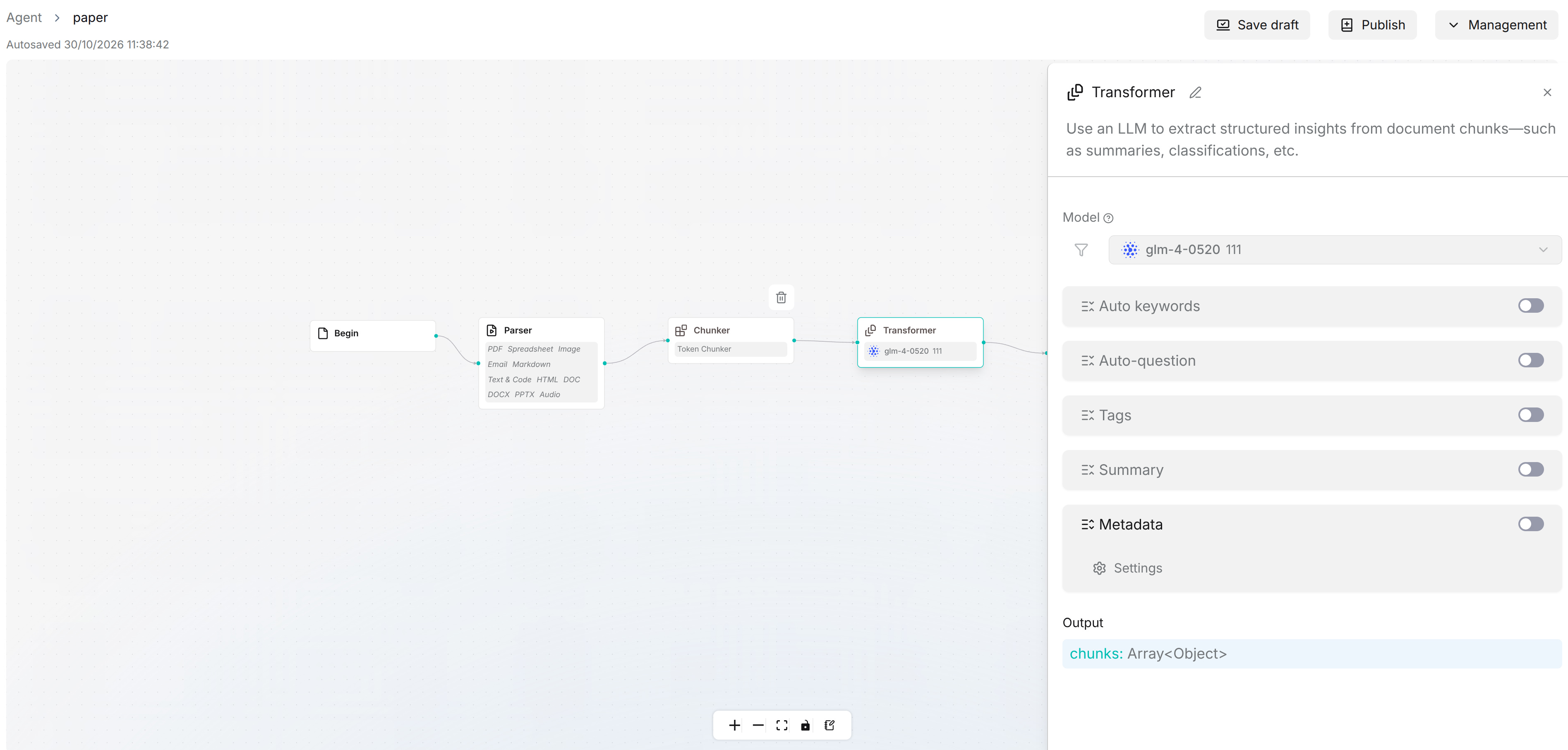
Transformer uses an LLM to enrich document chunks with keywords, questions, tags, summaries, and metadata. Configure it on the Agent > Ingestion pipeline canvas. One Transformer can enable several extraction functions at the same time.
Open the Configuration Panel
- Open Agent, select Ingestion pipeline, and open the pipeline you want to edit.
- Add Transformer after a chunking component, or click an existing Transformer node to open its configuration panel.
- In Model, select an available chat model. Configure the model provider first if the required model is not listed.
- Expand each function you need and turn on its switch. Expanding a section only shows its settings; use the switch beside the section name to enable processing.
The panel lists Auto keywords, Auto-question, Tags, Summary, and Metadata in that order.
Configure Extraction Functions
| Function | Settings and purpose |
|---|---|
| Auto keywords | Set Number of keywords to extract and review System prompt. The model extracts key terms from each chunk to assist retrieval. |
| Auto-question | Set Auto-question number and review System prompt. The model generates questions that the chunk can answer. |
| Tags | Set Auto-tags to control the number of tags and select the source under Tag file. The model assigns tags from that source. |
| Summary | Review or customize System prompt to control how the model summarizes chunk content. |
| Metadata | Enable metadata generation and click Settings to define custom fields or select built-in fields. See the steps below. |
Enable only the functions you need. Review the prompts for your document language, required output, and business scope before processing a large collection of files.
Configure Metadata
- Expand Metadata, turn on its switch, and click Settings.
- In Metadata generation settings, open Generation and click Add to define a custom field.
- In Field settings, enter Field name, select Type, and fill in Description to explain what the model should extract. If the field must use predefined values, enable Restrict to defined values and configure the allowed values.
- Click Confirm to add the field. Check the Field, Description, Type, and Values columns in the list.
- Open Built-in if you need fields such as update_time or file_name, and enable the fields you want to include.
- Click Save to apply the metadata field settings to the node. This dialog button is separate from Save draft on the canvas.
Use consistent field names and types across documents so the generated metadata can be used in retrieval filters. Check the generated values on sample documents before relying on them for filtering.
Connect and Validate
Connect Transformer to an upstream component that produces chunks. Add Indexer after Transformer for indexing, or Compiler for knowledge compilation followed by Indexer. For example:
Begin → Parser → Token chunker → Transformer → Indexer
The node outputs enriched chunks for downstream components. Click Save draft on the pipeline canvas, resolve any issues shown in Checklist, and publish a version when the configuration is ready. Expand the pipeline under Configuration > Parsing mode in a test Dataset, select that published version within the dropdown, and validate the pipeline with a representative document. Check the generated keywords, questions, tags, summaries, and metadata for the functions you enabled.