Understand the Workflow Canvas
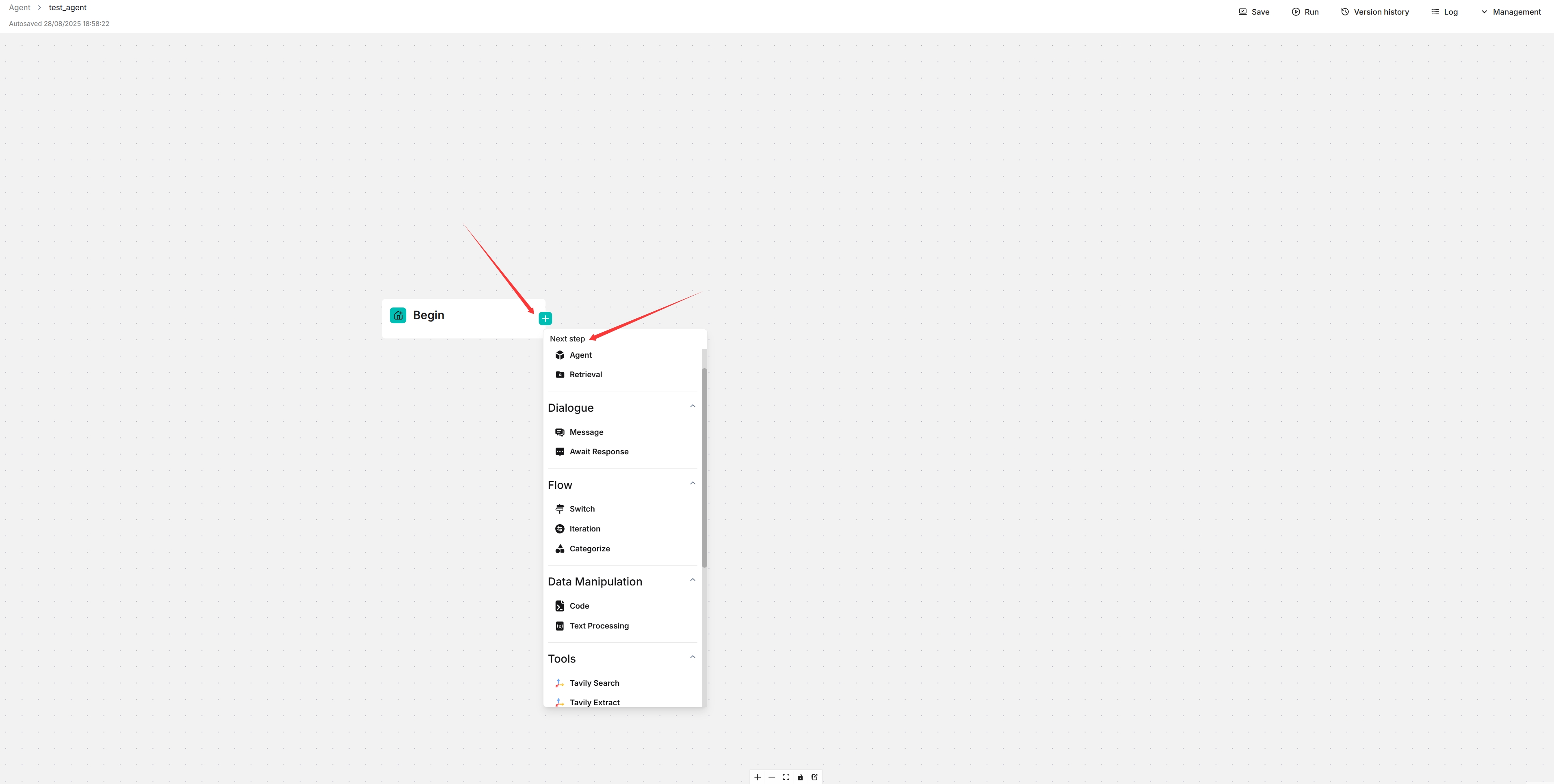
Add Components
This chapter describes the Workflow canvas. Click a component's outgoing connection point to select the next component. Workflow components include Begin, Agent, Retrieval, Message, Await response, Switch, Iteration, Categorize, Code, Text processing, Execute SQL, and HTTP Request.
After adding a component, click the component itself to open the configuration panel on the right. Fields in the configuration panel define input data, processing logic, output variables, and references for subsequent steps.
Use Variables
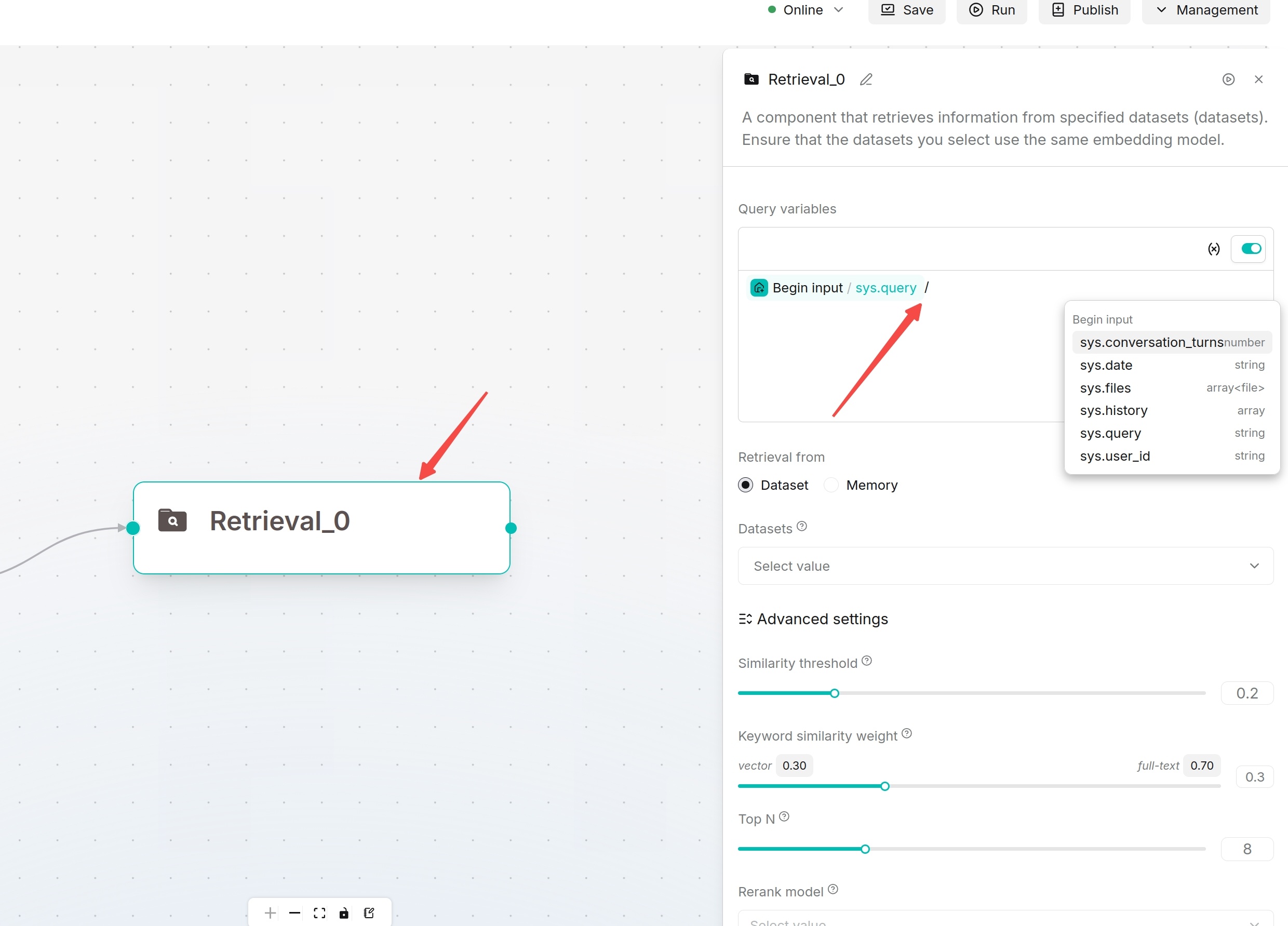
Components on the Agent canvas support variable references to implement data transmission between components. Variable sources include system variables, global variables defined in the Begin component, and outputs from upstream components.
In fields that support variables, type / or click the variable button to open the variable selector, then choose the required variable. This inserts a reference to the component on your canvas; names shown in examples are illustrative and should not be typed as references.
Common variables:
| Variable | Description |
|---|---|
sys.query | Current user input question |
formalized_content | Sorted text results from Retrieval, SQL or tool components |
content | Main text output from Agent, Code or other components |
Operation Steps:
- Enter the Agent page and open the target canvas for editing.
- Select a component supporting variable references, e.g. Agent, Retrieval, Message, Code, HTTP Request, Execute SQL.
- On the right configuration panel, click the input box that needs variable reference, such as System prompt, User prompt, or Query variables.
- Open the variable selector via either method:
- Type
/inside the input box - Click the variable icon next to the input box (may display as
{},+or other icons in different versions)
- Type
- Select required variables in the selector. Available variables include:
- System variables such as
sys.query - Global variables defined in the Begin component
- Output variables from upstream components
- System variables such as
- After selection, the variable will be automatically inserted into the input box.
- Save component configuration and run the Agent to verify data transmission.
Canvas Toolbar
The buttons in the upper-right corner let you save, test, publish, and manage the workflow.
| Button | When and how to use it |
|---|---|
| Save draft | Save the configuration currently being edited. Check the Autosaved time below the workflow name to see the latest save. Saving a draft does not create a published version. |
| Run | Open the test panel for the current workflow. In Conversational mode, enter a test question and inspect the response and component execution results. In Webhook mode, use the webhook test panel. Fix missing inputs or configuration errors before retrying. |
| Launch | Open the conversation page to use the workflow in a full conversation view. This button is available in Conversational mode. It does not publish a version. |
| Publish | Create a published version of the workflow. In the confirmation dialog, optionally enter an Alias to identify the version, then click Confirm. |
| Checklist | Appears when configuration issues are detected. Open it to view issues grouped by component; click an issue to locate the affected component and correct it. The button disappears when there are no detected issues. |
| Management | Open conversation variables, version history, logs, export, settings, and website embedding options. See the table below. |
Management Menu
| Entry | What you can do |
|---|---|
| Conversation variable | Define and maintain variables used during a conversation. Use the variable selector in component fields to reference them. |
| Version history | Browse saved version records and inspect their configurations. Use version information to identify the configuration you need; a history record alone does not mean that it is published. |
| Log | Review workflow execution records. Search by ID/Title or date, open a record to inspect its state and version, or use Export current page to download the displayed records. |
| Export | Download the current canvas configuration as JSON. See Import and Export Workflows. |
| Settings | Change the workflow title, avatar, description, and access permissions for yourself or your team. Save the settings dialog to apply changes. |
| Embed into webpage | Open the website embedding options and copy the integration code for your website. See Embed a Workflow into Your Website. |
Test and Publish a Workflow
- Finish configuring the components and their connections, then click Save draft.
- If Checklist appears, open it and resolve the reported issues.
- Click Run, supply the required test inputs, and review the response and component results. If output is missing, check input variables, model access, dataset permissions, and tool settings.
- Repeat the test with representative questions and edge cases until the results meet your needs.
- Click Publish, optionally enter an Alias, and click Confirm. Continue editing the draft when further changes are needed, and publish again to create another version.
Component Connection Rules
Connections define component execution order. Sequential components run along a single path. Branch components such as Switch and Categorize route workflows to different exits according to conditions. Iteration executes sub-processes in loops. Components not connected to the execution path will not run. Before deleting a component, check upstream/downstream connections and variable references to avoid missing inputs for subsequent nodes.
Configuration Panel
Click any canvas component to open the right-side configuration panel, which displays fields, input variables, output variables and execution settings. Recommended workflow: confirm which variable the component reads → configure processing logic → verify downstream nodes reference correct outputs.
For slow workflows, see Improve Agent Response Time.