Configure the Parser Component
Parser extracts document content into structured items for a downstream Chunker. The available controls depend on the file category and the selected parser.
- Open an editable pipeline under Agent > Ingestion pipeline and click Parser.
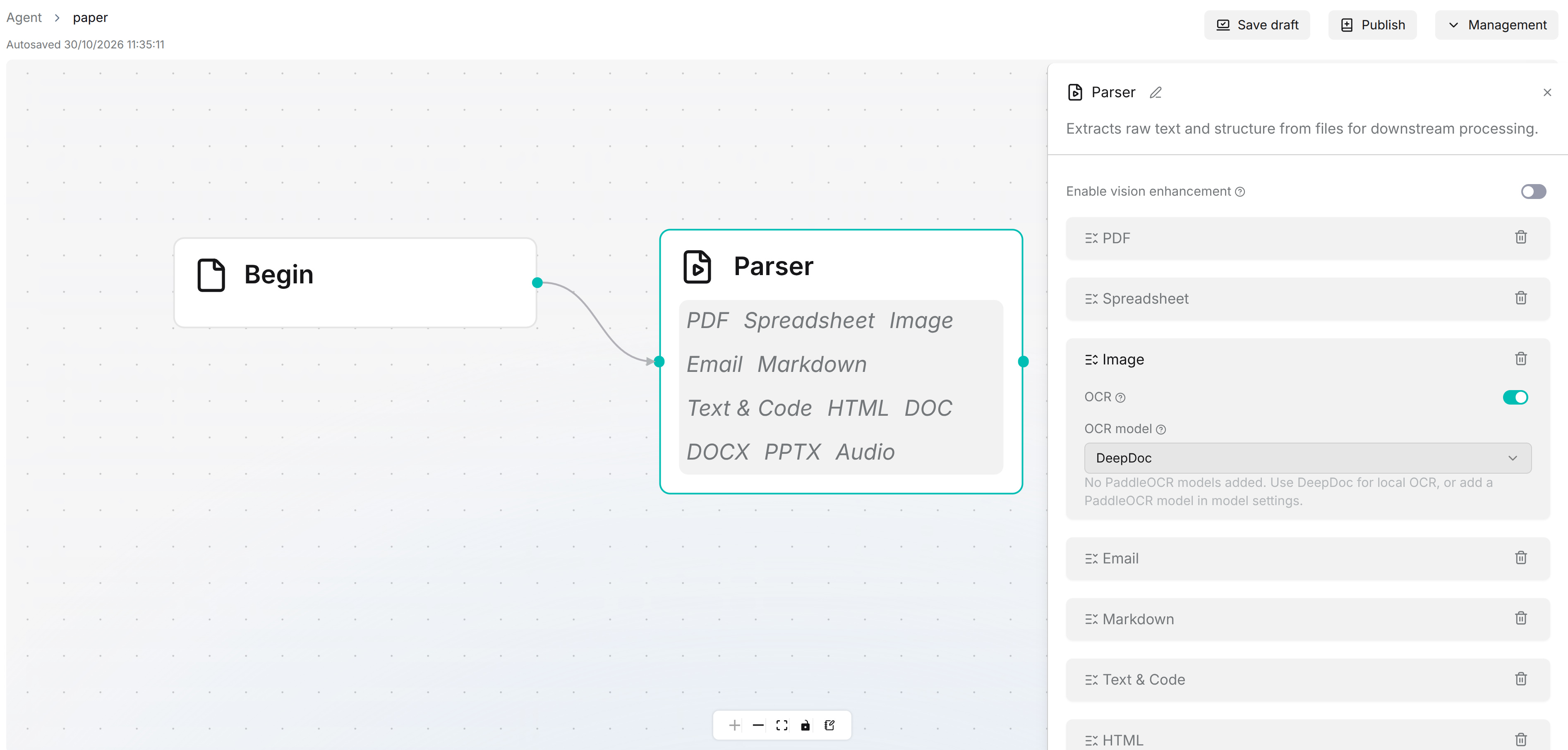
- Configure the categories your files require: PDF, Spreadsheet, Image, Email, Markdown, Text & Code, HTML, DOC, DOCX, PPTX, and Audio. There is no separate Video category in the current panel.
- Review the shared vision settings and the options for each required category below.
Vision Enhancement
Enable vision enhancement is a shared switch at the top of the Parser panel. Turn it on to generate image descriptions, then select Model and review System prompt. Configure an accessible vision model first if the required model is not listed.
This switch is separate from OCR under Image: OCR recognizes text, while vision enhancement generates descriptions. Keep at least one enabled for image processing.
| Setting | How to use it |
|---|---|
| Detect multi-column layout | Enable for documents whose text is arranged in multiple columns. Check the reading order on sample pages. |
| Remove original table of contents | Remove the document's existing table of contents from the parsed content when it is not needed for retrieval. |
| Remove header and footer | Exclude repeated page headers and footers. |
| Parser | Choose the parsing method or a configured model. See the choices below. |
| Page ranges | Enter the start and end pages to process. Use Add page to add another range. |
The Parser dropdown includes DeepDOC, Naive, Docling, OpenDataLoader, TCADP Parser, and MonkeyOCRv2, followed by available configured models grouped by provider. Choose a parser appropriate for your deployment and document layout, and validate its results on a sample file. Naive provides simple text extraction for text-based PDFs.
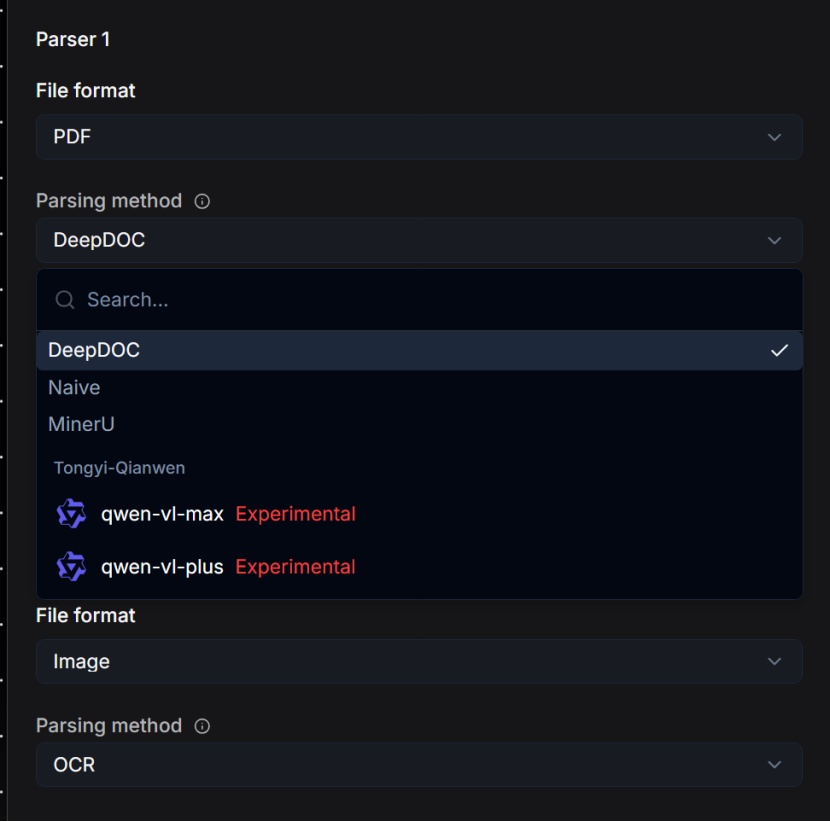
Some selections expose additional controls:
- Language appears for parsers that support this setting. Select the document language when the field is shown.
- TCADP Parser shows Table result type (Markdown or HTML) and Markdown image response type (URL or Text).
- A configured MinerU model exposes Formula recognition and Table recognition. These are conditional model settings; MinerU is not a fixed entry in the parser catalog. Add and configure the service in model settings before selecting its model.
Configured OCR and vision models depend on the pipeline owner's available providers and permissions. If a required model is missing or parsing fails, check its availability and connection settings. Selecting a parser does not configure its external service.
Image
- Leave OCR enabled when you need to recognize text in images.
- Select OCR model. The panel offers the built-in DeepDoc option and configured OCR models where available.
- To generate image descriptions, enable the shared Enable vision enhancement switch at the top of the panel and configure its model and prompt.
To turn OCR off, enable vision enhancement first. The panel rejects a configuration with both disabled.
Other File Categories
| Category | Configuration |
|---|---|
| Spreadsheet | Choose Parser. The fixed choices are DeepDOC and TCADP Parser; configured models may also be listed. TCADP Parser exposes the table and image response controls described above. |
Select the required entries in Field: from, to, cc, bcc, date, subject, body, and attachments. | |
| Markdown / Text & Code | These sections have no additional parsing controls in the current panel. |
| HTML / DOC / DOCX | Set Remove header and footer as required. |
| PPTX | Choose Parser. The fixed choices are DeepDOC and TCADP Parser; configured models may also be listed. TCADP Parser exposes its table and image response controls. |
| Audio | Select Model for speech recognition. Configure an accessible speech-to-text model first if none is available. |
Output and Validation
Output displays json as an array of objects. This is the node's output definition, not an output selector. Connect Token Chunker or Title Chunker after Parser to split the parsed items into chunks.
Click Save draft, resolve any Checklist issues, publish a version, and validate it in a test Dataset. Check extracted text, reading order, tables, and image descriptions for the file types and features you use.