Create and Manage Workflows
Open the Workflow List
Click Agent in the top navigation bar, then select Workflow. Each card represents a workflow. Click a card to open its canvas and continue editing.
Select the category before creating an application. This chapter covers Workflow. For document processing, see Create an Ingestion Pipeline. For compilation templates, see Knowledge Compilation.
Create from Blank Workflow
-
Open Agent > Workflow.
-
Open the + creation menu in the upper-right corner and choose Create from blank. On an empty list, you can use the Create from blank entry directly.
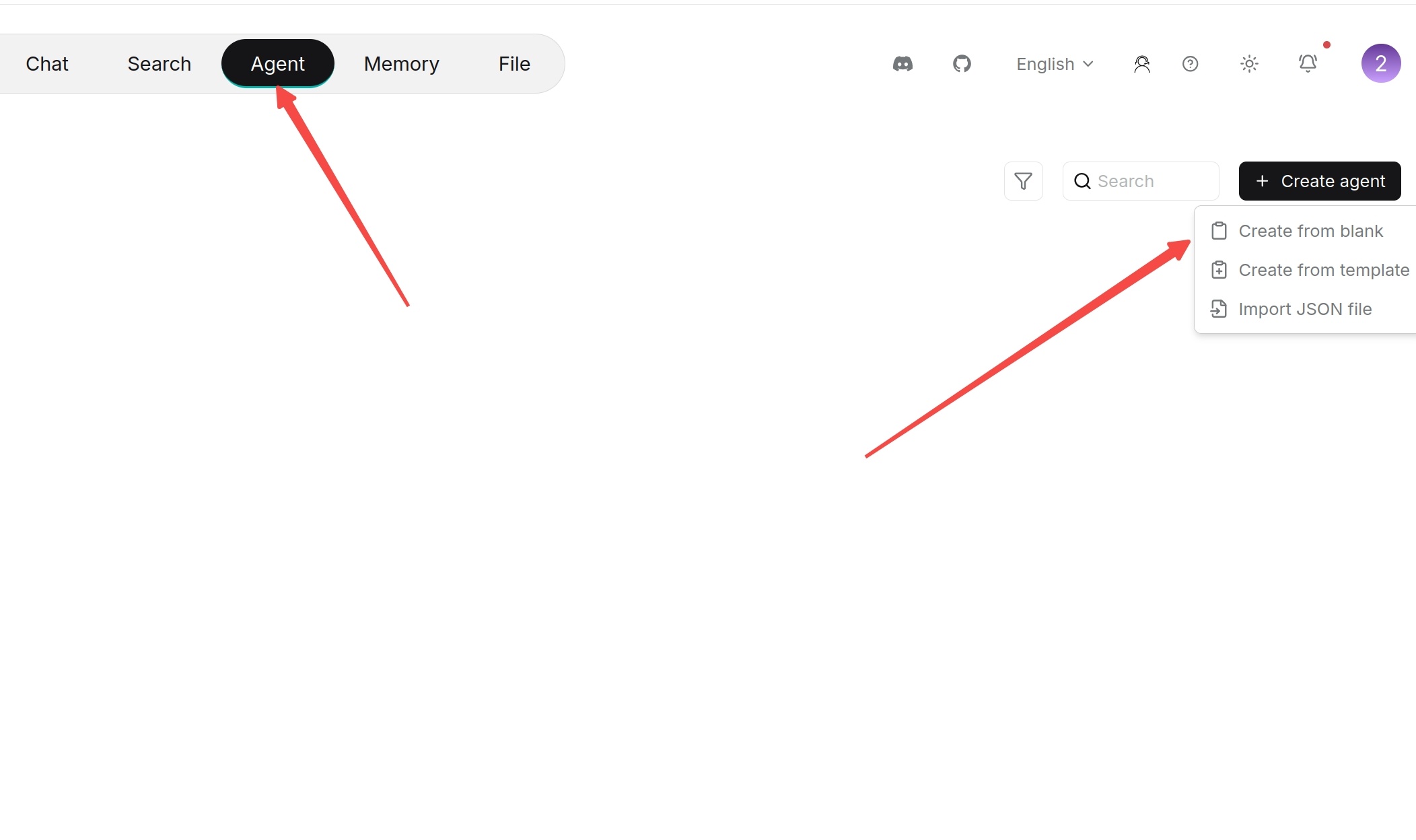
-
In Create workflow, enter Name and click Confirm.
-
Open the workflow card. A blank workflow starts with Begin.
-
Click Begin to configure its mode and inputs. Use its outgoing connection point to add the next component, then configure the component in the panel on the right.
-
Connect the remaining steps and click Save draft. Use Run to test the workflow before publishing it.
Each workflow has one Begin component. Begin is the entry point and cannot be deleted.
Create from Template
Templates provide components and connections for common tasks. Select one that is close to your task, then replace its models, datasets, prompts, and tool settings with resources available to your account.
-
Open Agent > Workflow and choose Create from template from the creation menu.
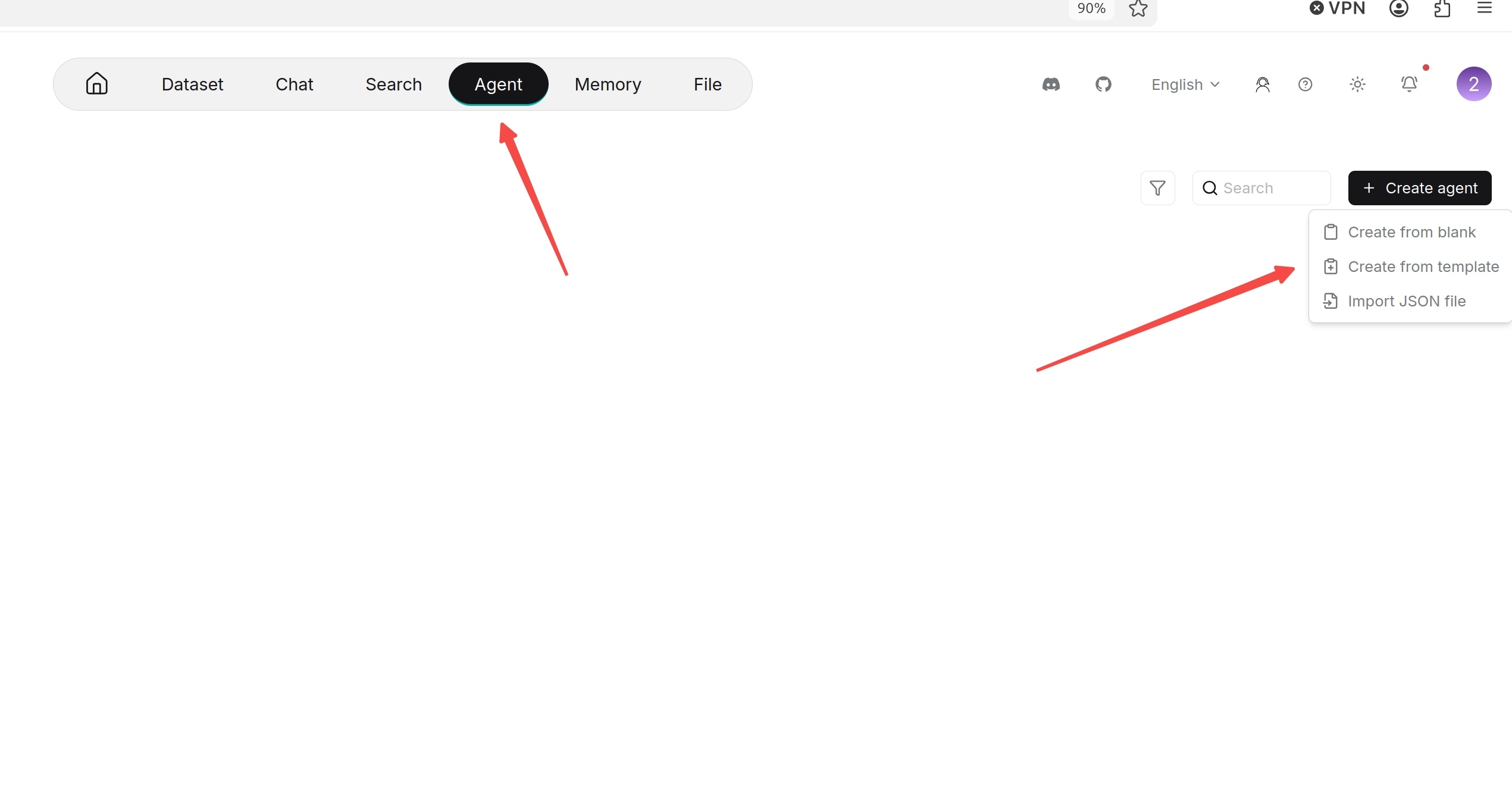
-
Browse the template categories and select a suitable template.
-
Use the selected template and complete the name and confirmation prompts.
-
Open the created workflow and check each component. In particular, reselect models, datasets, and tools that the template requires.
-
Click Save draft, then Run and test with representative inputs.
Search, Copy and Delete Workflow
- Search: Enter the workflow name in the list's search box.
- Copy: Open the workflow, select Management > Export, then import the JSON with a different name.
- Delete: Open the card's … menu, select Delete, and complete the confirmation. Export a copy first if you need to keep the configuration.
Save, Test and Publish
The canvas displays the latest Autosaved time. Save draft saves your current editing configuration; it does not create a published version. Use Run to check the workflow, then Publish when the configuration is ready for use.
See Canvas Toolbar for the purpose of each upper-right button, publishing steps, and the entries in Management.