Embed Workflows into Web Pages
Embed a Workflow into a Webpage
Embed a Workflow Agent in a website as a fullscreen chat or floating widget.
Follow these steps to embed an Agent from a self-managed deployment. Obtain an API key under User settings > API before configuring the embed; see Acquire a RAGFlow API key.
Steps:
-
On the Agent page, click the target Agent to open its editing page.
-
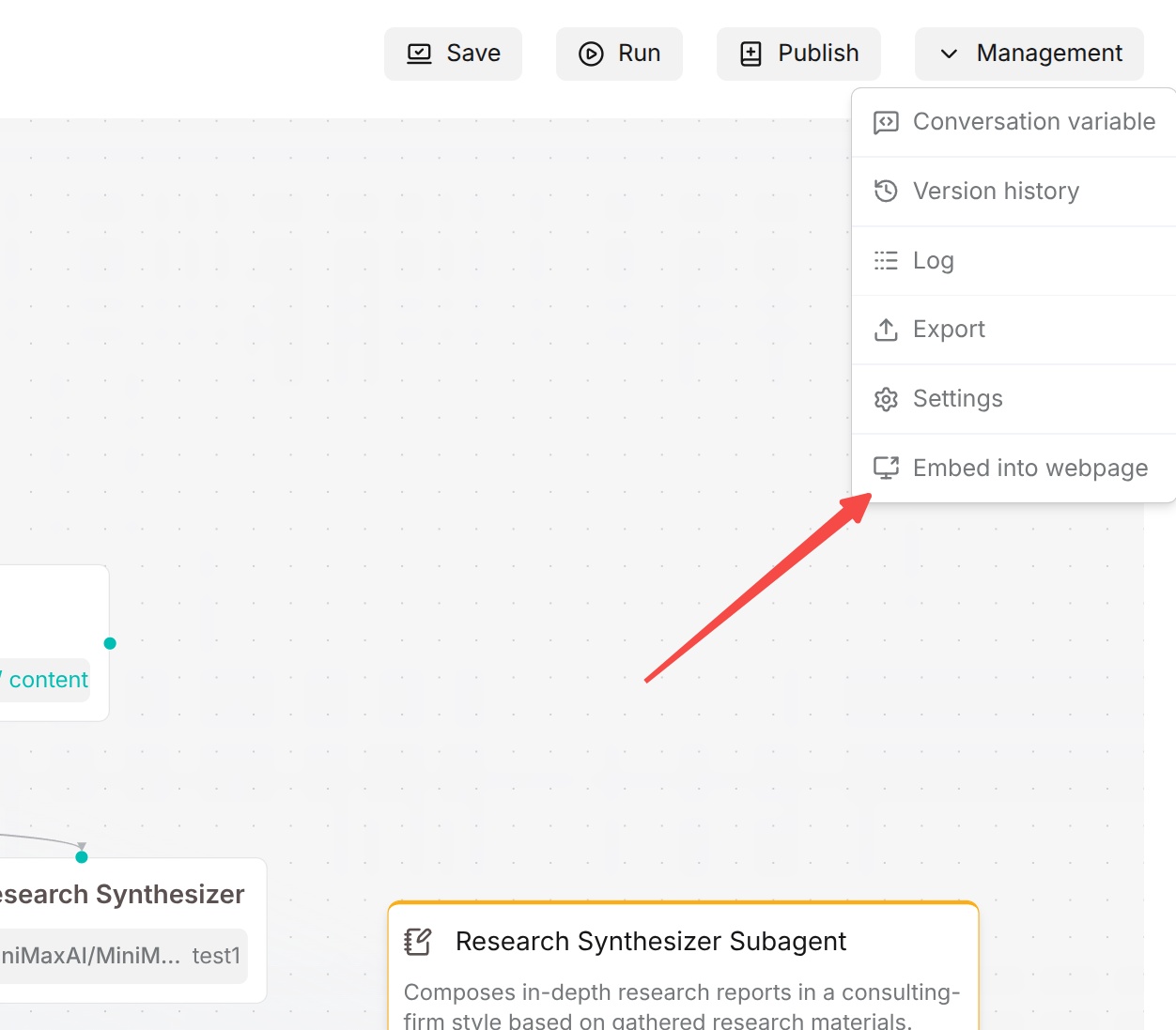
Click Management > Embed into webpage in the upper right corner of the canvas to open the embedding settings.
-
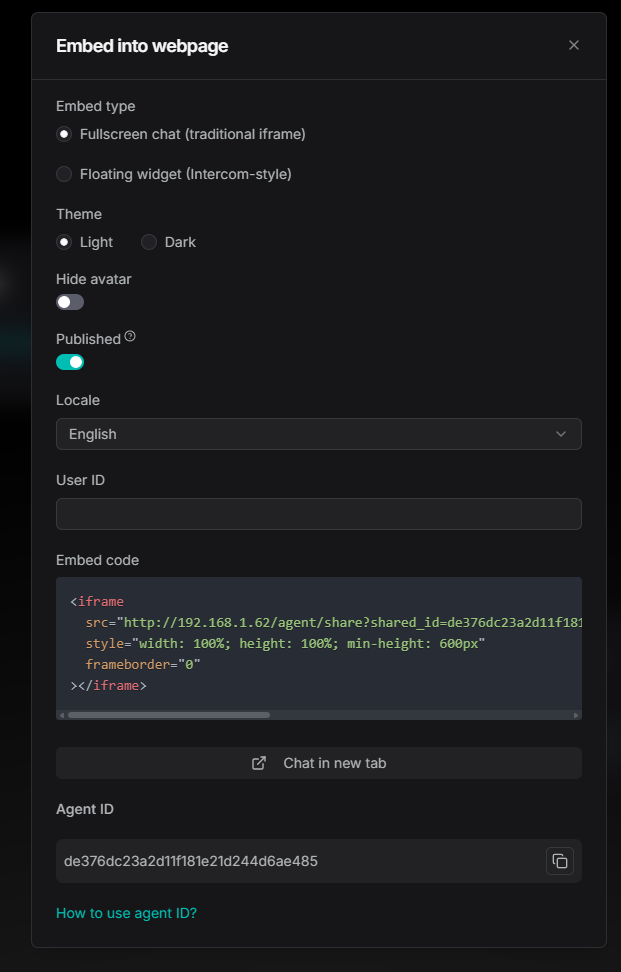
In Embed Setup, choose Fullscreen chat (traditional iframe) or Floating widget (Intercom-style).
-
Set Language, User ID, and display options as needed. Enable Published to use the published version of the Agent.
-
For a floating widget, use Widget Customization to adjust its title, text, and colors. Click Save widget settings to save the settings.
-
Copy Embed code into your webpage. Use Open in new tab to preview the result.