Configure User Roles and Permissions (Enterprise Edition)
Maintain Roles
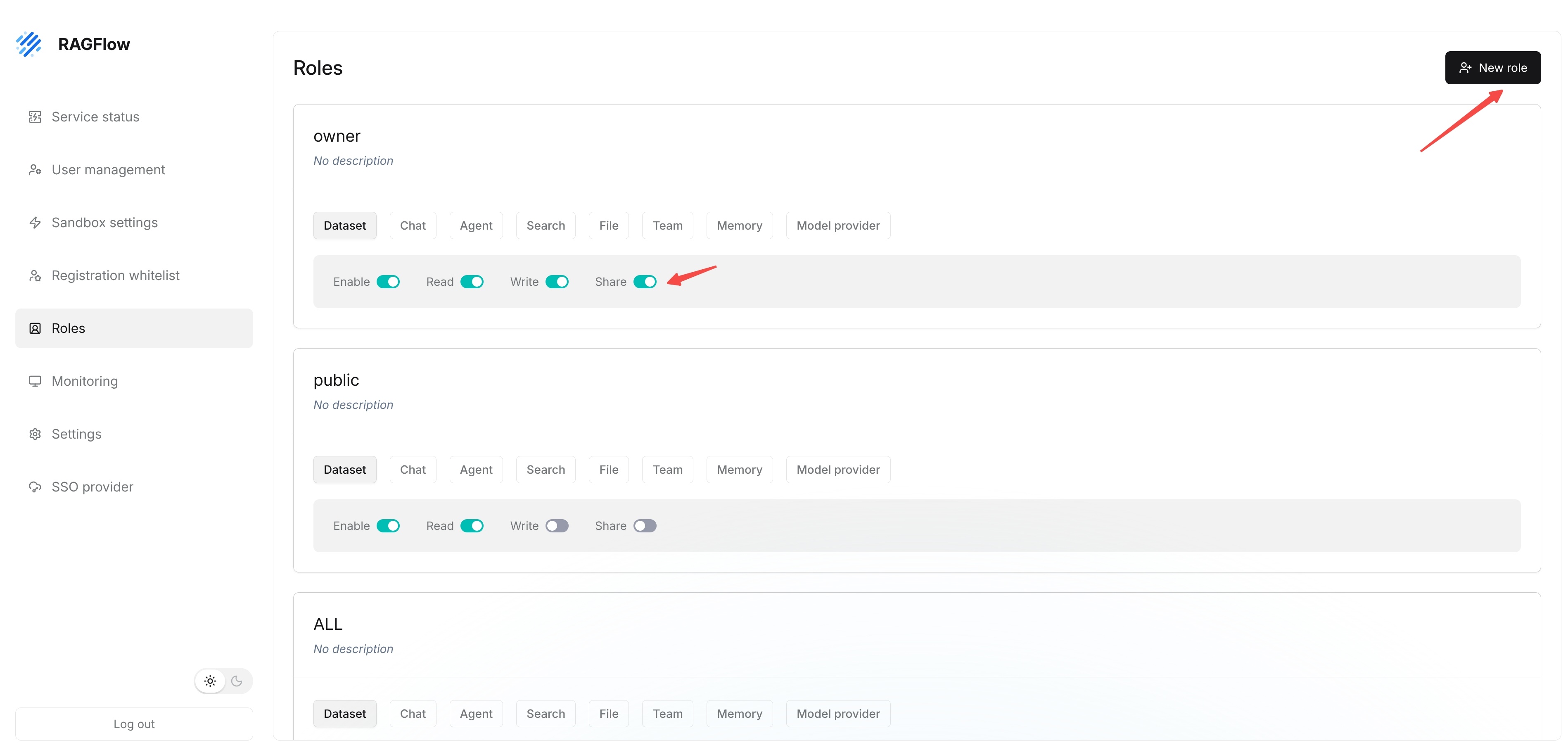
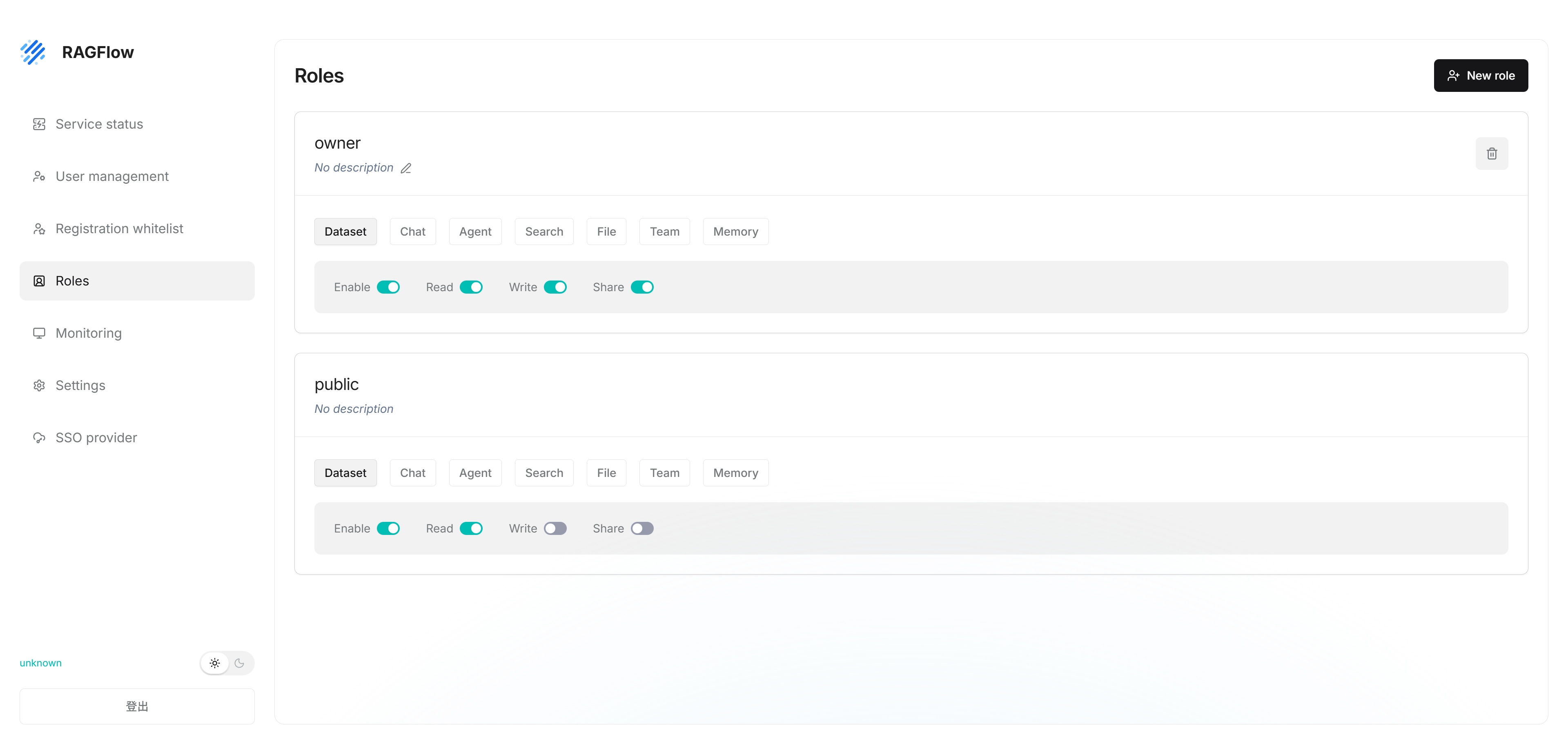
Enterprise Edition maintains roles and permissions through the Roles page. Administrators can view existing roles on this page and create new roles through New role.
The current page displays a permission matrix under each role. Visible resources include Dataset, Chat, Agent, Search, File, Team, Memory, and Model provider. Visible actions include Enable, Read, Write, and Share.
Administrators should configure roles according to user responsibilities and should not grant ordinary users resource permissions beyond what their work requires.
Note: Modifying role permissions affects users' access scope for knowledge bases, chat, Agent, search, files, teams, memory, model providers, and other resources.
Assign Roles to Users
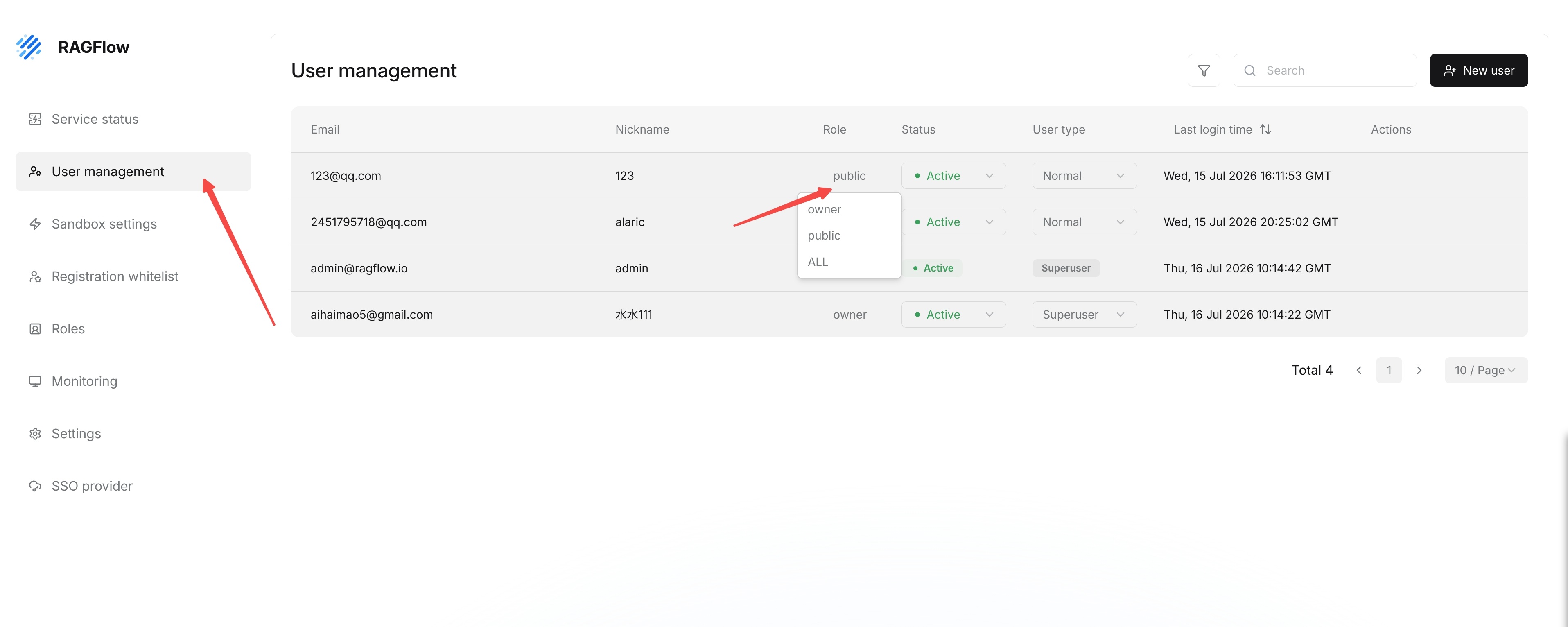
In Enterprise Edition, a user's Role can be assigned on the User management page. Administrators can click the target user's current Role and select a new role from the role list.
- Go to the User management page.
- Find the target user and open the role dropdown in the
Rolecolumn. - Select the new role.