Tool Components
Tool components connect external search, databases, HTTP APIs, email sending, document generation, financial queries, and web content extraction capabilities to Agents. When building Agents, first understand each tool's purpose and security boundaries.
In the tables below, No means manual input is optional; keep any default shown. Conditions are stated in the description. Replace bracketed placeholders with your own settings; Leave blank is an instruction, not text to enter.
Tool Selection Suggestions
| Tool Category | Typical Components | Use Case |
|---|---|---|
| Web search | Tavily, Google, DuckDuckGo, SearXNG, Keenable, Sofya, Search1API | Retrieve web pages, news, public information, or content from specified sites. |
| Academic search | Google Scholar, ArXiv, PubMed, BGPT | Retrieve papers, medical literature, and research materials. |
| Data and financial queries | Execute SQL, Yahoo Finance, WenCai | Query databases, market data, or financial screening results. |
| Content output | Email, Document Generator | Send emails or generate downloadable documents. |
Web Page and Information Retrieval
Tavily Search
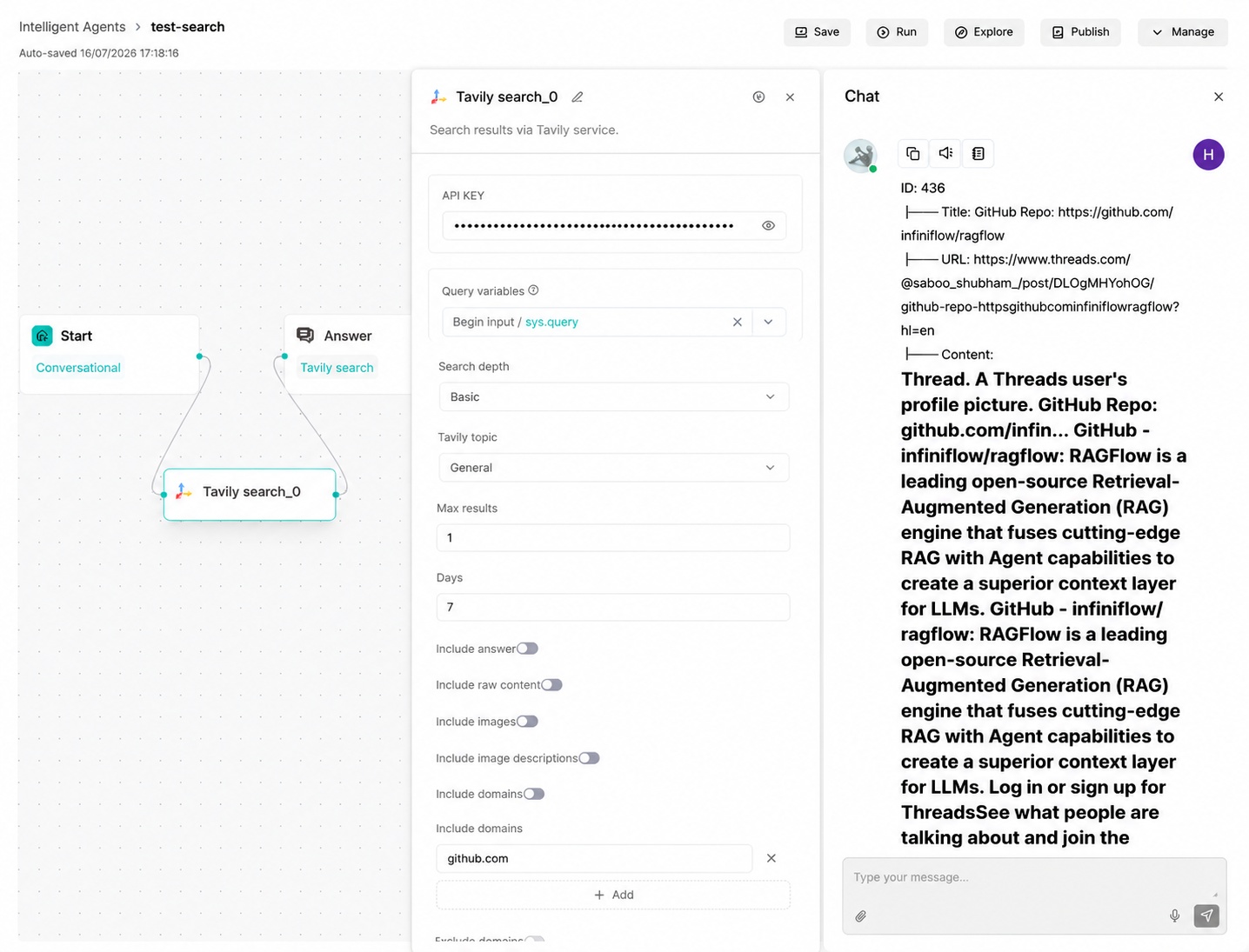
Tavily is a web search service for LLMs. It is suitable for retrieving general web information, news, and content that needs to be limited to specific domains. Keep queries focused on a single topic and avoid overly long natural-language questions.
Parameter Description
| Parameter | Type | Required | Default Value | Description |
|---|---|---|---|---|
| Query | string | Yes | Current user input | Search keywords. |
| Topic | string | No | general | Search type. Options are general or news. |
| Include Domains | array[string] | No | Empty list | Keep only results from these domains, such as www.nasa.gov. |
| Exclude Domains | array[string] | No | Empty list | Exclude results from these domains. |
| API Key | string | Conditional | Empty | Enter a Tavily key unless your administrator has configured one for the service. |
| Search Depth | string | No | basic | Search depth. Options are basic or advanced. |
| Max Results | integer | No | 6 | Maximum number of results. |
| Days | integer | No | 14 | Time range in days for news retrieval. |
| Include Answer | boolean | No | false | Whether to request Tavily's answer field. |
Supported Parameter Values
| Parameter | Supported Value | Description |
|---|---|---|
| Topic | general | General web search. |
| Topic | news | News retrieval. |
| Search Depth | basic | Basic search. |
| Search Depth | advanced | Deep search. |
Configuration Example
| Configuration Item | Example Value |
|---|---|
| Query | RAGFlow knowledge retrieval |
| Topic | general |
| Search Depth | basic |
| Max Results | 6 |
| API Key | <Tavily API key> |
Output Result
The output usually contains search result titles, links, and snippets. formalized_content is commonly passed to the Agent to generate answers, while JSON is used by subsequent nodes to read structured fields.
For a simple search workflow, connect Begin → Tavily Search → Agent → Message. Use sys.query as Query, insert Tavily Search's formalized_content into the Agent's user prompt, and insert the Agent's content into Message. Ask a focused question and check that the search output contains relevant sources before assessing the final answer.
Tavily Extract
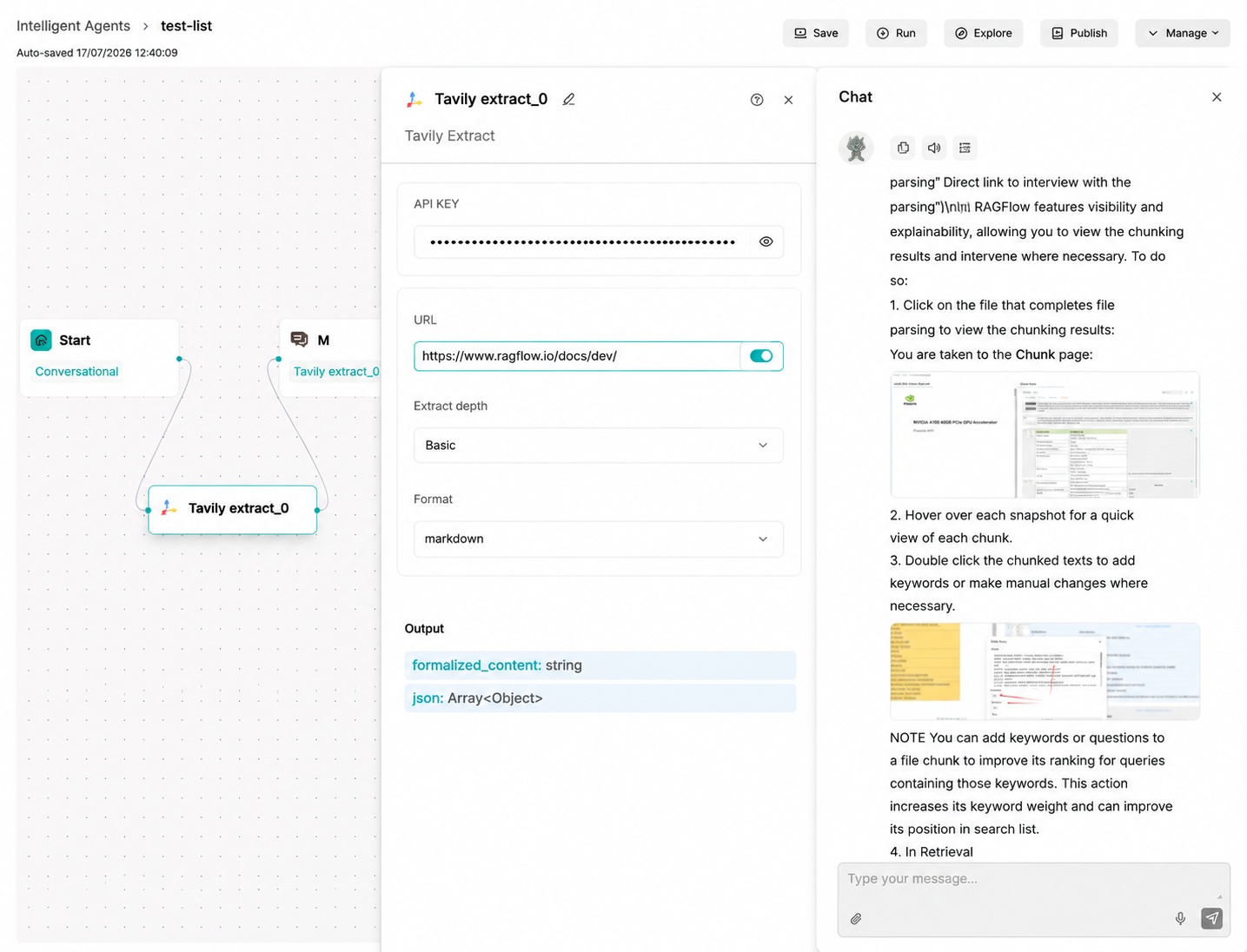
Tavily Extract reads the body content of one or more known URLs. A common workflow is to use Tavily Search to obtain links, then pass those links to this component to extract page content.
Parameter Description
| Parameter | Type | Required | Default Value | Description |
|---|---|---|---|---|
| URLs | array[string] | Yes | Empty list | URL list to extract. If input is a string, it is split by English commas. |
| Extract Depth | string | No | basic | advanced can extract more tables and embedded content, with higher cost and latency. |
| Format | string | No | markdown | Extraction result format. Options are markdown or text. |
| API Key | string | Conditional | Empty | Enter a Tavily key unless your administrator has configured one for the service. |
Supported Parameter Values
| Parameter | Supported Value | Description |
|---|---|---|
| Extract Depth | basic | Basic extraction. |
| Extract Depth | advanced | Extracts more tables and embedded content, with higher latency and cost. |
| Format | markdown | Markdown format. |
| Format | text | Plain text format. |
Configuration Example
| Configuration Item | Example Value |
|---|---|
| URLs | ["https://www.ragflow.io/docs/dev/"] |
| Extract Depth | basic |
| Format | markdown |
| API Key | <your API key> |
Output Result
The output json contains the extracted page results. Select the required page content from json and pass it to the Agent prompt.
Querit Search
Querit Search finds web pages for a query. Configure API Key and Query, then adjust these options as needed:
| Setting | Description |
|---|---|
| Result count | Maximum number of documents. Defaults to 10. |
| Chunks per document | Number of content chunks requested for each document. |
| Sites to include / Sites to exclude | Limit results to selected sites or exclude them. |
| Time range | Restrict results by date. |
| Countries to include / Languages to include | Restrict results by country or language. |
For example, set Query to RAGFlow knowledge retrieval, Result count to 5, and leave the optional filters empty. If the component API key is empty, the server uses QUERIT_API_KEY when configured.
The outputs are formalized_content for downstream prompts and json for the raw response.
Querit Contents
Querit Contents retrieves content from known URLs. Pass links from a search component or enter them directly.
| Setting | Description |
|---|---|
| API Key | Querit API key. Uses the server's QUERIT_API_KEY if empty. |
| URLs | One to ten absolute HTTP or HTTPS URLs. |
| Format | markdown (default), text, or html. |
| Crawl timeout | Per-page timeout in seconds. Defaults to 10. |
| Include page metadata | Request additional page metadata. |
For example, use https://www.ragflow.io as the URL and keep Format set to markdown. The output is json, containing the raw response. Select the required content from that response before passing it to an Agent.
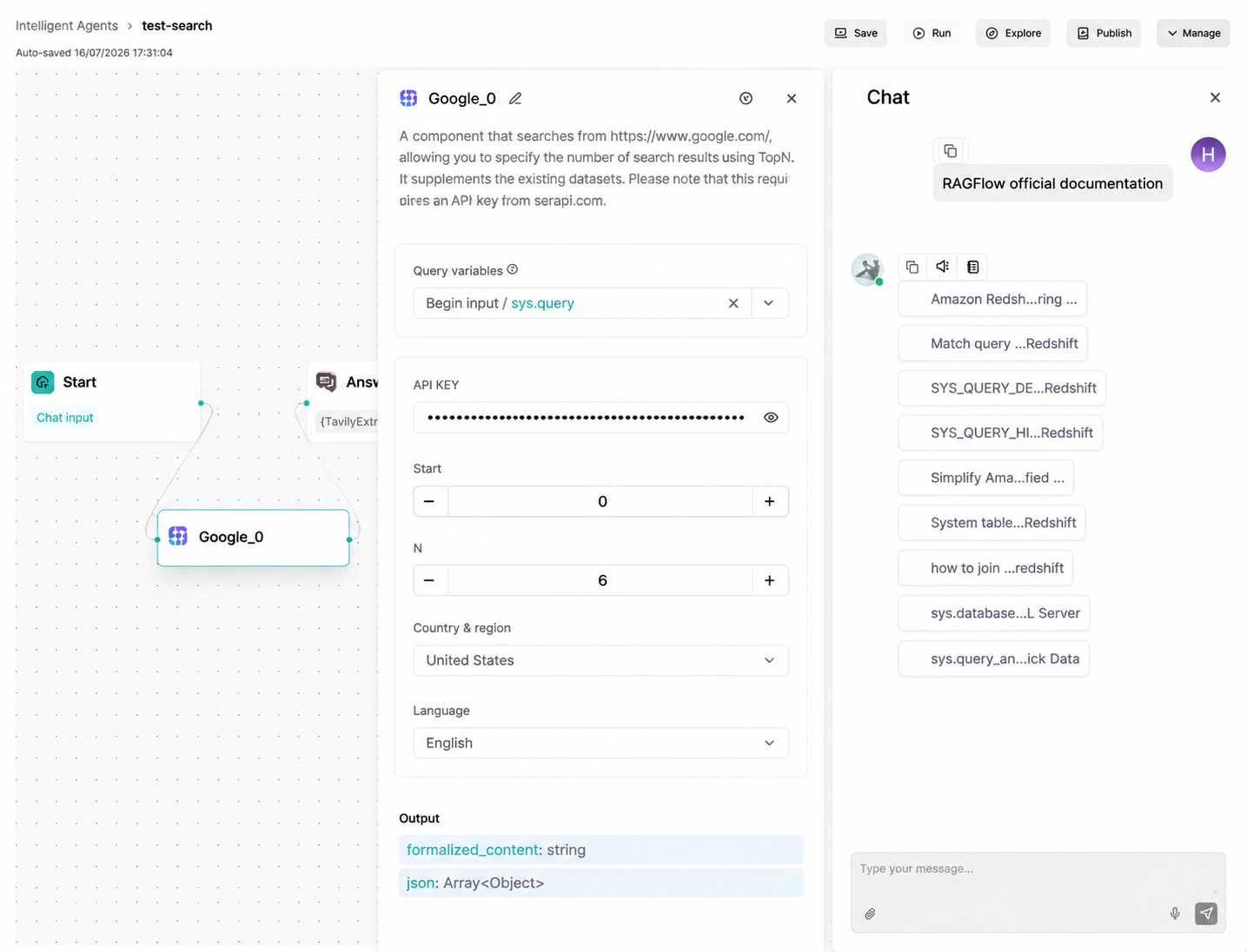
Google Search obtains Google organic search results through SerpApi. It is suitable for web retrieval that requires country and language targeting.
Parameter Description
| Parameter | Type | Required | Default Value | Description |
|---|---|---|---|---|
| Query | string | Yes | Current user input | Search keywords. |
| Start | integer | No | 0 | Result offset. In document semantics, this is the pagination starting point. |
| Num | integer | No | 6 | Number of requested results. |
| API Key | string | Yes | Empty | SerpApi API key. |
| Country | string | No | cn | Google region code, such as cn, us, or jp. |
| Language | string | No | en | Google interface/result language code, such as zh-CN or en. |
Configuration Example
| Configuration Item | Example Value |
|---|---|
| Query | RAGFlow official documentation |
| Start | 0 |
| Num | 6 |
| API Key | <your API key> |
| Country | cn |
| Language | en |
Output Result
The output contains search result titles, links, and summaries. The organized text can be passed to the Agent for summarization, or subsequent nodes can read the link list from JSON.
DuckDuckGo
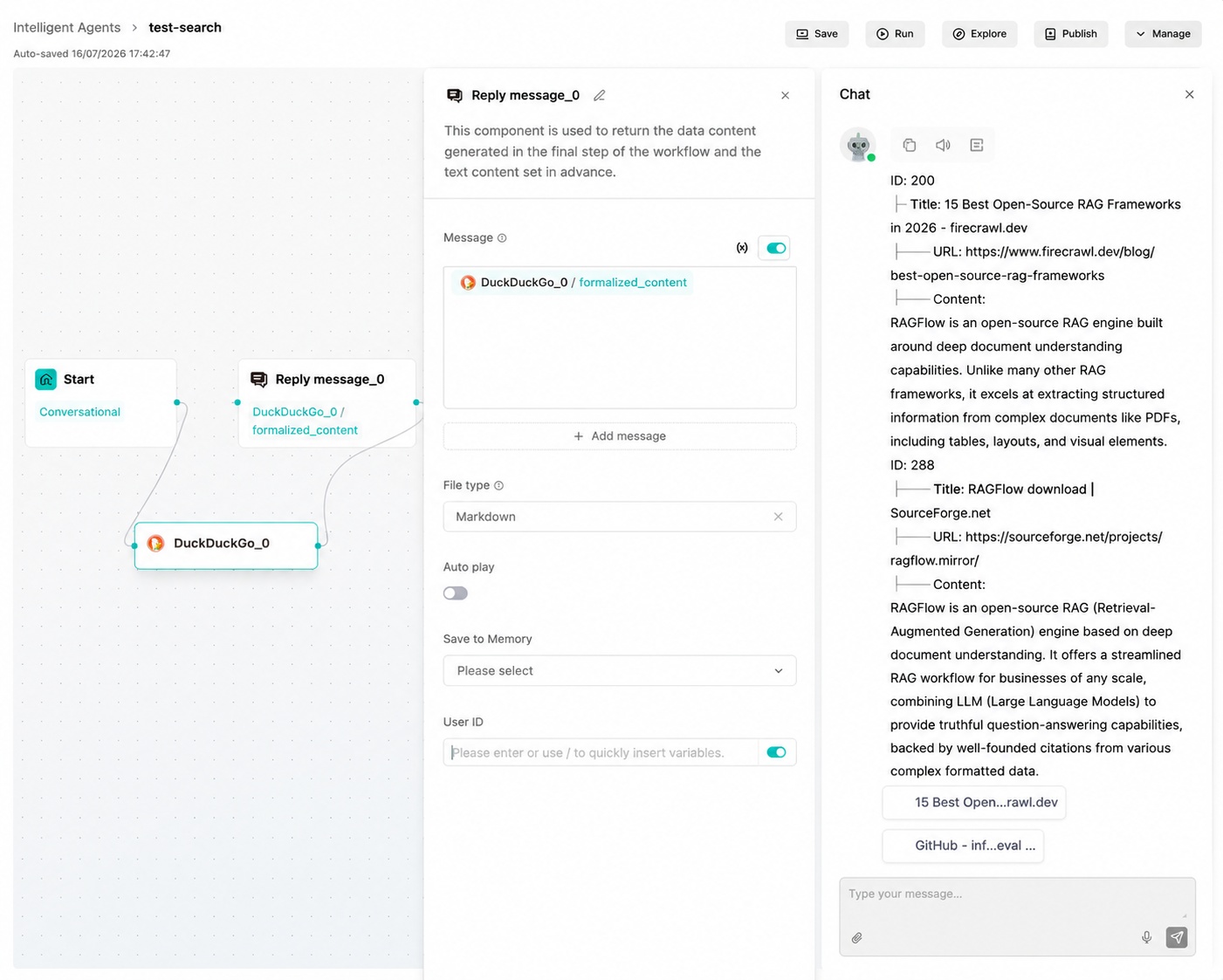
DuckDuckGo is a privacy-focused search engine component. It does not require a separate API key and can be used for general web and news retrieval.
Parameter Description
| Parameter | Type | Required | Default Value | Description |
|---|---|---|---|---|
| Query | string | Yes | Current user input | Search keywords. |
| Channel | string | No | text | Select text for web pages or news for news results. |
| Top N | integer | No | 10 | Maximum number of returned results. |
Configuration Example
| Configuration Item | Example Value |
|---|---|
| Query | RAGFlow open source |
| Channel | text |
| Top N | 10 |
Output Result
The output contains titles, links, and summaries returned by DuckDuckGo. It can be used for web material summarization, news lead organization, or subsequent page extraction.
SearXNG
SearXNG is a self-hostable privacy-oriented meta-search engine. This component calls a user-provided SearXNG instance and is suitable for scenarios that need control over retrieval sources or internal search deployment.
Parameter Description
| Parameter | Type | Required | Default Value | Description |
|---|---|---|---|---|
| Query | string | Yes | Current user input | Search keywords. |
| SearXNG URL | string | Yes | Empty | SearXNG instance base URL, such as https://searxng.example.com. |
| Top N | integer | No | 10 | Maximum number of results. |
Configuration Example
| Configuration Item | Example Value |
|---|---|
| Query | RAGFlow documentation |
| SearXNG URL | https://<your-searxng-host> |
| Top N | 10 |
Output Result
The output contains titles, links, summaries, and source information returned by SearXNG. Before use, configure a reachable SearXNG service address and pass the system security checks.
Keenable
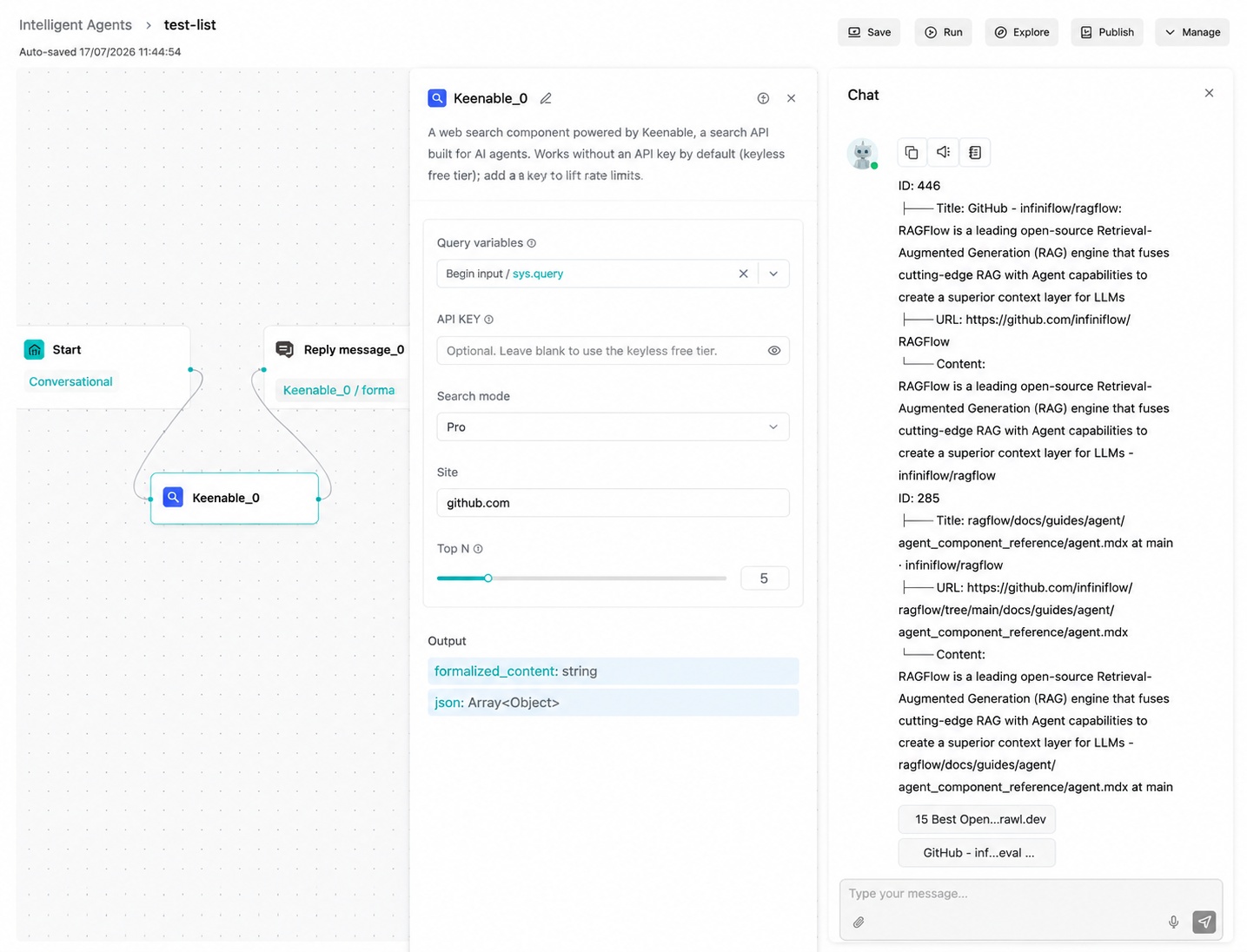
Keenable is a web search API for AI Agents. By default, it supports a public free path without a key. After configuring a key, you can increase the limit and enable low-latency realtime mode.
Parameter Description
| Field | Type | Required | Default Value | Description |
|---|---|---|---|---|
| query | string | Yes | {sys.query} | Search keywords. |
| site | string | No | Empty | Limit results to a single domain, such as techcrunch.com. |
| api_key | string | Conditional | Empty | Optional in pro mode; required in realtime mode. |
| mode | string | No | pro | pro for deeper retrieval or realtime for low latency. realtime requires an API key. |
| top_n | integer | No | 10 | Maximum number of results. |
Configuration Example
| Configuration Item | Example Value |
|---|---|
| Query | RAGFlow Agent workflow |
| Site | github.com |
| API Key | Leave blank for pro mode |
| Mode | pro |
| Top N | 10 |
Output Result
The output contains search entries, summaries, and links returned by Keenable. It can be summarized by the Agent or passed to subsequent retrieval or extraction nodes. Do not set realtime for keyless trial runs.
Sofya
Sofya is a web search API for AI Agents. It returns the text of the result pages, not only a snippet, so results can be used without a separate fetch step. An API key is required and can be created at sofya.co.
Parameter Description
| Field | Type | Required | Default Value | Description |
|---|---|---|---|---|
| query | string | Yes | {sys.query} | Search keywords. |
| topic | string | No | general | general for web search or news for current events. |
| freshness | string | No | any | Limit results by recency: day, week, month, year, or any. |
| api_key | string | Yes | Empty | Sofya API key. |
| search_depth | string | No | basic | basic returns the content of the result pages. snippets returns search snippets only, which is faster and cheaper. |
| top_n | integer | No | 10 | Maximum number of results, up to 20. |
Configuration Example
| Configuration Item | Example Value |
|---|---|
| Query | RAGFlow release |
| API Key | <your-sofya-api-key> |
| Search Depth | basic |
| Top N | 10 |
Output Result
The output contains titles, links, and page content returned by Sofya. Results whose page could not be read fall back to the search snippet. It can be summarized by the Agent or passed to subsequent nodes.
Search1API
Search1API searches the web or the news through one API and lets you choose the search service, such as Google, Bing, Baidu, GitHub, arXiv, Reddit, YouTube, Hacker News, or Reuters. When it is added to an Agent as a tool, the node settings are only defaults: the Agent can pick the channel and the search service for each call, for example GitHub for code questions or Reuters for news. An API key is required and can be created at app.s1.dev. See the Search1API documentation for details.
Parameter Description
| Field | Type | Required | Default Value | Description |
|---|---|---|---|---|
| query | string | Yes | {sys.query} | Search keywords. |
| channel | string | No | general | general for web search or news for news search. The Agent can override the node value. |
| search_service | string | No | The search service to query. The Agent can override the node value with any service the channel supports. | |
| time_range | string | No | any | Limit results by recency: day, week, month, year, or any. |
| api_key | string | Yes | Empty | Search1API API key. |
| top_n | integer | No | 10 | Maximum number of results, up to 50. |
Supported Parameter Values
| Channel | Supported Search Services |
|---|---|
| general | google, bing, bingcn, duckduckgo, yahoo, yandex, youtube, x, reddit, github, arxiv, wechat, bilibili, imdb, wikipedia, baidu, 360, quark |
| news | google, bing, duckduckgo, yahoo, hackernews, reuters |
If the Agent switches to a channel that does not offer the node's search service, the search uses Search1API's default service for that channel.
Configuration Example
| Configuration Item | Example Value |
|---|---|
| Query | RAGFlow release |
| API Key | <your-search1api-api-key> |
| Channel | general |
| Search Service | |
| Top N | 10 |
Output Result
The output contains titles, links, and snippets returned by Search1API. formalized_content is commonly used as Agent context, while json preserves the raw result list.
Search1API Crawl
Search1API Crawl reads one web page and returns its title and full content. A common workflow is to use Search1API to find links, then let the Agent read the most relevant page with this component. It uses the same API key as Search1API.
Parameter Description
| Field | Type | Required | Default Value | Description |
|---|---|---|---|---|
| url | string | Yes | Empty | The absolute HTTP or HTTPS URL of the page to read. As an Agent tool, the Agent supplies the URL. |
| api_key | string | Yes | Empty | Search1API API key. |
Configuration Example
| Configuration Item | Example Value |
|---|---|
| URL | https://ragflow.io/docs/dev/ |
| API Key | <your-search1api-api-key> |
Output Result
json contains the page title, link, content, and any metadata returned by Search1API.
Wikipedia
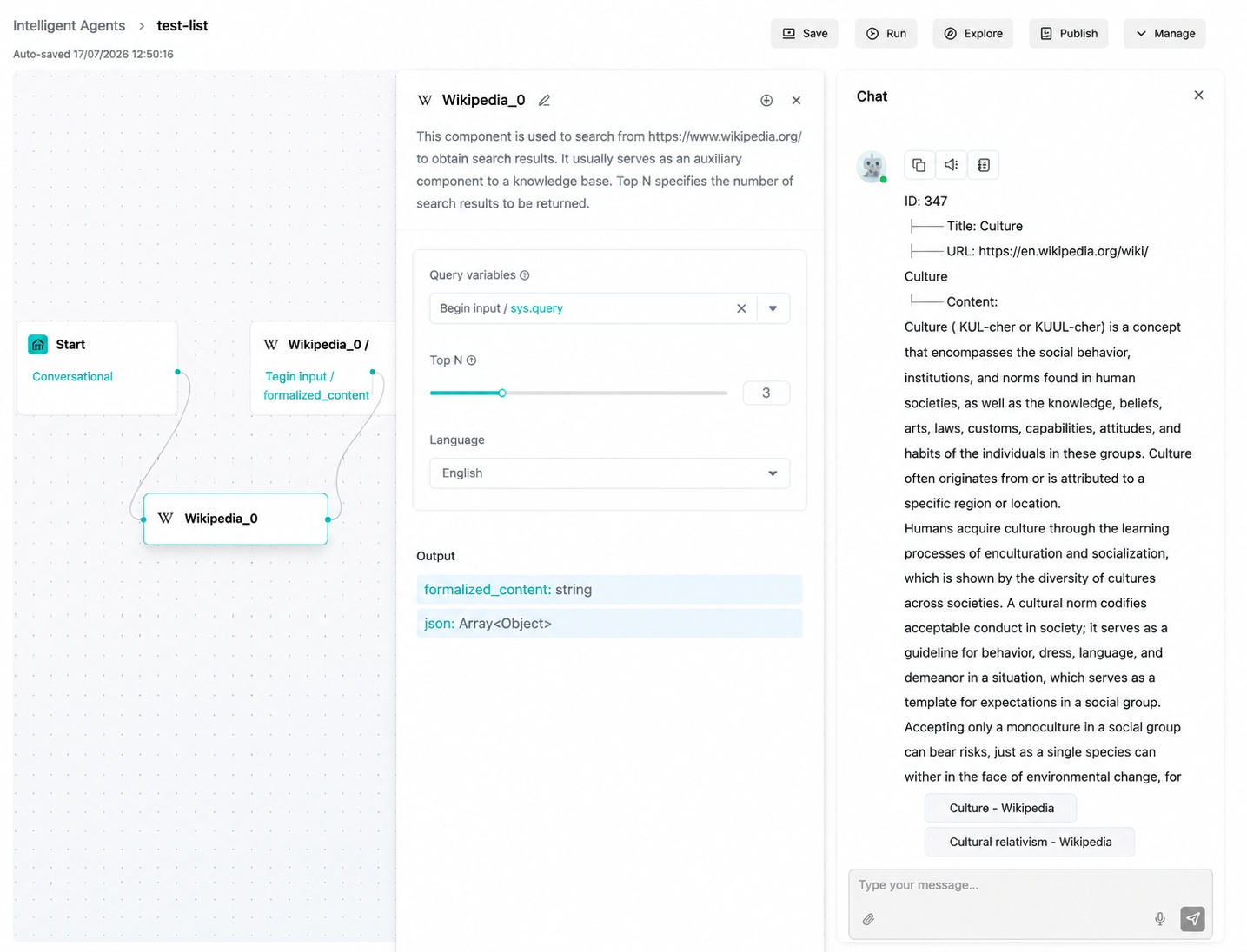
The Wikipedia component searches encyclopedia entries and extracts entry summaries. It is suitable for querying clear entities, concepts, and historical events. Query terms should be as close as possible to the entry title.
Parameter Description
| Field | Type | Required | Default Value | Description |
|---|---|---|---|---|
| query | string | Yes | {sys.query} | Specific entry topic or keyword. |
| top_n | integer | No | 10 | Maximum number of search entries. |
| language | string | No | en | Wikipedia language code, such as zh, en, or ja. |
Configuration Example
| Configuration Item | Example Value |
|---|---|
| Query | culture |
| Top N | 10 |
| Language | en |
Output Result
The output contains the titles, summaries, and page links of matching entries. It is suitable for generating concept explanations or background descriptions with the Agent.
GitHub
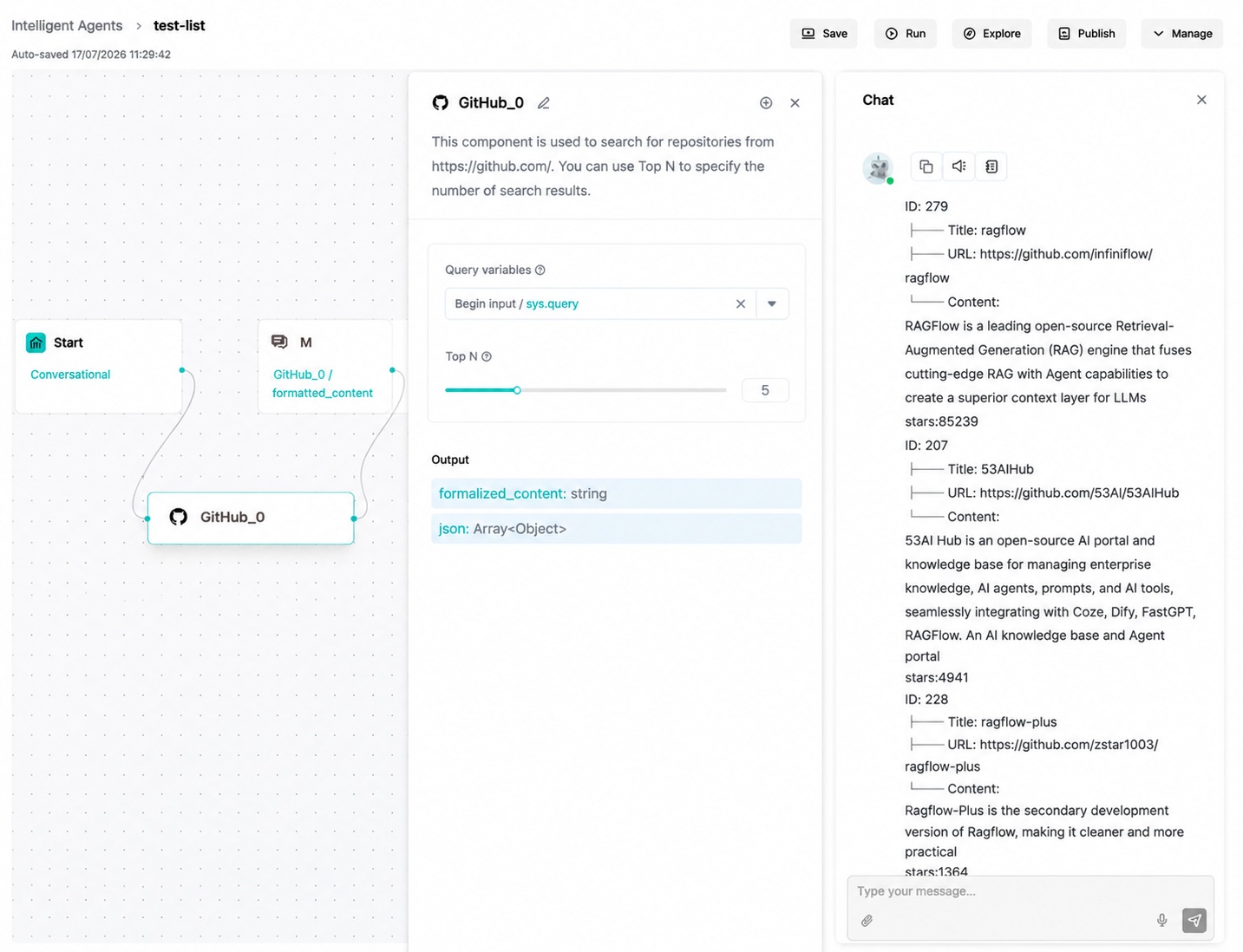
The GitHub component searches repositories through the GitHub Repository Search API and sorts by popularity by default. It is suitable for finding open-source projects, reference implementations, and technology ecosystems.
Parameter Description
| Field | Type | Required | Default Value | Description |
|---|---|---|---|---|
| query | string | Yes | {sys.query} | GitHub repository search syntax or keywords. |
| top_n | integer | No | 10 | Maximum number of returned repositories. |
Configuration Example
| Configuration Item | Example Value |
|---|---|
| Query | RAGFlow |
| Top N | 10 |
Output Result
The output contains matching repository names, links, descriptions, and star counts.
Academic Literature Retrieval
Google Scholar
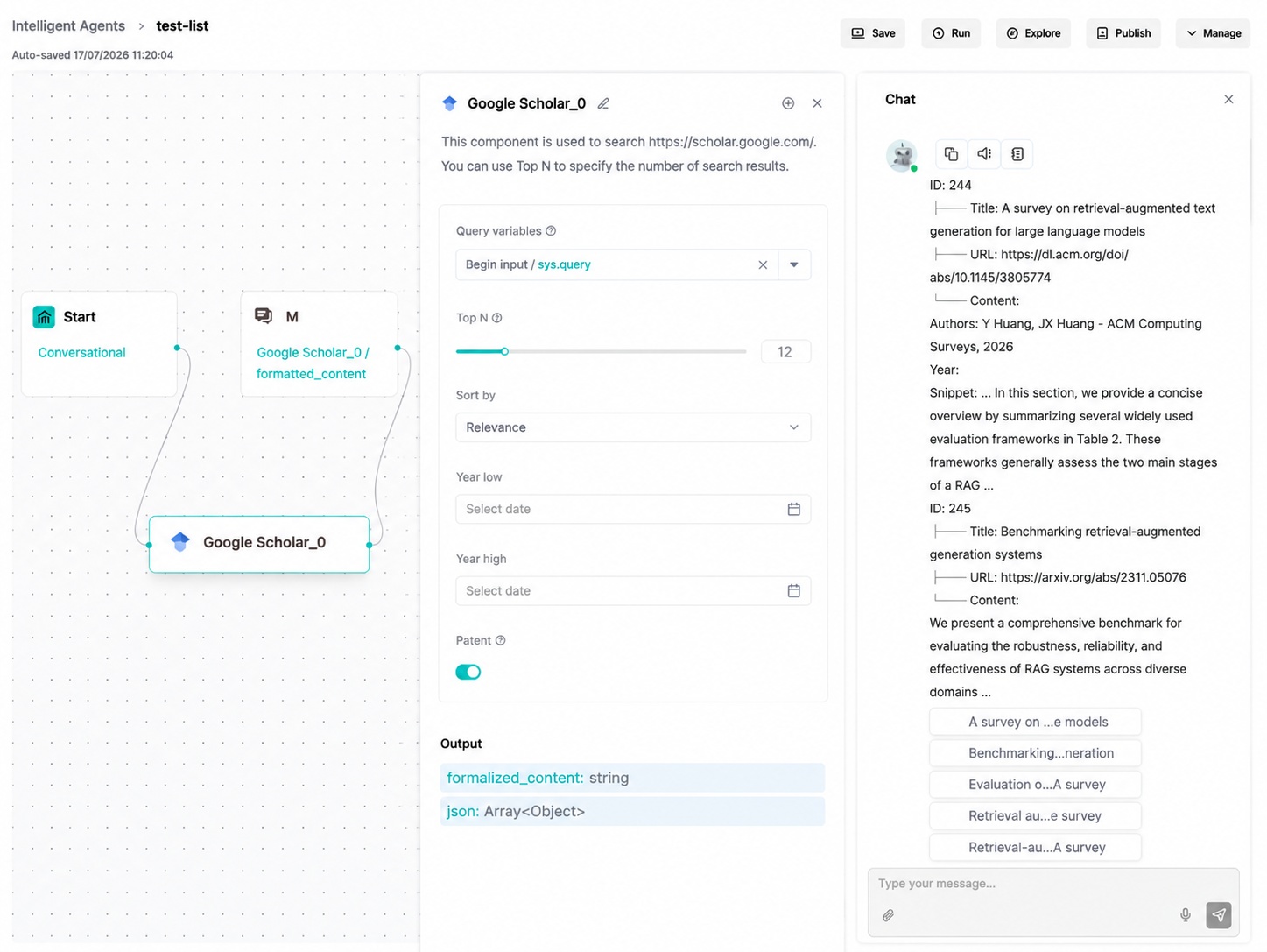
Google Scholar is used to retrieve papers, dissertations, books, abstracts, and other academic materials. It is suitable for preliminary literature discovery before a research review, but should not replace verification of original texts and citation information.
Parameter Description
| Field | Type | Required | Default Value | Description |
|---|---|---|---|---|
| query | string | Yes | {sys.query} | Paper topic or keyword. |
| top_n | integer | No | 12 | Maximum number of papers. |
| sort_by | string | No | relevance | Sorting method: date or relevance. |
| year_low | integer/null | No | Unset | Earliest publication year. |
| year_high | integer/null | No | Unset | Latest publication year. |
| patents | boolean | No | true | Whether to include patents. |
Configuration Example
| Configuration Item | Example Value |
|---|---|
| Query | retrieval augmented generation evaluation |
| Top N | 12 |
| Sort By | relevance |
| Year Low | Leave blank |
| Year High | Leave blank |
| Patents | true |
Output Result
The output contains academic retrieval entries such as paper titles, authors, abstracts, source links, and citation information. It is suitable for literature reviews or research lead organization.
ArXiv
ArXiv is used to retrieve open preprints across fields such as computer science, mathematics, physics, and quantitative finance. ArXiv papers may not have undergone peer review, so mark their preprint nature when using the results.
Parameter Description
| Field | Type | Required | Default Value | Description |
|---|---|---|---|---|
| query | string | Yes | {sys.query} | Retrieval keywords. |
| top_n | integer | No | 12 | Maximum number of returned papers. |
| sort_by | string | No | submittedDate | Sorting method: submittedDate, lastUpdatedDate, or relevance. |
Configuration Example
| Configuration Item | Example Value |
|---|---|
| Query | large language model agents |
| Top N | 12 |
| Sort By | submittedDate |
Output Result
The output contains paper titles, authors, abstracts, publication times, categories, and paper links. It can be used by the Agent to generate paper summaries or research comparisons.
PubMed
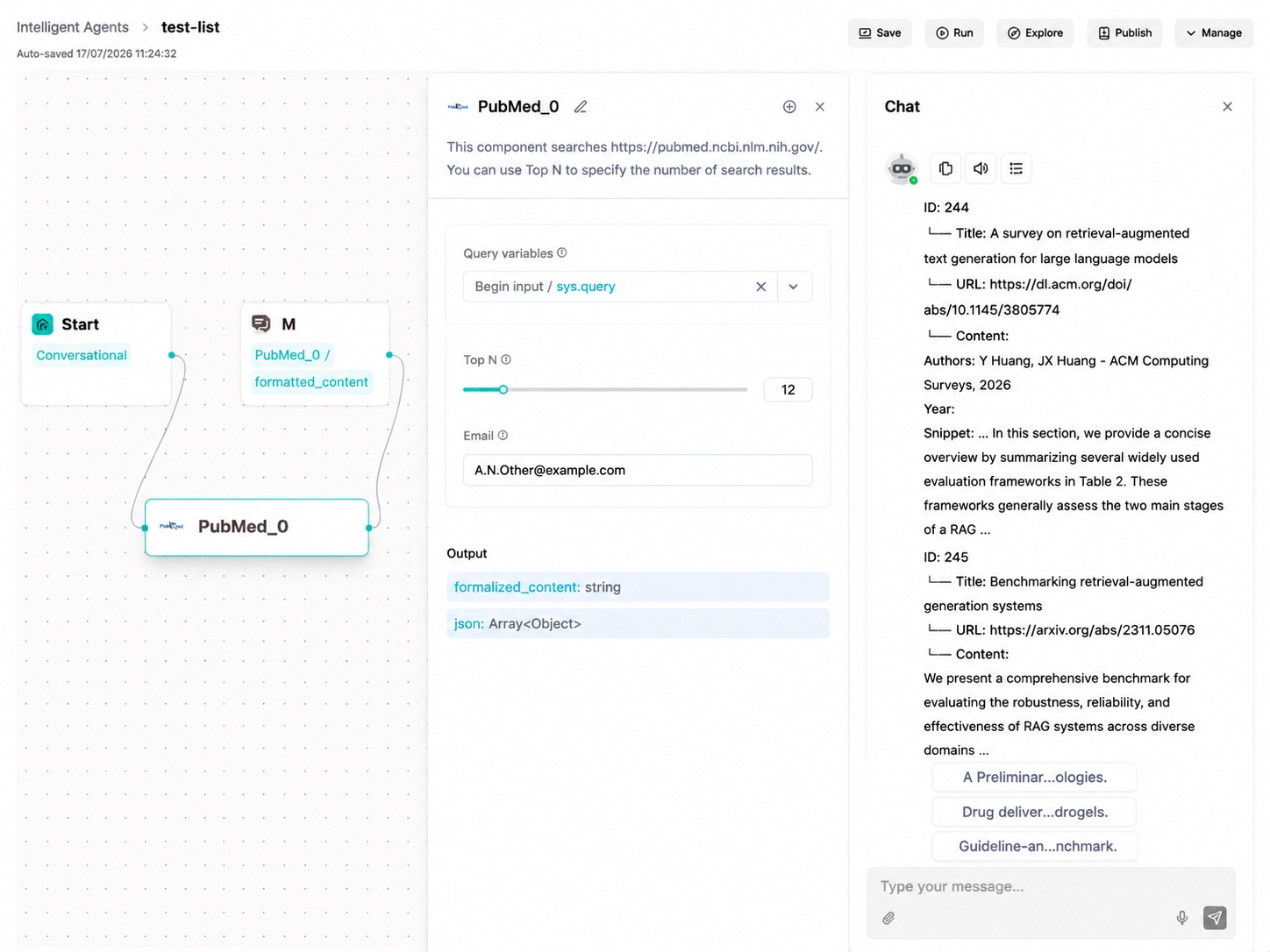
PubMed is used to retrieve life science and biomedical literature. The component queries through NCBI E-utilities and returns titles, authors, journals, DOIs, abstracts, and other information.
Parameter Description
| Field | Type | Required | Default Value | Description |
|---|---|---|---|---|
| query | string | Yes | {sys.query} | PubMed search term. Medical subject headings or Boolean retrieval expressions are supported. |
| top_n | integer | No | 12 | Maximum number of papers. |
| string | No | A.N.Other@example.com | NCBI Entrez contact email. Replace it with a real maintainer email in production. |
Configuration Example
| Configuration Item | Example Value |
|---|---|
| Query | COVID-19 vaccine effectiveness |
| Top N | 12 |
A.N.Other@example.com |
Output Result
The output contains medical literature titles, authors, journals, abstracts, publication dates, and PubMed links. It is suitable for medical literature retrieval scenarios.
BGPT
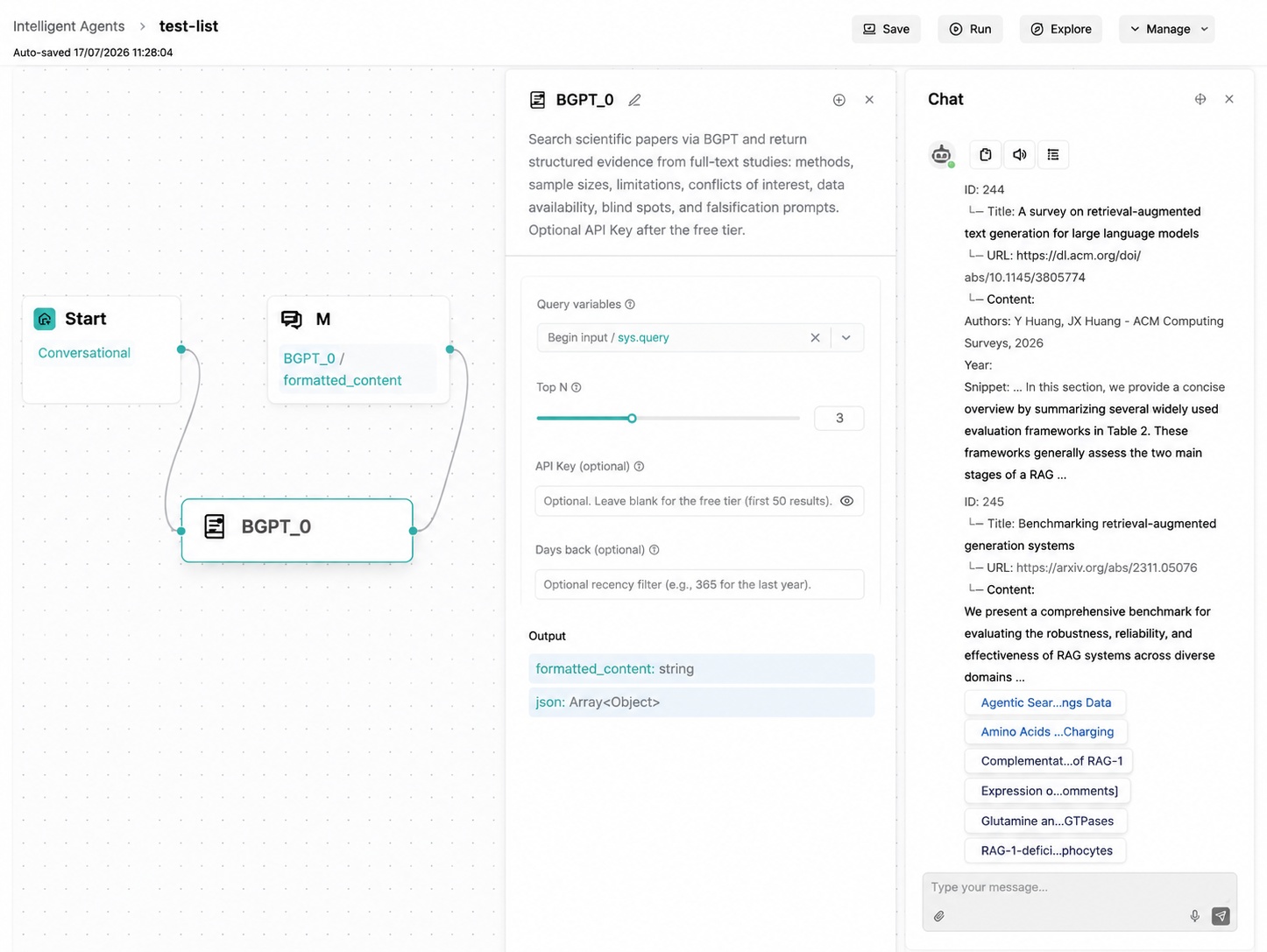
BGPT retrieves scientific papers and returns structured evidence, including research methods, sample sizes, results, limitations, conflicts of interest, data availability, and falsifiability tips. It is suitable for evaluating scientific claims, not only for finding paper abstracts.
Parameter Description
| Field | Type | Required | Default Value | Description |
|---|---|---|---|---|
| query | string | Yes | {sys.query} | Natural-language scientific retrieval question. |
| top_n | integer | No | 10 | Maximum number of results. |
| api_key | string | No | Empty | Optional API key. If not configured, the public service path is used. |
| days_back | integer/null | No | Unset | Optional. Limits retrieval to content from the most recent number of days. |
Configuration Example
| Configuration Item | Example Value |
|---|---|
| Query | Does sleep deprivation impair working memory in adults? |
| Top N | 10 |
| API Key | Leave blank (optional) |
| Days Back | Leave blank |
Output Result
The output contains biomedical knowledge retrieval results and summaries, which can be further summarized, compared, or used to generate research explanations by subsequent Agents.
Data and Financial Queries
Execute SQL
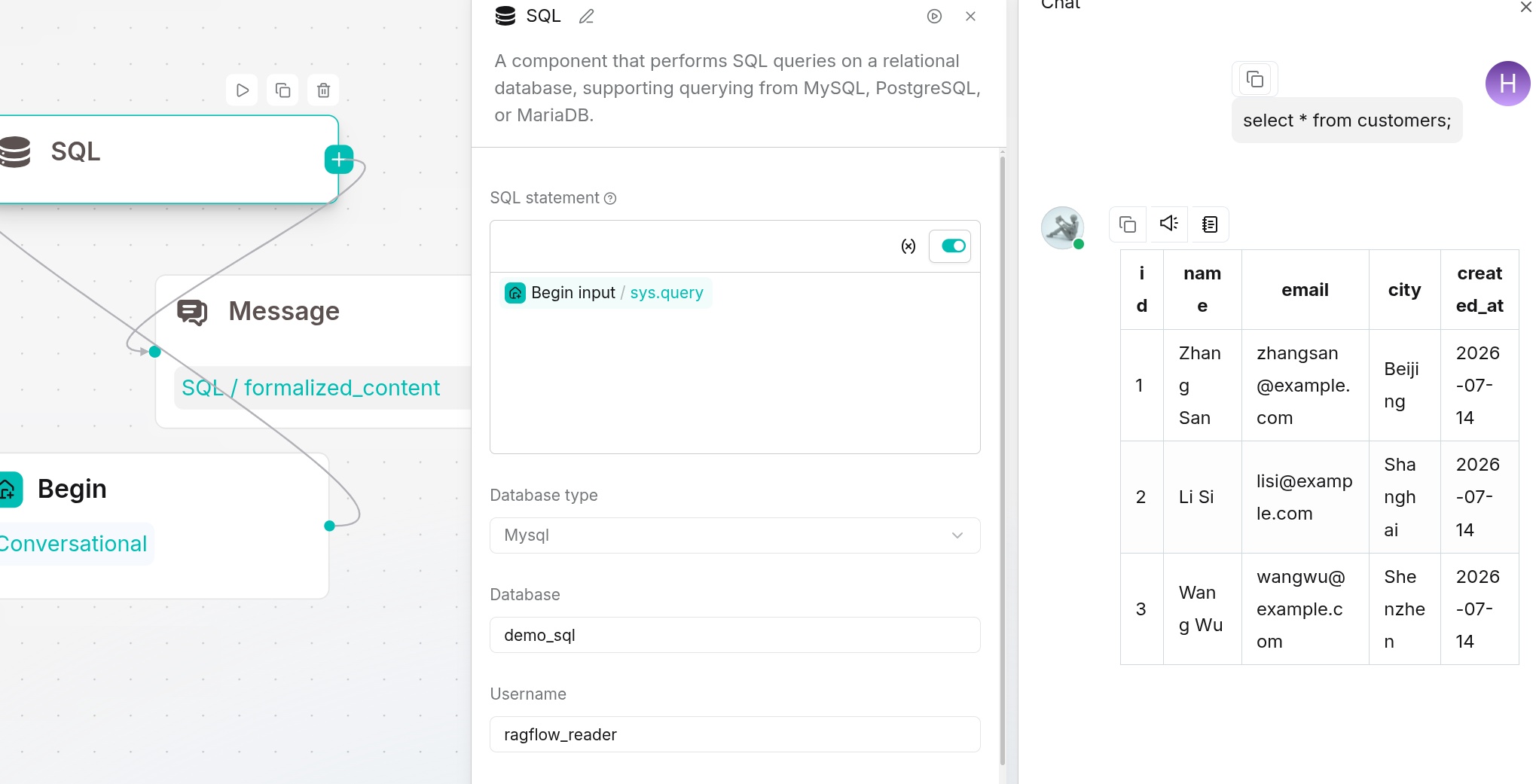
Execute SQL connects to an external database and executes SQL statements. The result is formatted as text or table content.
Use a database address that the RAGFlow server can reach. If the connection is rejected, check the address, credentials, and network access settings.
Parameter Description
| Field | Type | Required | Default Value | Description |
|---|---|---|---|---|
| sql | string | Yes | {sys.query} | SQL to execute. Canvas variables can be included. |
| db_type | string | Yes | mysql | Supports mysql, postgres, mariadb, mssql, trino, and oceanbase. |
| database | string | Yes | Empty | Database name. Trino uses catalog.schema or catalog. |
| username | string | Yes | Empty | Database account. |
| host | string | Yes | Empty | Database address reachable from the RAGFlow server. |
| port | integer | Yes | 3306 | Database port. |
| password | string | Conditionally required | Empty | Database password. It can be empty for Trino. |
| max_records | integer | No | 1024 | Maximum number of records returned per statement. |
Supported Values
| Parameter | Supported Value | Description |
|---|---|---|
| Database Type | mysql | MySQL |
| Database Type | postgres | PostgreSQL |
| Database Type | mariadb | MariaDB |
| Database Type | mssql | Microsoft SQL Server |
| Database Type | trino | Trino |
| Database Type | oceanbase | OceanBase |
Configuration Example
Ask your administrator to prepare a MySQL test database named demo_sql with a products table containing id, name, and stock. Use two sample rows: (1, Model A, 12) and (2, Model B, 0). The account needs permission to read this table.
| Configuration Item | Example Value |
|---|---|
| SQL | SELECT id, name FROM products WHERE stock > 0 ORDER BY id; |
| Database Type | mysql |
| Database | demo_sql |
| Username | ragflow_reader |
| Host | <host> |
| Port | 3306 |
| Password | <read-only database account password> |
| Max Records | 10 |
Replace <host>, the username, and the password with your test database connection details; change demo_sql if your database has a different name.
Connect Begin → Execute SQL → Message. Configure Execute SQL as above, then insert its formalized_content output into Message through the variable selector. Save and click Run. The result should contain only 1, Model A, because Model B has no stock.
Output Result
The output contains SQL execution results, field names, and record content. You can pass formatted text to the Agent for explanation, or let subsequent nodes read structured results.
Yahoo Finance
The Yahoo Finance component queries stock quotes, company profiles, historical market data, financial statements, and news. It returns the selected content as a Markdown report.
Parameter Description
| Field | Type | Required | Default Value | Description |
|---|---|---|---|---|
| stock_code | string | Yes | {sys.query} | Stock code or company name. Use exchange-standard codes when possible. |
| info | boolean | No | true | Output company and quote information. |
| history | boolean | No | false | Output historical market data. |
| count | boolean | No | false | Include share-count statistics. |
| financials | boolean | No | false | Output earnings dates and other financial calendar events returned by Yahoo Finance. |
| income_stmt | boolean | No | false | Include annual and quarterly income statements. |
| balance_sheet | boolean | No | false | Output balance sheet and quarterly balance sheet. |
| cash_flow_statement | boolean | No | false | Output cash flow statement and quarterly cash flow statement. |
| news | boolean | No | true | Output related news. |
Configuration Example
| Configuration Item | Example Value |
|---|---|
| Stock Code | AAPL |
| Info | true |
| History | false |
| Count | false |
| Financials | false |
| Income Statement | false |
| Balance Sheet | false |
| Cash Flow Statement | false |
| News | true |
Output Result
The output report is a Markdown report containing the selected financial information. Insert report into a downstream Agent prompt to generate a market overview or explain indicators.
WenCai
WenCai is used to screen financial data such as stocks, indices, funds, Hong Kong stocks, U.S. stocks, futures, and other instruments based on natural-language conditions.
Parameter Description
| Field | Type | Required | Default Value | Description |
|---|---|---|---|---|
| query | string | Yes | {sys.query} | Stock selection or financial condition, such as "A-shares with P/E ratio below 20". |
| top_n | integer | No | 20 | Maximum number of results. |
| query_type | string | No | stock | Supports stock, zhishu, fund, hkstock, usstock, threeboard, conbond, insurance, futures, lccp, and foreign_exchange. |
Supported Query Types
| Type | Description |
|---|---|
| stock | A-share stocks |
| zhishu | Indices |
| fund | Funds |
| hkstock | Hong Kong stocks |
| usstock | U.S. stocks |
| threeboard | NEEQ |
| conbond | Convertible bonds |
| insurance | Insurance |
| futures | Futures |
| lccp | Wealth management products |
| foreign_exchange | Foreign exchange |
Configuration Example
| Configuration Item | Example Value |
|---|---|
| Query | A-shares with P/E ratio below 20 and net profit YoY growth above 20% |
| Top N | 10 |
| Query Type | stock |
Output Result
The output contains a financial data list that matches the natural-language screening condition. It can be used for displaying stock selection results, subsequent filtering, or Agent explanation.
Configure the WenCai query service before using this component.
Communication and External Systems
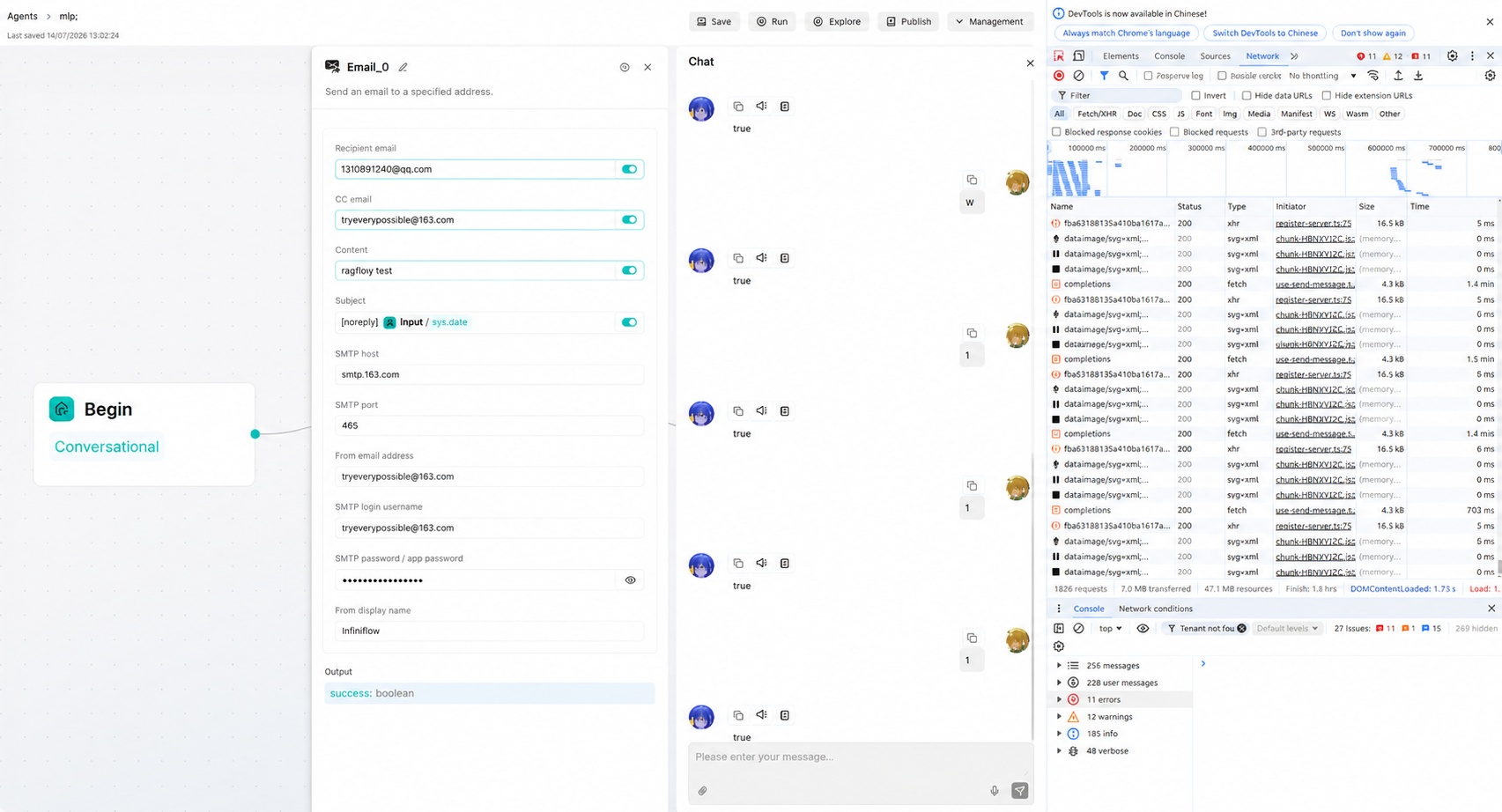
The Email component sends HTML emails through SMTP. Configure the recipients, CC recipients, subject, and email body in the component.
Parameter Description
| Field | Type | Required | Default Value | Description |
|---|---|---|---|---|
| to_email | string | Yes | {sys.query} | Recipient email address. |
| cc_email | string | No | Empty | CC email addresses. Separate multiple addresses with English commas. |
| content | string | No | Empty | Email body, sent as HTML content. |
| subject | string | No | Empty | Email subject. |
| smtp_server | string | Yes | Empty | SMTP server address. |
| smtp_port | integer | No | 465 | SMTP port. Port 465 uses SSL, and other ports use STARTTLS. |
| string | Yes | Empty | Sender email address. | |
| smtp_username | string | No | Empty | SMTP login account. If empty, the sender email address is used. |
| password | string | Yes | Empty | SMTP authorization code or password. |
| sender_name | string | No | Empty | Sender display name. |
Although some SMTP fields are displayed as optional in the UI, a valid SMTP service address, sender account, and authentication information must be provided before sending email.
Configuration Example
| Configuration Item | Example Value |
|---|---|
| To Email | receiver@example.com |
| CC Email | Leave blank (optional) |
| Content | <p>This is a test email sent by RAGFlow.</p> |
| Subject | RAGFlow email tool test |
| SMTP Server | <your SMTP server> |
| SMTP Port | 465 |
<your sender email> | |
| SMTP Username | Leave blank to use the sender email |
| Password | <your SMTP authorization code or password> |
| Sender Name | Leave blank (optional) |
Output Result
The output contains sending status and error information. success being true means the email was sent successfully. If sending fails, check the SMTP address, account, password, and recipient.
MCP tools
MCP connects an Agent to tools provided by a configured MCP server. Add MCP tools through the Agent component's tool selector; they are not a standalone HTTP Request node.
- Open User settings > MCP > Add MCP, enter the server URL and authentication, refresh Tools available, and click Save. See Connect an external MCP server.
- Open the Agent component, use its tool selector to choose the server, and select the tools to expose.
- Describe when to use those tools in System prompt, then run a small test task.
The running user must have permission to use the selected server. Tool arguments and results follow each server's tool schema; downstream Agent output remains the Agent's response. If a call fails, check server access, authentication, and required arguments.
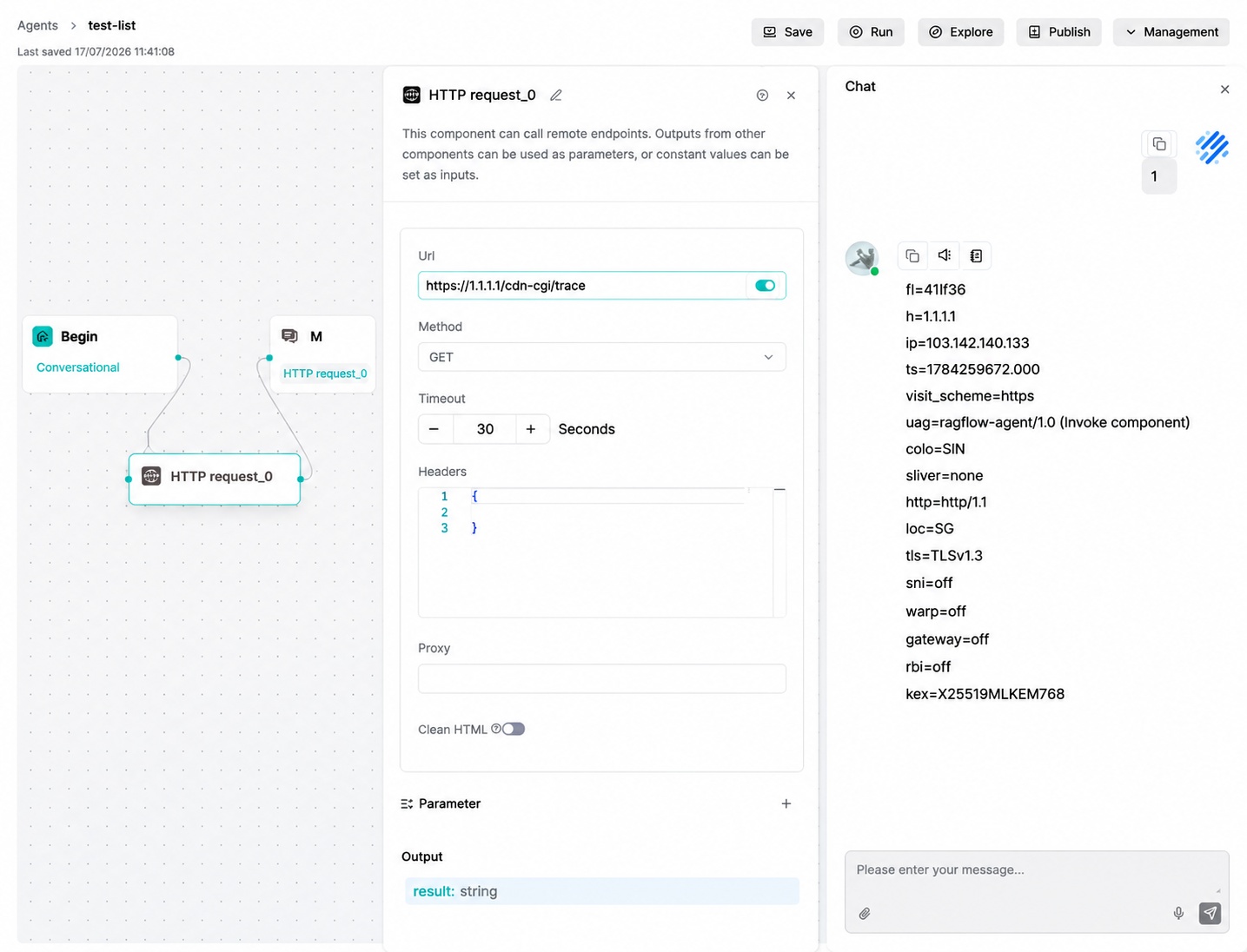
HTTP Request
The HTTP Request component calls external HTTP APIs, allowing business systems, third-party services, or self-built APIs to be connected to Agent workflows.
Configuration
| Setting | Description |
|---|---|
| Url | API address. Insert canvas variables as needed. |
| Method | Select GET, POST, or PUT. |
| Timeout | Request timeout in seconds. Defaults to 60. |
| Headers | Request headers as a JSON object. |
| Proxy | Optional proxy address. |
| Clean HTML | Remove HTML markup from the response. |
| Parameter | Click + to add request parameters and set their values using constants or variables. |
Configuration Example
| Setting | Example Value |
|---|---|
| Url | https://httpbin.org/get |
| Method | GET |
| Timeout | 60 |
| Headers | {} |
| Parameter | topic = ragflow |
Output Result
The result output contains the response body as text. Pass the text to an Agent for summarization, or parse a JSON response body before accessing its fields.
If a URL is rejected, the output can contain _ERROR with a null result. Check for errors before consuming the response. Other request failures can surface as component execution errors.
Example: request, response, and next step
Connect Begin → HTTP Request → Message. Set URL to https://httpbin.org/get, Method to GET, and add a parameter named topic with the fixed value ragflow.
If the service is accessible from the server, its JSON response body includes:
{"args": {"topic": "ragflow"}}
The component returns that body as the string result. In Message, insert HTTP Request's result to display it. To use only args.topic, first parse result in a Code component. If the test returns _ERROR, resolve that failure before consuming the result.
Content Generation and Automation
Document Generator (DocGenerator)
The Document Generator component outputs Markdown content as PDF, DOCX, TXT, Markdown, or HTML files, and stores the generated files in Agent attachment storage.
Parameter Description
| Field | Type | Required | Default Value | Description |
|---|---|---|---|---|
| content | string | Yes | Empty | Markdown content to generate. Upstream outputs can be referenced. |
| output_format | string | Yes | Output format: pdf, docx, txt, markdown, or html. | |
| filename | string | No | Empty | File name. If empty, it is generated automatically, and illegal file name characters are cleaned. |
| header_text | string | No | Empty | Header text. Applies to PDF/DOCX. |
| footer_text | string | No | Empty | Footer text. Applies to PDF/DOCX. |
| watermark_text | string | No | Empty | Watermark text. Available for PDF, DOCX, and HTML. |
| add_page_numbers | boolean | No | true | Whether to add page numbers. Mainly used for PDF/DOCX. |
| add_timestamp | boolean | No | true | Whether to add generation time. |
| font_size | number | No | 12 | Font size, which must be greater than or equal to 12. |
Configuration Example
| Configuration Item | Example Value |
|---|---|
| Content | # RAGFlow Agent |
| Output Format | |
| Filename | ragflow-agent-test.pdf |
| Header Text | RAGFlow |
| Footer Text | Internal Test |
| Watermark Text | DRAFT |
| Add Page Numbers | true |
| Add Timestamp | true |
| Font Size | 12 |
Output Result
Use download to display the generated file in a Message. The other outputs identify the file and describe its name, type, and size.
Example: generate a downloadable PDF
- Connect Begin → Document Generator → Message. Begin needs no additional inputs.
- In Document Generator, set Content to
# Sample report, Output Format to PDF, and Filename tosample-report.pdf. Keep the other settings at their defaults. - In Message, open the variable selector and insert Document Generator's
downloadoutput. - Save and click Run. The conversation should show a downloadable file named
sample-report.pdf; open it to check that it contains the heading Sample report.