Dialogue Component
Message Component
Message displays text to the user. Add it at the end of a workflow or branch, then enter fixed text or insert upstream variables.
Configuration Method
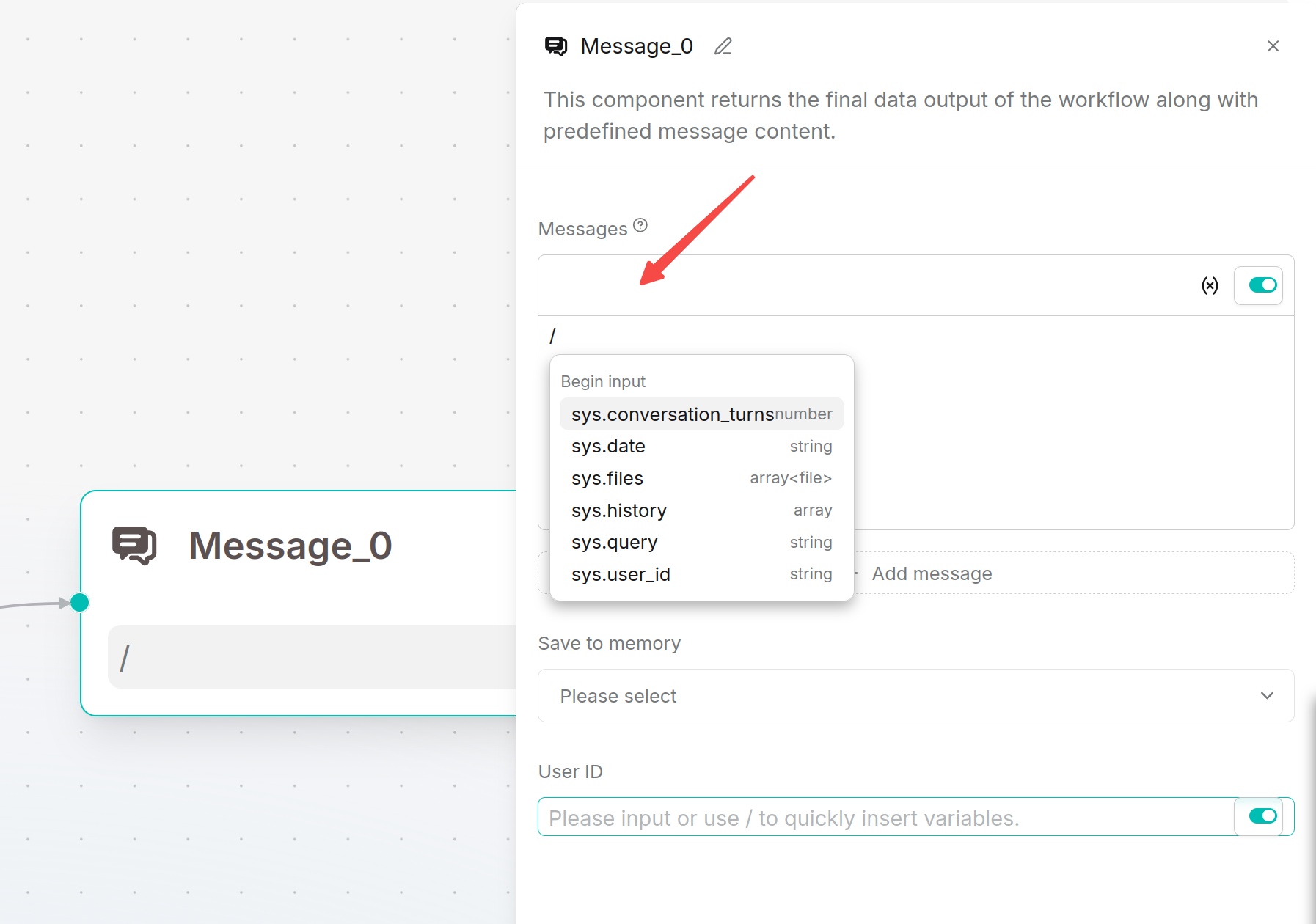
Write the output content in the message. Type / or click the variable button to insert component outputs.
If multiple messages are added, they are combined and sent together. When the Begin component selects Webhook and the response method is Final response, Message can set an HTTP status code in the range of 200 to 399.
Save to Memory
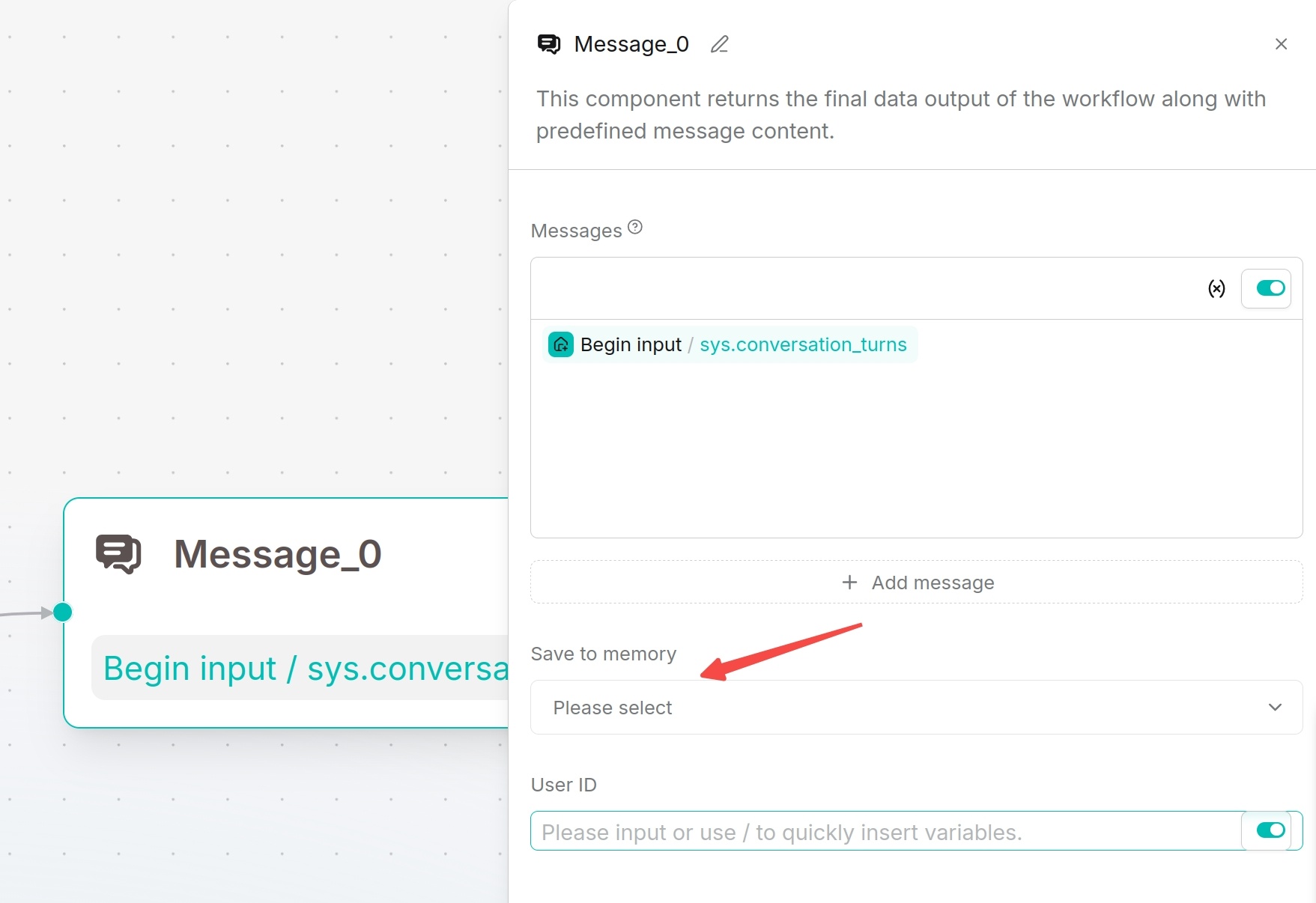
- In Message, select a memory under Save to Memory. Create a memory first if needed.
- Enter a stable User ID, such as
customer-001, or insert a variable containing it. Run the Agent, then check the memory's Messages page. - In Retrieval, select Memory, choose the same memory, and use the same User ID to retrieve that user's records. Set the query to
sys.queryand passformalized_contentto the next Agent component.
Applicable Scenarios
This component is suitable for outputting final answers, branch hints, fallback replies, or displaying intermediate processing results to users.
Output Result
The message outputs the configured text or variable content to the conversation window, webhook response, or embedded page.
Await Response Component
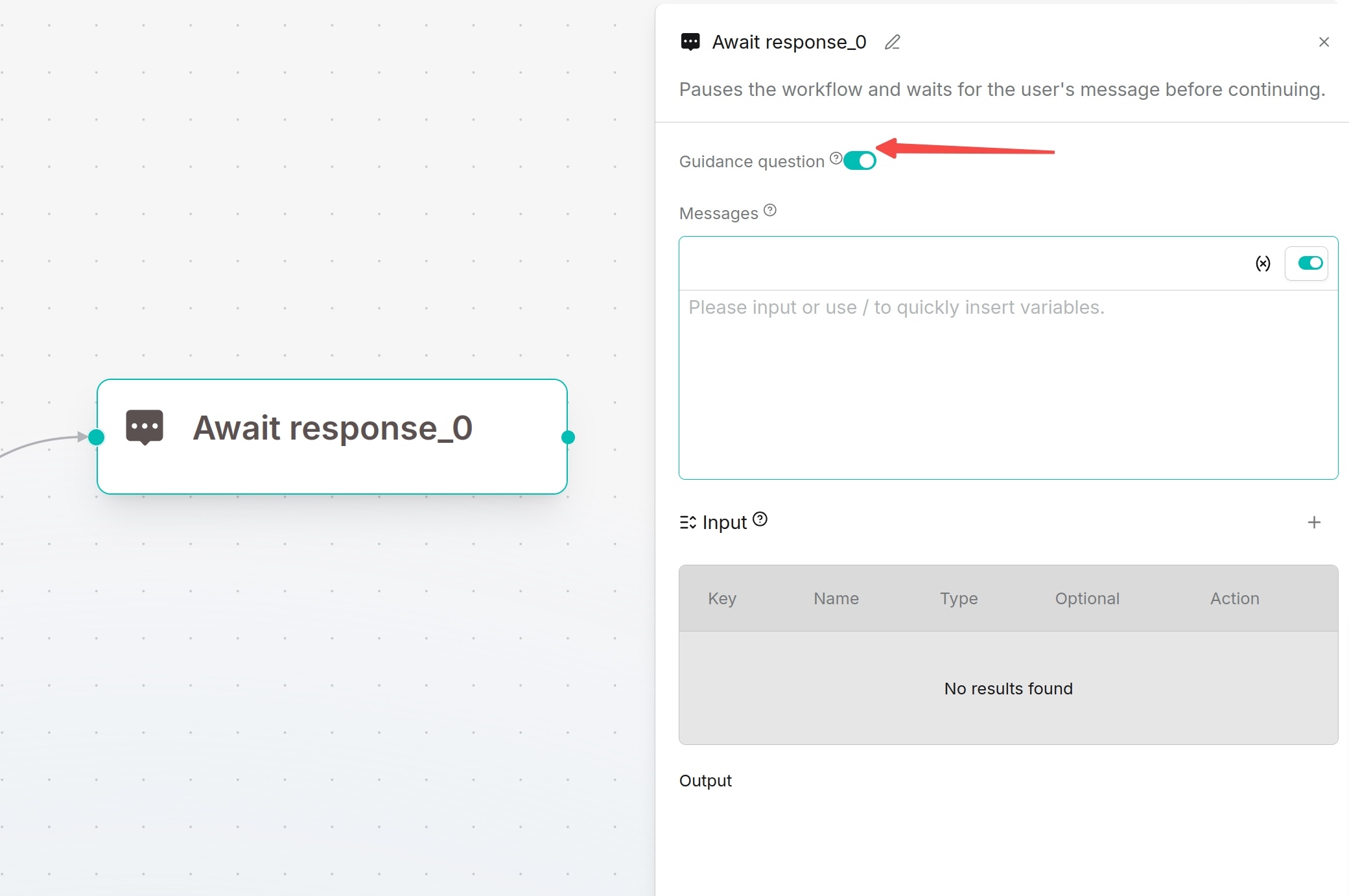
Await Response pauses the workflow and waits for users to supplement information. Suitable for multi-turn dialogue, form collection, confirmation operations or file upload requirements.
Configuration Method
Define prompt messages to guide users. Input supports the same variable types as Begin: single-line text, paragraph text, dropdown options, file upload, number, boolean, and JSON object. A File input also displays a parser setting.
Recommendations:
- Dropdown options: Select business categories
- Paragraph text: Collect detailed requirement descriptions
- File upload: Receive contracts, reports or screenshots
- Boolean: Confirm continue/cancel operations
Example: collect appointment details
To collect details for an installation visit, enable Guiding question and enter Please enter your name and preferred installation time. Add these Input fields:
| Name | Type | Key | Optional |
|---|---|---|---|
| Name | Single-line text | customer_name | Off |
| Preferred installation time | Single-line text | appointment_time | Off |
| Notes | Paragraph text | notes | On |
Name is the label shown to the user; Key identifies the value for later references. Turning Optional off makes a field required.
Connect a Message after Await Response. Insert customer_name and appointment_time from the Await Response outputs using the variable selector. Run the workflow, submit the form, and check that execution resumes with those values. This example collects installation preferences; it does not book a service visit.