Flow Components
Switch Component
Switch executes rule-based judgment and routes workflows to different downstream paths according to results.
Configuration Method
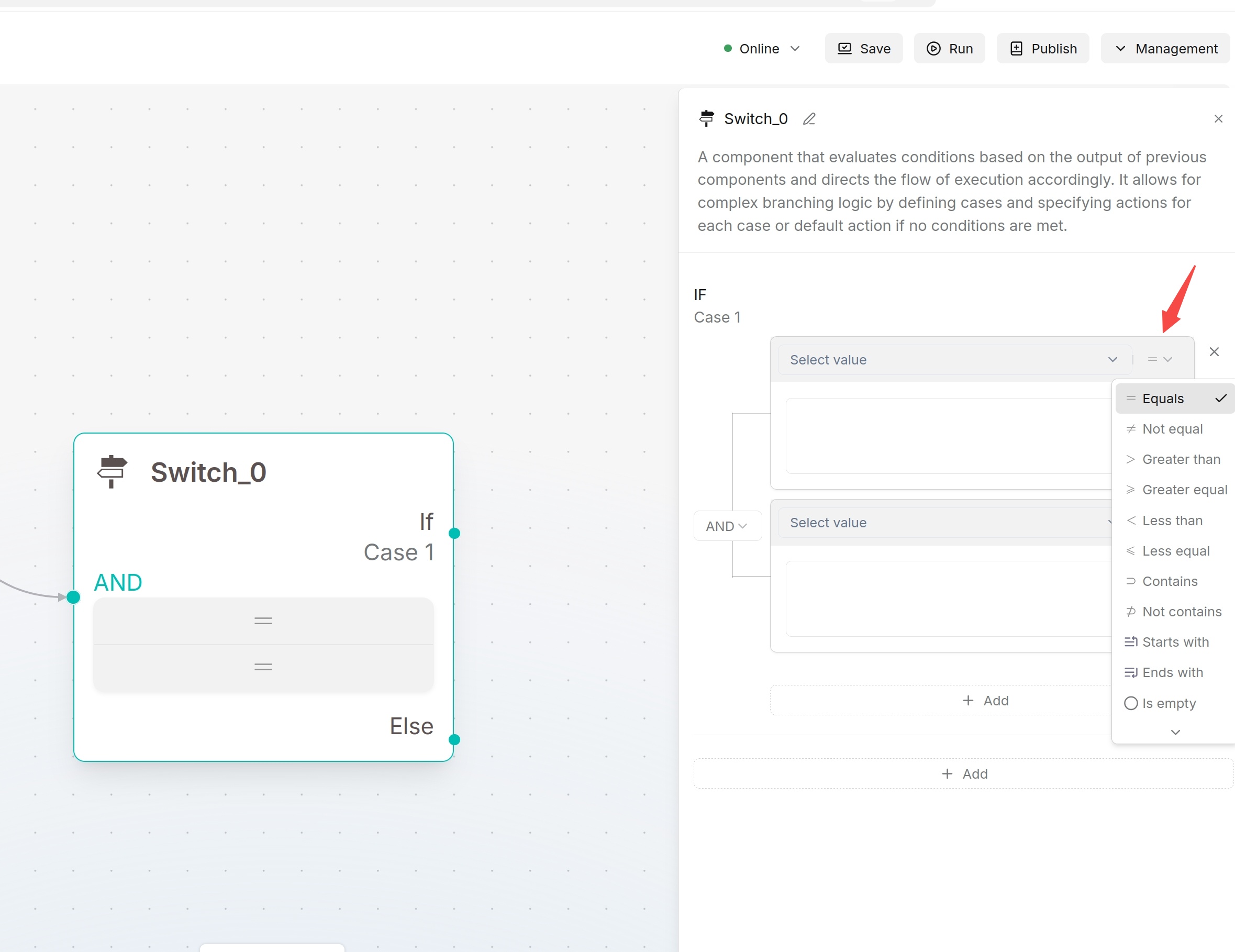
At least one Case must be defined. Each Case can contain multiple conditions combined by AND / OR. Supported operators are Equals, Not equal, Greater than, Greater equal, Less than, Less equal, Contains, Not contains, Starts with, Ends with, Is empty, and Not empty.
Switch is rule-based judgment for structured data and clear conditions. Categorize uses LLM-based classification for natural language intent recognition.
Example: route an order by quantity
Connect Begin → Switch, with a Message on each Switch branch.
- In Begin, add a required Number input with key
quantityand name Quantity. - In Switch, add a Case. Use the variable selector to choose Begin's
quantity, select Greater equal, and enter the constant10. Connect this Case to a Message containingBulk order. - Connect the default branch to a second Message containing
Standard order. - Save and click Run. Entering
12should display Bulk order; entering2should display Standard order.
Iteration Component
Iteration runs the same steps for each item in an array, such as a list of files or records.
Configuration
When configuring the Iteration component, set Query variables, Maximum concurrency, and Output.
- Query variables: Select an upstream array or a system array such as
sys.files. - Maximum concurrency: Defaults to
0. Both0and1run sequentially; larger values enable bounded concurrency. Results retain input order. - Internal workflow: Add the steps that process each item inside Iteration.
- Output: Name each output and select a result from an inner component. Iteration collects these results into arrays.
Example: label each color
Connect Begin → Text processing → Iteration → Message. Inside Iteration, connect its start node to another Text processing component.
- Leave Begin without additional inputs. Set the outer Text processing component to Split, select
sys.query, and use a comma as the delimiter. - In Iteration, select the Split component's
resultas Query variables and set Maximum concurrency to1. - Set the inner Text processing component to Merge. In Script, enter
Color:and insert the iteration start node'sitemthrough the variable selector. - In Iteration's Output, add a field named
colorsand select the inner Text processing component'sresult. In the outer Message, insert Iteration'scolorsoutput. - Save and run with
red,blue. The output should contain Color: red and Color: blue in that order.
Loop Component
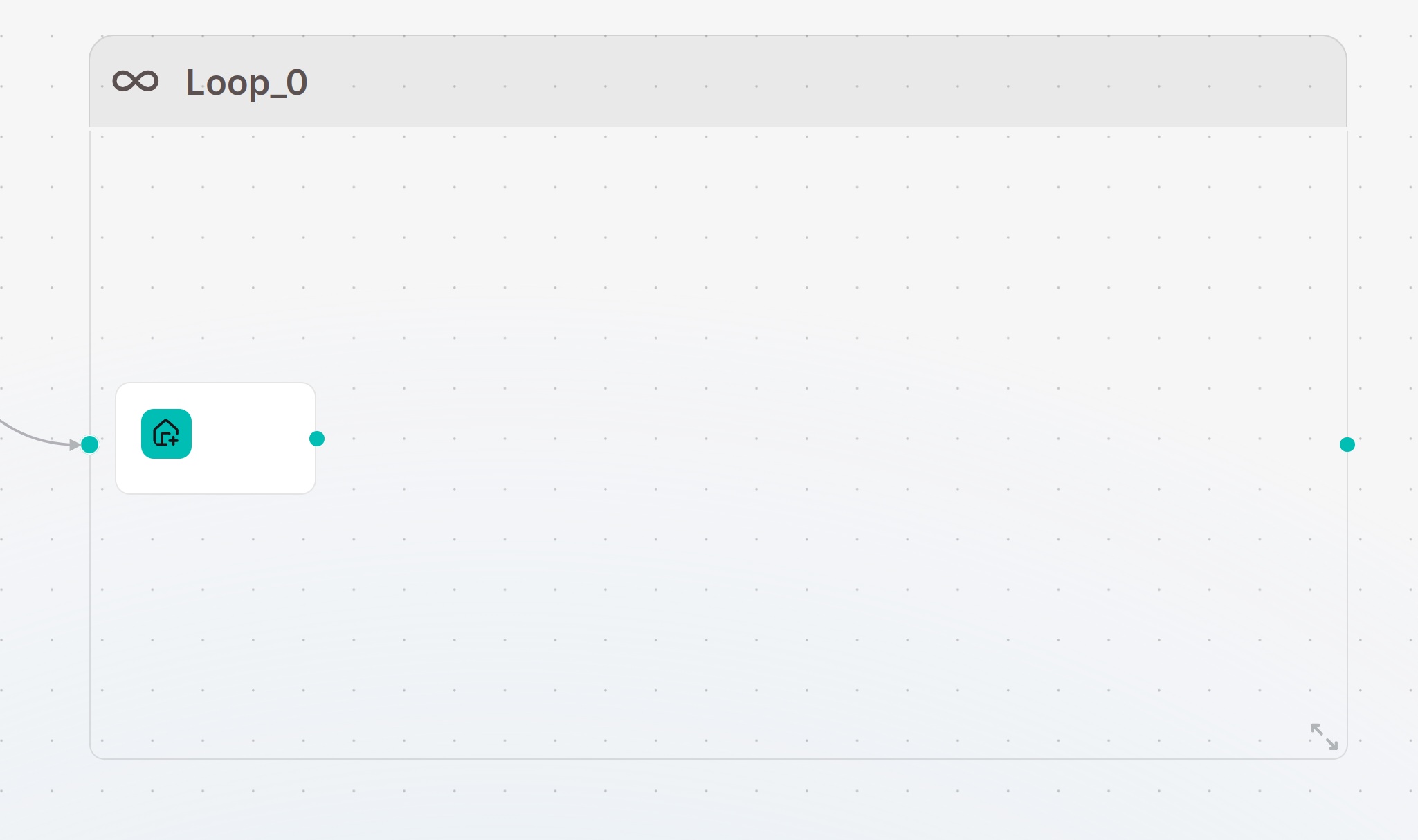
Loop repeats an internal workflow using loop variables, a termination condition, and a maximum loop count. It is suitable for tasks that refine a result across multiple rounds. Loop does not automatically split text into fragments; use Iteration to process an existing array of items.
Configuration Method
When configuring the Loop component, you need to set the loop variables, loop termination condition, and maximum loop count.
- Loop variables: Define the variables used during the loop. Set the variable name, type, and initial value. Other components within the loop can read or update these variables.
- Loop termination condition: Defines the condition for exiting the loop. When the condition is met, the Loop stops. Otherwise, it continues to the next iteration.
- Maximum loop count: Sets how many times the workflow can repeat. The default is
10, with a supported range of1–100. After importing a workflow, check this field and set a positive limit. A missing value or0leaves the loop without a count limit, so it stops only when its termination condition is met.
Configure both termination condition and maximum loop count to avoid long-running infinite loops.
Example: repeat three times
Connect Begin → Loop → Message. Inside Loop, connect its start node to Variable assigner.
- Leave Begin without additional inputs. In Loop, add a Number loop variable named
counter, select a constant initial value of0, and set Maximum loop count to5. - Set the termination condition to
counterGreater equal the constant3. - In Variable assigner, select the Loop variable
counter, choose Add, and enter the constant1. - Set the outer Message to
Loop completed. Save and click Run to start the workflow. The run results should show three executions of Variable assigner, followed by Loop completed.
Categorize Component
Categorize uses a chat model or a SystemOne decision model to judge user intent or input category and branch the workflow based on classification results.
Configuration Method
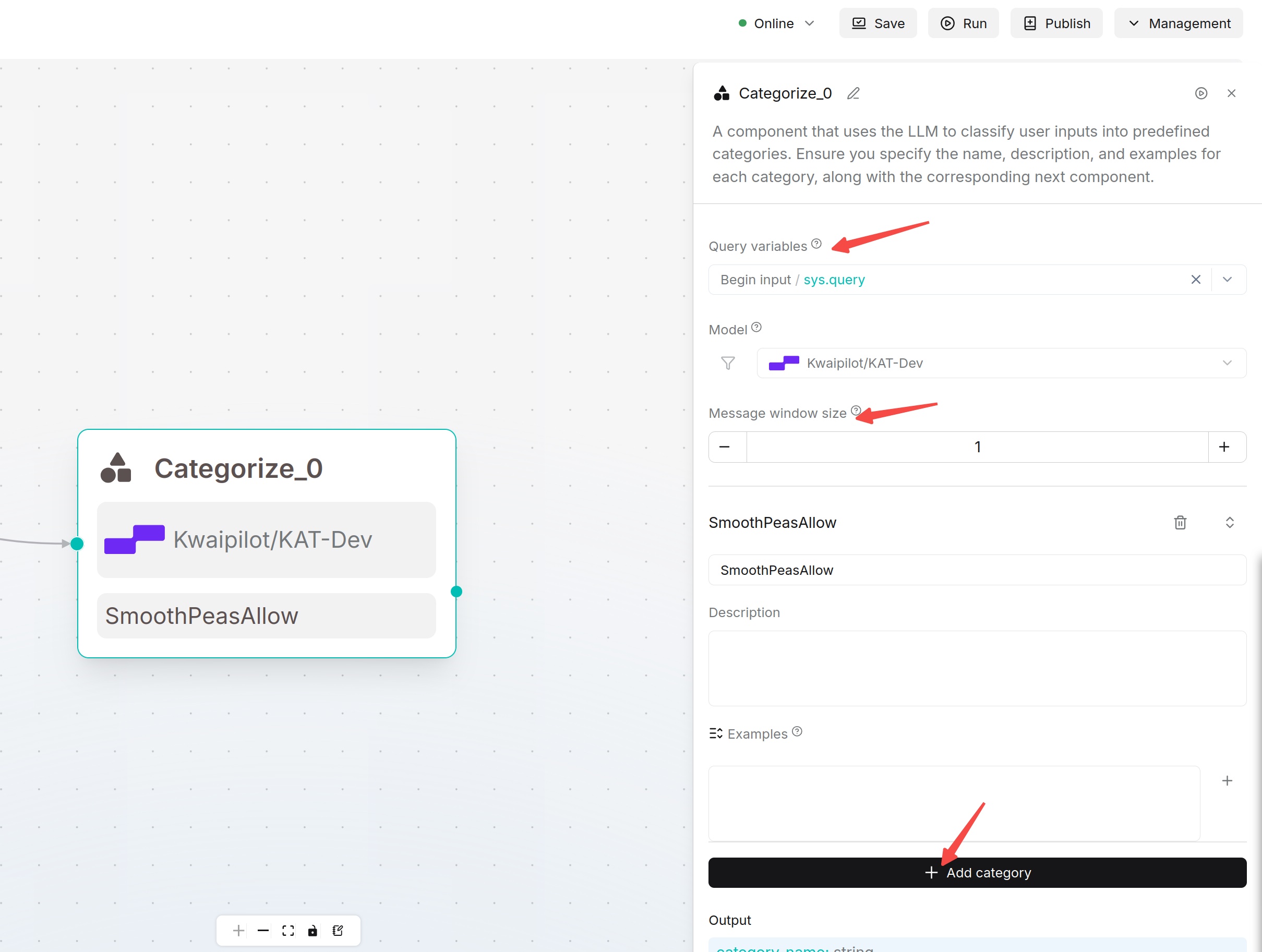
- Select content to classify in Query variables, usually
sys.query. - Select Model, a chat model or an added SystemOne decision model.
- Set Message window size. Keep default 1 for single-turn classification.
- Click Add category and enter a Name, Description, and Examples.
- Connect each category to its downstream component on the canvas.
The output category_name contains the selected category name.
Classification Recommendations
For workflows that route inputs to different paths, configure two or more categories. Use easy-to-understand category names, such as Product Consultation, Installation Reservation, After-sales Fault, and Other Questions. Examples improve classification stability; provide two or three typical samples for each category.
With a SystemOne decision model, Categorize scores each category with a probability question and selects the highest-scoring category. Requests contain up to 16 categories each, with a 30-second timeout for the whole classification. Ties use category order; if every score is zero, the configured default category is selected (or the first category when no default is set). Model errors stop the node. Output scores remain 1 for the selected category and 0 for the others.
Example: route a support request
Connect Begin → Categorize, with a Message on each category branch.
- Leave Begin without additional inputs. In Categorize, select
sys.queryas Query variables and select a configured chat model. - Add Product help with description
Product features and setup questionsand exampleHow do I reset Model A?. Add Appointment with descriptionRequests to arrange a service visitand exampleI want to book an installation. - Connect Product help to a Message containing
Product support; connect Appointment to a Message containingAppointment request. - Save and test both example questions. The first should display Product support and the second Appointment request. If either is misclassified, refine the descriptions and examples.