Files: Dataset Document Management
Document Management Overview
Document management is used to upload, parse, and manage documents in a dataset.
Document List
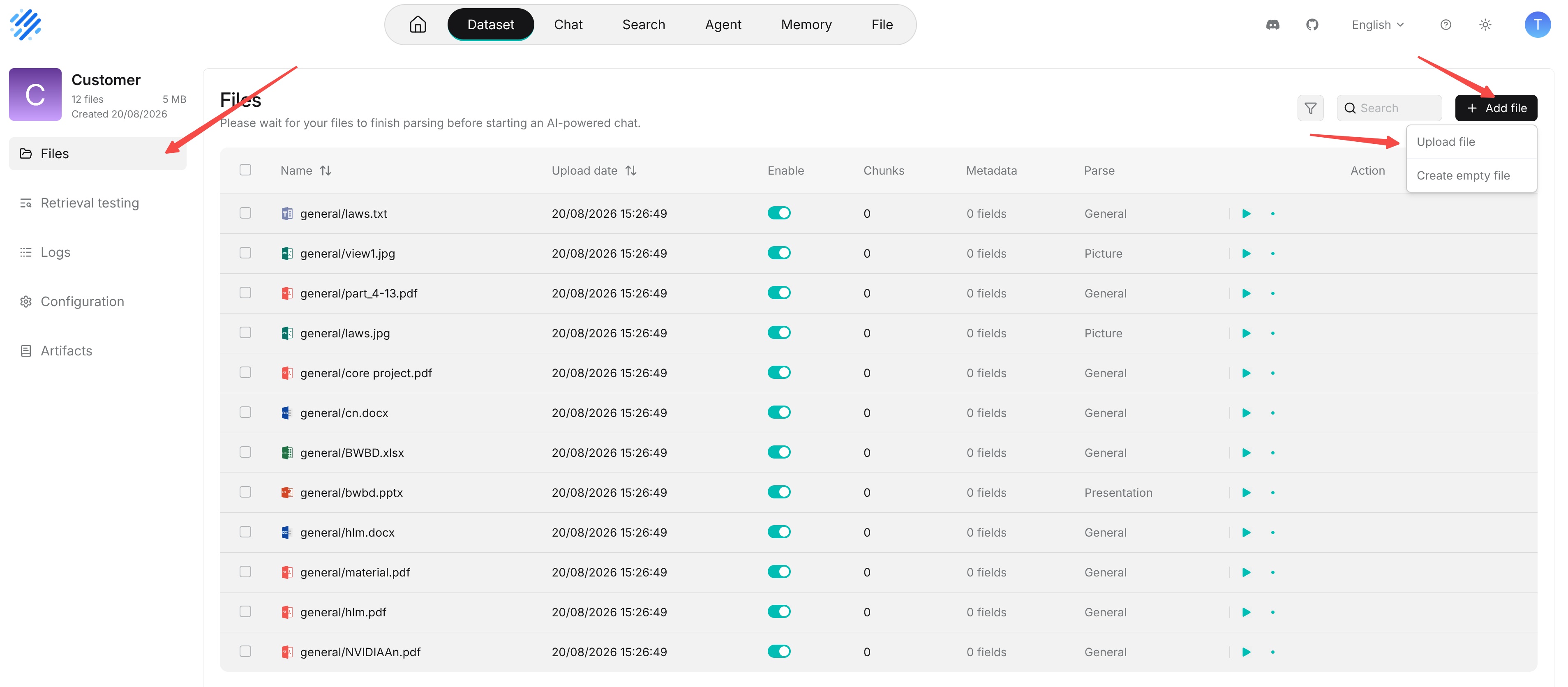
The document list shows each document's information and parsing progress.
- Name: The document name. Click it to view parsing results.
- Upload date: When the document was uploaded.
- Enabled: Whether the document is included in retrieval. Disabling it keeps the document in the dataset.
- Chunks: The number of chunks generated from the document.
- Metadata: The number of document metadata fields. Click it to view or edit them.
- Parse: The parsing method used for the document.
- Action: Available document operations, such as renaming, downloading, and deleting.
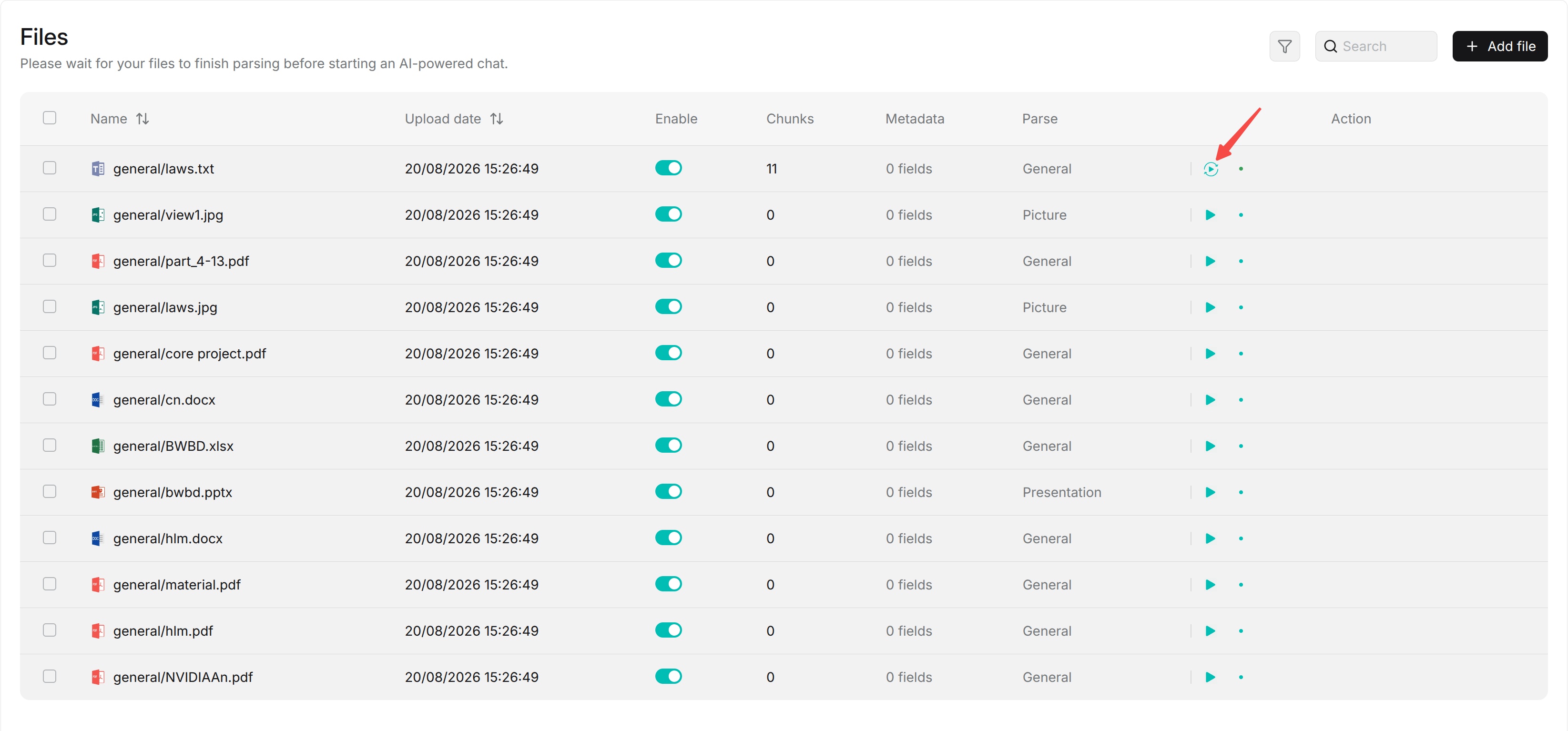
Parsing status, progress indicators, and log controls appear in a separate, unlabeled column beside Parse.
Add Documents
Upload Local Documents
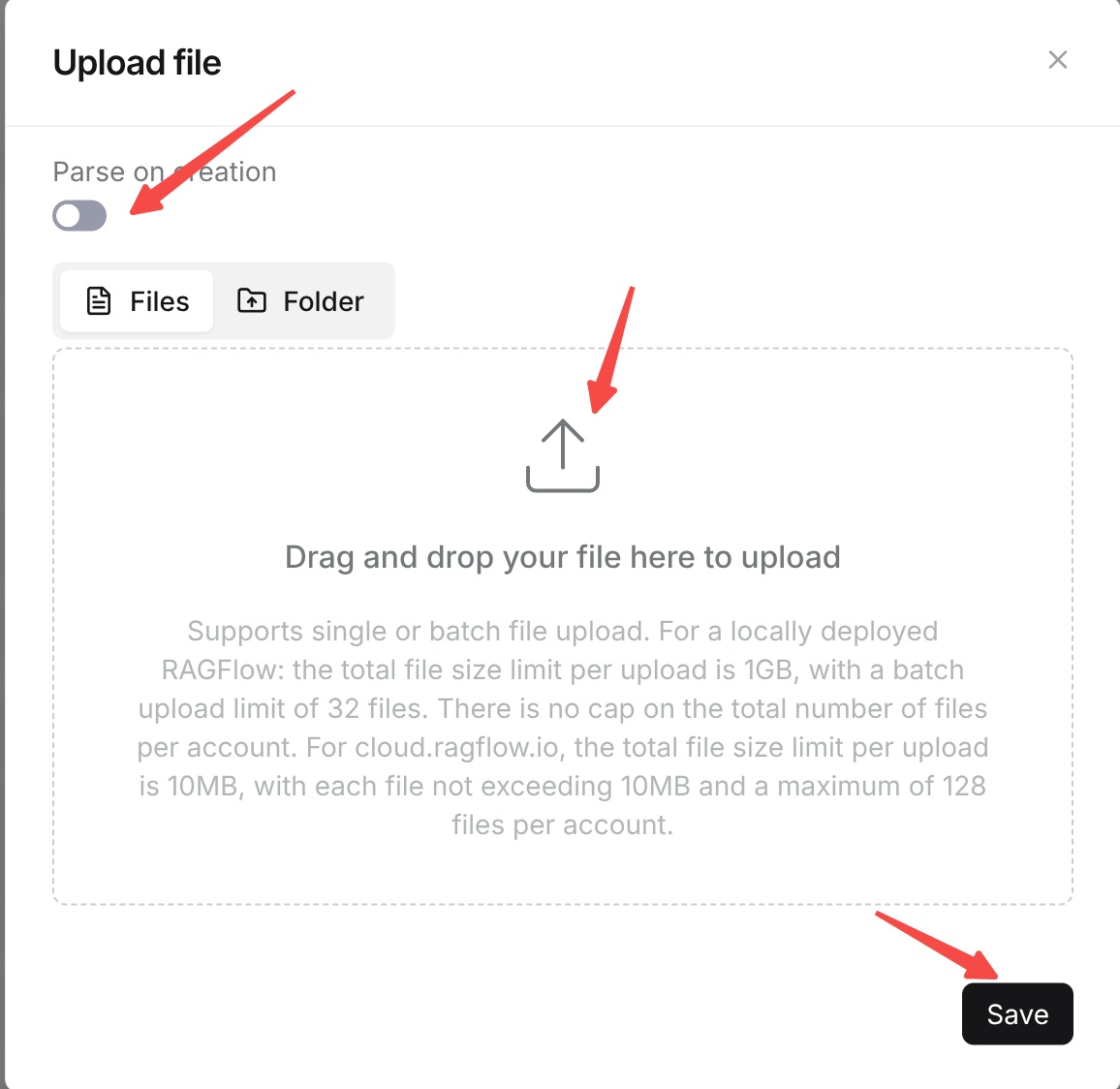
Click Add file and select Upload file to upload documents from the local machine to the current dataset. After upload, the documents appear in the document list.
- Go to the Files page of the target dataset.
- Click Add file and select Upload file.
- Select the local documents to add to the dataset.
- Choose whether to enable Parse on creation as needed.
- After confirming the upload, view the document status in the document list.
Add Documents from an Associated Data Source
To import external content, link a configured data source to the target Dataset through Configuration. Synchronization brings source documents into the Dataset; parsing then generates the chunks used for retrieval.
- Open the target Dataset and select Configuration.
- Find the Data source section and click Link data source.
- Select the configured data source connection and click Confirm.
- Review the linked source and its parsing settings. For synchronization and updates, follow Add a Data Source to a Knowledge Base and Synchronization and Updates.
- Check synchronized documents and their parsing status on Files. Use Logs > Data source to inspect synchronization records.
Add Documents from File
Add documents from File Management
Files that have already been uploaded to File can be added to a knowledge base by connecting them to the target knowledge base. Once connected, the files will be processed according to the configuration of the target knowledge base. For detailed instructions, see File > Connect to a knowledge base.
Parse Documents
Document parsing converts source files into chunks, metadata, and other data available for retrieval. By default, documents use the current dataset configuration's parsing method. For documents that require special handling, you can also change the parsing method of a single document.
Start Parsing
You can start parsing after documents are uploaded or added.
- Select one or more documents in the document list.
- Click Run or the corresponding parsing entry.
- If the document has old chunks or existing auto metadata, handle them according to the interface prompt.
- After confirming the operation, the system starts the parsing task.
View Parsing Status
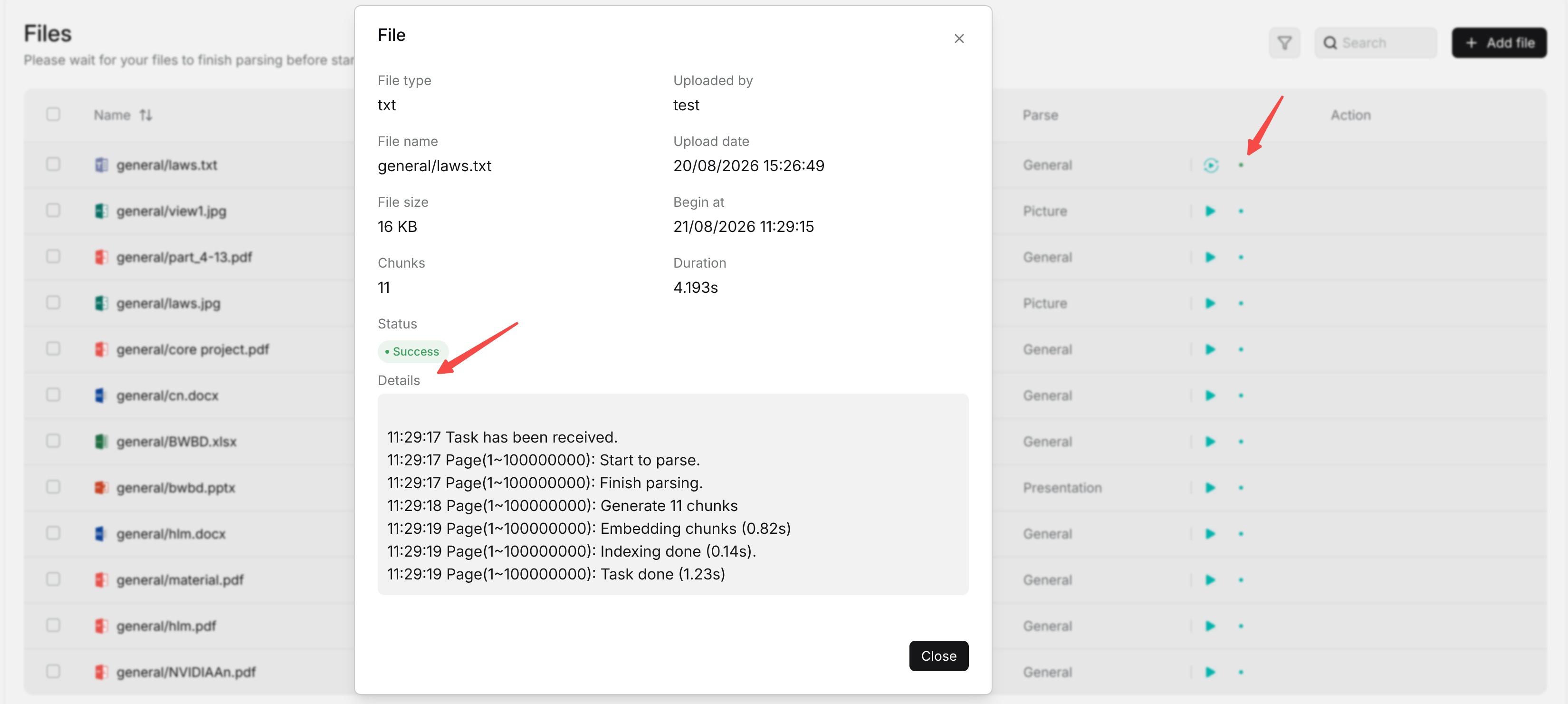
You can view the current parsing status of each document in the document list and view parsing progress and related information through Logs. Common statuses include waiting, running, completed, failed, and canceled.
If parsing fails, view the related information in Logs, troubleshoot the problem, and run parsing again.
Parse Again
If parsing configuration changes or parsing results need to be updated, you can parse a document again. Common scenarios that require parsing again include:
- The parsing method or its parameters changed.
- Chunk splitting configuration changed.
- Auto metadata configuration changed.
- Table column role configuration changed.
- The source document was updated or replaced.
- Existing parsing results are incorrect and need to be regenerated.
Parsing again may regenerate chunks and metadata. Before operating, confirm whether old results need to be retained, overwritten, or updated according to the interface prompt.
Change the Parsing Method of a Single Document
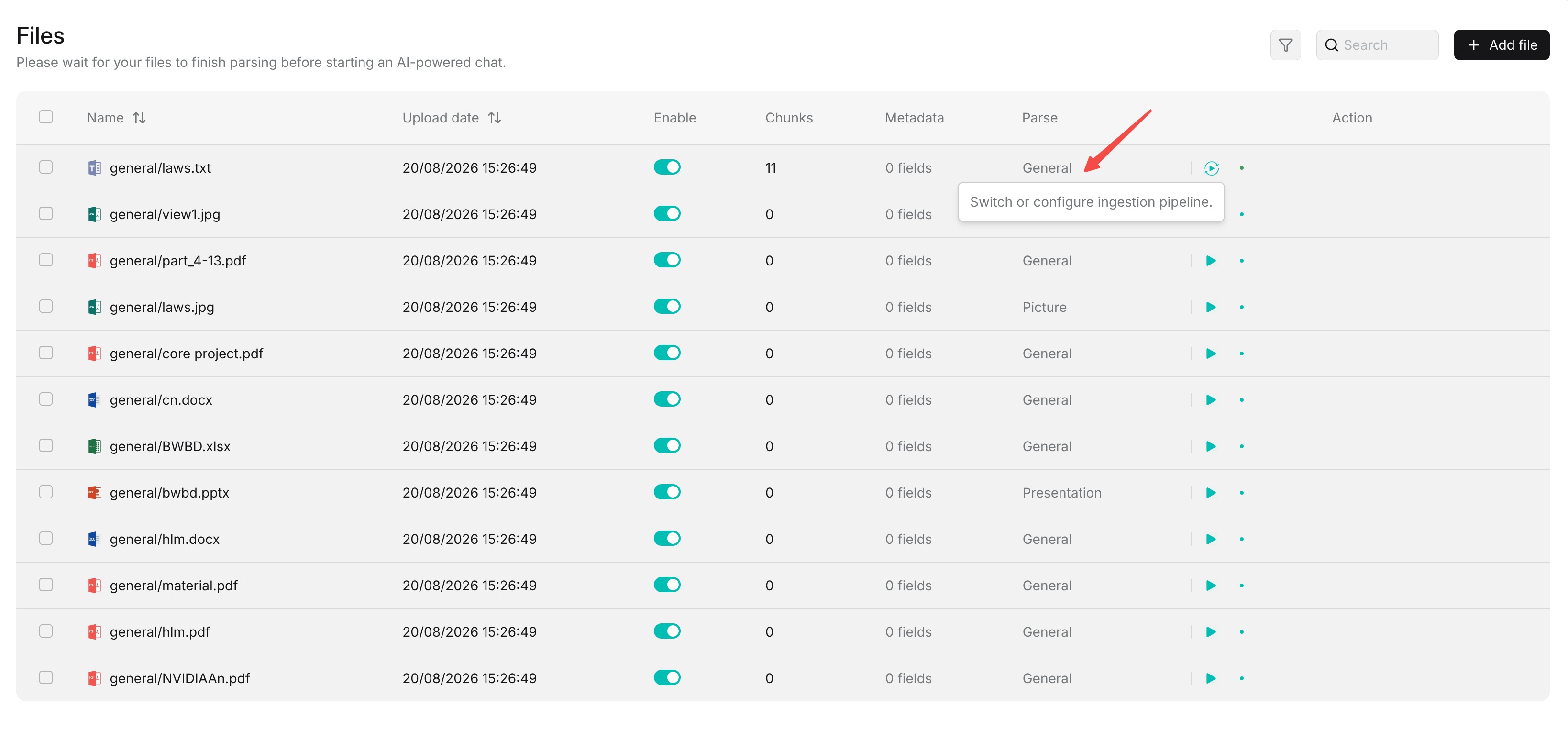
The parsing method in dataset configuration is the default parsing configuration for documents. If a document needs a different parsing method, you can change it separately in the document list or document detail page.
This adjustment only applies to the current document and does not affect the default parsing configuration of the dataset.
Search and Filter Documents
Search documents: You can enter keywords in the document list to search by document name or related content. Search helps quickly locate target documents when there are many documents.
Filter documents: The document list supports filtering by parsing status, enabled status, source, and other conditions. The number of documents matching each condition is displayed on the right side of each filter item. You can select one or more conditions as needed.
Metadata field is used to further filter documents based on document metadata. The system displays metadata fields available for filtering in the current dataset. For table documents using the Table parsing method, columns set to Metadata or Both in column role configuration can appear here as metadata fields.
You can search field names in the search box under Metadata field, or expand a specific field and select corresponding values as filter conditions. After setup, click Submit to apply filter conditions. Click Clear to clear the current filter conditions.
Note: The fields actually displayed in Metadata field depend on the document metadata in the current dataset, so available filter fields may vary between datasets.
Batch Operations
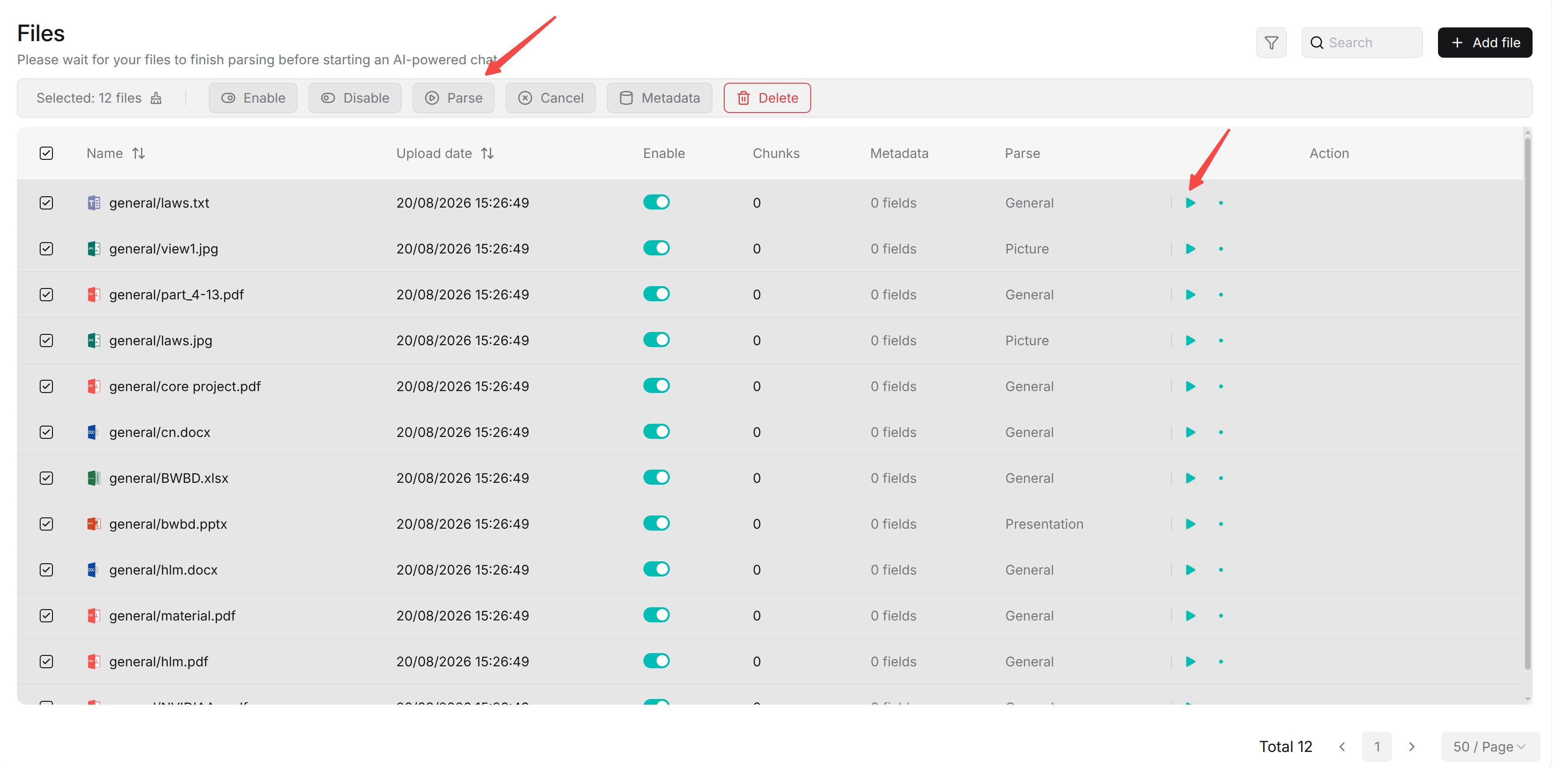
After selecting the checkboxes on the left side of the document list, a batch operation bar appears, allowing multiple documents to be processed at the same time.
- Enabled: Batch-enable selected documents.
- Disabled: Batch-disable selected documents.
- Run: Batch-parse selected documents and process old chunks and auto metadata application when needed.
- Cancel: Cancel running parsing tasks.
- Metadata: Maintain metadata for selected documents in bulk.
- Delete: Delete selected documents.
Single-Document Operations
View and Manage Documents
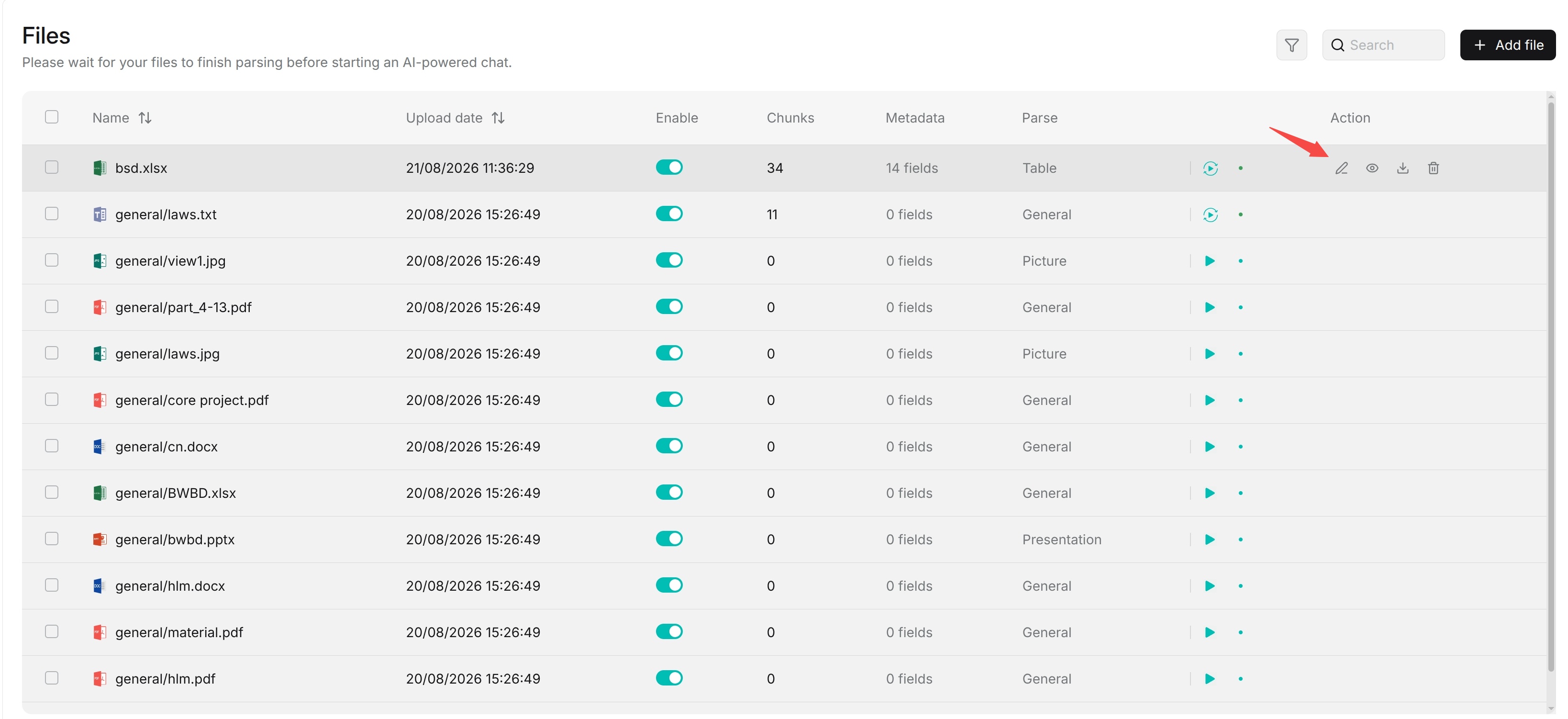
Click the document name to enter the document detail page and view document information, parsing results, chunks, and metadata.
- View parsing results: Click the document name to enter document details and view chunks and related information generated by parsing.
- View metadata: View or edit document-level metadata.
- Download: Download the source document.
- Rename: Rename the document.
Enable and Disable Documents
The enabled status determines whether a document participates in dataset retrieval. After a document is disabled, its chunks are no longer used as retrieval sources, but the document and parsing results remain in the dataset.
If you want to temporarily remove a document from retrieval without deleting it, disable the document. If you need to restore retrieval, enable it again.
Delete Documents
Deleting a document removes it from the current dataset. The corresponding chunks, metadata, and parsing results are also removed and no longer participate in later retrieval or Q&A.
Before deleting, confirm that the document and its parsing results are no longer needed.