Add a Data Source to a Knowledge Base and Synchronization and Updates
Add a Data Source to a Knowledge Base
Creating a data source connection only saves the access configuration for the external system. To bring external content into a knowledge base, you also need to add that data source in the target knowledge base and start synchronization.
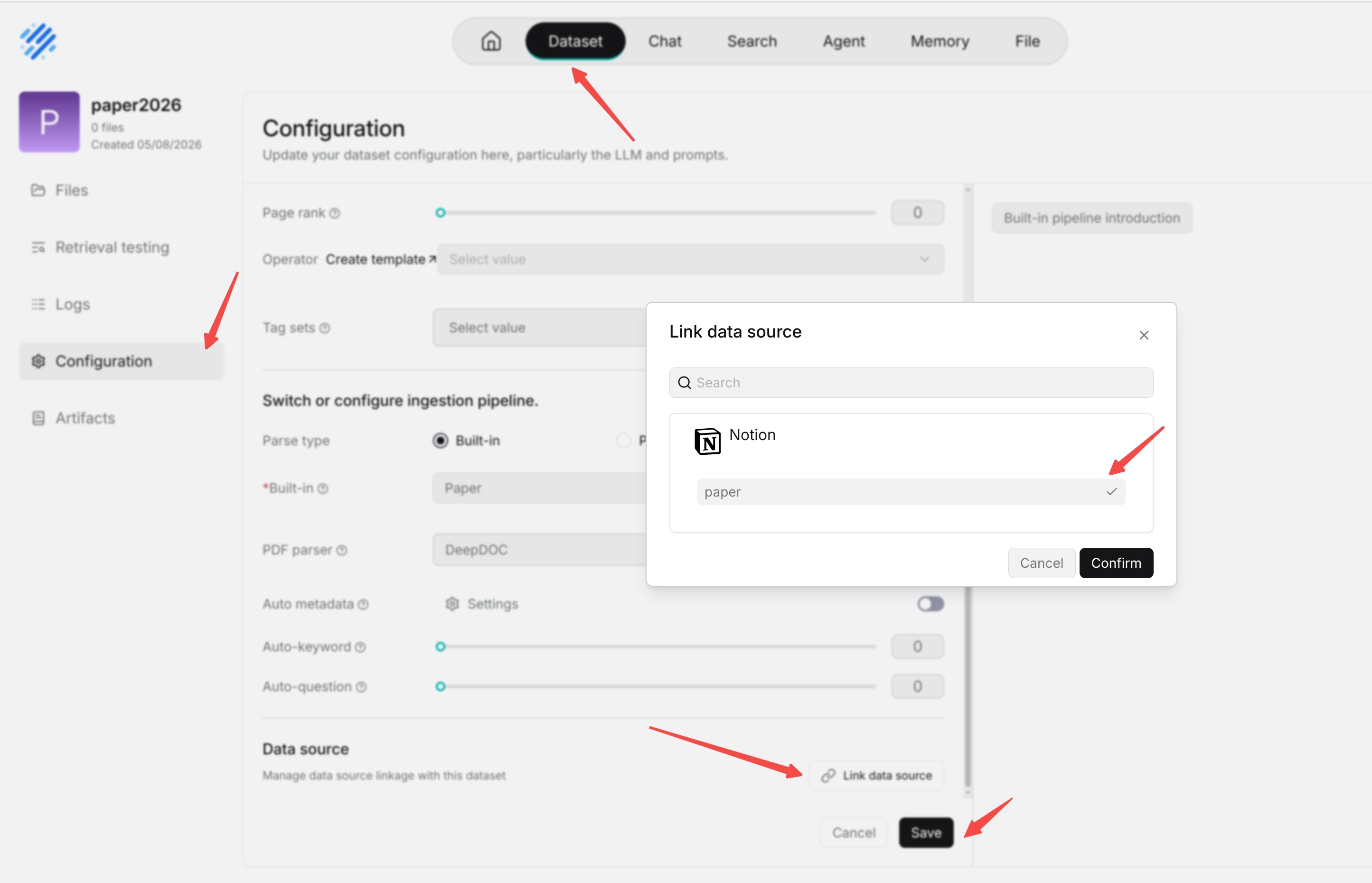
- Open Dataset and select the target Dataset.
- Open Configuration and find the Data source section.
- Click Link data source, select the existing connection, and click Confirm.
- Review the linked source and set Auto parse as needed. Configure the Dataset's Parsing mode and its parsing parameters separately on the same configuration page.
- Click Save to apply the Dataset configuration, including the data source association.
- Check synchronized documents on Files and synchronization records under Logs > Data source. Documents must complete parsing before their chunks are available for retrieval.
To change credentials, synchronization scope, or refresh intervals, open the connection under User settings > Data sources. These connection settings are separate from the Dataset's parsing settings.
Synchronization and Updates
After synchronization starts, RAGFlow reads content from the external system and writes parseable content to the knowledge base index.
After synchronization is complete, users can retrieve and ask questions about this content in the knowledge base. Synchronization results can be understood according to the following rules:
- The first synchronization imports the existing content in the current synchronization scope.
- Content newly added or modified in the external system is usually synchronized to the knowledge base when the next refresh interval arrives.
- If sync deleted files is enabled, content deleted from the external system is removed from the knowledge base index during subsequent synchronization or cleanup tasks.
If changes to external content do not appear in the knowledge base immediately, first check the refresh interval, synchronization status, and data source logs.
Some data sources support the test connection feature. After saving or modifying a connection, you can test the connection first to confirm that account permissions, connection parameters, and data access are normal, and then start synchronization in the knowledge base.