Configuration
Basic Information
The configuration page is used to maintain the core configuration of a dataset. Basic information includes Name, Language, Avatar, Description, Permissions, Embedding model, PageRank.
- Name: The dataset name. It can still be modified after creation and is used in list cards and the detail page title.
- Language: The primary language of the dataset. The language setting affects language assumptions during parsing and model processing.
- Avatar: The dataset avatar. Image uploads are supported, and the maximum image size is 4 MB.
- Description: The dataset description, used to describe the material scope, business purpose, or maintenance notes.
- Permissions: Choose Only me for personal access or Team to share the dataset with workspace members.
- Embedding model: The model used to vectorize chunks. Before the dataset contains chunks, you can change the model directly. Once chunks exist, selecting a different model on the configuration page triggers a compatibility check against sampled existing vectors. The vector dimensions must match, and the average cosine similarity must be at least 0.9. If the check fails, the previous selection is restored. Saving a model change does not automatically re-embed existing chunks.
- PageRank: Sets the dataset's PageRank score. During retrieval, this score is added to the hybrid similarity score of matched chunks in the dataset, increasing their ranking weight. This is suitable when content from a specific dataset needs higher priority during retrieval across multiple datasets.
Parsing Method
The parsing method determines how uploaded documents are processed into chunks. In Parsing mode, select a built-in template or expand a custom ingestion pipeline and select one of its published versions from the same dropdown.
Built-in Parsing
Built-in means using RAGFlow's built-in document parsing capabilities. Users can choose a suitable parsing method based on the document type. The system then reads document content, splits it into chunks, and generates the structure required for retrieval according to the selected method.
The following built-in parsing methods are available:
- General: A general-purpose parsing method suitable for most conventional documents. It identifies document content and creates chunks according to the configured chunking rules.
- Q&A: Designed for data organized as question-answer pairs. Each Q&A pair is treated as an individual chunk.
- Manual: Designed for PDFs with a clear hierarchical section structure, such as product manuals and operation guides. Documents are chunked based on their section structure.
- Table: Designed for structured tabular data such as XLSX and CSV/TXT files. Each row is typically treated as an individual chunk.
- Paper: Designed for PDF papers, research reports, and other academic documents. Documents are chunked based on structural elements such as abstracts, sections, and subsections.
- Book: Designed for DOCX, PDF, and TXT books or other long documents with a chapter-based structure.
- Laws: Designed for legal documents in DOCX, PDF, and TXT formats. Chunk boundaries are identified based on the structural characteristics of legal documents.
- Presentation: Designed for presentations in PDF and PPTX formats. Each page or slide is typically treated as an individual chunk.
- Picture: Processes image and video materials into searchable text using OCR and visual descriptions. Configure the relevant OCR or vision model for the content you want to process.
- One: Treats the entire document as a single chunk. This method is suitable for relatively short documents when the complete context needs to be preserved.
- Audio: An audio parsing method for audio files such as WAV, MP3, AAC, FLAC, and OGG. It uses an ASR model to transcribe audio into text and then generates chunks from the transcription.
- Email: An email parsing method for email files such as EML and MSG. It extracts content including the sender, recipients, subject, body, and attachments, and generates chunks from the extracted content.
Tip: On the built-in parsing configuration page, click View built-in parser details on the right to view the supported file formats, detailed chunking rules, and examples for each parsing method.
Selection suggestion: choose the parsing method based on the form of the material itself. Use General first for regular documents; use Table first for tabular materials; choose the corresponding method for Q&A collections, manuals, papers, images, audio, and emails to reduce later chunk adjustment costs.
Built-in Parsing Configuration
After selecting a built-in template parsing method, you can further configure document parsing, chunking, and content enhancement. Appropriate settings can improve the accuracy and recall of subsequent retrieval.
Different built-in methods display different configuration options. Refer to the options shown in your current interface.
Parser Configuration
Parser configuration determines how different types of content are processed. You can configure parsing parameters for each format according to the document structure, layout complexity, and extraction requirements. This helps improve content extraction and the accuracy of subsequent chunk generation.
Vision Enhancement
- Enable vision enhancement: Uses a vision model to describe image and table blocks. This shared setting applies across document formats.
- Model: Select an available vision model after enabling enhancement.
- System prompt: Set instructions for the generated descriptions. Vision enhancement adds model calls and token usage.
PDF Parsing
Configure how PDF documents are parsed. You can select a parsing method based on the PDF layout and set options such as page ranges and vision models.
-
Multi-column layout recognition: Recognizes PDFs with complex layouts, such as two-column or multi-column pages. When enabled, the parser identifies text regions and extracts content in a suitable reading order. This is useful for papers, journals, reports, and other multi-column documents.
-
Remove original table of contents: Removes the PDF's existing table of contents during parsing so that its text does not enter subsequent chunks or search results as body content.
-
Remove headers and footers: Identifies and removes repeated page headers and footers to reduce irrelevant content in the knowledge base.
-
Parsing method: Selects a parser for PDF or table content. Parsing methods differ in text recognition, layout analysis, table recognition, and handling of complex documents. Built-in methods include:
- DeepDOC: RAGFlow's default document parser. It performs OCR, table structure recognition, and document layout analysis. It is suitable for PDFs containing complex layouts, images, scanned content, or tables.
- Naive: Suitable for PDFs that primarily contain plain text. It reduces OCR, table recognition, and complex layout analysis, making it faster for simple text-based PDFs.
- Docling: An open-source document parsing tool that can parse PDFs and other documents and extract structured content.
- OpenDataLoader: Extracts text, layout, and structured information from documents. It can serve as an alternative to other built-in parsing methods.
- TCADP Parser: An open-source parser from Tencent that can parse PDF content.
- MonkeyOCRv2: A vision-based parsing method that combines OCR and visual understanding to process scanned documents, complex layouts, and mixed text and images.
In addition to these built-in methods, you can select an external model service already configured in the system. For example, a vision-language model (VLM) or another model with document understanding capabilities connected through a model provider can be used to parse PDFs or tables.
External models are often better suited to complex layouts, scanned documents, images, borderless tables, and mixed text and images. However, they incur additional model calls and token usage. The available models depend on the configured model providers and their capabilities.
-
Page range: Specifies which PDF pages to parse. You can set a start and end page and add multiple page ranges to avoid processing unnecessary content.
Table Parsing
Select DeepDOC or TCADP Parser from the Parser list to extract table content and structure. Vision models are configured through the shared Enable vision enhancement setting above.
Image Parsing
- OCR: Extracts text from images and is enabled by default.
- OCR model: Select DeepDoc for local OCR or an available PaddleOCR model.
- Enable vision enhancement: Adds visual descriptions using the shared model and prompt settings above. It can run together with OCR.
Keep OCR or vision enhancement enabled so images can produce searchable text. To turn OCR off, first enable vision enhancement.
Markdown Parsing
Parse Markdown documents while preserving their text and basic structure for subsequent chunking.
HTML Parsing
Parse HTML documents to extract useful text and structured content while filtering page elements that need not be included in knowledge base retrieval.
- Remove headers and footers: Attempts to remove repeated headers and footers, reducing the effect of navigation and copyright information on chunking and retrieval.
For HTML files saved or exported from websites, keep headers and footers if they contain information you need.
DOC Parsing
Parse Word documents in .doc format. Use Remove headers and footers to exclude repeated content. Visual descriptions use the shared Enable vision enhancement setting above.
- Remove headers and footers: Attempts to remove repeated headers and footers so that page numbers, document titles, and copyright information do not repeatedly appear in chunks.
DOCX Parsing
Parse Word documents in .docx format. Use Remove headers and footers to exclude repeated content. Visual descriptions use the shared Enable vision enhancement setting above.
- Remove headers and footers: Removes repeated headers and footers to reduce irrelevant information in subsequent chunks and search results.
PPTX Parsing
Configure how PPTX files are parsed. Text, tables, images, and other slide content are extracted and converted into text for subsequent chunking and retrieval.
- Parsing method: Selects how PPTX files are processed.
- DeepDOC: RAGFlow's built-in document parser. It extracts text, tables, and layout content from slides and is suitable for most standard PPTX files.
- TCADP Parser: An open-source parser from Tencent that can extract text and structured content from PPTX files.
- External model: Uses a configured model with document or visual understanding capabilities. External models are grouped by model provider in the drop-down list. Availability depends on the configured providers and model capabilities.
For PPTX files mainly containing text and standard tables, consider starting with DeepDOC or TCADP Parser. For complex layouts, mixed text and images, many images, or content requiring visual interpretation, choose a capable external model. External models may incur additional model calls and token usage.
Parsing quality depends on slide layout, image quality, content complexity, and the selected method.
Audio Parsing
Configure how audio files are parsed. An external model transcribes speech into text for subsequent chunking and retrieval.
Select a configured external model with automatic speech recognition (ASR) capabilities. Audio parsing supports only external models already configured in the system.
Available models depend on the configured providers and their capabilities. Models may differ in language support, accent recognition, handling of multiple speakers or background noise, and long-audio transcription.
External models may incur additional calls and token usage. Transcription quality depends on recording clarity, background noise, speaking speed, language, and accent.
Chunker Configuration
General Chunker
Configure general chunking of parsed content. The system splits content into chunks based on the target chunk size, overlap ratio, and delimiters. It can also add context to tables and images or use parent-child chunks to improve retrieval precision.
- Recommended chunk size: Sets the target size of each chunk in tokens. The default is 512. The system attempts to combine adjacent content to reach this size, but the value is a target rather than a strict limit. An indivisible content segment that already exceeds the target may remain as one chunk.
- Overlap ratio (%): Sets how much content adjacent chunks share. When overlap is enabled, content from the end of one chunk is copied to the start of the next. This reduces context loss at chunk boundaries and improves semantic continuity. Set it to 0 for no overlap.
- Table context window: Sets the amount of preceding and following context, in tokens, attached to a table chunk. More context can preserve the relationship between a table and the surrounding text. Set it to 0 to add no extra table context.
- Image context window: Sets the amount of preceding and following context, in tokens, attached to an image chunk. This is useful when nearby text is needed to understand an image. Set it to 0 to add no extra image context.
- Delimiters: Sets the separators used to split text, such as the newline character
\n, periods, question marks, exclamation marks, and semicolons.- Split by delimiter: Text is first split at the configured delimiters. The system then combines adjacent segments according to the recommended chunk size to form chunks of suitable size while preserving meaning where possible.
- Split positions: Displays all configured delimiters so you can see which boundaries are used for chunking.
- Add: Adds a custom delimiter. You can use characters that mark meaningful boundaries in your documents, such as heading or paragraph markers.
- Use sub-chunks for retrieval: Enables parent-child chunking. The system creates smaller child chunks from larger parent chunks and uses the child chunks for retrieval. When a relevant child chunk matches, its parent chunk can provide more complete context.
For ordinary documents, start with the default 512-token chunk size and choose delimiters that match the document structure. Increase overlap when context frequently crosses chunk boundaries. Configure context windows for documents with many tables or images. Enable sub-chunks when you need precise retrieval while retaining broader context.
Title Chunker
The Title Chunker identifies document structure from heading levels and organizes content into chunks. It provides two modes: Hierarchy and Group.
Hierarchy
Hierarchy builds a document tree from heading levels and generates independent chunks. Each chunk retains its full parent heading path. For example, a chunk may contain Part 1 > Chapter 3 > Section 2 followed by the body text. This helps identify the chunk's location even when it is retrieved outside the original document.
Hierarchy is suitable for documents with relatively independent sections and meaningful heading structures, such as legal provisions, regulations, contracts, and technical specifications.
- Chunk token limit: Sets the maximum token count for a chunk. Content exceeding the limit is split further to avoid overly large chunks.
- Heading level: Selects the heading level used to generate chunks, such as H3. The system identifies H1, H2, H3, and other levels according to the configured heading rules, then organizes and splits content at the selected level.
- Separate parent heading content: Controls whether body content directly under a parent heading is handled separately. Enabling it prevents the parent section's own content from being mixed with its child sections in one chunk.
- Set first chunk as global context: Uses the document's first chunk as document-level background information for subsequent chunks.
- Rules: Define how headings are recognized in different documents. Each rule can contain regular expressions for H1 through H5.
- Regular expressions for H1–H5: Identify headings at each level. For example, expressions can match Markdown headings such as
#,##, and###; numbered Chinese headings; or English headings such asPART,Chapter,Section, andArticle. - Add regular expression: Adds a heading level and its expression to the current rule.
- Add rule: Adds another set of heading recognition rules for a different language, numbering system, or document format.
- Regular expressions for H1–H5: Identify headings at each level. For example, expressions can match Markdown headings such as
Hierarchy works well when the location of content within the document matters. Its chunks retain the relevant heading relationships so that retrieval results can include both the body text and its section path.
Group
Group creates flatter chunks at a selected heading level and combines adjacent small sections to preserve semantic continuity. Unlike Hierarchy, Group does not add the full parent heading path to every chunk. It emphasizes continuity between nearby content.
Group is suitable for books, user manuals, reports, articles, and other documents whose neighboring paragraphs or sections depend on one another.
- Chunk token limit: Sets the maximum token count for a chunk. The system combines adjacent sections based on heading structure while attempting to keep chunks within this limit.
- Heading level: Sets the heading level used to group and split content.
- Automatic: Lets the system choose an appropriate level based on the detected document structure.
- H1, H2, H3, and other levels: Select a specific level according to the document structure to control where content is grouped.
- Rules: Define how headings are recognized. As with Hierarchy, you can use multiple sets of regular expressions for different formats, languages, and numbering systems.
- Regular expressions for H1–H5: Define matching patterns for each heading level.
- Add regular expression: Adds another heading-level expression to the current rule.
- Add rule: Adds another heading recognition rule for a different document structure.
Group works well when continuity between nearby sections matters. It combines adjacent sections at heading boundaries to keep chunks meaningful without adding the full parent heading path to each one.
Extractor Configuration
Open the Extractor tab to configure enrichment after chunking. Expand a function to view its settings and use the switch beside its name to enable it; expanding the section alone does not enable processing. The panel lists Auto keywords, Auto-question, Tags, Summary, and Metadata.
The Extractor adds information to chunks after chunking. It can use a model to generate keywords, questions, tags, contextual summaries, and metadata. These additions can improve subsequent retrieval and question answering.
Model
Select the model used by the Extractor. Enabled keyword, question, summary, and metadata generation functions call the selected model. Available models depend on the configured providers and their capabilities.
Auto keywords
Automatically extract keywords or phrases that represent the main content of each chunk.
- Number of keywords to extract: Sets how many keywords are generated for each chunk. Turn on the Auto keywords switch and set the required number. Turn the switch off to disable extraction.
- System prompt: Sets the instruction sent to the model. The default prompt asks the model to analyze the text and extract the
{{ topn }}most important keywords or phrases. You can adapt the prompt to specify keyword types, output language, or format.
Generated keywords add semantic information to chunks and can help with retrieval and content matching.
Auto-question
Automatically generate questions that each chunk can answer. This adds query-like expressions to the content.
- Auto-question number: Sets how many questions are generated for each chunk. Turn on the Auto-question switch and set the required number. Turn the switch off to disable question generation.
- System prompt: Sets the instruction sent to the model. The default prompt asks the model to understand the text and generate
{{ topn }}questions related to its main content.
Generated questions should cover important information in the chunk without repeating the same meaning. They can make document content easier to match with users' natural-language questions.
Tags
Extract or match tags for chunks using a prepared tag file. Tags can classify knowledge content and add semantic information.
- Auto-tags: Sets how many tags are extracted for each chunk. Enable the Tags switch to use this function; turn it off to disable processing.
- Tag file: Selects the file used for tag extraction. The system matches or generates tags for chunks based on the selected tag collection.
Prepare a tag file suitable for the knowledge base before using this feature. A well-designed tag system can support content classification, retrieval, and filtering.
Summary
Generate a concise contextual summary for each chunk and add it as supplementary information. This helps a chunk retain essential background when viewed separately from its source document.
- Summary switch: Enables the selected model to summarize chunk content. Turn it off when summaries are not required.
- System prompt: Sets the instruction sent to the model. The default prompt asks for a concise summary faithful to the source content, without introducing information absent from it.
Augmented context is useful when a chunk may lose important background after splitting. For example, a chunk containing only a short passage can gain a summary of its subject and context, helping retrieval and model understanding.
Enabling this feature increases model calls and token usage.
Metadata
Add structured metadata to parsed content. Metadata describes document or chunk attributes and can be used for retrieval, filtering, and content management.
- Metadata switch: Enables extraction or generation according to the configured fields.
- Settings: Opens the metadata generation settings, where you configure the fields to extract or generate.
Metadata generation settings provide the following options:
- Generation: Define metadata fields to generate. Add fields and configure their descriptions, types, and values. The system generates metadata based on these settings.
- Built-in: Enable predefined fields such as
update_timeandfile_name. - Add: Add a metadata field with a name, description, type, and value according to your needs.
For example, you can add fields for document type, department, author, subject, date, or business category. Well-configured metadata lets you narrow subsequent searches with metadata conditions. Metadata generated by a model may incur additional model calls and token usage.
Indexer Configuration
Indexer prepares chunks for the retrieval engine. Search method displays the methods configured for the selected parsing mode, such as Embedding and Full-text. Review these labels, then configure Filename embedding weight and Field below. The Indexer uses the embedding model configured for the Dataset; this panel has no separate embedding model selector.
- Search method: Displays Embedding and Full-text as labels. These are not selectable checkboxes in the current panel.
- Embedding: Creates vector representations and a vector index for semantic retrieval. A relevant chunk may be retrieved even when the query does not use the same words as the source text.
- Full-text: Creates a full-text index for keyword matching. This is useful for product codes, names, technical terms, code, and other content requiring exact matches.
- Filename embedding weight: Sets the filename's weight in the vector representation. The filename contributes semantic information alongside the chunk content. A higher value gives it more influence. Increase the weight when filenames clearly express document topics; decrease it when filenames are random identifiers or have little meaning.
- Field: Selects the content to embed. Available fields are Processed text, Questions, and Augmented context.
- Processed text: Indexes the chunk body produced by the Parser, Chunker, and other preceding steps. This is the most direct method and the default selection.
- Questions: Indexes questions generated by the Extractor's Auto-question function. A user's question can then match a pre-generated question, which is useful for question-answering knowledge bases. Configure automatic question extraction before using this field.
- Augmented context: Embeds the summary generated by the Extractor's Summary function. This is useful when chunks need additional background for effective retrieval.
Start with Processed text. To use Questions, first enable Auto-question in Extractor; to use Augmented context, enable Summary. Validate that the required content is generated before relying on it for retrieval.
Custom Ingestion Pipeline
Pipeline means using a custom Ingestion Pipeline as the dataset's parsing method. It is suitable for scenarios that require custom document processing logic or complex processing flows.
Create and publish the pipeline in Agent > Ingestion pipeline before applying it to a Dataset. A saved draft alone is not selectable for parsing.
- Configure the pipeline, click Save draft, and resolve any Checklist issues.
- Click Publish and confirm to create a version.
- Open the Dataset's Configuration > Parsing mode.
- Expand the custom pipeline and select the published version you want to use within the same dropdown. There is no separate Version selector. No published versions means you must publish the pipeline first. Entries marked Built in can be selected directly.
- Click Save, then parse a sample document to validate the result.
The Dataset retains its selected version when another version is published. To apply an update, select the new version in Parsing mode, save, and reparse the documents that need the updated processing. Existing chunks are not regenerated automatically.
Note: For pipeline creation, node configuration, and flow orchestration, see Ingestion Pipeline.
Auto Metadata: Automatic Metadata Configuration
Open Extractor > Metadata > Settings to configure metadata automatically generated during document parsing. Enable the Metadata switch for the settings to take effect during processing. The system supports two types of metadata: Generation and Built-in. You can configure them separately as needed.
Note: Changes in Metadata generation settings only take effect for newly parsed documents later. They do not automatically update documents that have already completed parsing. To apply the new configuration to existing documents, parse the relevant documents again.
Generation: Custom Metadata Generation
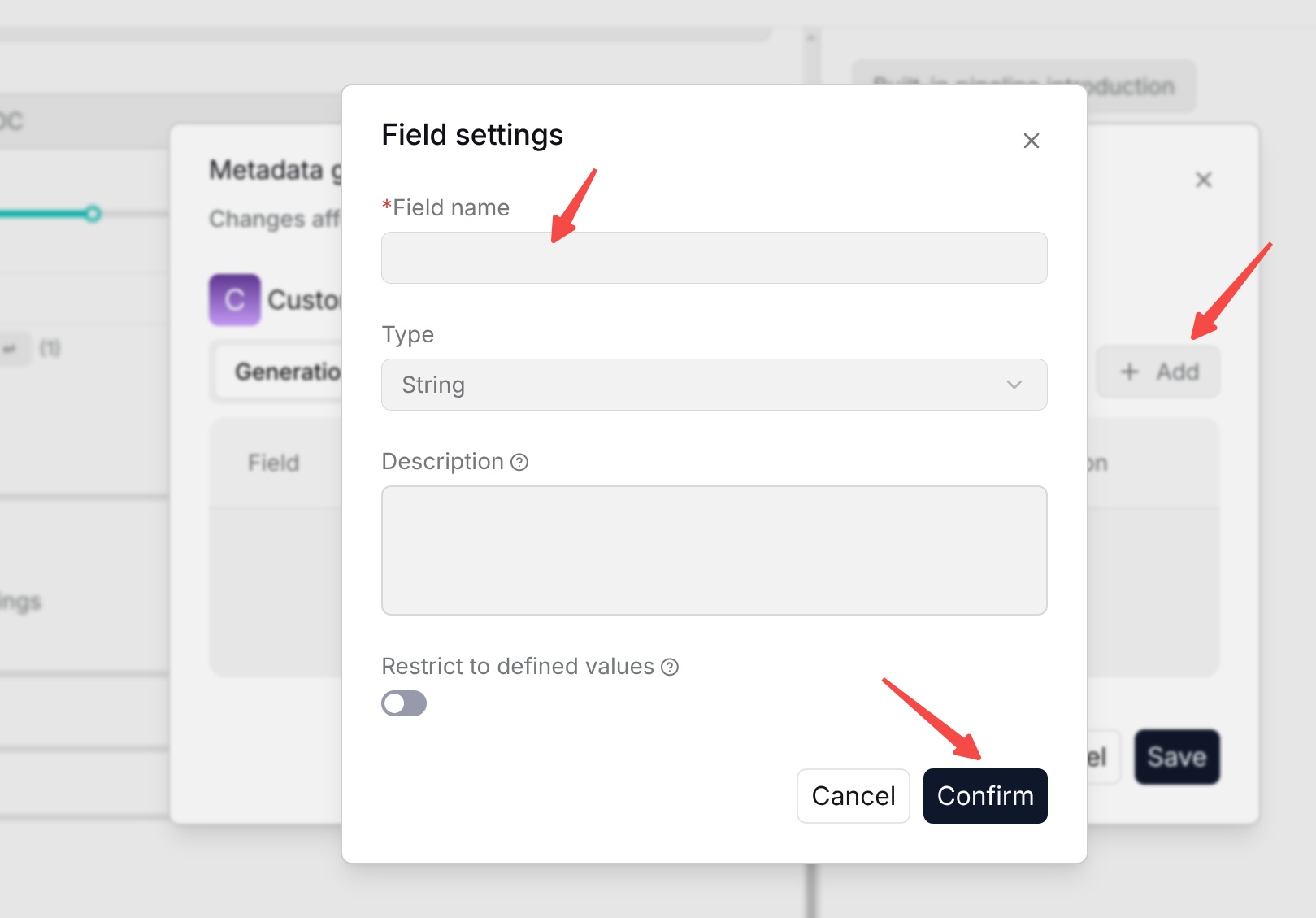
Generation is used to customize metadata fields that need to be generated from document content. Click Add to add a field and configure the following items as needed:
- Field: The metadata field name.
- Description: The field description, used to explain the information to extract or generate from the document.
- Type: The field's data type.
- Values: The allowed values for the field, used to restrict the generated result's value range.
After saving, the system generates corresponding metadata from document content during subsequent document parsing based on these field definitions.
Built-in: Built-in Metadata
Built-in provides system-predefined metadata fields. You do not need to manually create or configure field rules. Use the switch on the right side of each corresponding field to choose whether to generate that metadata during document parsing. The following built-in fields are currently supported:
- update_time: Records the document update time.
- file_name: Records the document file name.
Select the fields to use, enable their switches, and then click Save to save the configuration. Generated metadata can be used in document management and retrieval filtering. To view or edit generated metadata, Metadata management.
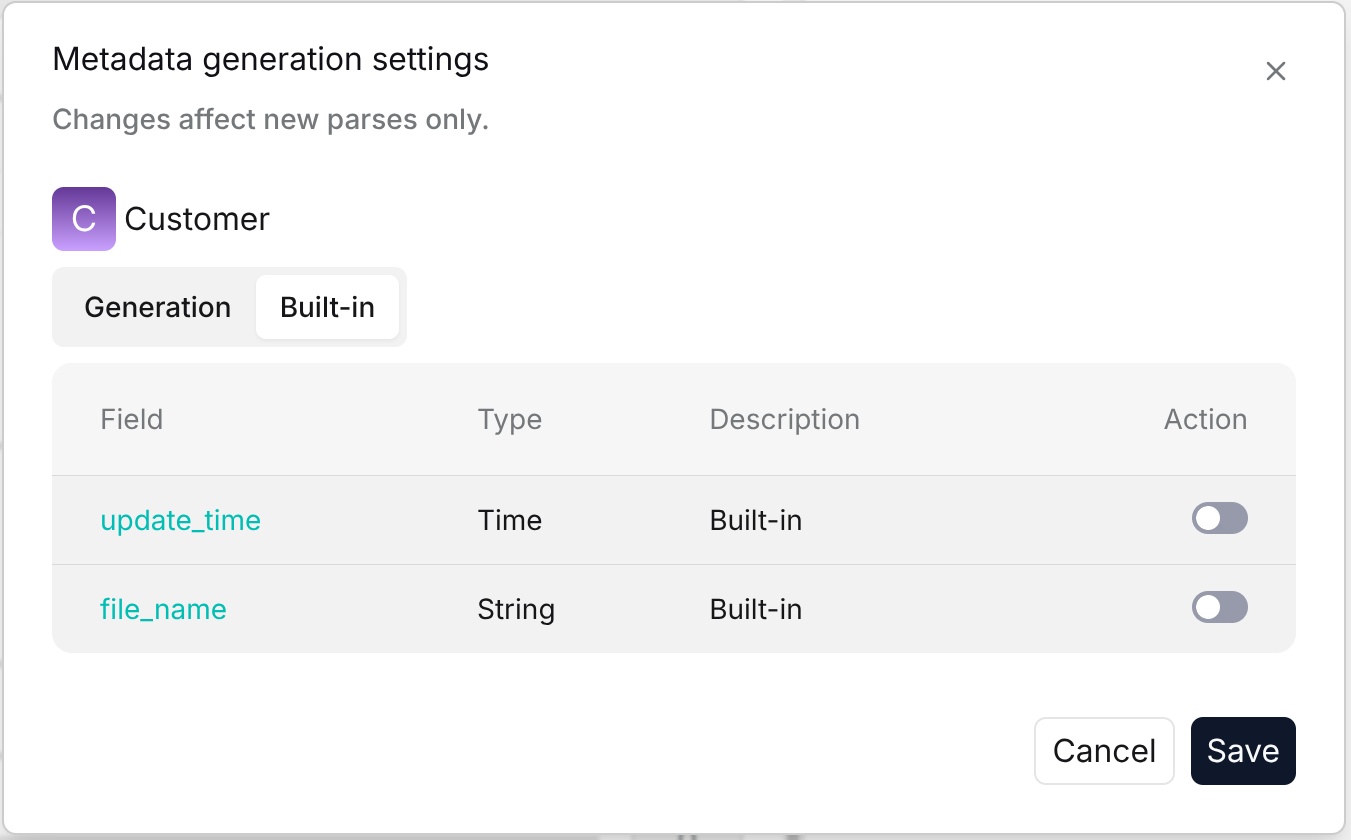
Table Column Role Configuration
When a dataset uses Table as the built-in parsing method, you can use Column mode to set the purpose of each table column during parsing and retrieval. A column can be included in chunk text for indexing, used only as metadata, or used for both.
Auto
When Auto is selected, all columns are included in chunk text and are also stored as metadata. This is RAGFlow's default setting. This mode is suitable when you do not need to distinguish the purpose of each column and want all table content to participate in retrieval and also be available as metadata.
Manual
When Manual is selected, RAGFlow identifies columns in the table and displays them one by one according to the original table column names. For example, CRIM, ZN, INDUS, CHAS, and similar names in the interface come from the column names in the current table. They are not predefined RAGFlow fields.
Users can assign one of the following roles to each column through the drop-down menu on the right side of each column name:
- Indexing: Includes the column content in chunk text for vector retrieval and full-text retrieval. This is suitable for columns that contain the main retrieval content.
- Metadata: Saves the column only as metadata and does not include it in chunk text. This column can be used as a filter field to narrow the retrieval scope.
- Both: Uses the column for both indexing and metadata. The column is included in chunk text and participates in vector retrieval and full-text retrieval, and can also be used as metadata for filtering.
For example, if a table contains four columns, Title, Content, Category, and Year, you can set them according to actual use:
- Title → Both: The title participates in retrieval and can also be used as metadata.
- Content → Indexing: The body text is mainly used for content retrieval.
- Category → Metadata: Used to filter retrieval results by category.
- Year → Metadata: Used to filter retrieval results by year.
In this way, fields that do not need to participate in content retrieval can be prevented from entering chunk text, while these fields are still preserved as retrieval filter conditions.
Note: Column role configuration applies to the column structure of a table, not to individual cells. After configuration is modified, the new settings apply to subsequently parsed documents. For documents that have already completed parsing, the documents must be parsed again before the new column roles take effect.
Associated Data Sources
The Data source area is used to associate the current dataset with data sources that have already been added.
Click Link data source and select the data source to associate from existing data sources. After association, the current dataset can use the data provided by that data source. This area is only used to establish and manage the association between the dataset and data sources. It does not provide data source creation or connection configuration.
Tip: To add a new data source, or configure data source connection information, synchronization methods, and other settings, see Data source. After adding the data source, return to the dataset configuration page to associate it.