Feature Overview and Creation
Chat is used to create dataset-based question-answering applications. After configuring the datasets, large language model, system prompt, and retrieval parameters for a Chat, users can ask questions based on dataset content in the chat interface.
Chat supports dataset retrieval, citation display, keyword analysis, multi-turn conversation optimization, cross-language search, web search, and other capabilities.
After creating a Chat, configure its datasets, model, system prompt, and retrieval parameters for the actual business scenario before using it to answer questions. You can modify these settings later.
Create a Chat
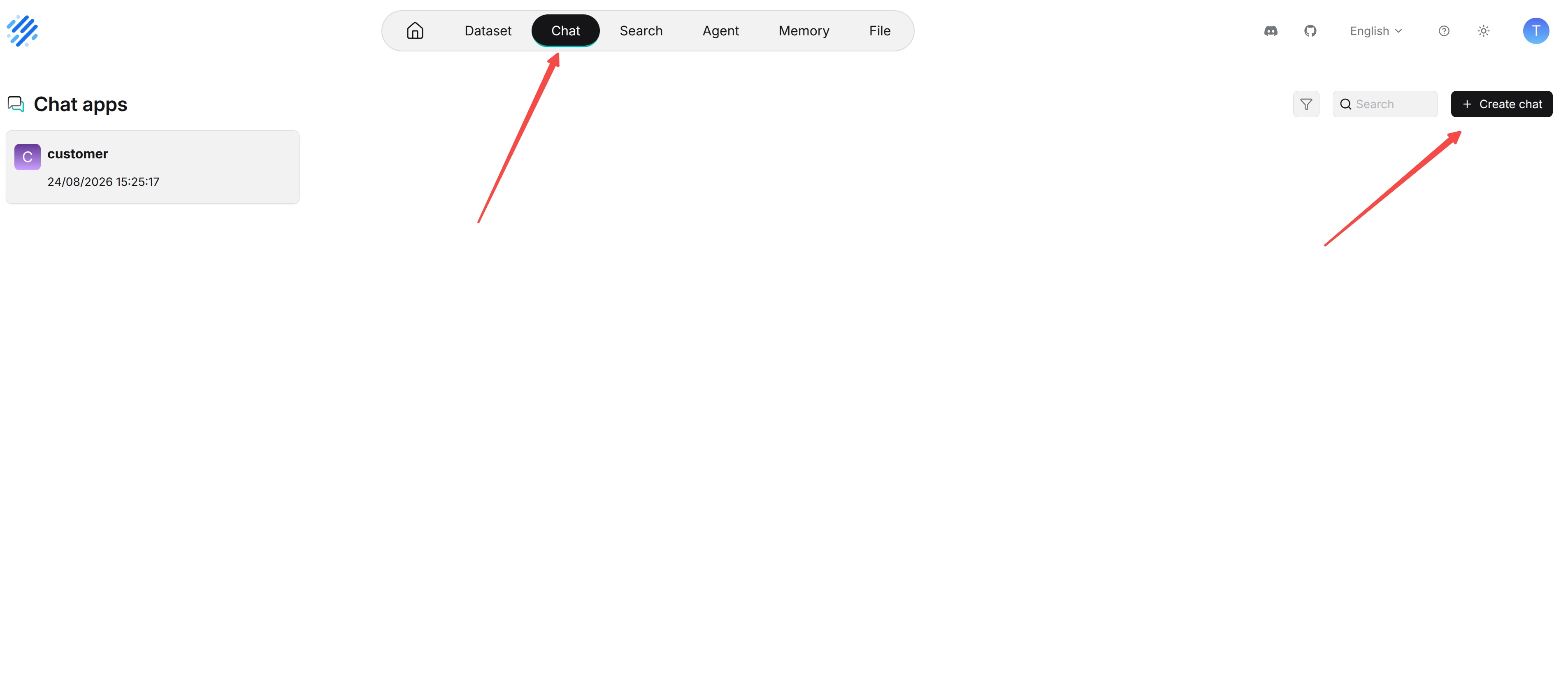
- Select Chat in the left navigation bar.
- Click Create chat.
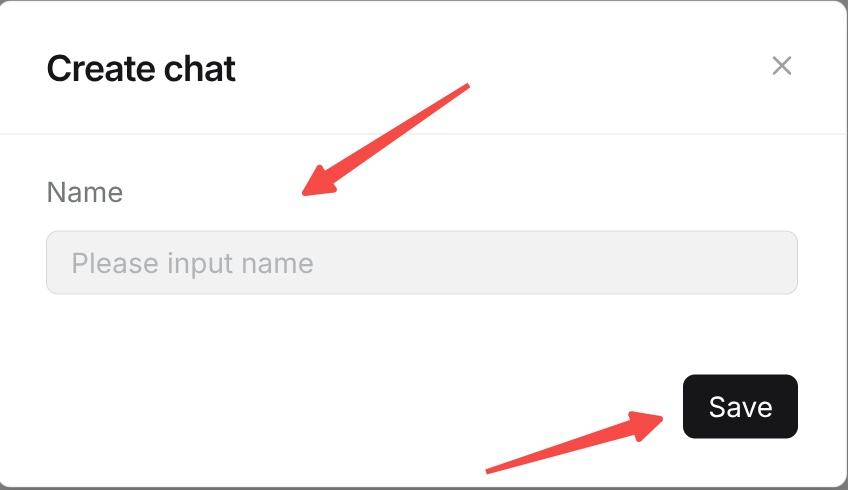
- Enter a name for the Chat.
- Confirm the creation.
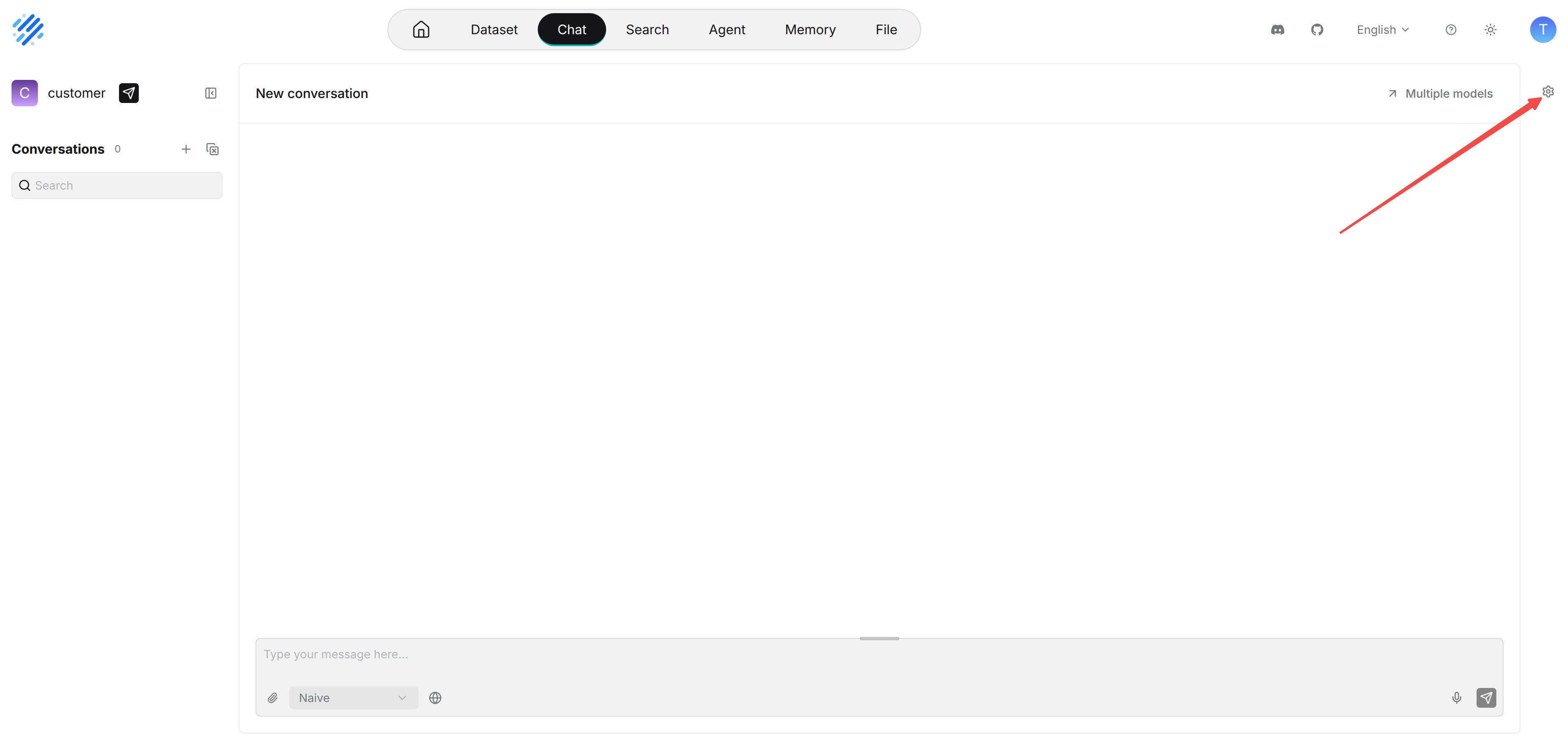
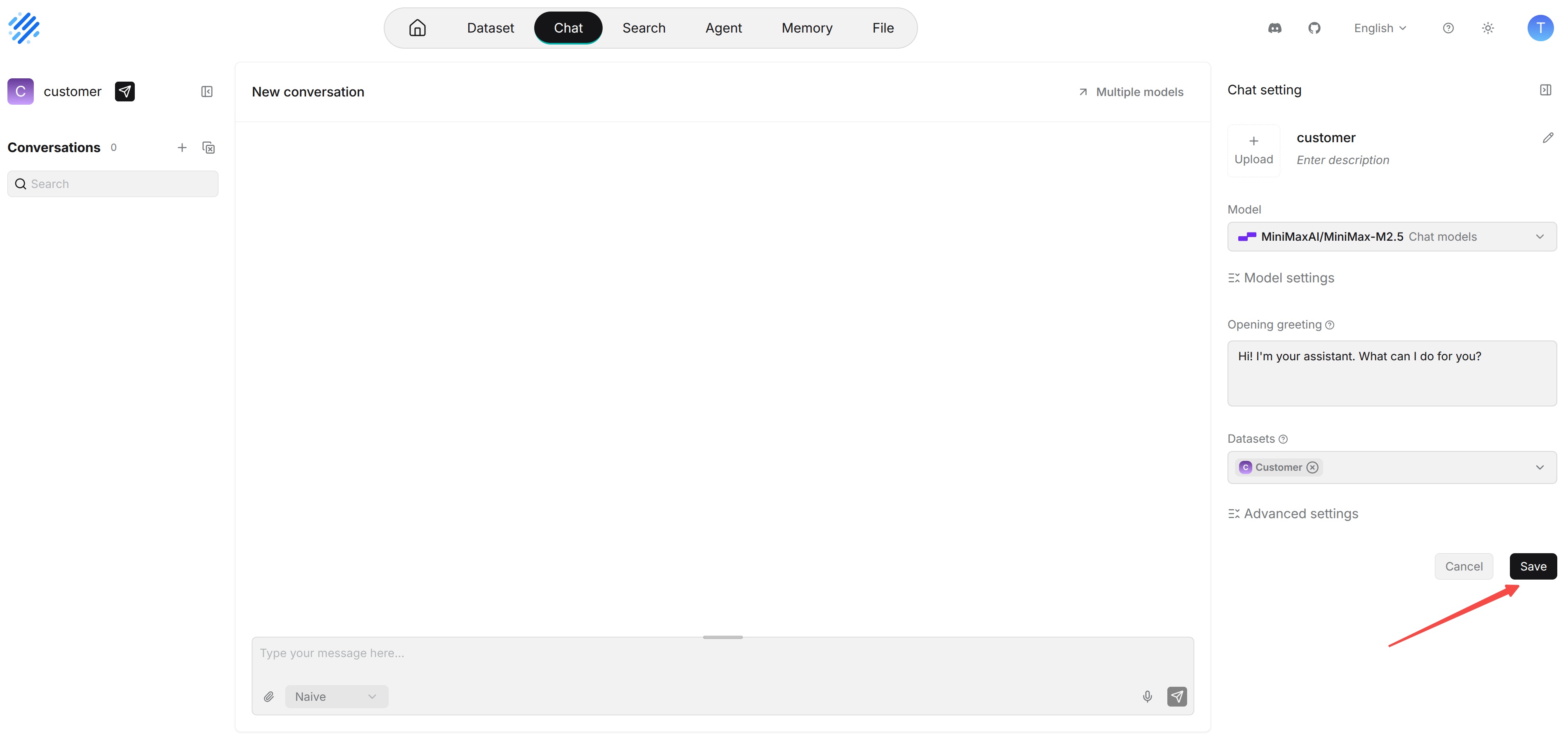
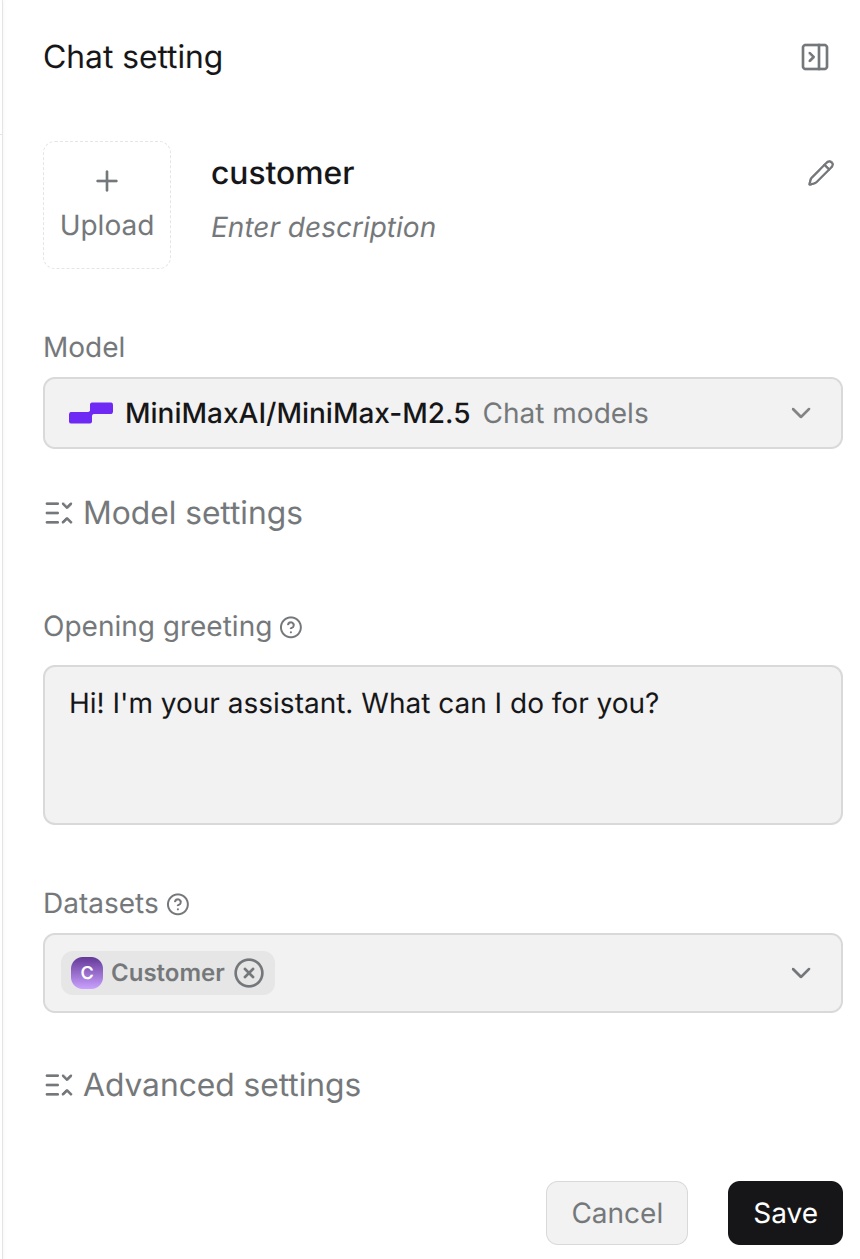
- Open Chat setting, then configure the datasets, model, system prompt, and retrieval parameters.
- Save the setting, then open the chat window to test and use the Chat.
You do not need to complete every setting when creating a Chat. You can return to the corresponding Chat from the Chat list and update its configuration later.
Basic Information
You can set the following basic information for a Chat:
- Name: The display name used to identify the Chat in the Chat list, published pages, or embedded scenarios. Use a clear name that reflects its business scope or purpose.
- Avatar: The image displayed for the Chat. Select a brand, product, or general-purpose icon according to the scenario.
- Description: A brief description of the Chat's purpose, service scope, intended audience, or dataset coverage.

Configure a Chat
Complete the main Chat settings according to the actual scenario:
- Dataset: Select the dataset the Chat can retrieve from. When answering a question, the system searches for relevant content in the associated dataset.
- Model: Select the large language model used to generate answers.
- Retrieval configuration: Configure the similarity threshold, vector similarity weight, Top N, and other settings to control the retrieval scope and results.
- Advanced settings: Use the options available in the current version to further tune answer generation and retrieval behavior.
Save the setting and test it in the chat window.
Start with the default parameters for a basic test. Then gradually adjust the retrieval parameters and system prompt based on the quality of the actual answers.
Modify an Existing Chat
You can modify an existing Chat at any time. Find the Chat in the Chat list, open Chat setting, update its datasets, model, system prompt, or retrieval parameters, and save the changes.
After changing the configuration, rerun tests with representative questions to confirm that the new settings meet expectations.