Manage Team Members
This section describes how to view, invite, and remove members of your workspace. Only the workspace owner can invite or remove members.
Open the Team Page
Click your avatar in the upper-right corner, open User settings, then select Team in the left sidebar.

Each account has its own workspace. The page title shows your nickname followed by workspace.
The page contains two lists:
- Team members shows people you have invited to your workspace and those who have joined. Your own account is not listed as a member.
- Joined teams shows your own workspace, other teams you have joined, and invitations awaiting your response. Your own workspace has no leave action.
Joining another team does not switch Team members to that team's member list. To respond to another owner's invitation or leave their team, see Join and Leave Teams.
View Members
In Team members, review the people you have invited and those who have joined.
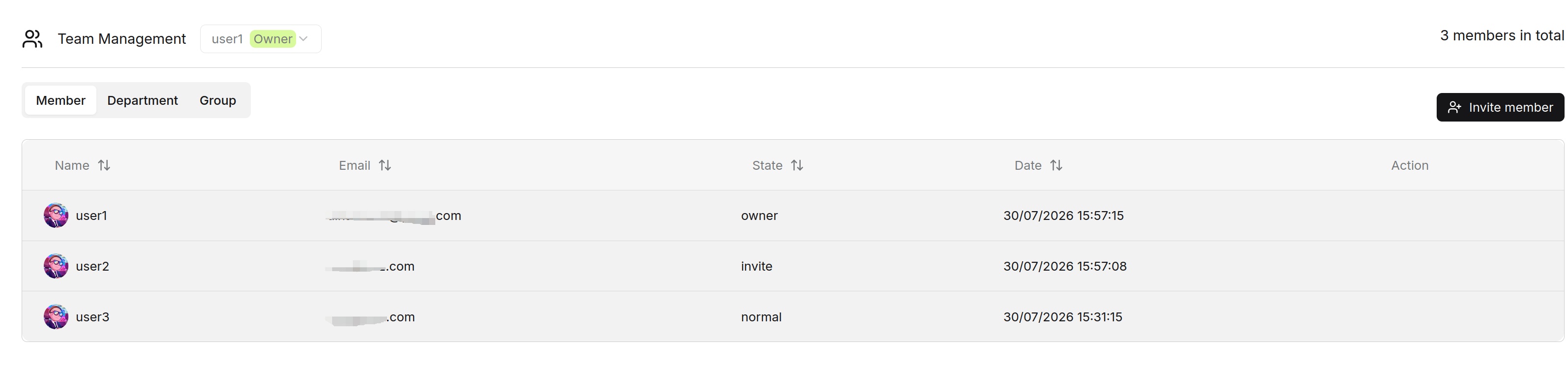
| Field | Description |
|---|---|
| Name | The member's nickname. |
| Date | The last update time for the member's account, not the date they were invited or joined. |
| The member's email address. | |
| State | Invite means the invitation is awaiting a response. Member means the person has joined. |
| Action | The delete icon opens a confirmation to remove the member or cancel a pending invitation. |
Use the search box beside Invite member to search by nickname or email address. Click the sort button beside Date to change the order.
To view invitations from other owners or teams you have joined, see View Joined Teams.
Invite Members
Invite another registered RAGFlow user to collaborate on resources you share with your team.
-
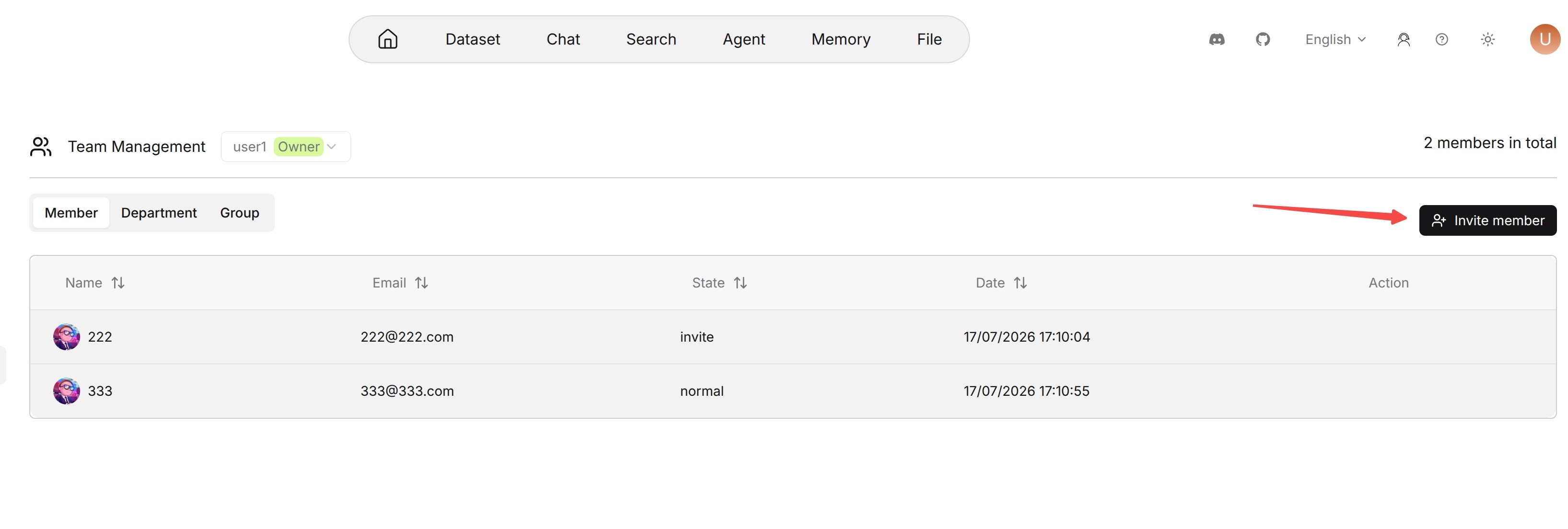
In Team members, click Invite member.
-
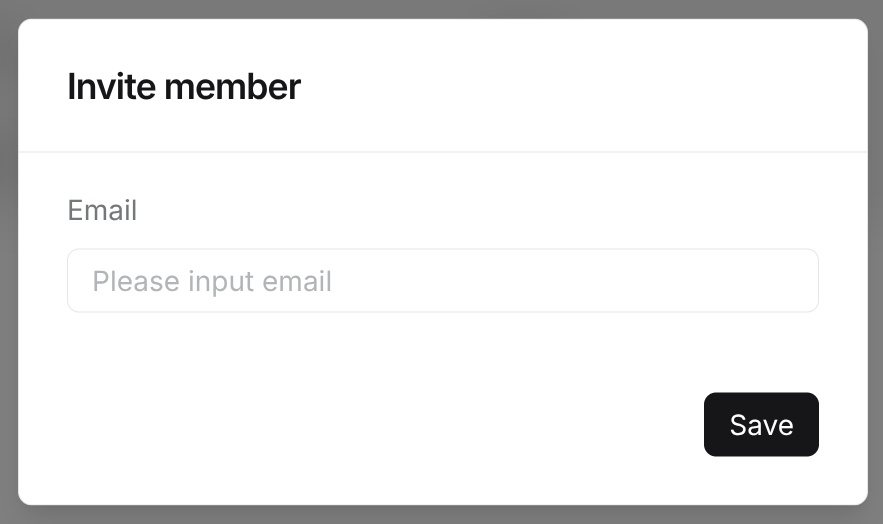
In the Add dialog, enter the user's email address.
-
Click Ok.
The invited person appears with the Invite state until they accept. The recipient must accept the invitation from their own account. The state then changes to Member.
To share resources with your members, see Resource Sharing and Permissions.
If the Invitation Fails
Check that the email belongs to a registered account and that the person is not already a member or awaiting an invitation response.
Remove Members or Cancel Invitations
As the workspace owner, you can remove a member or cancel an invitation that has not yet been accepted.
-
Find the person in Team members and check their email address.
-
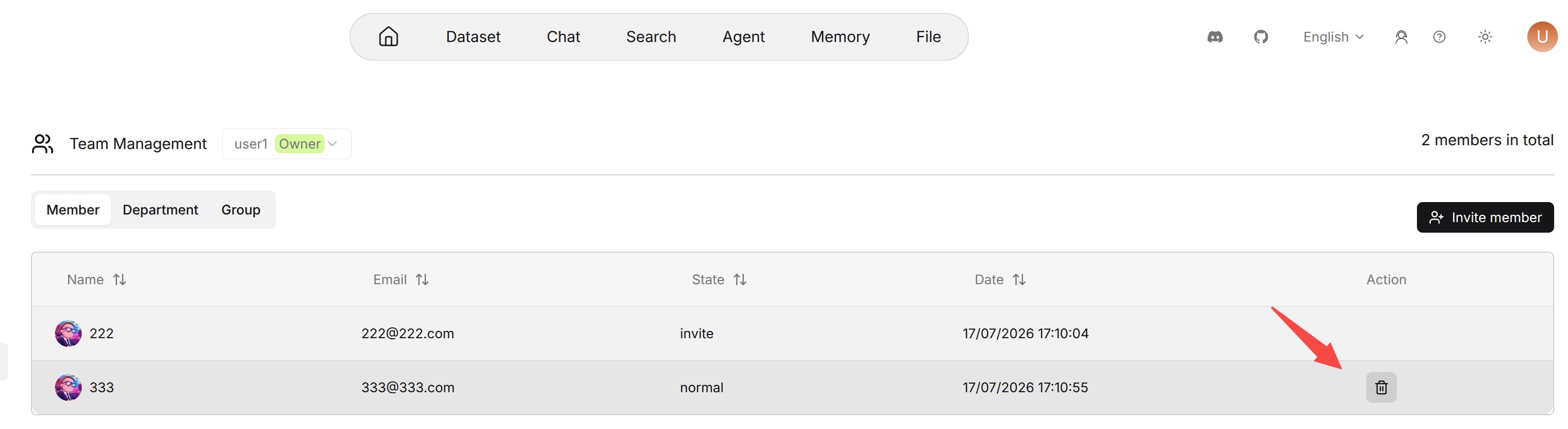
Click the delete icon in Action.
-
In Delete member, click Delete to confirm, or Cancel to keep the person in the list.
Removing a member ends their access to resources shared only with your team. It does not delete their account or their personal resources. You can invite them again later if needed.
Your own account is not listed as a removable member of your workspace.