Join and Leave Teams
Use User settings > Team to view joined teams, respond to invitations, or leave a team.
View Joined Teams
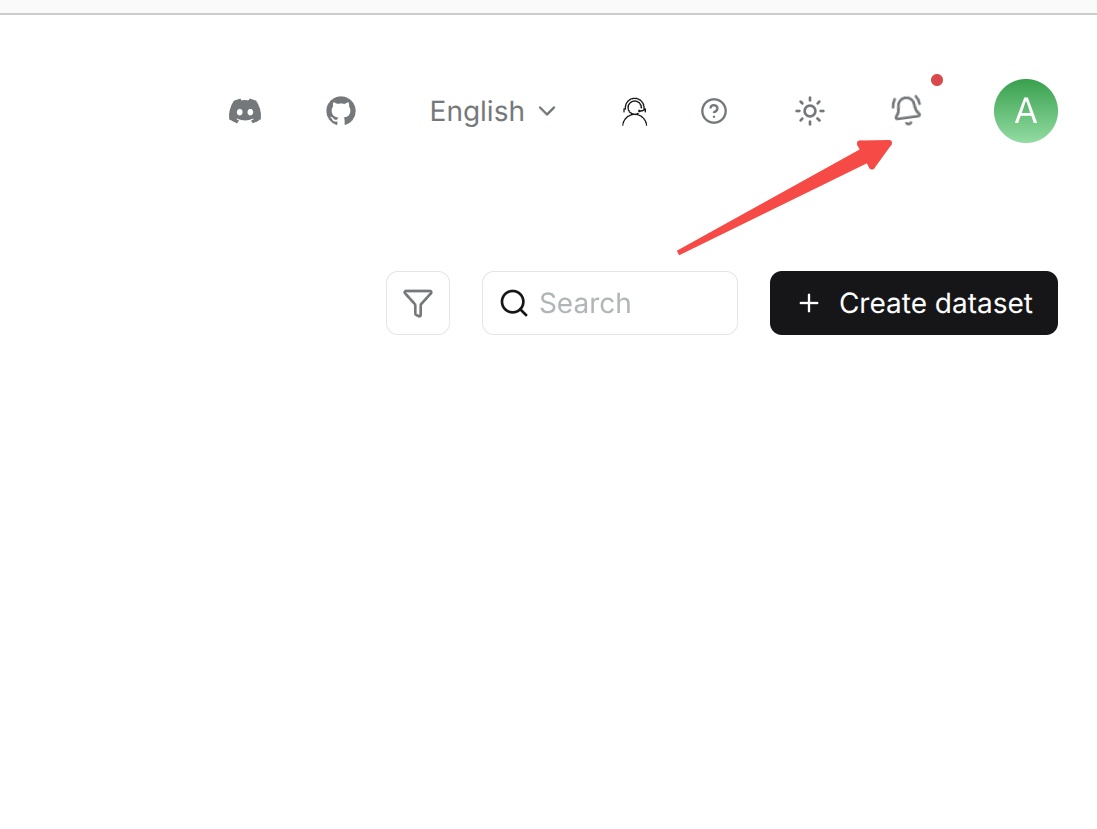
Scroll to Joined teams. This list includes your own workspace, teams you have joined, and invitations awaiting your response.

| Field | Description |
|---|---|
| Name | The team owner's nickname. |
| Date | The last update time for the team owner's account, not the date you joined the team. |
| The team owner's email address. | |
| Action | Accept and Decline for a pending invitation, or a leave-team icon for a team you have joined. Your own workspace has no leave action. |
Use this list's search box to search by the owner's nickname or email address. Click the sort button beside Date to change the order.
Accept or Decline an Invitation
When someone invites you to their team, you can respond from your own account:
-
Find the invitation in Joined teams. The Name and Email columns identify the team owner.
-
Choose Accept to join the team, or Decline to decline.
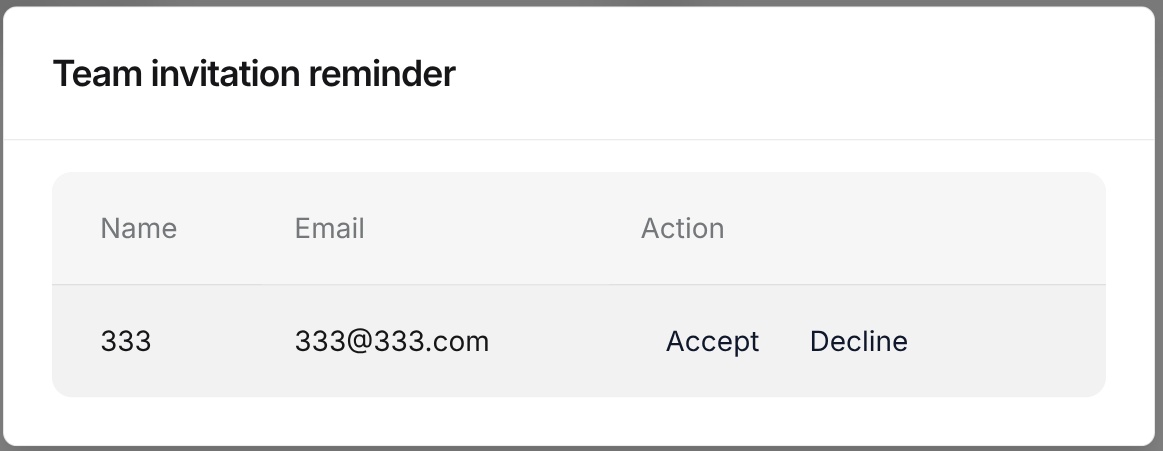
After you accept, the invitation actions are replaced by a leave-team icon. Find resources shared with Team in the corresponding Dataset, Agent, or Memory list. See Team usage guides. Private resources remain unavailable.
If you decline, the invitation is removed from the active list and you do not join the team. The owner can invite you again later if needed.
Leave a Team
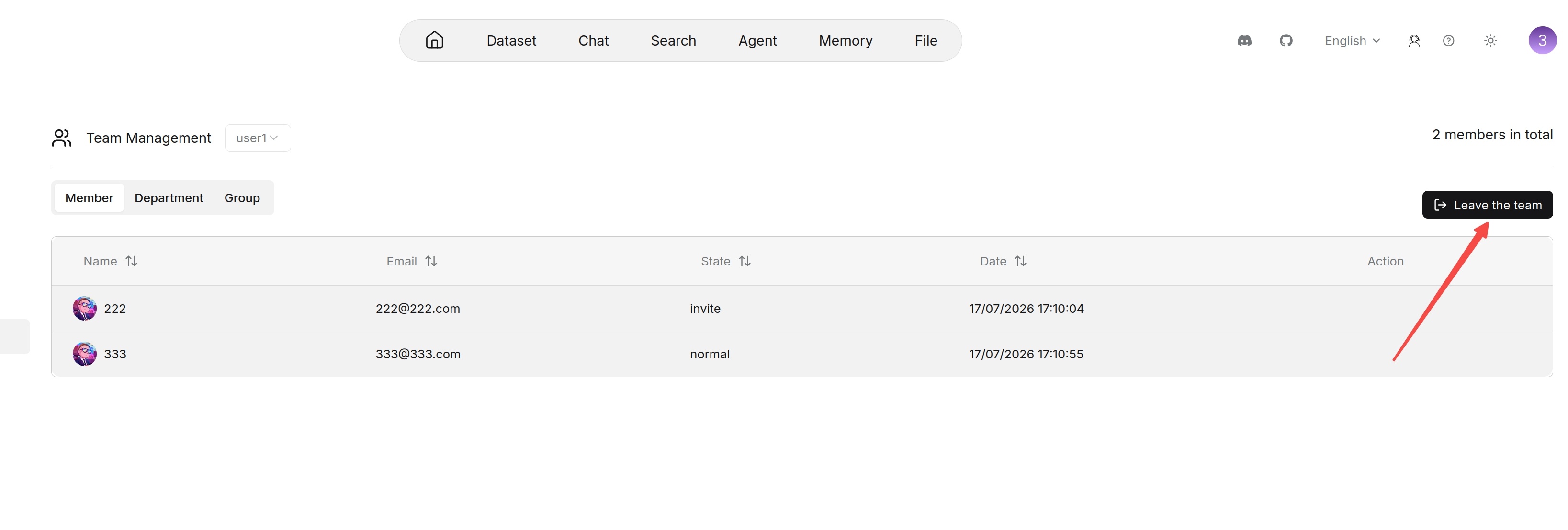
You can leave a team you have joined. You cannot leave your own workspace.
-
In Joined teams, find the team you want to leave.
-
Click the leave-team icon in Action.
-
Check the confirmation message, then click Delete to leave. Choose Cancel to stay in the team.
Leaving removes the team from your joined list and ends your access to resources shared only with that team. It does not delete your account or your own workspace's resources.
To join again later, ask the owner to send you a new invitation.
Common Questions
Why Can't an Invited User See Shared Resources?
Confirm that the invitation has been accepted under Joined teams, then ask the owner to verify that the resource is set to Team and saved. Refresh the resource list. If access was previously available, confirm that the membership is still active. See Resource Sharing and Permissions.
Why Can I Only See Some Datasets After Joining a Team?
Only Datasets shared with your team appear. See Resource Sharing and Permissions for who can access each scope.
Why Does My Own Workspace Appear in Joined Teams?
The list includes your own workspace as well as other teams and pending invitations. Your own workspace has no leave action.
Does Leaving a Team Delete My Account or Files?
No. Leaving ends your access to that team's shared resources. Your account and your own workspace's resources are kept.
To invite people to your own team or remove members, see Manage Team Members. For shared resource actions, see Team Member Permissions.