Chat Channels Overview
This chapter describes how to configure chat channels in RAGFlow, including supported platforms, the parameters required by each platform, the workflow for connecting a Chat, and connection verification methods.
With chat channels, users can chat with a Chat directly in chat applications such as Discord, Telegram, WeCom, and Feishu / Lark. User messages from third-party platforms enter RAGFlow, where the bound Chat generates replies and sends them back to the original chat window.
Chat channels are responsible only for platform access and message forwarding. Reply content, knowledge base scope, model capabilities, and answer quality are determined by the bound chat model.
Supported channels
| Chat channel | Access method | Requires an open platform or developer backend | Use case |
|---|---|---|---|
| Discord | BotToken | Yes | Suitable for Discord community support, product Q&A, and user feedback collection. |
| DingTalk | ClientID + ClientSecret | Yes | Suitable for knowledge Q&A, process consultation, and collaboration support within DingTalk organizations. |
| Feishu / Lark | AppID + AppSecret | Yes | Suitable for enterprise knowledge assistants and internal business Q&A in Feishu or Lark. |
| QQ Bot | AppID + ClientSecret | Yes | Suitable for QQ user services, community Q&A, and channel interactions. |
| Telegram | BotToken | Yes | Suitable for overseas user services, community operations, and real-time bot conversations. |
| WeCom | Webhook or WebSocket | Yes | Suitable for employee services, knowledge Q&A, and business bots in WeCom. |
| QR pairing | No | Log in to a WhatsApp account by scanning a QR code and forward messages to a Chat. |
Enter the Chat Channels page
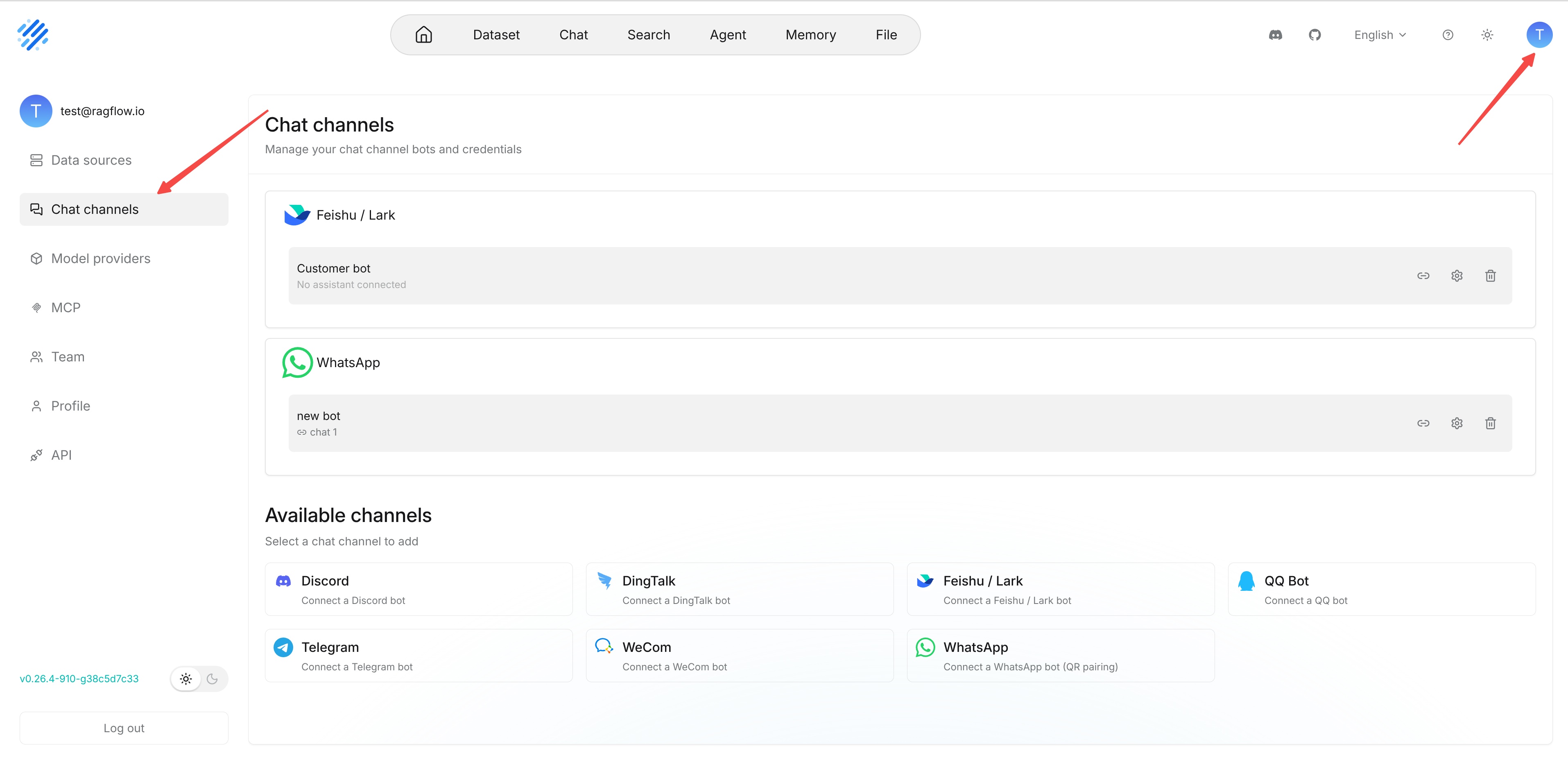
After logging in to RAGFlow, go to User Settings and click Chat channels. The upper part of the page displays added chat channels, and the lower part displays the channel types currently available to add.
When using this feature for the first time, the page indicates that no chat channel has been added. You can select the platform you need from the Available channels area.
General configuration and operation workflow
Before completing chat channel configuration, select the appropriate platform based on your actual use case, then create the channel and complete the connection configuration. After configuration, users can connect the chat channel to a Chat and interact with the bot through a third-party platform.
Operation steps:
- Enter the Chat channels page.
- Select the platform you need from the Available channels area.
- Create the channel and fill in its name.
- Fill in the corresponding credentials or complete QR pairing based on the selected platform.
- Save the channel configuration.
- Connect the chat channel to a Chat.
- Send a test message to the bot in the corresponding third-party platform.
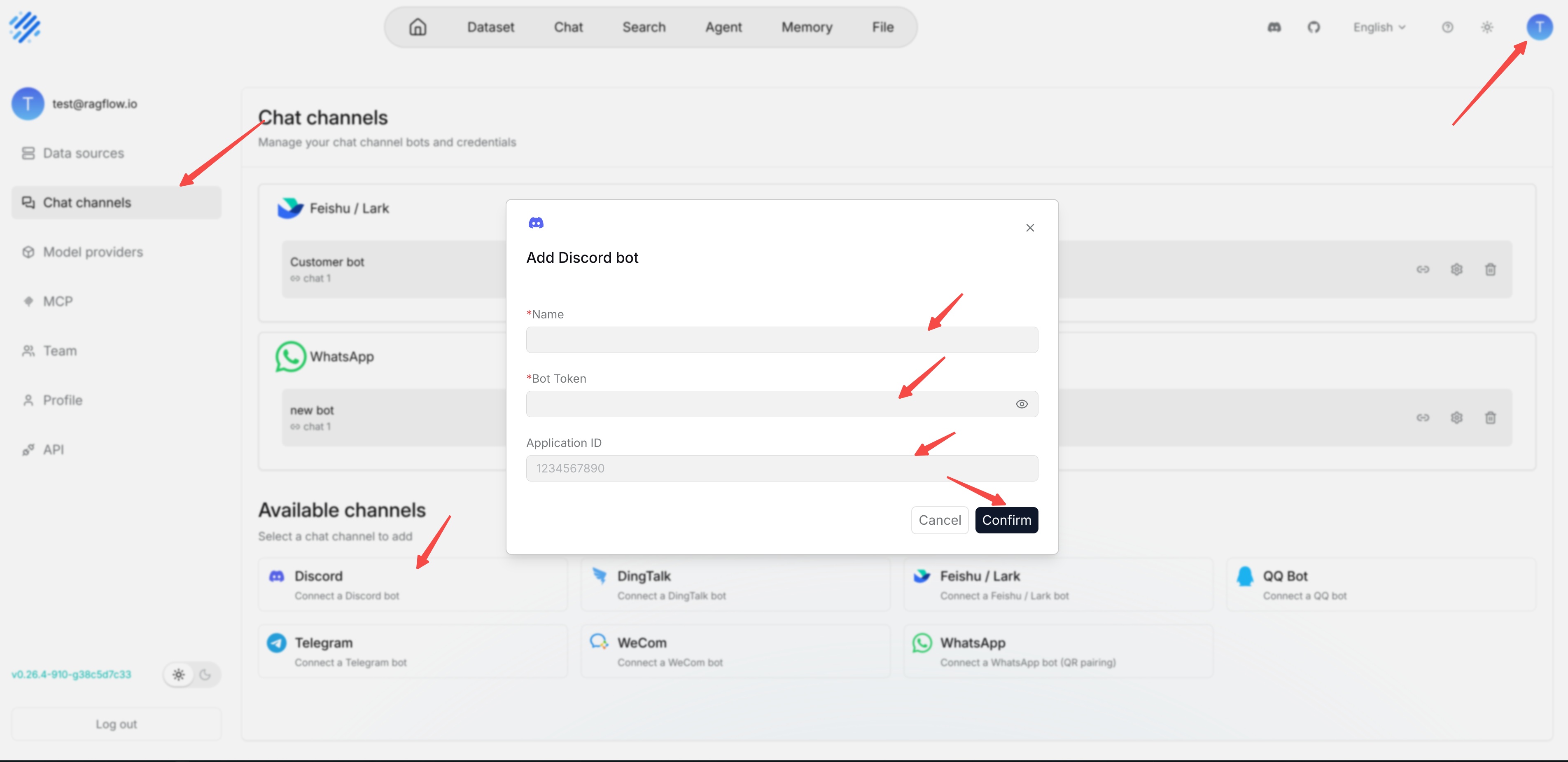
For some platforms, after saving, it may take a few seconds before the page displays the connection status, QR code, or follow-up operation prompts. Follow the page prompts and do not repeatedly create channels before the QR code or status has been generated.
After adding a channel, you need to connect it to a Chat. If the channel is enabled but not connected to a Chat, RAGFlow can receive external messages but will not generate replies.
After you modify bot credentials or the channel type, RAGFlow automatically restarts the corresponding channel connection. If the credentials are incorrect, the channel may fail to start. Return to the third-party platform to confirm whether the bot status, permissions, and keys are valid.
Configuration result:
After configuration is complete and the channel is connected to a Chat, the bot in the third-party platform becomes available. When a user sends a message in the corresponding chat application, the bot calls the bound Chat to generate an answer and returns the answer to the original chat window.
After successful configuration, you can usually see the following results:
- The bot is online or can be invoked normally in the corresponding platform.
- User messages can be received by RAGFlow.
- Answers generated by the Chat are returned to the same chat window.
For example, after completing Discord channel configuration, users can send messages directly to the bot in Discord. The bot calls the bound Chat and returns replies. For the WhatsApp channel, after filling in the name and saving it, the page generates a QR code after a few seconds. After QR pairing is complete and the channel is connected to a Chat, other users who send messages to that WhatsApp account can receive Chat replies.