Data Source Overview and Page Management
Data Source Overview
Data sources are used to connect external systems and synchronize their documents, records, emails, or messages to RAGFlow knowledge bases. After configuring a data source, users can reduce the workload of manually uploading files, and can retrieve and ask questions about content from external systems in the knowledge base.
Data Source Page Management
Enter the Data Source Page
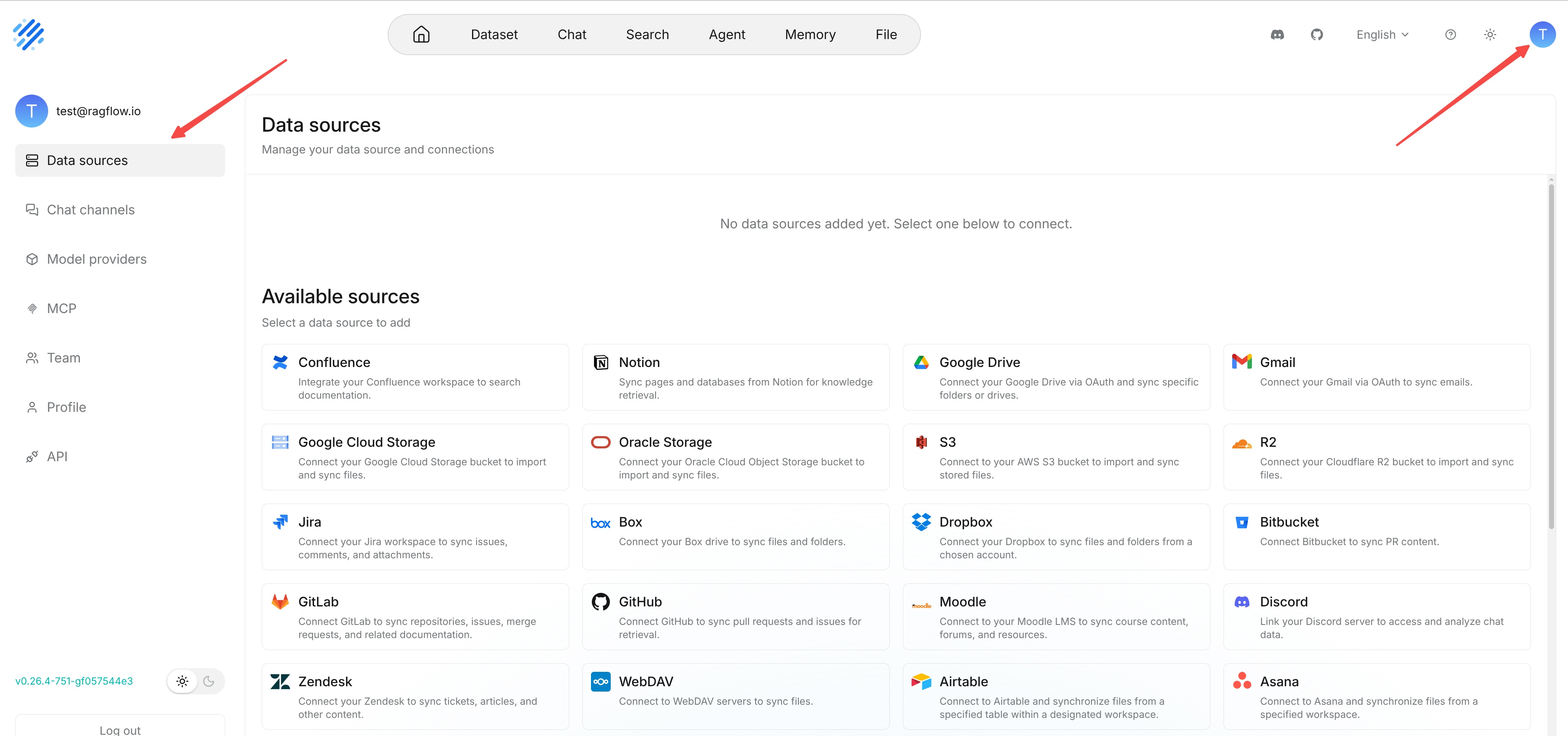
Enter the Data Source page from User Settings. The upper part of the page displays connected data sources, and the lower part displays data sources that can be added.
Create a Data Source Connection
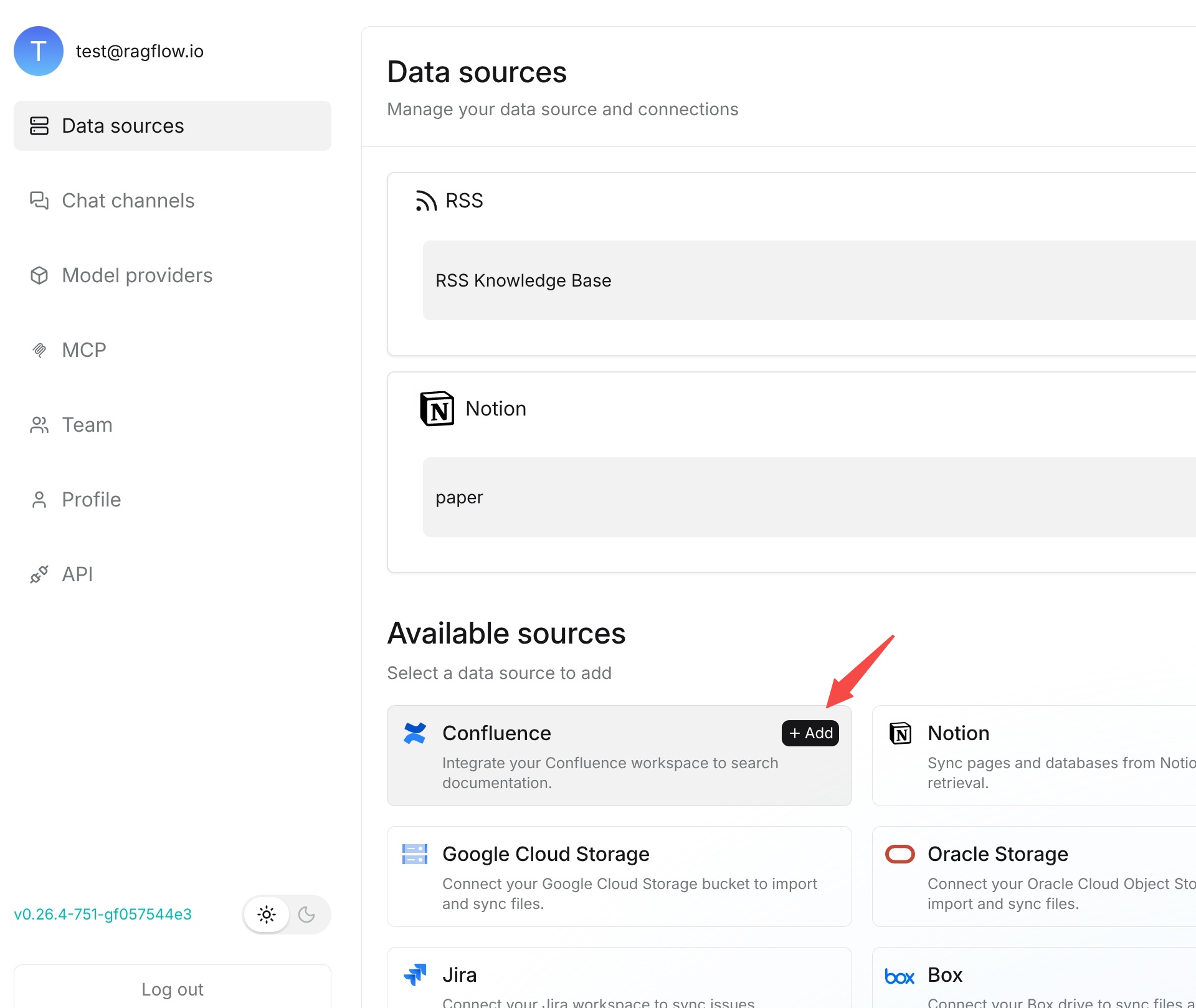
Select the system you need to connect from the available data sources. The system opens the creation window for the corresponding data source. When creating a data source, you usually need to complete the following operations:
- Fill in the connection name, which is used to identify the connection on the data source page and in the knowledge base.
- Fill in connection information such as the account, token, address, path, or storage scope.
- Set synchronization parameters as needed, such as sync deletion, refresh interval, cleanup interval, and timeout.
- Click Save to create the data source connection.
Different data source creation windows display different fields. Users only need to fill in the fields in the current window. Credentials, addresses, spaces, buckets, database tables, and other information should be based on the actual configuration in the corresponding external system.
Manage Connected Data Sources
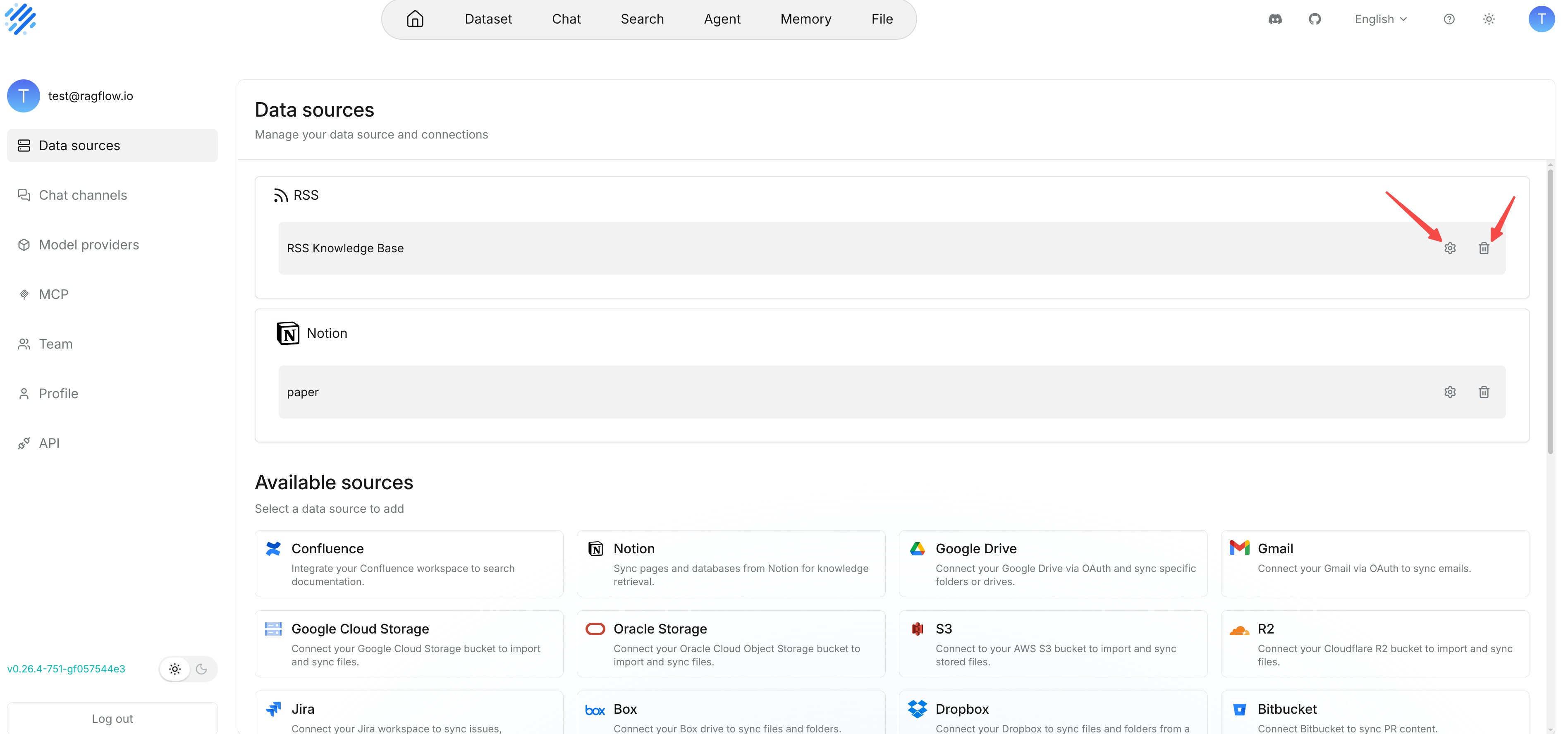
Successfully created data sources are displayed in the connected data source area. Each connection displays the data source type, connection name, and operation buttons that can be executed.
Settings: Click the settings button to enter the settings page of the data source connection and view or modify connection parameters.
Delete: Click the delete button to delete the data source connection. Before deleting it, confirm whether the connection is still used by a knowledge base to avoid affecting subsequent synchronization.
Area description: the connected data source area is used to manage the connection itself; the available data source area is used to create new data source connections.
Set a Connected Data Source
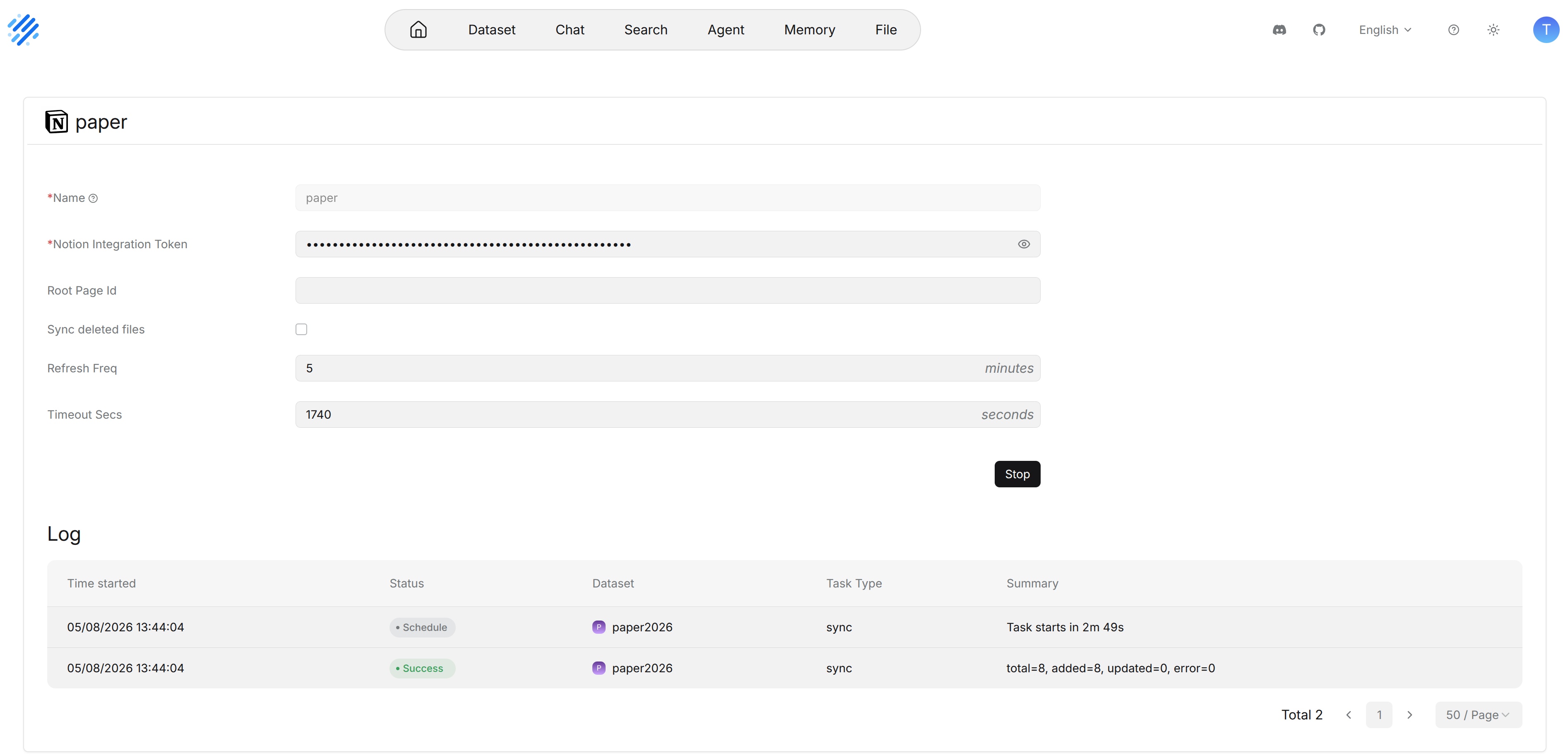
Click the settings button on the right side of a connected data source to enter the settings page of that connection. The settings page is used to view and maintain the configuration of the current connection. It is suitable for use when a token expires, the synchronization scope changes, the refresh frequency needs to be adjusted, or the synchronization result is abnormal.
Common fields on the settings page include:
- Name: The name displayed for the current data source connection in RAGFlow.
- Authentication information: The account, token, key, or authorization file used to access the external system.
- Synchronization scope: The pages, folders, buckets, database tables, channels, or project scope that need to be read.
- Sync deleted files: After this is enabled, content deleted from the external system is removed from the knowledge base index during subsequent synchronization or cleanup tasks.
- Refresh interval: The interval at which RAGFlow checks the external system for newly added or updated content.
- Cleanup interval: The interval at which RAGFlow checks the external system for deleted content. It takes effect only when sync deleted files is enabled.
- Timeout: The maximum time that a single connection or synchronization task is allowed to wait.
- Test connection: Verifies whether the current configuration can successfully connect to the external data source. It is recommended to test the connection before saving the configuration or starting a sync task.
After completing the modification, click Save. The new configuration is used for subsequent synchronization tasks. Content that has already been synchronized to the knowledge base is gradually updated according to the next synchronization or cleanup task.
View Connected Data Source Logs
A log area is provided at the bottom of the data source settings page to view synchronization task records related to the connection. Logs can help determine whether synchronization has been executed, whether it failed, and the reason for failure.
Log fields are described as follows:
- Start time: The time when the synchronization task started.
- Status: The execution result of the synchronization task, such as successful, failed, or in progress.
- Knowledge base: The knowledge base that the synchronization task writes to.
- Task type: For example, initial synchronization, incremental synchronization, or cleanup task.
- Summary: The synchronization summary or error description, used to troubleshoot permissions, fields, networks, rate limits, and other issues.
If the log is empty, it usually means that the data source has not been used by any knowledge base, or that no synchronization task has been triggered.