Chat Configuration
Open a Chat from the Chat list, then click the gear icon on the right to open Chat setting. Configure the basic fields first, expand Advanced settings for additional options, and click Save to apply your changes. Use Cancel to discard unsaved changes.
Basic Configuration
The top of Chat setting contains the Chat's name, avatar, description, Model, Model settings, Opening greeting, and Datasets.
Model
Select the model used to generate answers. Available models depend on the provider instances configured for your account. Expand Model settings to adjust the generation parameters supported by the selected model. Start with the defaults and change one setting at a time while testing representative questions.
Opening Greeting
Enter the message users see when starting a conversation. Briefly explain the Chat's purpose, the content it can answer questions about, and a few example questions. This greeting introduces the Chat; it does not set the rules for subsequent answers.
Datasets
Select one or more datasets as the sources for retrieval. Prepare and parse documents before selecting a dataset: only datasets with available chunks can provide evidence for answers. If a selected dataset is unavailable or has been deleted, select another accessible dataset and save.
Advanced Settings
Expand Advanced settings below Datasets. It contains shared options followed by separate Naive and Agentic groups. Expand the group for the mode you want to configure.
The groups configure how each mode works. To choose the mode for a question, use the selector beside the message box; expanding a group in the settings panel does not switch the conversation's mode.
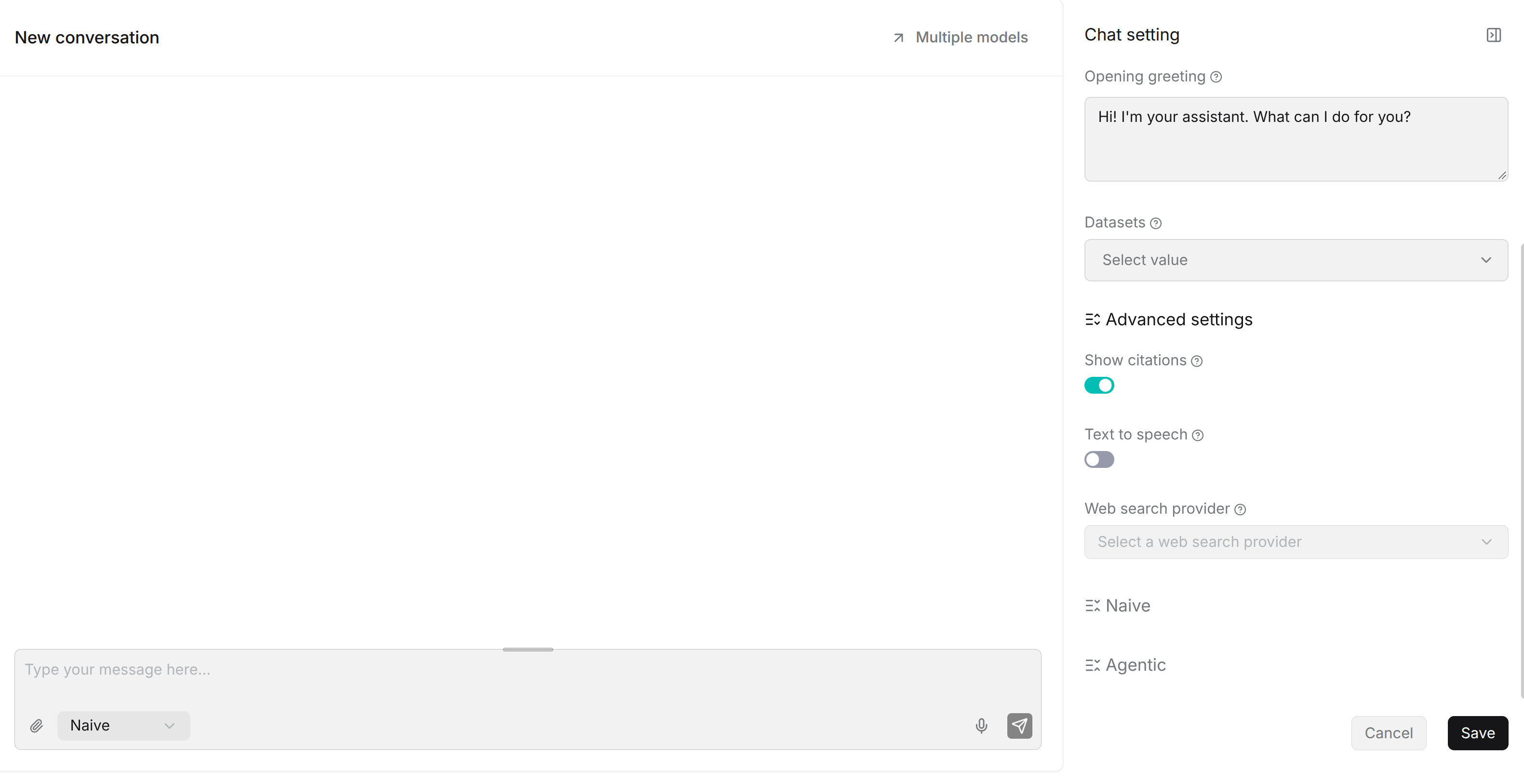
Shared Options
| Setting | Purpose and operation |
|---|---|
| Show citations | Display references to source content in answers so users can inspect the supporting evidence. Turn it off if citation display is not needed. |
| Text to speech | Enable spoken playback of answers. Configure an available TTS model in User settings > Model providers before using this option. This field is a switch; it is not the model selector. |
| Web search provider | Select the search service used when a user enables web search for a question. Complete the provider-specific API key field when required. See Configure Web Search. |
| Metadata | When available for the selected datasets, set metadata filters to narrow the documents searched. Check the selected datasets and their metadata fields before adding rules. |
Configure Web Search
- Open Chat setting > Advanced settings.
- In Web search provider, select the provider you want to use.
- Complete the API key field displayed for that provider. Fields marked as required must be filled in. Use the help link below the field if you need to obtain a key; providers that do not require a key can be used without one.
- Click Save.
- Return to the message box. Enable the globe-shaped web search control before sending a question that needs public web information. Turn it off when you want to ask without web search.
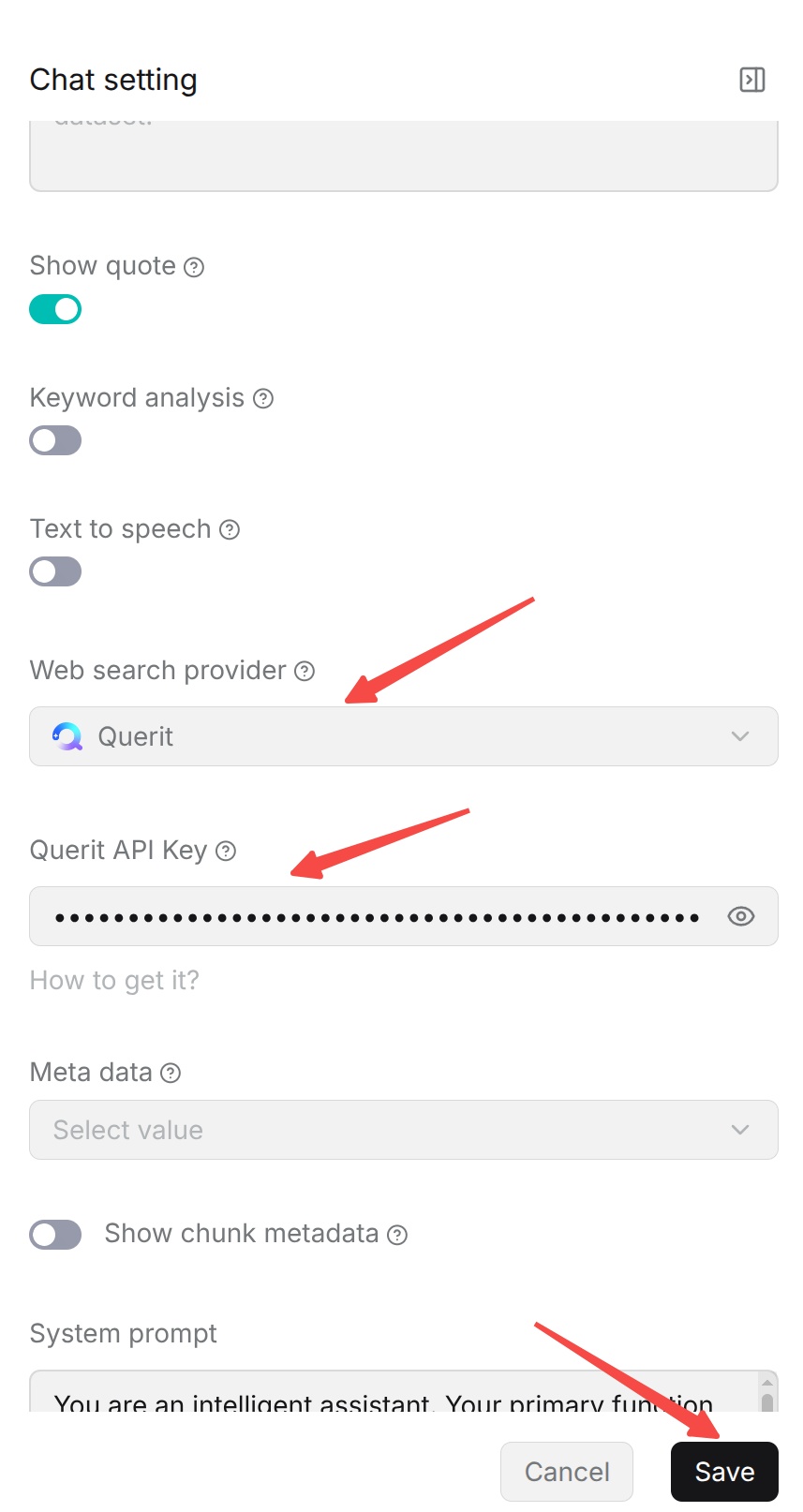
The screenshot uses Querit as an example. Select your own provider and complete the fields displayed for it.
The web search control is shown only when a provider is configured and its required key is present. If the control is missing, reopen Advanced settings, check the provider and its required fields, and save again. A visible control means the configuration is present; a failed search can still require checking the key, provider quota, or network access.
Web search supplements the datasets selected for the Chat. Select a provider, complete its required fields, and save the configuration to make the web search control available. For providers that require an API key, the key must be nonblank. Users can then enable web search when asking a question.
Naive Settings
Expand Advanced settings > Naive. These fields configure the standard retrieval-and-answer flow. They do not replace the separate Agentic template.
Empty Response
Enter a fallback message for questions where retrieval finds no usable dataset content, for example:
No relevant content was found in the dataset. Try a different question or add the missing information.
Use this field when answers must be grounded in your datasets. Leaving it blank allows the model to continue generating an answer when retrieval finds no usable content. The fallback is based on retrieval results, not a guarantee that every generated answer is complete.
Keyword Analysis
Enable Keyword analysis to extract keywords from the question to assist retrieval. This can help with product names, technical terms, and reference numbers. Compare the results with the option enabled and disabled using questions typical of your users.
System Prompt
Use System prompt to define the Naive mode's role, answer scope, language, format, and behavior when evidence is missing. For dataset-based Q&A, retain the {knowledge} placeholder so retrieved content can be inserted into the prompt.
For example, instruct the model to prioritize the supplied dataset content, cite evidence, and state when the available information does not answer the question. Avoid conflicting instructions. This field configures Naive mode; configure Agentic behavior under Advanced settings > Agentic.
Retrieval Parameters
The following parameters appear after System prompt in the Naive group.
| Setting | How to use it |
|---|---|
| Similarity threshold | Set the minimum score for accepting retrieved content. Increase it to filter more strictly; decrease it if relevant content is being missed. |
| Keyword similarity weight | Set the full-text weight in hybrid retrieval. The vector weight is 1 - keyword weight. For example, 0.70 gives full-text a weight of 0.70 and vector retrieval 0.30. Increase it for exact terms; decrease it to give semantic matching more weight. |
| Rerank candidates | Set the candidate pool used for ranking or reranking. The default is 64, within a range of 64–256. This pool is separate from the final number of chunks used for the answer. |
| Top N | Set the maximum number of retrieved chunks used for answer generation. More chunks provide more context but can increase response time and token usage. |
| Rerank model | Select an available rerank model to reorder candidate chunks by relevance to the question. Configure the model provider before selecting it here. |
Cross-Language Search
In Cross-language search, select the languages relevant to your documents. Use this when users ask questions in a different language from the dataset content, then test whether it improves retrieval for those questions.
Multi-Turn Optimization
Enable Multi-turn optimization to use conversation history when refining the current retrieval query. This helps with follow-up questions that omit a name or refer to an earlier topic. Start a new conversation when changing to an unrelated topic.
Variables
Use Variable to manage prompt variables. Keep the variable keys consistent with the placeholders used in System prompt, and set whether a variable is optional according to the inputs your application supplies.
Agentic Settings
Expand Advanced settings > Agentic to configure the retrieval agent used by Agentic mode.
| Setting | How to use it |
|---|---|
| Decision model | Select an available decision model for Agentic processing. Configure the model under User settings > Model providers before selecting it here. |
| Agentic template | Edit the instructions used by the Agentic retrieval agent for this Chat. Begin with the supplied template, then adjust its role, evidence requirements, and answer rules for your scenario. |
| Reset to default | Restore the supplied Agentic template in the editor. Click Save to apply the restored template to the Chat. |
Agentic mode investigates the corpus with retrieval tools and can combine evidence across documents. It is suited to comparisons and questions that require several retrieval steps, and can take longer than Naive mode. Configure its instructions here rather than assuming that the Naive System prompt controls both modes.
Select a Thinking Mode
The mode selector is beside the message box. Before sending a question, open it and choose:
- Naive for straightforward factual questions and a standard retrieval-and-answer flow.
- Agentic for questions requiring investigation, comparisons, or evidence across several documents.
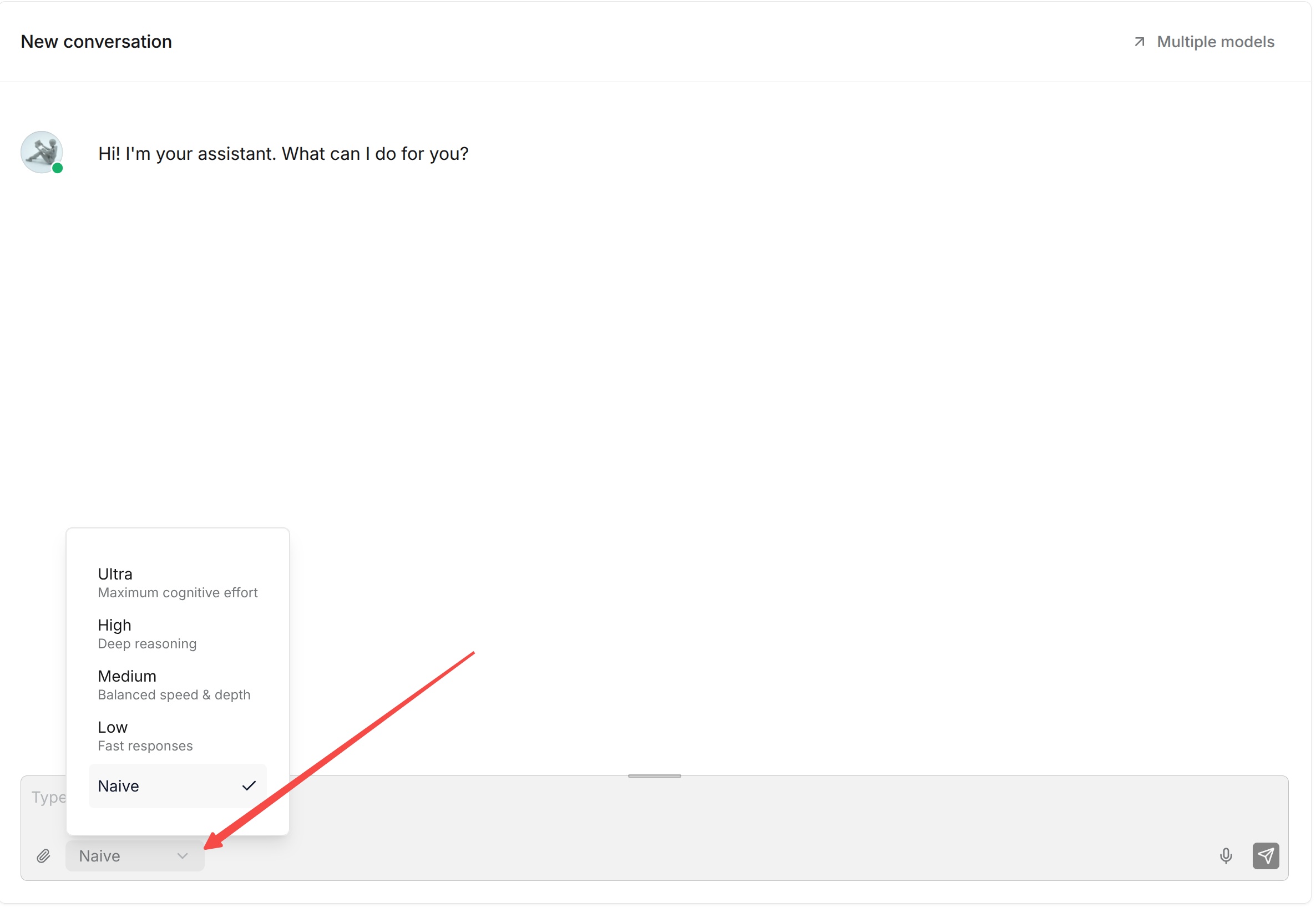
Selecting a mode chooses the flow for the question. Configure that flow in the corresponding Naive or Agentic settings group, save the Chat, and test both modes with representative questions. See Using Chat conversations for the message-box controls.