Multi-model Comparison
Multi-model comparison tests several models simultaneously with the same Chat configuration and the same question, then displays the answer generated by each model.
-
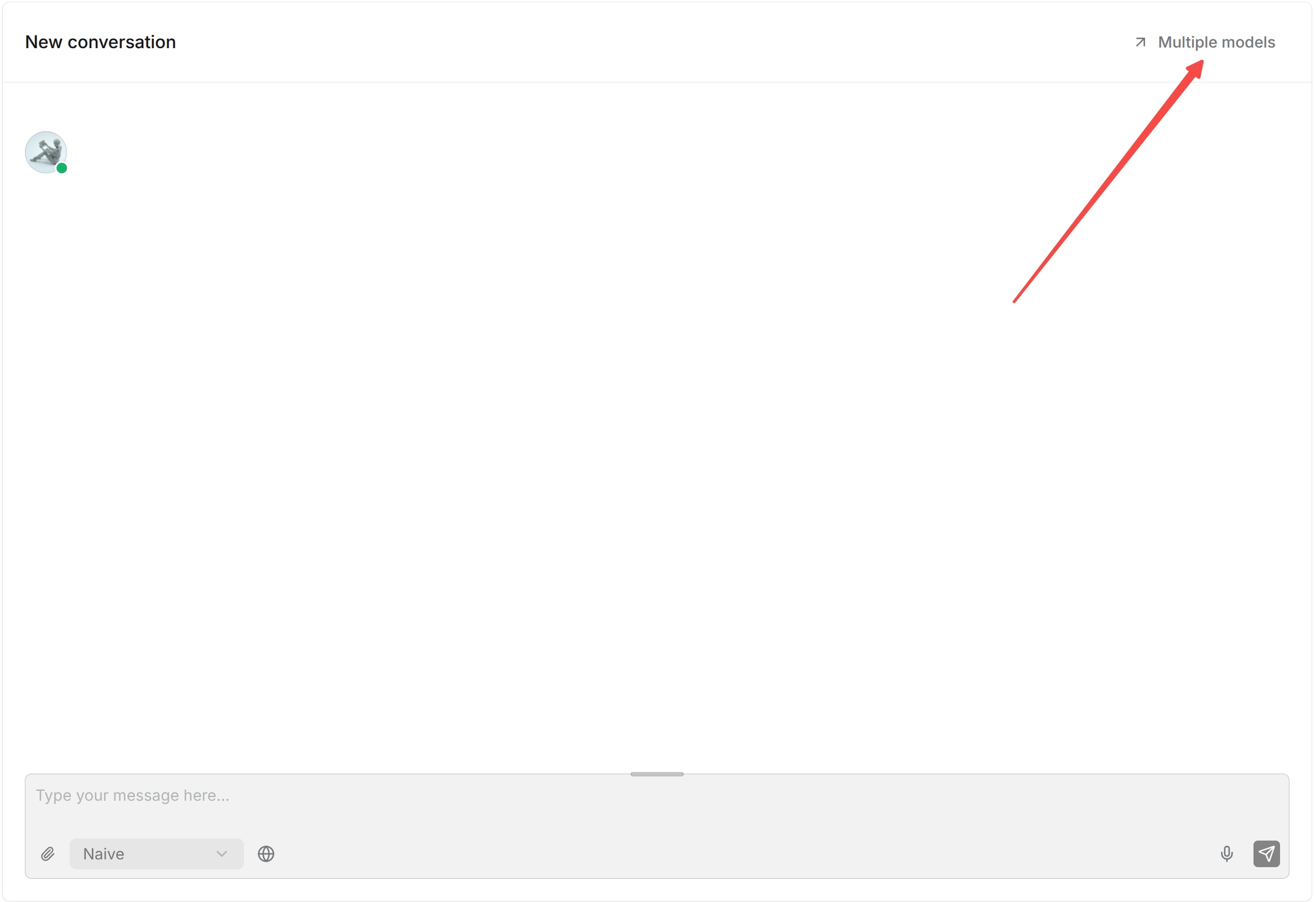
Open the Chat you want to test and click Multiple models above the conversation area.
-
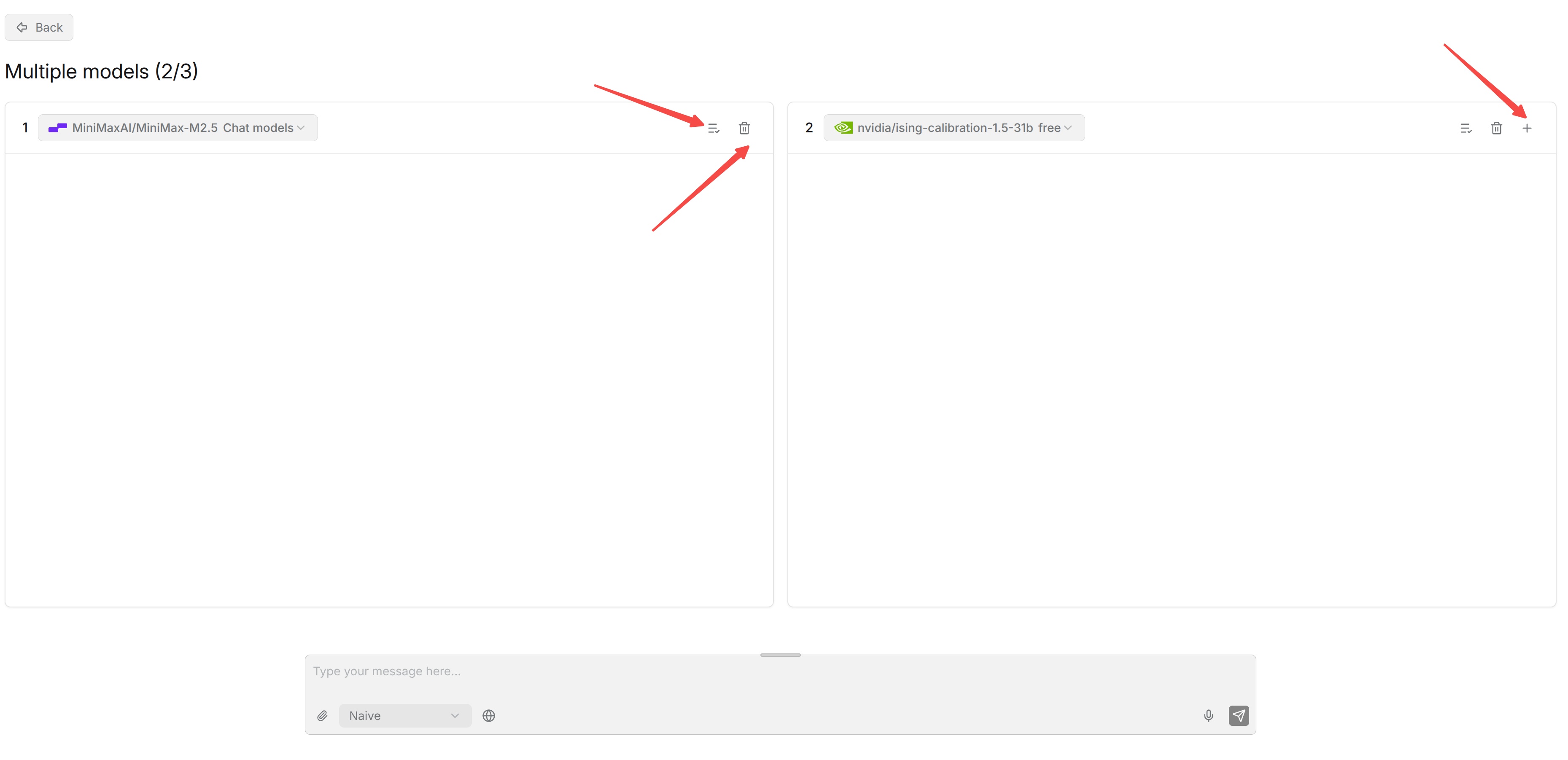
The comparison page initially displays one model panel. Click + in the last panel to add another. The counter beside Multiple models shows the number of panels; the current UI supports up to 3.
-
Use the model dropdown at the top of each panel to select the model for that panel. Configure the required model providers first if a model is not available.
-
Enter one test question in the shared message box at the bottom, select Naive or Agentic as needed, and click Send message. The selected models receive the same question for comparison.
-
Compare the answers side by side. Check accuracy, use of dataset evidence, completeness, and differences in the responses.
-
To remove a panel, click its trash icon. This action is available when more than one panel is present. Click Back to return to the normal Chat view.
To use a panel's model configuration for the Chat, click its Apply model configs icon. This updates the Chat's saved model configuration; simply selecting a model for comparison does not apply it to the Chat.
Use representative questions from actual business scenarios instead of selecting a model based on a single question. Multi-model comparison is primarily intended for model selection and debugging. For example, after changing a model provider or model version, use the same questions to quickly compare the practical performance of the old and new models.
FAQ
Do you support multiple rounds of dialogues, referencing previous dialogues as context for the current query?
Yes, we support enhancing user queries based on existing context of an ongoing conversation:
- Open the desired Chat and click the settings icon in the upper-right corner.
- In Chat setting, expand Advanced settings, then expand Naive.
- Enable Multi-turn optimization and click Save.