Data Manipulation Components
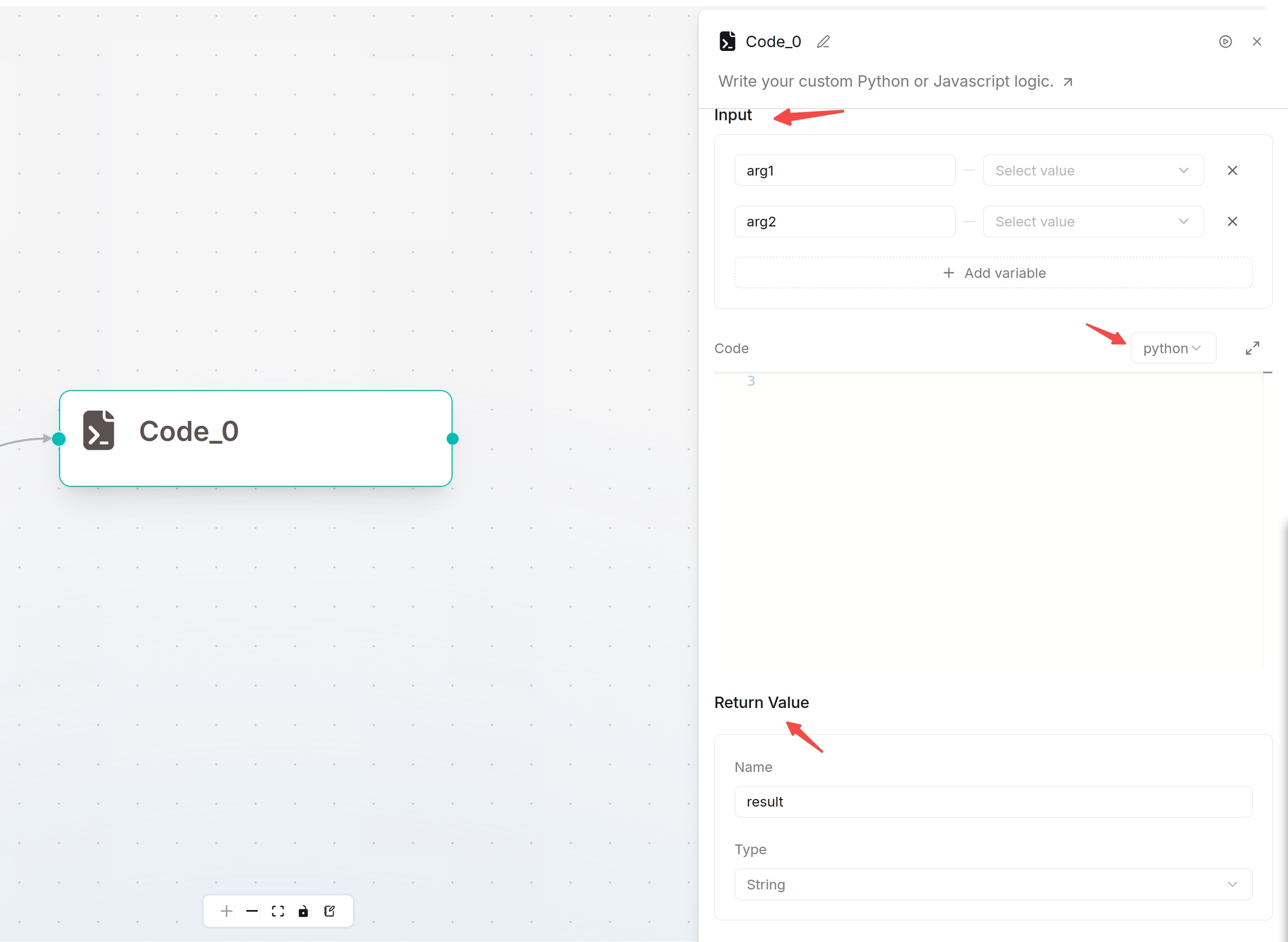
Code Component
The Code component executes Python or JavaScript code for complex data processing, format conversion, calculation, file generation and custom logic.
Prerequisite: An administrator must configure a provider in Admin > Sandbox. See Code Execution Sandbox. For a private deployment, follow Quickstart with Self-Managed.
Configuration:
- Input: Define parameters passed into code; variables can be directly referenced inside scripts.
- Code: Select Python or JavaScript and write business logic.
- Return Value: Define output data returned to downstream components.
Minimal example
Add two Input parameters, first and second, and bind them to text variables. Define one Return Value named result with type string. Use either example:
def main(first: str, second: str):
    return first + second
async function main(args) {
  return args.first + args.second;
}
In Test run, enter Hello, for first and world! for second. The expected output is result: "Hello, world!". In a downstream Message, use the variable selector to insert this Code component's result.
The returned value is assigned to one output. To return several fields, return an object and configure that output as an object rather than defining several outputs.
Read the output
| Output | Meaning | Use |
|---|---|---|
Output, such as result | The value returned by main, validated against the configured type. | Calculations and downstream data processing. |
content | Text representation of the returned value. | Prompts and text display. |
actual_type | The detected return type. | Diagnose a type mismatch. |
attachments | Files collected from execution, when present. | File output and download handling. |
If the test fails
- Check that Input names match the Python function arguments or JavaScript
argsproperties. - Check that the returned value matches the Return Value type. Printing a value does not replace returning it.
- For missing packages, unavailable runners, or connection errors, ask an administrator to check the active provider. See the Sandbox FAQ.
Text Processing Component
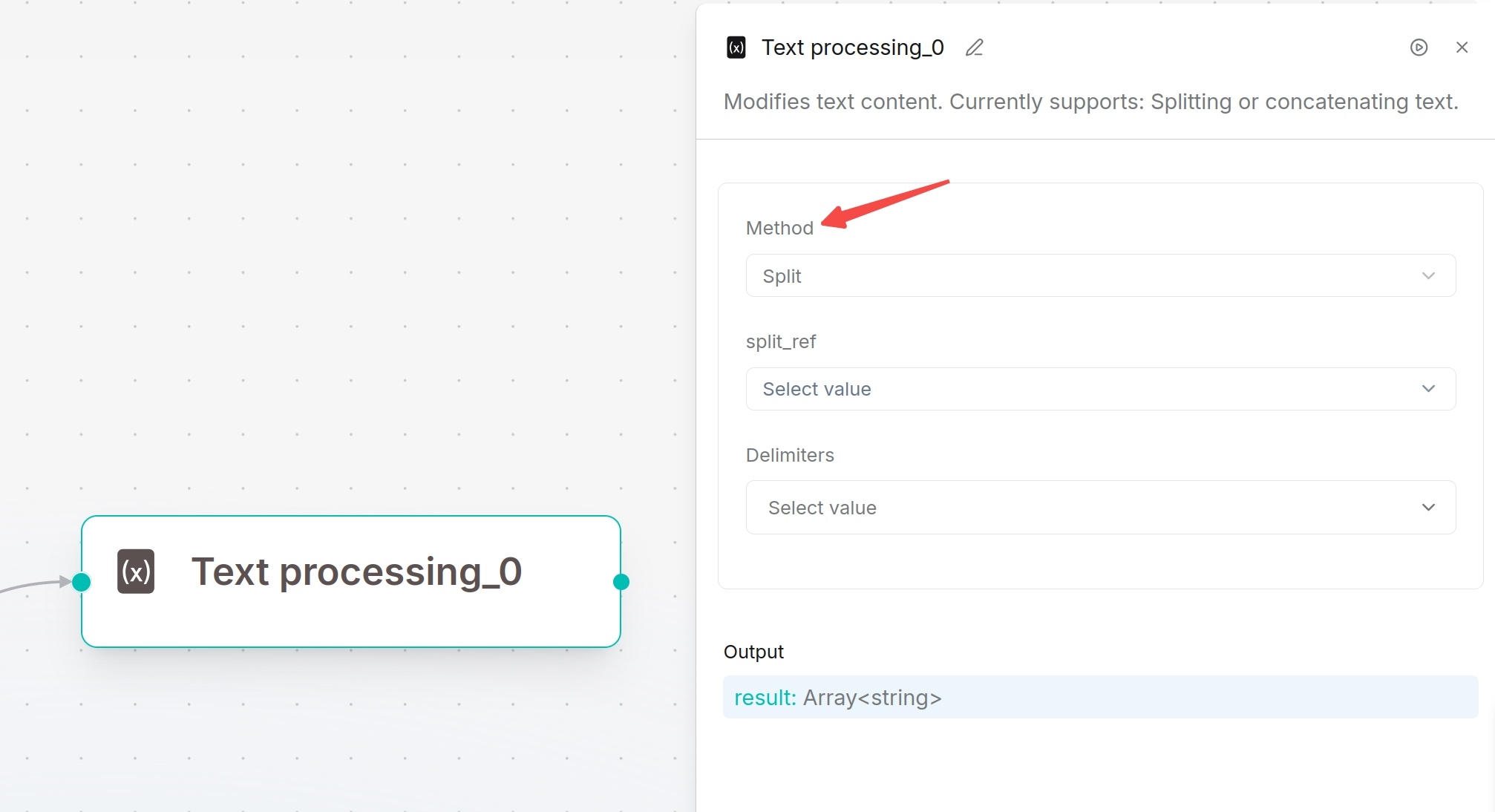
Text Processing splits or merges text. Used to split long upstream text by separators or combine multiple variables into one template.
Processing Modes:
- Merge: Concatenate content sequentially
- Split: Split text by specified delimiters (comma, line break, space etc.)
Configure script content with variables inserted via /. Output results can be referenced by subsequent nodes.
| Mode | Configure | Output |
|---|---|---|
| Split | Select the input variable and delimiters. | result: an array of text segments. |
| Merge | Enter Script and insert variables with /. | result: the completed text. |
For example, splitting red,blue with a comma produces ["red", "blue"]. A downstream Iteration can process that array. In Merge mode, a Script containing Hello, followed by an inserted name variable produces a single greeting.
Data Operations Component
The Data operations component transforms structured objects returned by upstream tools, code, or database components for use in subsequent steps.
Configuration Steps:
- Add and select Data operations on the canvas.
- Select target data variables in Query variables.
- Click
+to add multiple input variables. Query variables are mandatory. - Select an operation under Operations and fill in the fields below.
- Click Save draft, then Run to check the result.
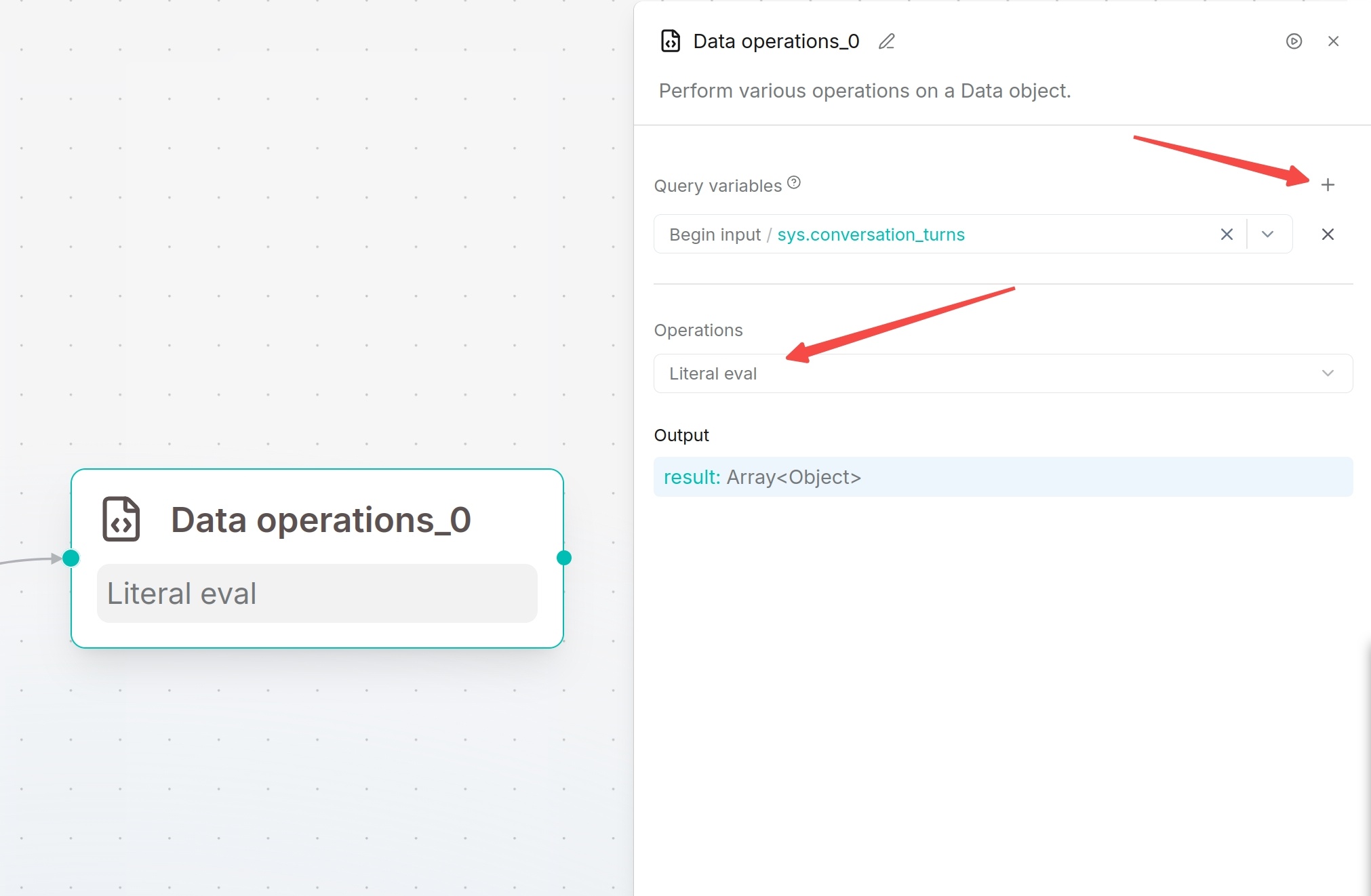
Output: Processed data stored in variable result.
Supported operations:
| Operation | Function | Example |
|---|---|---|
| Select keys | Keep specified fields | Select name from {"name":"Ada","age":30} to keep {"name":"Ada"}. |
| Literal eval | Parse values stored as text | Convert the value "[1,2]" in a field to the array [1,2]. |
| Combine | Merge input objects | Combine {"name":"Ada"} and {"city":"Paris"} into one object with both fields. |
| Filter values | Keep matching objects | Set status Equals active to keep only objects with that field value. |
| Append or update | Add or replace a field | Set city to Paris; an existing city value is replaced. |
| Remove keys | Delete specified fields | Remove age from {"name":"Ada","age":30} to keep {"name":"Ada"}. |
| Rename keys | Change field names | Rename name to customer_name; its value stays the same. |
Variable Assigner Component
Variable Assigner updates a target variable during workflow execution. Available operations depend on the selected variable type.
Configuration Steps:
- Click the Variable assigner component and add a new variable rule under Variables.
- Select the target variable to be updated.
- Select an operation from the list available for that variable type.
- If the selected operation requires a value, select a variable from the right panel or enter a fixed value.
- To update multiple variables at once, continue adding variable rules. The system will execute them sequentially in the order they are added.
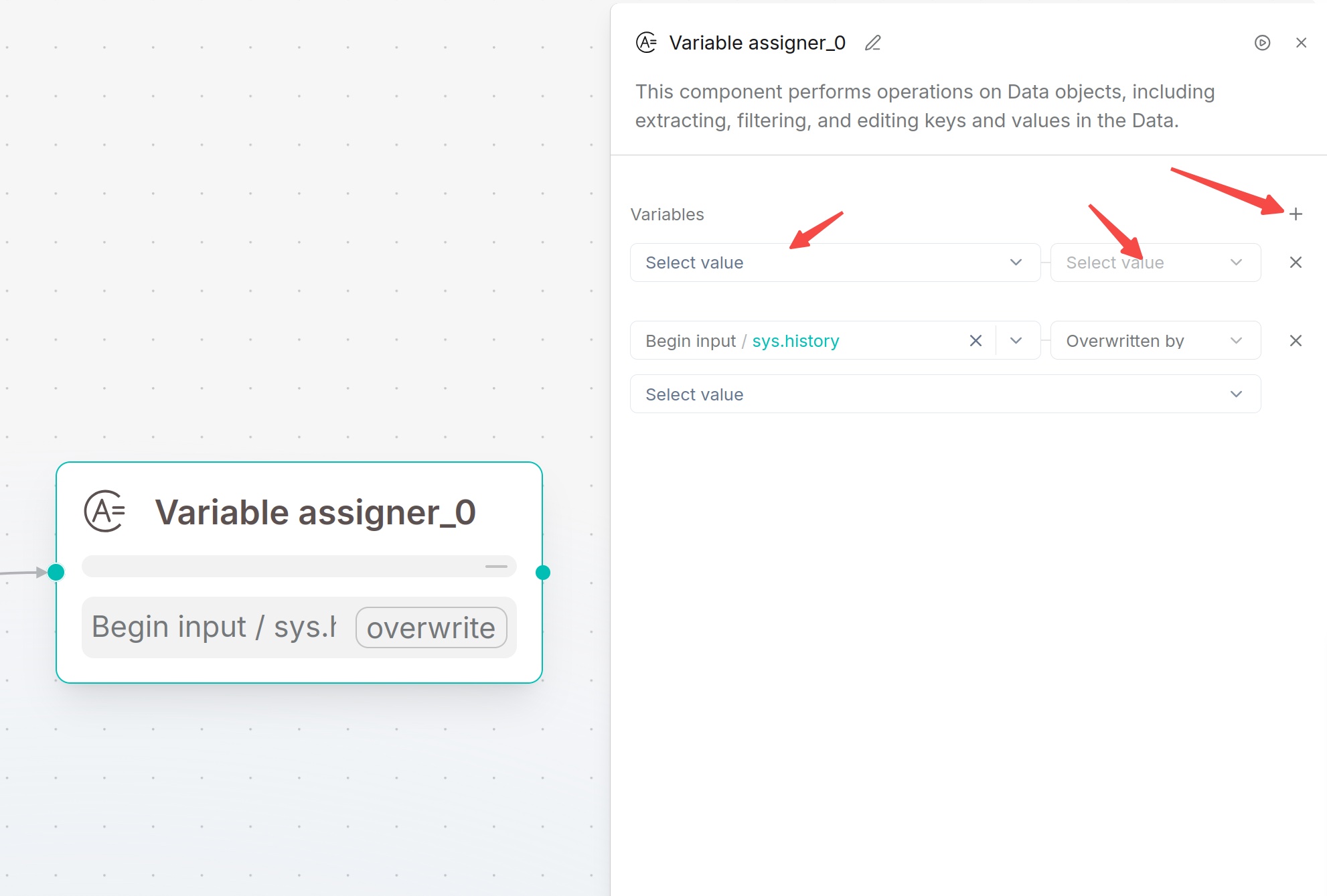
Parameter description:
| Parameter | Type | Required | Description |
|---|---|---|---|
| Target Variable | Variable | Yes | Select a target from the variable selector, such as a Begin input or Conversation variable. The selected type determines the available operations. |
| Operation | Enum | Yes | Select the operation to be performed on the target variable. The system will automatically display available operations based on the variable type. |
| Value | Variable / Constant | Conditional | The value used for the operation. You can select another variable or enter a fixed value (depending on the supported operation type). Some operations do not require a value. |
Supported operations by target type:
| Target type | Available operations |
|---|---|
| Text | Overwritten by, Clear, Set |
| Number | Overwritten by, Clear, Set, Add, Subtract, Multiply, Divide |
| Array | Overwritten by, Clear, Append, Extend, Remove first, Remove last |
Overwritten by uses another variable; Set assigns a constant. Append adds one element, while Extend adds elements from another array. Clear, Remove first, and Remove last do not require a value. Fill the value or variable selector shown for other operations.
List Operations Component
The List operations component extracts, filters, sorts, or deduplicates array data. Select an array from an upstream component; parse HTTP Request text into an array before using it here.
Configuration steps:
- Add the List operations component to the canvas and select it.
- In the Query variables section of the right configuration panel, select the array variable to be processed. Click the dropdown menu and choose an array-type variable from the Begin node, upstream nodes, or session variables.
- Select the list processing method in Operations.
- Configure the parameters for the selected operation.
- Enable Strict mode if required.
- Save the configuration, then click Run on the page to test and view the execution results.
- The processed result will be output through the component and can be referenced by subsequent nodes.
Parameter description:
| Parameter | Required | Description |
|---|---|---|
| Query variables | Yes | Select the array variable to be processed. |
| Operations | Yes | Select the list processing operation. |
| Strict mode | No | For Nth, Head, and Tail, returns an error when N is outside the valid range. When off, Nth can return an empty array and Head/Tail can return the available items. |
| Operation Parameters | Conditional | Configure the corresponding parameters based on the selected operation, such as N, filter conditions, or sorting rules. |
Supported operations:
| Operation | Description | Configuration |
|---|---|---|
| Nth | Retrieves an element at a specified position from the list. | Set N to a positive position starting from 1: N=1 selects the first item. The result is an array containing that item. |
| Head | Retrieves elements from the beginning of the list. | Configure the return count N to return the first N elements. |
| Tail | Retrieves elements from the end of the list. | Configure the return count N to return the last N elements. |
| Filter | Filters list elements based on conditions. | Configure filter conditions and retain only elements that meet the requirements. |
| Sort | Sorts elements in the list. | Configure the sorting field and order (ascending or descending). |
| Drop duplicates | Removes duplicate elements from the list. | No additional configuration required. Returns the deduplicated list. |
For example, with ["red","blue"], Nth with N=3 returns an empty array when Strict mode is off and an error when on. Head with N=3 returns both items when off and an error when on.
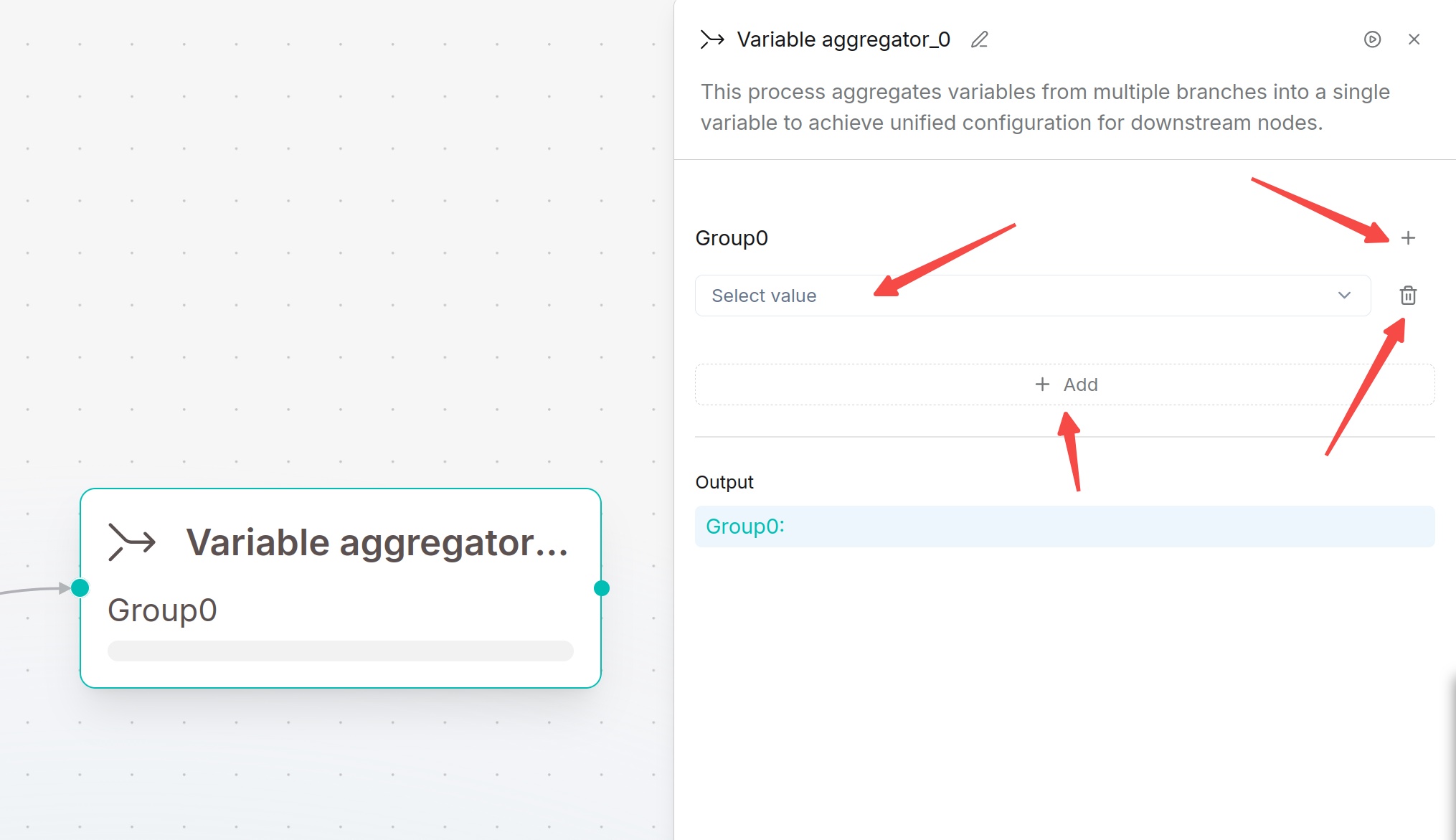
Variable Aggregator Component
Variable Aggregator selects a value from candidate variables in each group, providing a common output for downstream nodes after conditional branches. It does not combine all candidate values into an array or merge them into an object.
Configuration steps:
- Add the Variable aggregator component to the canvas and select it.
- In the Variable Group (default: Group0), click Select value and choose the variables to be aggregated.
- Click Add to add additional variables to aggregate.
- To create a new variable group, click the + icon. To delete a variable group, click the delete button.
- Save the configuration, then click Run at the top of the page to test the execution result.
- The selected value is output under the corresponding group name (for example, Group0) and can be referenced by subsequent nodes.
Note
Each group selects the first value in configuration order, skipping missing values,
false,0, empty text, and empty collections. If all values are skipped, the group returns no value. Use separate groups for separate outputs; use Variable assigner when0orfalsemust be retained.