Apply a Knowledge Compilation Template
Configure the Ingestion Pipeline
After creating a template, you need to reference the template in an Ingestion Pipeline.
Configuration steps:
- Create or open an Ingestion Pipeline.
- Add and connect Parser, Chunker, Compiler, and Indexer.
- Open Compiler, select the target template group under Operator, and choose an available compilation model.
- Check node connections and required parameters, click Save draft, then Publish and confirm to create a pipeline version.
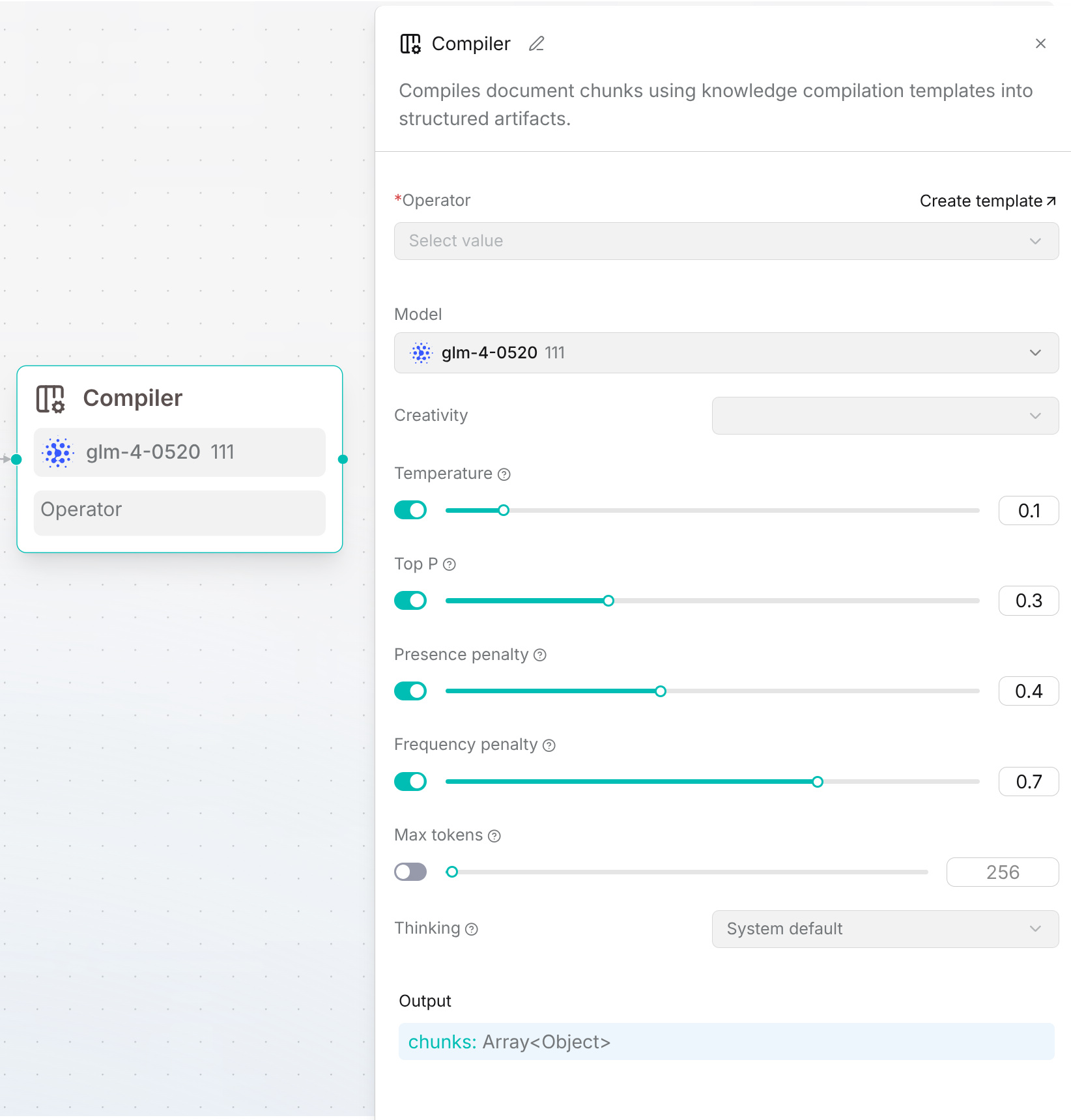
Note: CompilationTemplate only defines "how to compile". A KnowledgeArtifact is generated only after the template is referenced in CompilerOperator and the document actually executes this Pipeline.
Apply the Pipeline in Dataset
- Go to the Dataset page and create a Dataset or open an existing Dataset.
- Upload the documents to process.
- Open Configuration and find Parsing mode.
- Open Parsing mode, expand the ingestion pipeline that contains Compiler, select its published version within that dropdown, and click Save. If it shows No published versions, publish the pipeline first.
- Start parsing and check in the task logs whether Parser, Chunker, Compiler, and Indexer complete in sequence.
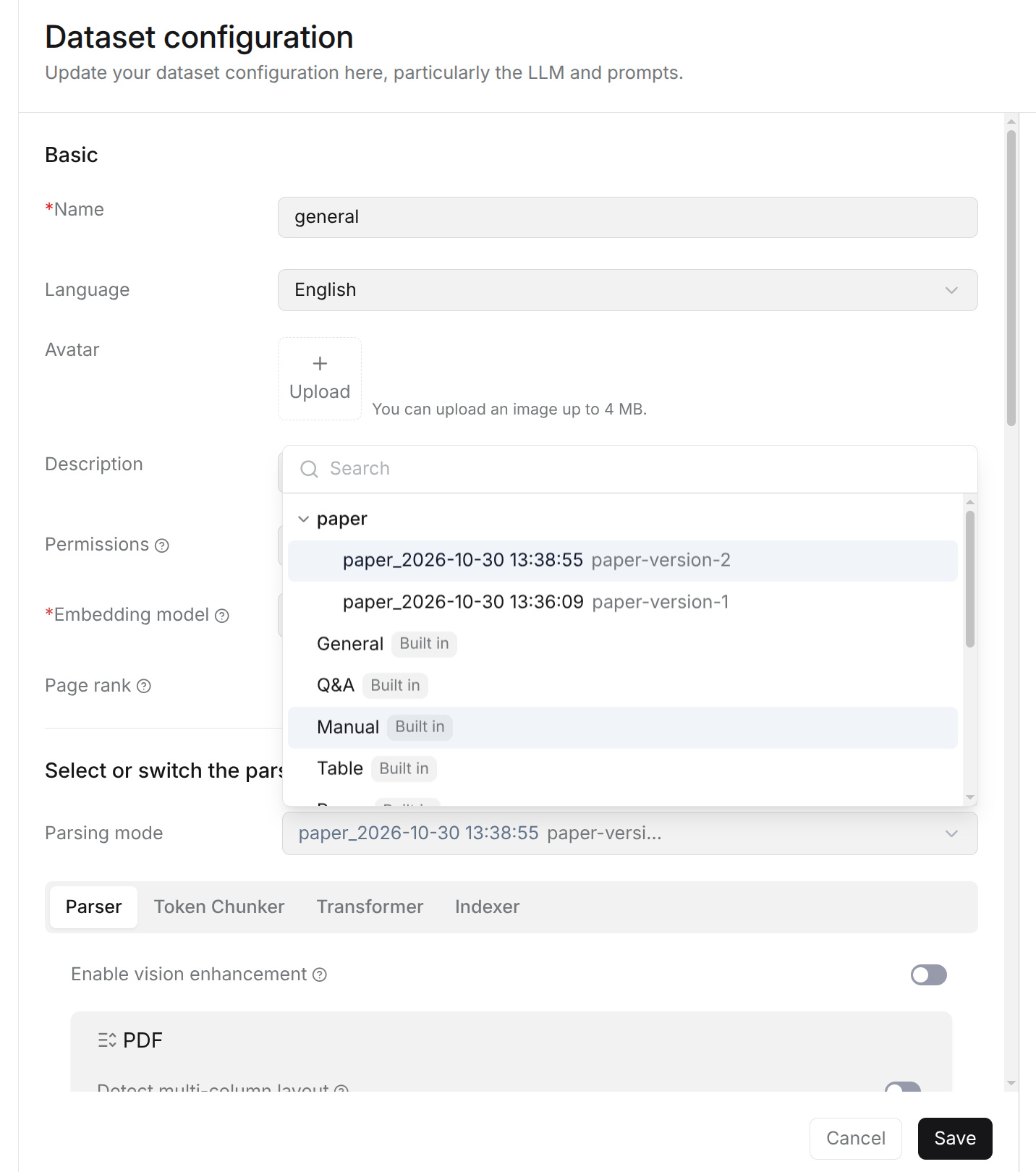
If CompilationTemplate is modified, completed documents are not automatically recompiled. You need to reparse or rerun the Pipeline according to the operations currently provided by the product before the new configuration can be applied.
View Knowledge Artifacts
After knowledge compilation is complete, enter the corresponding knowledge base and select Artifacts from the left sidebar. In the upper-right corner of the Artifacts page, select the artifact type you want to view from the drop-down list, such as Wiki, Tree/Page index, Graph, Mindmap, or Timeline, to view the corresponding generated results.
Knowledge artifacts can be divided by generation scope into document-level and knowledge-base-level artifacts:
-
Document-level knowledge artifacts: Graph, Tree, PageIndex, Mindmap, and Timeline can generate corresponding document-level results. Click a file name in the files list to view its artifacts.
-
Knowledge-base-level knowledge artifacts: After a document completes a Pipeline that produces compilation results, the system automatically schedules the corresponding knowledge-base-level processing. Wiki pages are generated and merged from the document-level Wiki compilation results in the background. Open Artifacts > Wiki to view the results when processing is complete.
Document parsing and knowledge-base-level compilation complete separately. A document can finish parsing while its knowledge-base-level artifacts are still being processed. Check the compilation status and knowledge-base-level logs if results have not appeared or processing fails. The Ingestor service must be running for background compilation to proceed.
Knowledge Artifact Check
After knowledge artifacts are generated, check the generated results based on the template used and confirm whether the content and structure meet expectations.
For different knowledge artifact types, focus on the following checks:
| Type | Check Focus |
|---|---|
| Graph | Whether entities are duplicated; whether relationship directions are correct; whether there are unsupported nodes or edges. |
| Tree | Whether the hierarchy is clear; whether peer nodes are at similar abstraction levels; whether summaries are accurate. |
| PageIndex | Whether chapter hierarchy is preserved; whether facts and conclusions come from the corresponding chapters. |
| Mindmap | Whether the central topic is clear; whether branches are duplicated or crossed; whether node names are concise. |
| Timeline | Whether time is accurate; whether event order is correct; whether relative time is misinterpreted. |
| Wiki | Whether page topics are reasonable; whether links between pages are valid; whether facts are consistent with sources. |
Update Knowledge Artifacts
The system automatically schedules knowledge-base-level artifact updates when documents finish compilation or documents with compilation results are deleted directly through the knowledge base's document management operations. No manual Generate or Update action on the Artifacts page is required.
- New documents: Upload the documents and run the Pipeline containing Compiler with the required templates. After document processing completes, the system automatically incorporates the compilation results into the corresponding knowledge-base-level artifacts. Uploading a file without running the Pipeline does not generate knowledge artifacts.
- Reparsed documents: After a document completes the Pipeline again, the system automatically updates the corresponding knowledge-base-level artifacts from its latest compilation results.
- Documents deleted from the knowledge base: When you delete a compiled document directly from the knowledge base's Files page, the system automatically schedules removal of its contributions from the corresponding knowledge-base-level artifacts.
Deleting a user account is a separate operation. Documents removed as part of account deletion may leave content in existing knowledge-base-level artifacts in knowledge bases that are retained. Do not assume that account deletion automatically removes those contributions.
Updates run in the background and may take time to appear. Check the compilation status and knowledge-base-level logs to confirm completion or investigate a failure.
Changing a compilation template alone does not recompile completed documents. Reparse the affected documents with the updated template; their knowledge-base-level artifacts are then updated automatically after document processing completes.