Check System Status
Check Whether Services Are Running Normally
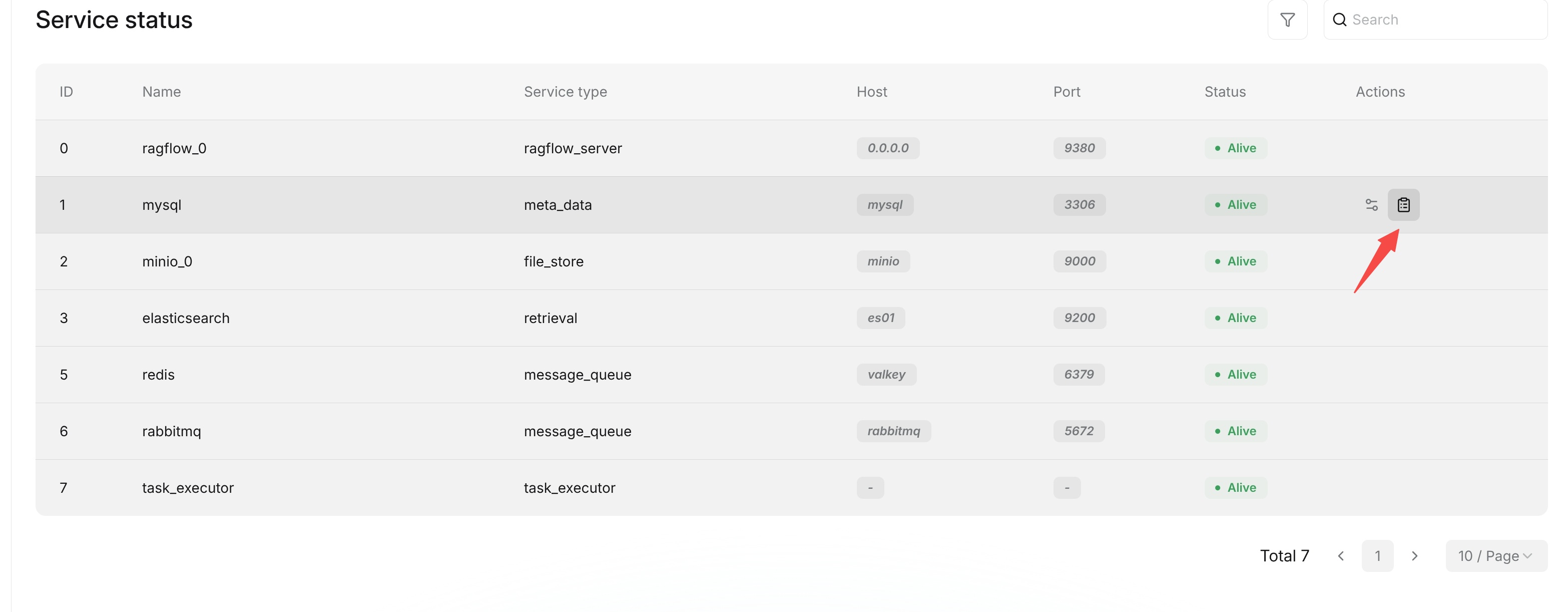
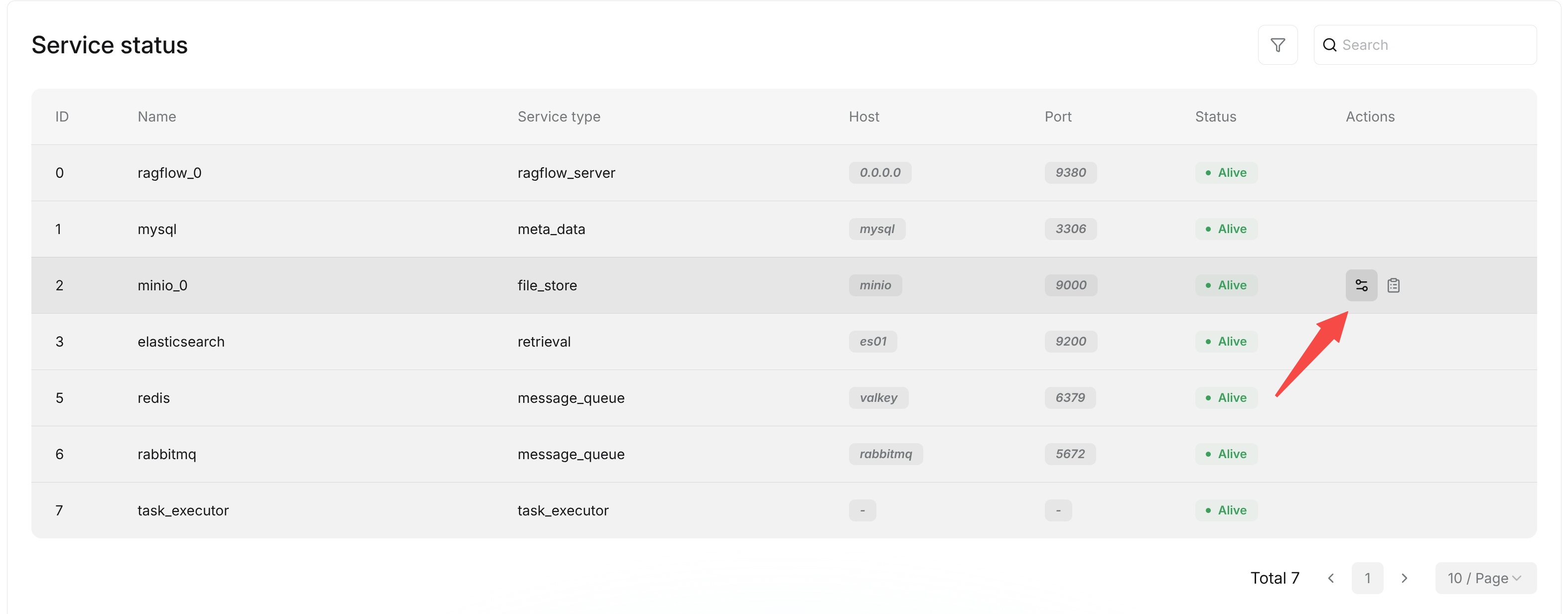
The Admin UI sidebar contains Services, Users, and Sandbox. Open Services to view the status reported by the Go services and their configured dependencies. Each row displays the service Name, Service type, Host, Port, and Status. The table does not display an ID column. Hover over a row to show its Actions: use the sliders icon for Extra information, or the clipboard icon to open service details.
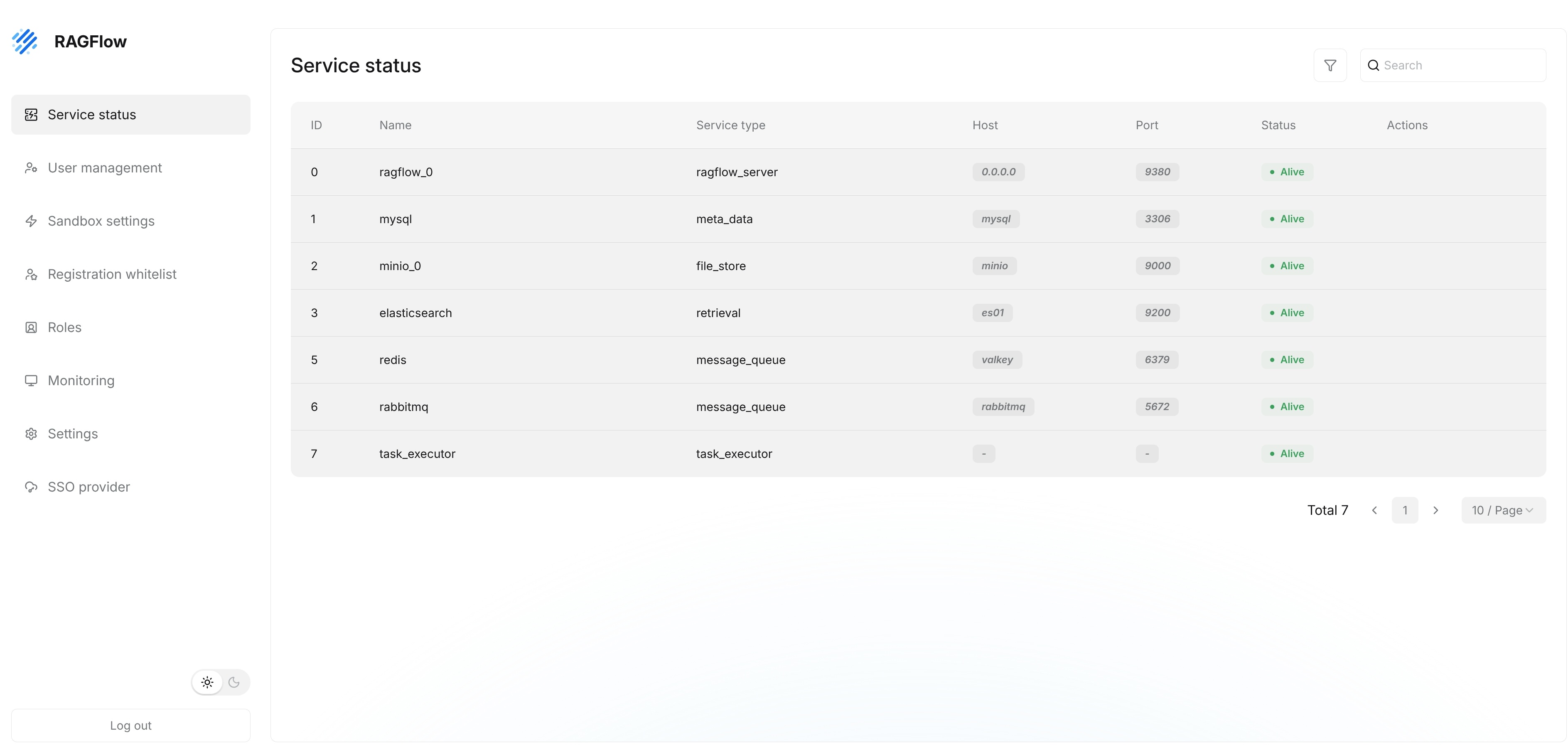
For dependencies, alive means that the corresponding health check succeeded. timeout, not available, or another status indicates that the check failed or that the configured implementation is unavailable. For Go server processes, alive means that Admin received a heartbeat during the preceding 45 seconds; otherwise the status is timeout.
The open-source Go deployment reports the following entries:
| Service type | Entry | How the status is determined |
|---|---|---|
database | MySQL | The server obtains the SQL connection and runs a database ping. |
doc_engine | The configured document engine, such as Elasticsearch or Infinity | The server calls the active document engine's ping operation. |
storage_engine | The configured object storage, such as MinIO | The server calls the active storage implementation's health check. |
cache | Kvrocks | The server checks the configured Kvrocks connection. |
message_queue | NATS | The server reads the status of the active message queue implementation. |
api | Each reporting API process | Admin evaluates the process heartbeat. |
ingestor | Each reporting Ingestor process | Admin evaluates the process heartbeat. |
syncer | Each reporting Syncer process | Admin evaluates the process heartbeat. |
Only processes that have reported a heartbeat to Admin appear in the process portion of the list. For dependency rows, elapsed records timing information from the corresponding status check; for API, Ingestor, and Syncer rows, it records the time since the latest heartbeat. The host is shown as - and the port as 0 when the configured document engine or storage implementation does not provide an endpoint for the status row.
View Service Details
On the Services page, administrators can view the service Name, Service type, Host, Port, and Status.
- Find the service on Services. Use the search box to filter by service name or type if needed.
- Hover over the service row and click the clipboard icon in Actions.
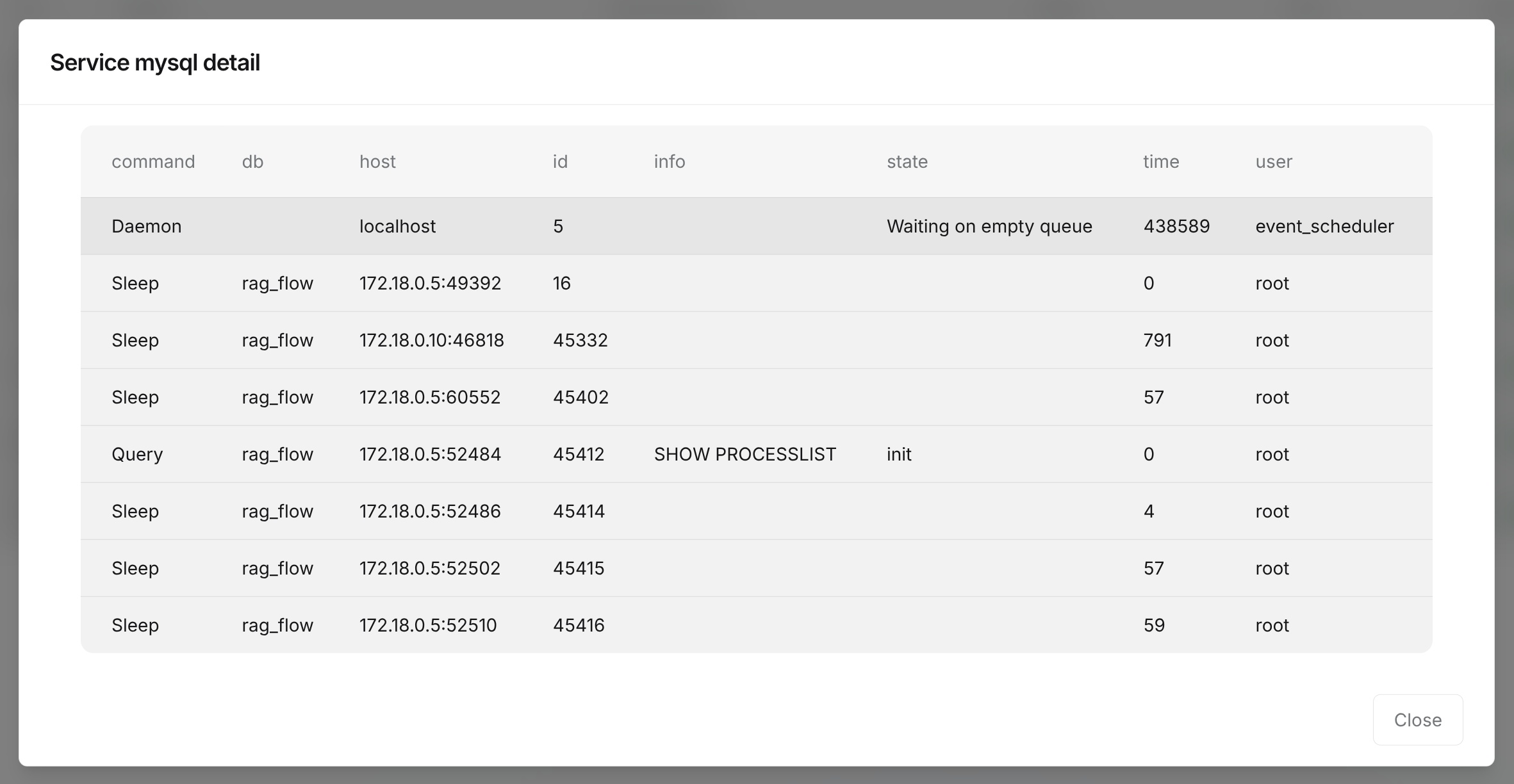
- Read the properties in the Service … detail dialog. For example, the MySQL detail shows
type,name,host,port,status,elapsed, andmessageas a property list. - Click Close to return to the list.
The MySQL dialog displays the health-check record, not a database process list. Use your deployment's database administration tools if you need to inspect SQL sessions or processes.
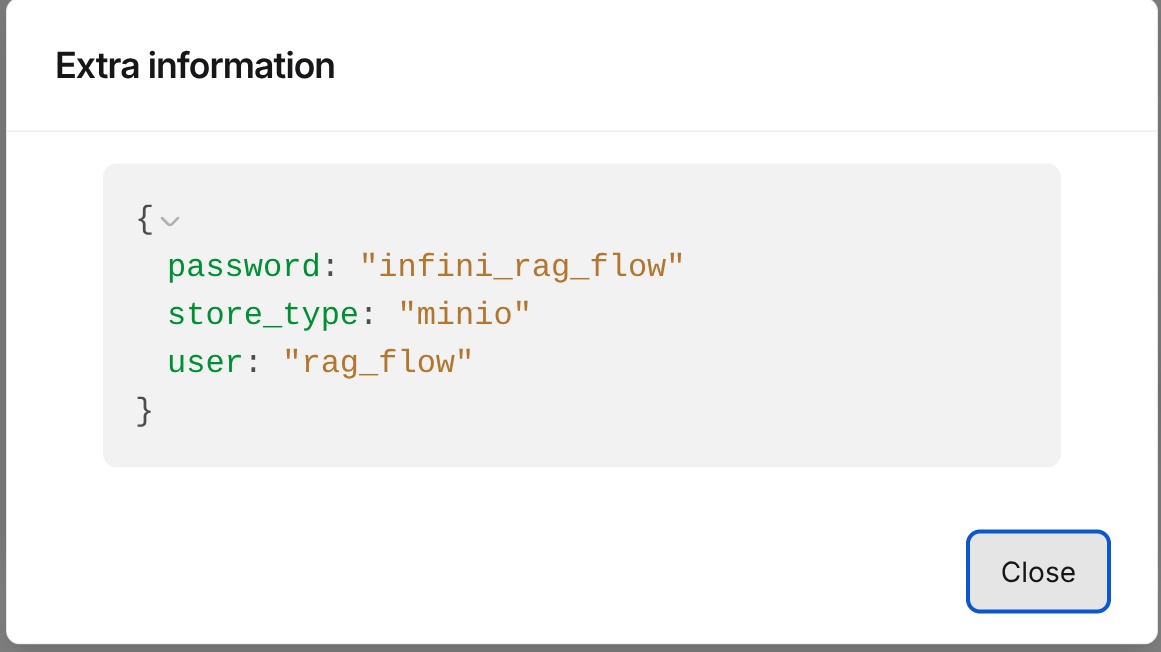
To view Extra information, hover over the service row and click the sliders icon in Actions. The dialog displays the elapsed value and message included in the status record. Click Close to return to the list. A failed dependency check can place its error text in the message field.
If a service's status is not alive, record its name, service type, host, port, and message before troubleshooting the corresponding dependency or process.
The Admin UI is mainly used to view service status. It does not provide direct troubleshooting entry points for containers, processes, networks, or logs. For further handling, check the corresponding deployment environment, including service runtime status, port connectivity, service logs, and related configurations. After identifying the cause, restart services, adjust configurations, or perform other recovery operations according to your operations process.