Configure Model Providers
RAGFlow model provider management allows you to connect online models, local models, and OpenAI-compatible models to RAGFlow for use in knowledge bases, chats, search, and agents.
Get a Model Provider API Key
RAGFlow supports most mainstream model providers. If an online provider uses API key authentication, obtain an API key from that provider before configuring it in RAGFlow. Local providers and providers that use other authentication methods may not require an API key.
If the model provider you need is not listed, don't feel disheartened. The list is expanding, and you can file a feature request with us! Alternatively, you can connect locally deployed models to RAGFlow using Ollama or vLLM.
Add a Model Provider Instance
Select a Model Provider
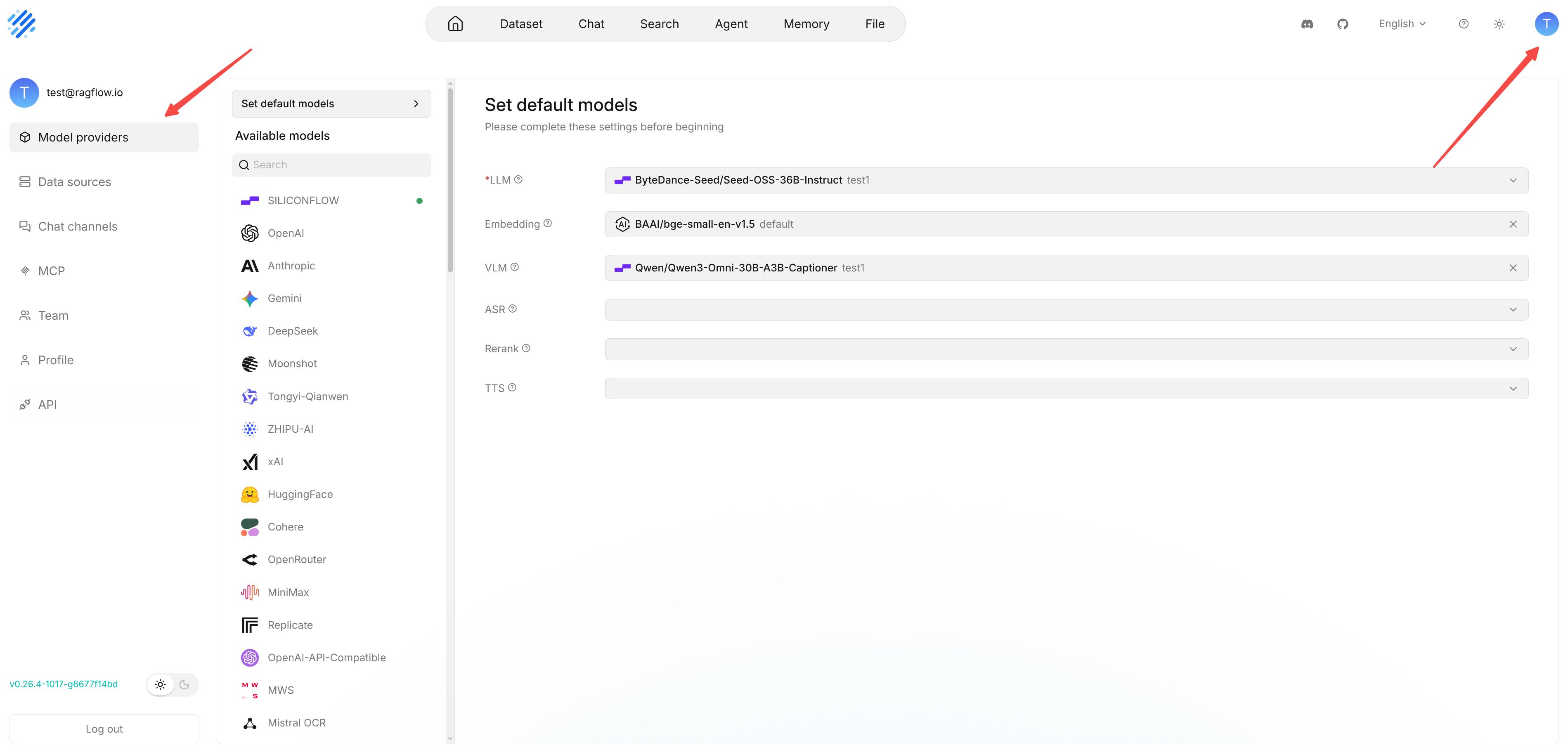
Go to User settings > Model providers. In Available models, select the provider you want to configure.
Create a Model Provider Instance and Configure Connection Information
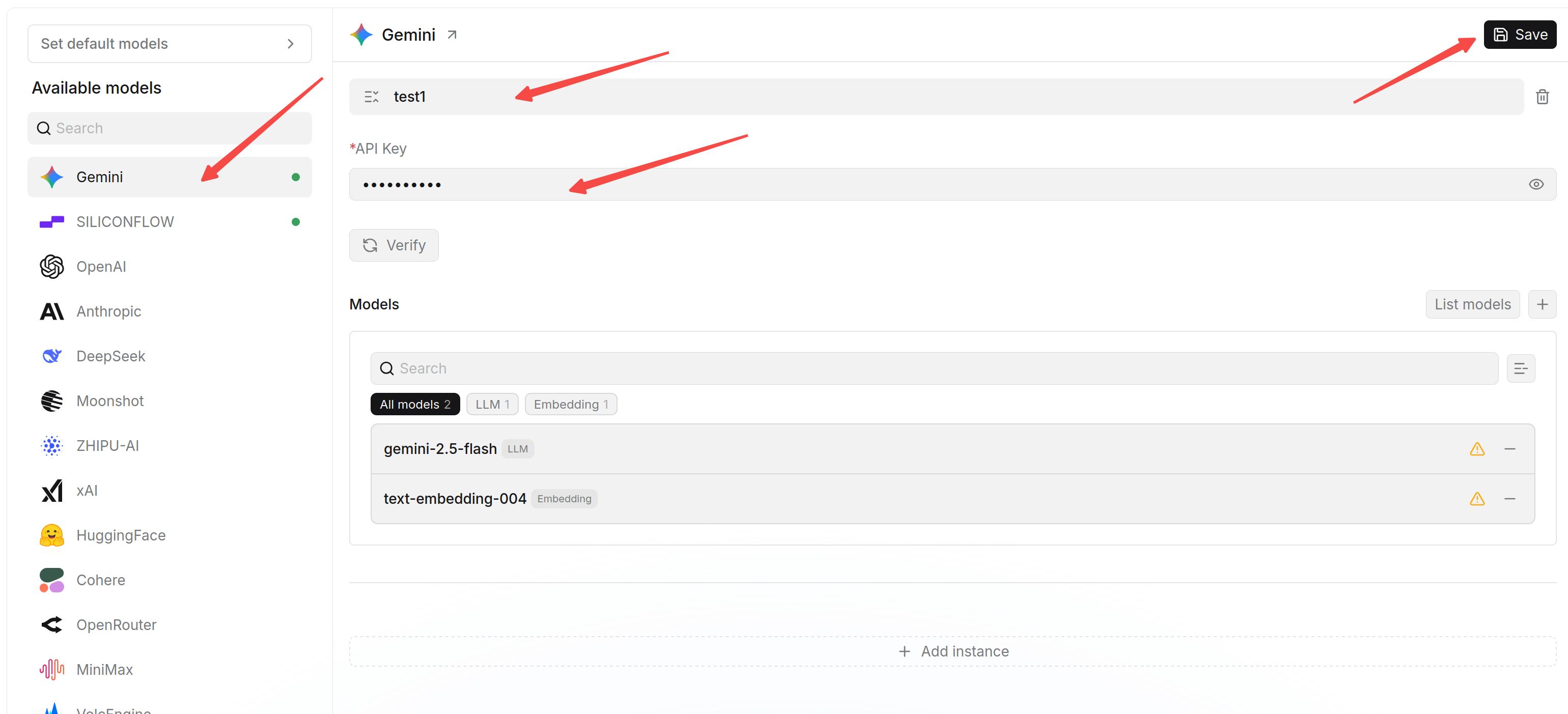
An instance stores a set of connection settings under a provider. You can create separate instances for test environments, production environments, local models, or proxy gateways to avoid mixing configurations for different purposes. Configure the instance name, connection information, and models in the instance card, verify the selected models, and then save the instance.
When present, API Key is used for authentication and Base URL specifies the model service endpoint. The required fields depend on the provider. For example, local providers such as Ollama and VLLM allow an empty API key, some official providers use a fixed endpoint, and Amazon Bedrock supports multiple authentication methods.
For official providers, keep the default Base URL in most cases. For proxies, gateways, local models, or compatible APIs, enter the actual service address.
To configure a model provider:
- Select the provider you want to configure.
- Enter an instance name.
- Complete the required fields displayed for that provider.
- Select models from the available model list or add custom models.
- Verify models individually, or click Verify all models to verify every model currently shown by the active search and type filters.
- Save the instance.
Do not expose your API Key. An incorrect Base URL causes model verification or model calls to fail. When using a compatible API, confirm whether the path must include /v1.
Amazon Bedrock API keys
For Bedrock, select API Key, enter the Bedrock API key and AWS Region, then list and select the models available to that key. RAGFlow keeps the key scoped to that provider instance and sends it as a Bearer token only for that instance's requests.
Bedrock API key authentication does not support rerank models.
Use short-term Bedrock API keys for production whenever possible. Long-term keys remain valid until they expire or are deleted, so store them as secrets, restrict access to the RAGFlow instance, and rotate them regularly.
Add Models to an Instance
In the provider instance card, add and configure the models required by your business, such as large language models (LLMs), embedding models, vision-language models (VLMs), automatic speech recognition models (ASR), rerank models, and text-to-speech models (TTS).
After adding models, you can set them as the default models for the corresponding model types.
Add Models from the List
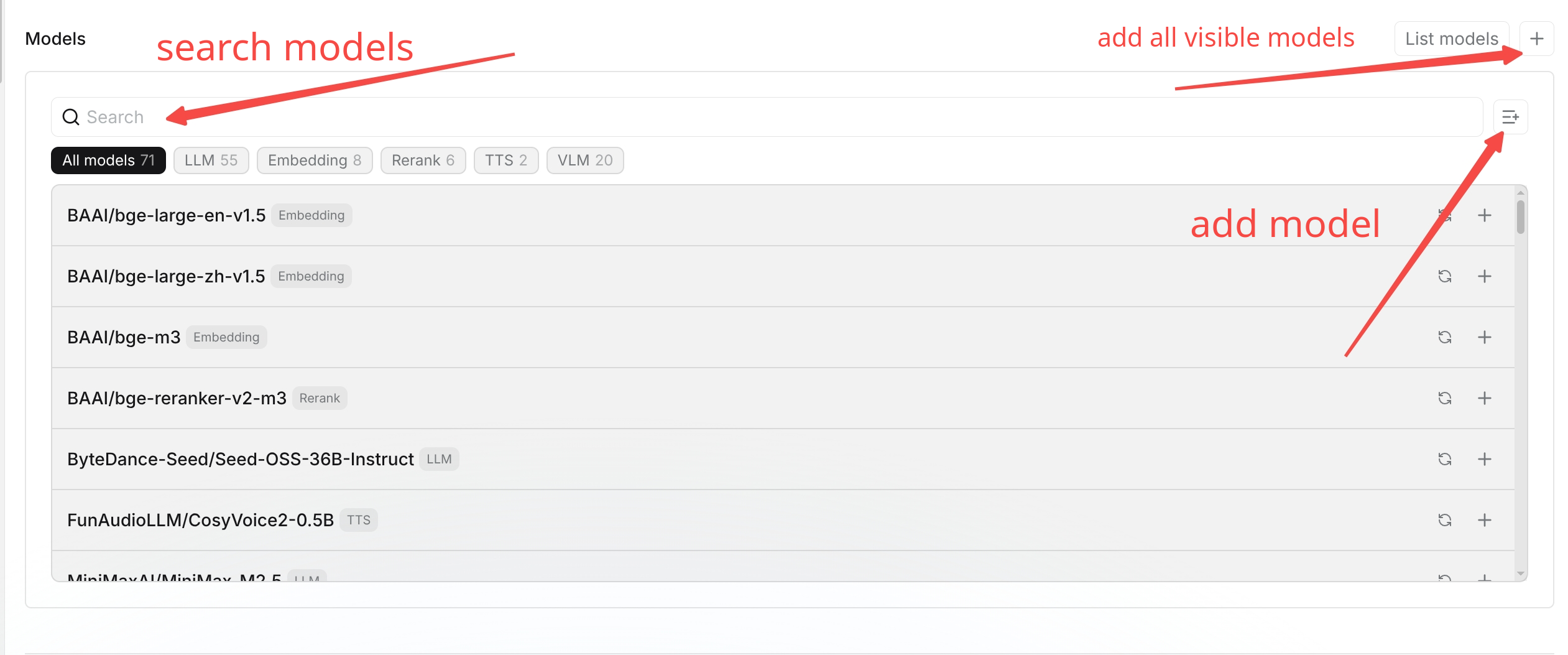
RAGFlow displays models discovered from the provider together with any models defined in its built-in catalog. You can search for the models you need and add them one by one, or add the models in the current list in batch.
Add a Custom Model
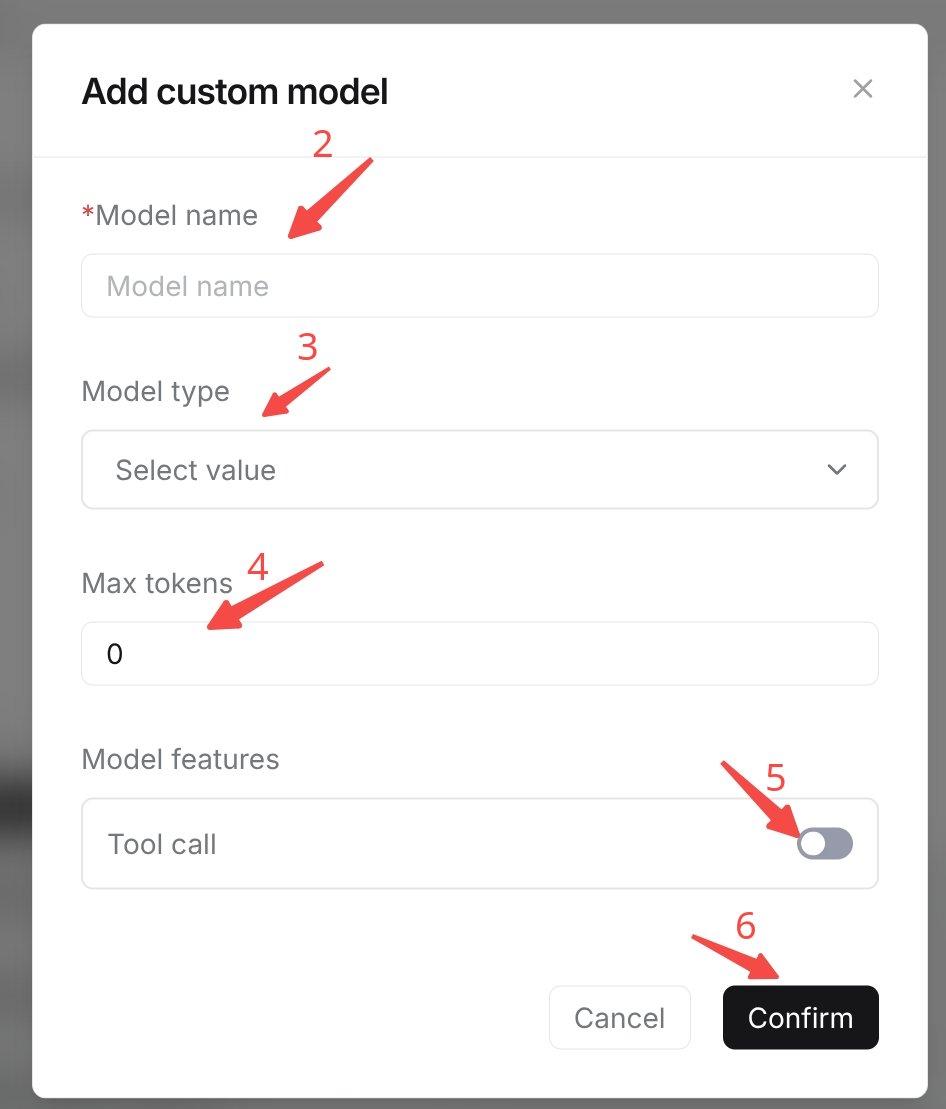
If the required model is not shown in the list but is actually supported by the model provider, you can add it manually as a custom model. When adding a custom model, fill in the model name and select the model type.
The model name must match the model ID exposed by the model provider API. Otherwise, RAGFlow may not be able to identify the model correctly during calls.
To add a custom model:
- Go to the configured provider instance and click Add custom model.
- Enter the model name. The name must match the actual model identifier provided by the provider.
- Select the corresponding model type.
- Optionally fill in Max context length to override the detected value or provide one when the provider does not return it. This value sets the maximum number of tokens the model can process in its context, including the input and generated output. If you do not need to override it, keep the default value.
- If the model supports tool calling, enable Tool calling. After it is enabled, the model can call external tools or functions during chats or agent runs, such as knowledge retrieval or API requests. Do not enable it for models that do not support this capability.
- Click Confirm to add the model.
Verify Models
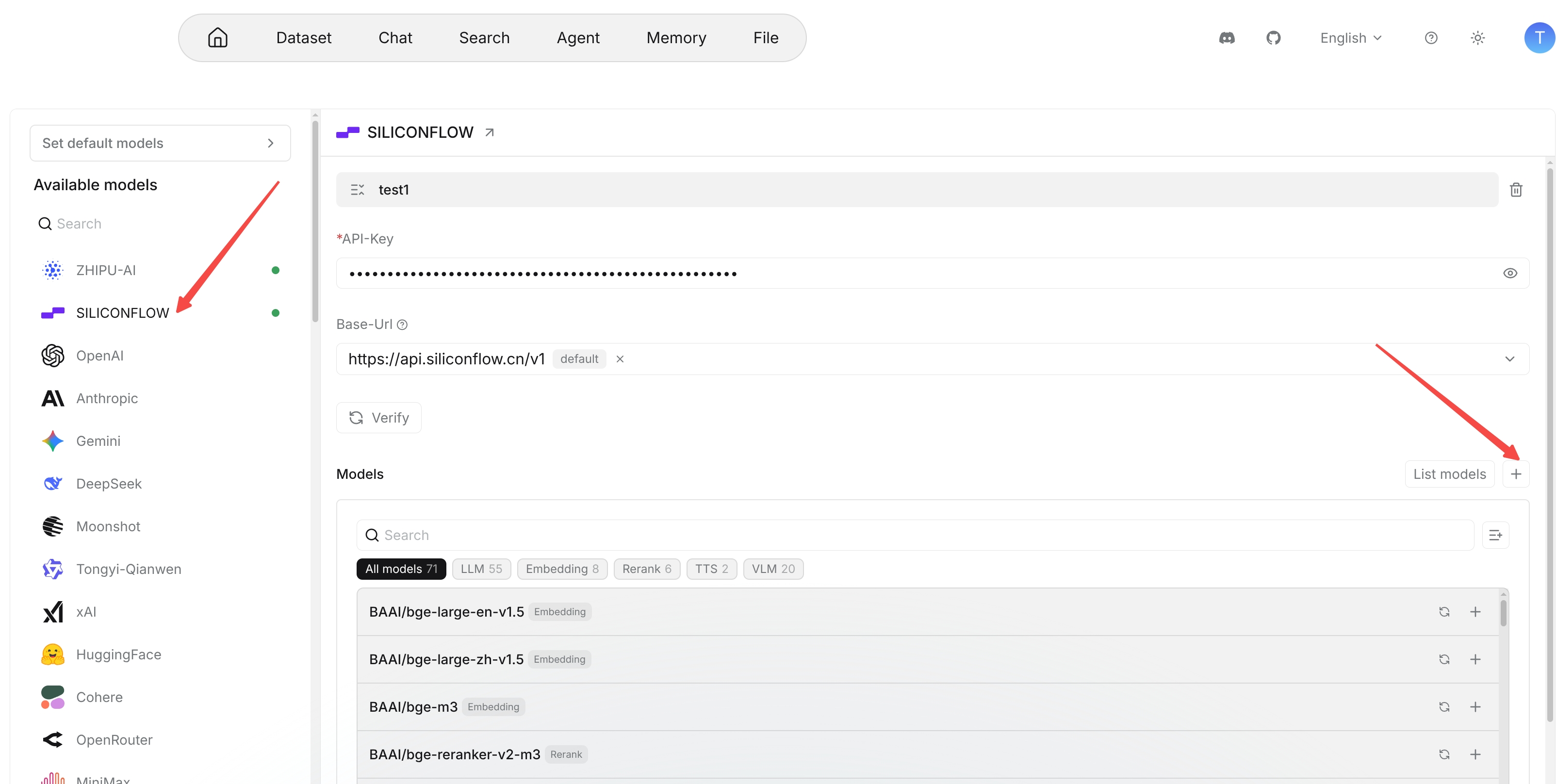
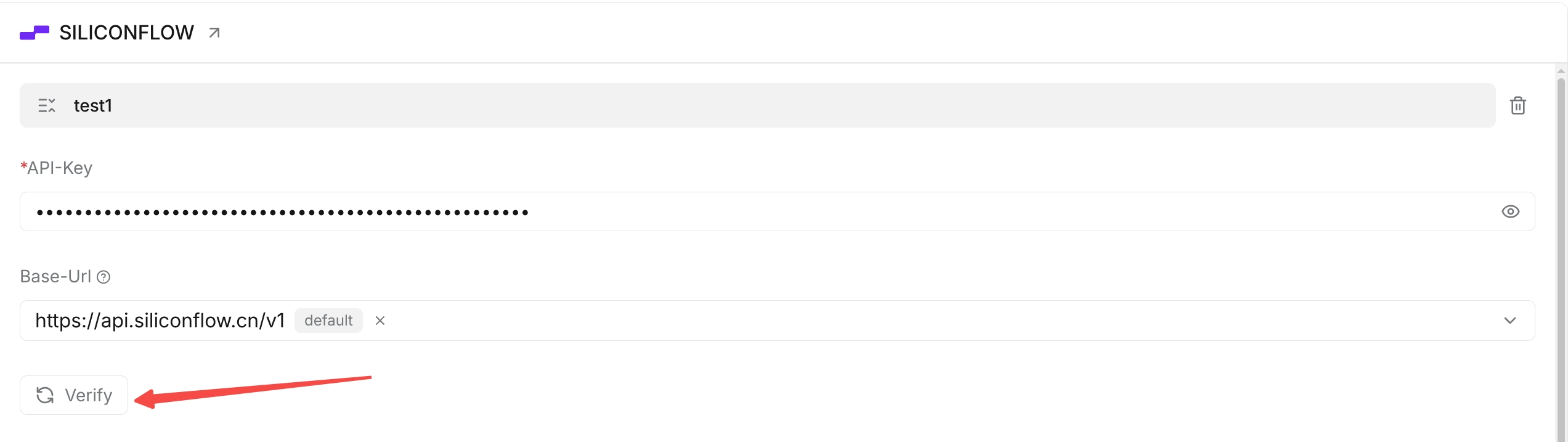
After adding models, verify them individually, or click Verify all models to verify every model currently shown by the active search and type filters. Verification checks each model together with the current instance credentials and endpoint. If verification fails, check the authentication information, Base URL, network connection, account quota, model name, and model availability.
Set Default Models
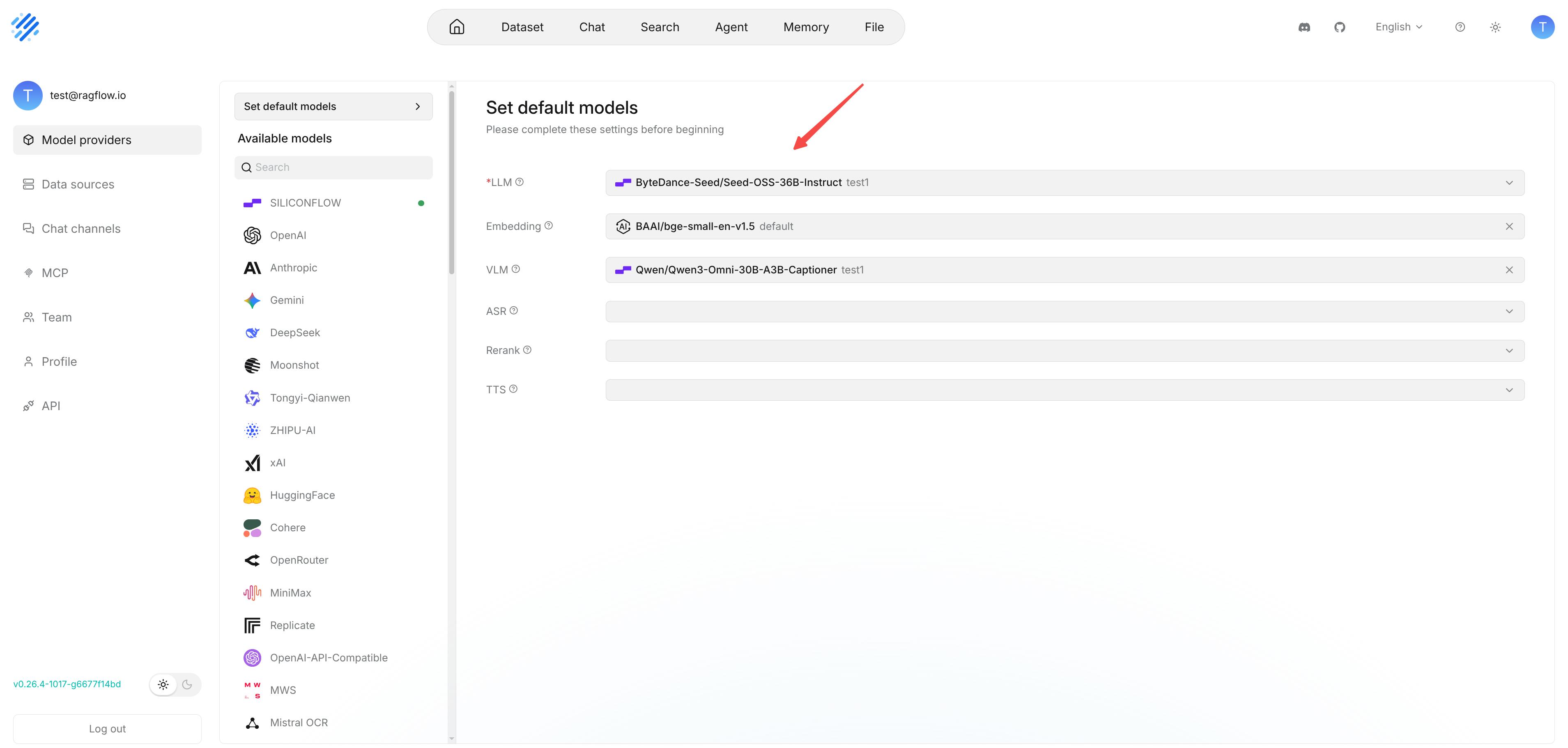
Default models are used when RAGFlow needs to select a model automatically and no model has been specified separately. Set default models after adding and verifying models to avoid selecting unavailable models on business pages.
At minimum, set the following defaults:
- Default LLM.
- Default embedding model.
If you have configured a rerank model, it is also recommended to set a default rerank model. Configure VLM, ASR, TTS, and OCR defaults as required by your business.
Model Types and Usage
| Model type | Full name | Main function | Input | Output | Typical scenarios |
|---|---|---|---|---|---|
| LLM | Large Language Model | Understands, reasons over, and generates text | Text prompts | Text | Intelligent question answering, content generation, summarization, and information extraction |
| Embedding | Embedding model | Converts text into vector representations | Text | Vectors | Semantic retrieval, similarity calculation, and knowledge base indexing |
| Rerank | Rerank model | Scores and reorders initially retrieved candidate results by relevance | Query text and candidate text | Relevance scores and ranking results | Optimizing retrieval results and improving knowledge base Q&A accuracy |
| VLM | Vision-Language Model | Understands images and the text, objects, and scene information in them | Images, text, or images with text | Text | Image Q&A, chart understanding, and visual content analysis |
| ASR | Automatic Speech Recognition model | Converts speech into text | Audio | Text | Speech transcription, meeting records, and real-time captions |
| TTS | Text-to-Speech model | Converts text into speech | Text | Audio | Voice playback, audio content, and voice interaction |
| OCR | Optical Character Recognition model | Recognizes text in images or scanned documents | Images or scanned documents | Recognized text | Scanned document recognition and receipt recognition |
The following model types serve different parts of retrieval, generation, and multimodal workflows:
-
Embedding, Rerank, and LLM: The embedding model converts queries and knowledge chunks into vectors, and the system recalls candidate chunks based on vector similarity. The rerank model scores and reorders the candidate chunks by relevance. The LLM understands the question based on the selected knowledge content and generates the answer.
-
VLM, ASR, TTS, and OCR: Configure these capabilities individually or combine them according to the multimodal scenario. VLM understands images and image-text information, OCR recognizes text in images or scanned documents, ASR converts speech into text, and TTS converts text into speech.