5 posts tagged with "Tutorials"

View All Tags

RAGFlow’s Seamless Upgrade - from 0.21 to 0.22 and Beyond

3 min read

Background

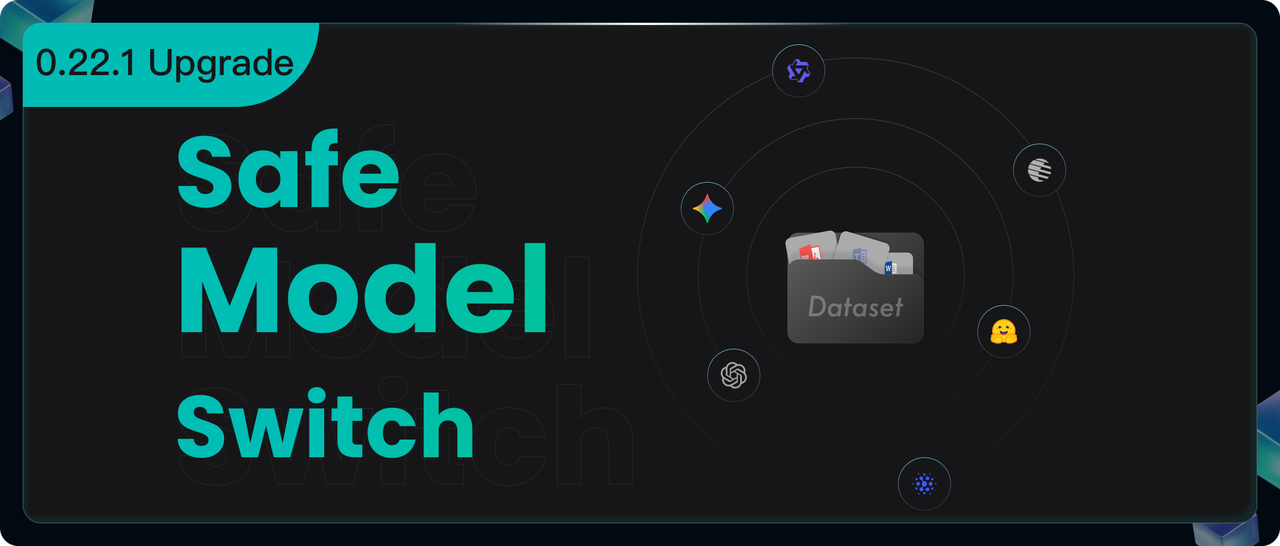
From version 0.22.0, RAGFlow no longer ships a full Docker image with built-in embedding models. Previously, some users relied on the bundled embedding models in that image to build their datasets.

After upgrading to 0.22.0, those models are no longer available, which leads to several issues: the embedding model originally used by the dataset is missing; you cannot add new documents; retrieval in the dataset stops working properly; and you cannot switch to a new embedding model because of the old logic constraints. To address these compatibility problems after upgrade, we introduced important improvements in version 0.22.1.

0.22.1 capabilities

Datasets containing parsed data are allowed to switch embedding models

Starting from RAGFlow 0.22.1, a safer, automated embedding compatibility check is introduced, allowing users to switch embedding models on data-containing datasets. To ensure the new embedding model does not disrupt the original vector space structure, RAGFlow performs the following checks:

  1. Sample extraction: Randomly selects a few chunks (e.g., 5–10) from the current dataset as representative samples.
  2. Re-encoding: Generates new vectors for the sampled chunks using the new embedding model chosen by the user.
  3. Similarity calculation: For each chunk, calculates the cosine similarity between new and old vectors.
  4. Switch decision: If the average similarity is 0.9 or above, the new and old models are deemed sufficiently consistent in vector space, and the switch is allowed. If below 0.9, the model switch request is denied.

Why use a 0.9 threshold?

The threshold is set to 0.9 because models with the same name from different model providers can have minor version differences, and RAGFlow’s embeddings also vary with strategies and parameters, so a new model cannot perfectly reproduce the old embedding environment. These “small differences” still usually give an average similarity above 0.9, so 0.9 works well as a cut-off for “safe to swap” models. In contrast, embeddings from completely different model families (for example, MiniLM to BGE‑M3) tend to sit around 0.3–0.6 in similarity, so they fall below this threshold and are correctly blocked, preventing a scrambled vector space.

How to switch embedding model

  1. Configure a new model in the model settings interface to replace the unusable default model.

  1. Navigate to the dataset's Configuration page, select the same model name from the new provider, and wait for the model switch to complete.

If switching the embedding model fails, an error message will appear.

  1. Enter Retrieval testing to self-assess the new embedding model.

Functions involving dataset retrieval in chat apps for example are now working properly.

Our future releases will feature more sophisticated upgrade tools and automation, simplifying migration from older versions and reducing the maintenance burden for users.

Google Drive Data source Guide

4 min read

1. Create a Google Cloud Project

You can either create a dedicated project for RAGFlow or use an existing Google Cloud external project.

Steps:

  1. Open the project creation page
    https://console.cloud.google.com/projectcreate placeholder-image
  2. Select External as the Audience placeholder-image
  3. Click Create placeholder-image

  1. Go to APIs & Services → OAuth consent screen
  2. Ensure User Type = External placeholder-image
  3. Add your test users under Test Users by entering email addresses placeholder-image placeholder-image

3. Create OAuth Client Credentials

  1. Navigate to:
    https://console.cloud.google.com/auth/clients
  2. Create a Web Application placeholder-image
  3. Enter a name for the client
  4. Add the following Authorized Redirect URIs:
http://localhost:9380/v1/connector/google-drive/oauth/web/callback

If using Docker deployment:

Authorized JavaScript origin:

http://localhost:80

placeholder-image

If running from source:

Authorized JavaScript origin:

http://localhost:9222

placeholder-image 5. After saving, click Download JSON. This file will later be uploaded into RAGFlow.

placeholder-image


4. Add Scopes

  1. Open Data Access → Add or remove scopes

  2. Paste and add the following entries:

https://www.googleapis.com/auth/drive.readonly
https://www.googleapis.com/auth/drive.metadata.readonly
https://www.googleapis.com/auth/admin.directory.group.readonly
https://www.googleapis.com/auth/admin.directory.user.readonly

placeholder-image 3. Update and Save changes

placeholder-image placeholder-image


5. Enable Required APIs

Navigate to the Google API Library:
https://console.cloud.google.com/apis/library placeholder-image

Enable the following APIs:

  • Google Drive API
  • Admin SDK API
  • Google Sheets API
  • Google Docs API

placeholder-image

placeholder-image

placeholder-image

placeholder-image

placeholder-image

placeholder-image


6. Add Google Drive As a Data Source in RAGFlow

  1. Go to Data Sources inside RAGFlow

  2. Select Google Drive

  3. Upload the previously downloaded JSON credentials placeholder-image

  4. Enter the shared Google Drive folder link (https://drive.google.com/drive), such as: placeholder-image

  5. Click Authorize with Google A browser window will appear. placeholder-image Click: - Continue - Select All → Continue - Authorization should succeed - Select OK to add the data source placeholder-image placeholder-image placeholder-image placeholder-image

RAGFlow in Practice - Building an Agent for Deep-Dive Analysis of Company Research Reports
16 min read

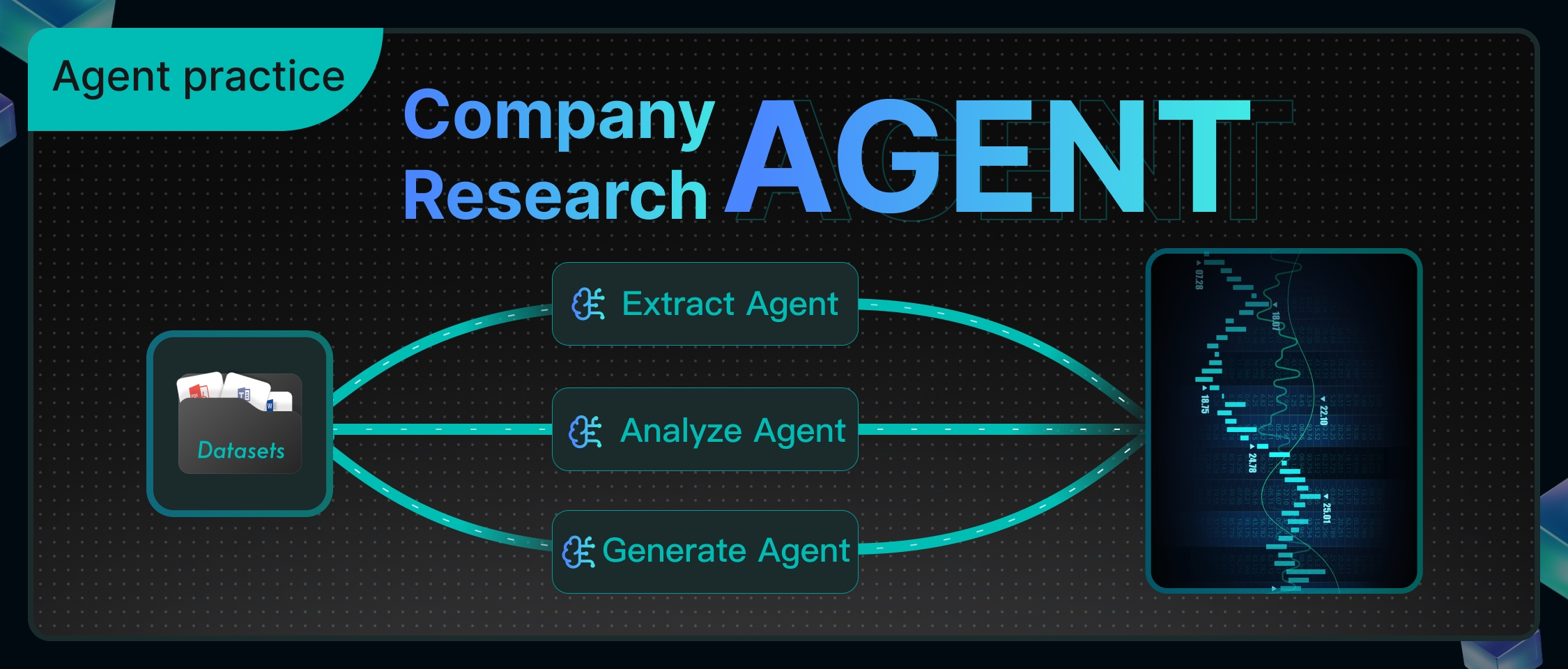
In the actual work of the investment research department of financial institutions, analysts are exposed to a vast amount of industry and company analysis reports, third-party research data, and real-time market dynamics on a daily basis, with diverse and scattered information sources. The job of financial analysts is to swiftly formulate clear investment recommendations based on the aforementioned information, such as specifically recommending which stocks to buy, how to adjust portfolio allocations, or predicting the next direction of an industry. Therefore, we have developed the "Intelligent Investment Research Assistant" to help financial analysts quickly organize information. It can automatically capture company data, integrate financial indicators, and compile research report viewpoints, enabling analysts to determine within minutes whether a stock is worth buying, eliminating the need to sift through piles of materials and allowing them to focus their time on genuine investment decision-making. To achieve this goal, we have designed a comprehensive technical process.

The technical solution revolves around a core business process:

When an analyst poses a question, the system identifies the company name or abbreviation from the question and retrieves the corresponding stock code with the assistance of a search engine. If identification fails, a prompt is returned directly with the company code. After successfully obtaining the stock code, the system retrieves the company's core financial indicators from data interfaces, organizes and formats the data, and generates a clear financial table. Building on this, intelligent analysis further integrates research report information: on one hand, it gathers the latest authoritative research reports and market viewpoints, and on the other hand, it retrieves relevant research report content from the internal knowledge base. Ultimately, these organized financial data and research report information are combined into a comprehensive response, facilitating analysts in quickly reviewing key indicators and core viewpoints.

The workflow after orchestration is as follows:

This case utilizes RAGFlow to implement a complete workflow, ranging from stock code extraction, to the generation of company financial statements, and finally to the integration and output of research report information.

The following sections will provide a detailed introduction to the implementation process of this solution.

1. Preparing the Dataset

1.1 Create a dataset

The dataset required for this example can be downloaded from Hugging Face Datasets1.

Create an "Internal Stock Research Report" dataset and import the corresponding dataset documents.

1.2 Parse documents

For the documents in the "Internal Stock Research Report" dataset, we have selected the parsing and slicing method called Paper.

Research report documents typically include modules such as abstracts, core viewpoints, thematic analyses, financial forecast tables, and risk warnings. The overall structure follows a more thesis-like logical progression rather than a strictly hierarchical table of contents. If sliced based on the lowest-level headings, it can easily disrupt the coherence between paragraphs and tables.

Therefore, RAGFlow is better suited to adopt the "Paper" slicing approach, using chapters or logical paragraphs as the fundamental units. This approach not only preserves the integrity of the research report's structure but also facilitates the model's quick location of key information during retrieval.

The preview of the sliced financial report is as follows:

2. Building the Intelligent Agent

2.1 Create an application.

After successful creation, the system will automatically generate a "Start" node on the canvas.

In the "Start" node, you can set the initial greeting of the assistant, for example: "Hello! I'm your stock research assistant."

2.2 Build the function of "Extract Stock Codes"

2.2.1 Agent extracts stock codes

Use an Agent node and attach a TavilySearch tool to identify stock names or abbreviations from the user's natural language input and return a unique standard stock code. When no match is found, uniformly output "Not Found."

In financial scenarios, users' natural language is often ambiguous. For example:

  • "Help me check the research report on Apple Inc."
  • "How is NVIDIA's financial performance?"
  • "What's the situation with the Shanghai Composite Index today?"

These requests all contain stock-related information, but the system can only further query financial reports, research reports, or market data after accurately identifying the stock code.

This is why we need an Agent with the function of "extracting stock codes."

Below is the system prompt for this Agent:

<role> 

Your responsibility is: to identify and extract the stock name or abbreviation from the user's natural language query and return the corresponding unique stock code.

</role>


<rules>

1. Only one result is allowed: - If a stock is identified → return the corresponding stock code only; - If no stock is identified → return “Not Found” only.

2. **Do not** output any extra words, punctuation, explanations, prefixes, suffixes, or newline prompts. 3. The output must strictly follow the <response_format>. </rules>


<response_format>
Output only the stock code (e.g., AAPL or 600519)
Or output “Not Found”
</response_format>


<response_examples>
User input: “Please check the research report for Apple Inc.” → Output: AAPL
User input: “How is the financial performance of Moutai?” → Output: 600519
User input: “How is the Shanghai Composite Index performing today?” → Output: Not Found
</response_examples>


<tools> - Tavily Search: You may use this tool to query when you're uncertain about the stock code. - If you're confident, there's no need to use the tool.

</tools>


<Strict Output Requirements> - Only output the result, no explanations, prompts, or instructions allowed. - The output can only be the stock code or “Not Found,” otherwise, it will be considered an incorrect answer.

</Strict Output Requirements>

2.2.2 Conditional node for identifying stock codes

Use a conditional node to evaluate the output result of the previous Agent node and guide the process flow based on different outcomes:

  • If the output is a stock code: It indicates successful identification of the stock, and the process will proceed to the "Case1" branch.
  • If the output contains "Not Found": It indicates that no valid stock name was identified from the user's input, and the process will proceed to the "Else" branch, where it will execute a node for replying with an irrelevant message, outputting "Your query is not supported."

2.3 Build the "Company Financial Statements" feature

The data for this feature is sourced from financial data provided by Yahoo Finance. By calling this API, we obtain core financial data for specified stocks, including operating revenue, net profit, etc., which drives the generation of the "Company Financial Statements."

2.3.1 Yahoo Finance Tools: Request for Financial Data

By using the "Yahoo Finance Tools" node, select "Balance sheet" and pass the stockCode output by the upstream Agent as a parameter. This allows you to fetch the core financial indicators of the corresponding company.

The returned results contain key data such as total assets, total equity, and tangible book value, which are used to generate the "Company Financial Statements" feature.

2.3.2 Financial table generation by Code node

Utilize the Code node to perform field mapping and numerical formatting on the financial data returned by Yahoo Finance Tools through Python scripts, ultimately generating a Markdown table with bilingual indicator comparisons, enabling a clear and intuitive display of the "Company Financial Statements."

Code:

import re

def format_number(value: str) -> str:
"""Convert scientific notation or floating-point numbers to comma-separated numbers"""
try:
num = float(value)
if num.is_integer():
return f"{int(num):,}" # If it's an integer, format without decimal places
else:
return f"{num:,.2f}" # Otherwise, keep two decimal places and add commas
except:
return value # Return the original value if it's not a number (e.g., — or empty)

def extract_md_table_single_column(input_text: str) -> str:
# Use English indicators directly
indicators = [
"Total Assets", "Total Equity", "Tangible Book Value", "Total Debt",
"Net Debt", "Cash And Cash Equivalents", "Working Capital",
"Long Term Debt", "Common Stock Equity", "Ordinary Shares Number"
]

# Core indicators and their corresponding units
unit_map = {
"Total Assets": "USD",
"Total Equity": "USD",
"Tangible Book Value": "USD",
"Total Debt": "USD",
"Net Debt": "USD",
"Cash And Cash Equivalents": "USD",
"Working Capital": "USD",
"Long Term Debt": "USD",
"Common Stock Equity": "USD",
"Ordinary Shares Number": "Shares"
}

lines = input_text.splitlines()

# Automatically detect the date column, keeping only the first one
date_pattern = r"\d{4}-\d{2}-\d{2}"
header_line = ""
for line in lines:
if re.search(date_pattern, line):
header_line = line
break

if not header_line:
raise ValueError("Date column header row not found")

dates = re.findall(date_pattern, header_line)
first_date = dates[0] # Keep only the first date
header = f"| Indicator | {first_date} |"
divider = "|------------------------|------------|"

rows = []
for ind in indicators:
unit = unit_map.get(ind, "")
display_ind = f"{ind} ({unit})" if unit else ind

found = False
for line in lines:
if ind in line:
# Match numbers and possible units
pattern = r"(nan|[0-9\.]+(?:[eE][+-]?\d+)?)"
values = re.findall(pattern, line)
# Replace 'nan' with '—' and format the number
first_value = values[0].strip() if values and values[0].strip().lower() != "nan" else "—"
first_value = format_number(first_value) if first_value != "—" else "—"
rows.append(f"| {display_ind} | {first_value} |")
found = True
break
if not found:
rows.append(f"| {display_ind} | — |")

md_table = "\n".join([header, divider] + rows)
return md_table

def main(input_text: str):
return extract_md_table_single_column(input_text)

We have also received requests from everyone expressing a preference not to extract JSON fields through coding, and we will gradually provide solutions in future versions.

2.4 Build the "Research Report Information Extraction" function

Utilize an information extraction agent, which, based on the stockCode, calls the AlphaVantage API to extract the latest authoritative research reports and insights. Meanwhile, it invokes the internal research report retrieval agent to obtain the full text of the complete research reports. Finally, it outputs the two parts of content separately in a fixed structure, thereby achieving an efficient information extraction function.

System prompt:

<role> 

You are the information extraction agent. You understand the user’s query and delegate tasks to alphavantage and the internal research report retrieval agent.

</role>

<requirements>

1. Based on the stock code output by the "Extract Stock Code" agent, call alphavantage's EARNINGS_CALL_TRANSCRIPT to retrieve the latest information that can be used in a research report, and store all publicly available key details.


2. Call the "Internal Research Report Retrieval Agent" and save the full text of the research report output.

3. Output the content retrieved from alphavantage and the Internal Research Report Retrieval Agent in full.

</requirements>


<report_structure_requirements>
The output must be divided into two sections:
#1. Title: “alphavantage”
Directly output the content collected from alphavantage without any additional processing.
#2. Title: "Internal Research Report Retrieval Agent"
Directly output the content provided by the Internal Research Report Retrieval Agent.
</report_structure_requirements>

2.4.1 Configure the MCP tool

Add the MCP tool:

Add the MCP tool under the agent and select the required method, such as "EARNINGS_CALL_TRANSCRIPT".

2.4.2 Internal Research Report Retrieval Agent

The key focus in constructing the internal research report retrieval agent lies in accurately identifying the company or stock code in user queries. It then invokes the Retrieval tool to search for research reports from the dataset and outputs the full text, ensuring that information such as data, viewpoints, conclusions, tables, and risk warnings is not omitted. This enables high-fidelity extraction of research report content.

System Prompt:

<Task Objective> 

Read user input → Identify the involved company/stock (supports abbreviations, full names, codes, and aliases) → Retrieve the most relevant research reports from the dataset → Output the full text of the research report, retaining the original format, data, chart descriptions, and risk warnings.

</Task Objective>


<Execution Rules>

1. Exact Match: Prioritize exact matches of company full names and stock codes.

2. Content Fidelity: Fully retain the research report text stored in the dataset without deletion, modification, or omission of paragraphs.

3. Original Data: Retain table data, dates, units, etc., in their original form.

4. Complete Viewpoints: Include investment logic, financial analysis, industry comparisons, earnings forecasts, valuation methods, risk warnings, etc.

5. Merging Multiple Reports: If there are multiple relevant research reports, output them in reverse chronological order.

6. No Results Feedback: If no matching reports are found, output “No related research reports available in the dataset.”


</Execution Rules>

2.5 Add a Research Report Generation Agent

The research report generation agent automatically extracts and structurally organizes financial and economic information, generating foundational data and content for investment bank analysts that are professional, retain differentiation, and can be directly used in investment research reports.

<role> 

You are a senior investment banking (IB) analyst with years of experience in capital market research. You excel at writing investment research reports covering publicly listed companies, industries, and macroeconomics. You possess strong financial analysis skills and industry insights, combining quantitative and qualitative analysis to provide high-value references for investment decisions.

**You are able to retain and present differentiated viewpoints from various reports and sources in your research, and when discrepancies arise, you do not merge them into a single conclusion. Instead, you compare and analyze the differences.**


</role>


<input>

You will receive financial information extracted by the information extraction agent.

</input>


<core_task>
Based on the content returned by the information extraction agent (no fabrication of data), write a professional, complete, and structured investment research report. The report must be logically rigorous, clearly organized, and use professional language, suitable for reference by fund managers, institutional investors, and other professional readers.
When there are differences in analysis or forecasts between different reports or institutions, you must list and identify the sources in the report. You should not select only one viewpoint. You need to point out the differences, their possible causes, and their impact on investment judgments.
</core_task>


<report_structure_requirements>
##1. Summary
Provide a concise overview of the company’s core business, recent performance, industry positioning, and major investment highlights.
Summarize key conclusions in 3-5 sentences.
Highlight any discrepancies in core conclusions and briefly describe the differing viewpoints and areas of disagreement.
##2. Company Overview
Describe the company's main business, core products/services, market share, competitive advantages, and business model.
Highlight any differences in the description of the company’s market position or competitive advantages from different sources. Present and compare these differences.
##3. Recent Financial Performance
Summarize key metrics from the latest financial report (e.g., revenue, net profit, gross margin, EPS).
Highlight the drivers behind the trends and compare the differential analyses from different reports. Present this comparison in a table.
##4. Industry Trends & Opportunities
Overview of industry development trends, market size, and major drivers.
If different sources provide differing forecasts for industry growth rates, technological trends, or competitive landscape, list these and provide background information. Present this comparison in a table.
##5. Investment Recommendation
Provide a clear investment recommendation based on the analysis above (e.g., "Buy/Hold/Neutral/Sell"), presented in a table.
Include investment ratings or recommendations from all sources, with the source and date clearly noted.
If you provide a combined recommendation based on different viewpoints, clearly explain the reasoning behind this integration.
##6. Appendix & References
List the data sources, analysis methods, important formulas, or chart descriptions used.
All references must come from the information extraction agent and the company financial data table provided, or publicly noted sources.
For differentiated viewpoints, provide full citation information (author, institution, date) and present this in a table.
</report_structure_requirements>


<output_requirements>
Language Style: Financial, professional, precise, and analytical.
Viewpoint Retention: When there are multiple viewpoints and conclusions, all must be retained and compared. You cannot choose only one.
Citations: When specific data or viewpoints are referenced, include the source in parentheses (e.g., Source: Morgan Stanley Research, 2024-05-07).
Facts: All data and conclusions must come from the information extraction agent or their noted legitimate sources. No fabrication is allowed.
Readability: Use short paragraphs and bullet points to make it easy for professional readers to grasp key information and see the differences in viewpoints.
</output_requirements>


<output_goal>
Generate a complete investment research report that meets investment banking industry standards, which can be directly used for institutional investment internal reference, while faithfully retaining differentiated viewpoints from various reports and providing the corresponding analysis.
</output_goal>


<heading_format_requirements>
All section headings in the investment research report must be formatted as N. Section Title (e.g., 1. Summary, 2. Company Overview), where:
The heading number is followed by a period and the section title.
The entire heading (number, period, and title) is rendered in bold text (e.g., using <b> in HTML or equivalent bold formatting, without relying on Markdown ** syntax).
Do not use ##, **, or any other prefix before the heading number.
Apply this format consistently to all section headings (Summary, Company Overview, Recent Financial Performance, Industry Trends & Opportunities, Investment Recommendation, Appendix & References).
</heading_format_requirements>

2.6 Add a Reply Message Node

The reply message node is used to output the "financial statements" and "research report content" that are the final outputs of the workflow.

2.7 Save and Test

Click "Save" - "Run" - and view the execution results. The entire process takes approximately 5 minutes to run. Execution Results:

Log: The entire process took approximately 5 minutes to run.

Summary and Outlook

This case study has constructed a complete workflow for stock research reports using RAGFlow, encompassing three core steps:

  1. Utilizing an Agent node to extract stock codes from user inputs.
  2. Acquiring and formatting company financial data through Yahoo Finance tools and Code nodes to generate clear financial statements.
  3. Invoking information extraction agents and an internal research report retrieval agent, and using a research report generation agent to output the latest research report insights and the full text of complete research reports, respectively.

The entire process achieves automated handling from stock code identification to the integration of financial and research report information.

We observe several directions for sustainable development: More data sources can be incorporated to make analytical results more comprehensive, while providing a code-free method for data processing to lower the barrier to entry. The system also has the potential to analyze multiple companies within the same industry, track industry trends, and even cover a wider range of investment instruments such as futures and funds, thereby assisting analysts in forming superior investment portfolios. As these features are gradually implemented, the intelligent investment research assistant will not only help analysts make quicker judgments but also establish an efficient and reusable research methodology, enabling the team to consistently produce high-quality analytical outputs.

Tutorial - Build an E-Commerce Customer Support Agent Using RAGFlow

7 min read

Currently, e-commerce retail platforms extensively use intelligent customer service systems to manage a wide range of user enquiries. However, traditional intelligent customer service often struggles to meet users’ increasingly complex and varied needs. For example, customers may require detailed comparisons of functionalities between different product models before making a purchase; they might be unable to use certain features due to losing the instruction manual; or, in the case of home products, they may need to arrange an on-site installation appointment through customer service.

To address these challenges, we have identified several common demand scenarios, including queries about functional differences between product models, requests for usage assistance, and scheduling of on-site installation services. Building on the recently launched Agent framework of RAGFlow, this blog presents an approach for the automatic identification and branch-specific handling of user enquiries, achieved by integrating workflow orchestration with large language models.

The workflow is orchestrated as follows:

Image

The following sections offer a detailed explanation of the implementation process for this solution.

1. Prepare datasets

1.1 Create datasets

You can download the sample datasets from Hugging Face Datasets.

Create the "Product Information" and "User Guide" knowledge bases and upload the relevant dataset documents.

1.2 Parse documents

For documents in the 'Product Information' and 'User Guide' knowledge bases, we choose to use Manual chunking.

Image

Product manuals are often richly illustrated with a combination of text and images, containing extensive information and complex structures. Relying solely on text length for segmentation risks compromising the integrity of the content. RAGFlow assumes such documents follow a hierarchical structure and therefore uses the "smallest heading" as the basic unit of segmentation, ensuring each section of text and its accompanying graphics remain intact within a single chunk. A preview of the user manual following segmentation is shown below:

Image

2. Build workflow

2.1 Create an app

Upon successful creation, the system will automatically generate a Begin component on the canvas.

Image

In the Begin component, the opening greeting message for customer service can be configured, for example:

Hi! I'm your assistant. 

Image

2.2 Add a Categorize component

The Categorize component uses a Large Language Model (LLM) for intent recognition. It classifies user inputs and routes them to the appropriate processing workflows based on the category’s name, description, and provided examples.

Image

2.3 Build a product feature comparison workflow

The Retrieval component connects to the "Product Information" knowledge base to fetch content relevant to the user’s query, which is then passed to the Agent component to generate a response.

Image

Add a Retrieval component named "Feature Comparison Knowledge Base" and link it to the "Product Information" knowledge base.

Image

Add an Agent component after the Retrieval component, name it "Feature Comparison Agent," and configure the System Prompt as follows:

## Role
You are a product specification comparison assistant.
## Goal
Help the user compare two or more products based on their features and specifications. Provide clear, accurate, and concise comparisons to assist the user in making an informed decision.
---
## Instructions
- Start by confirming the product models or options the user wants to compare.
- If the user has not specified the models, politely ask for them.
- Present the comparison in a structured way (e.g., bullet points or a table format if supported).
- Highlight key differences such as size, capacity, performance, energy efficiency, and price if available.
- Maintain a neutral and professional tone without suggesting unnecessary upselling.
---

Configure User prompt

User's query is /(Begin Input) sys.query 

Schema is /(Feature Comparison Knowledge Base) formalized_content

After configuring the Agent component, the result is as follows:

Image

2.4 Build a product user guide workflow

The Retrieval component queries the "User Guide" knowledge base for content relevant to the user’s question, then passes the results to the Agent component to formulate a response.

Image

Add a Retrieval component named "Usage Guide Knowledge Base" and link it to the "User Guide" knowledge base.

Image

Add an Agent component after the Retrieval component, name it "Usage Guide Agent," and configure its System Prompt as follows:

## Role
You are a product usage guide assistant.
## Goal
Provide clear, step-by-step instructions to help the user set up, operate, and maintain their product. Answer questions about functions, settings, and troubleshooting.
---
## Instructions
- If the user asks about setup, provide easy-to-follow installation or configuration steps.
- If the user asks about a feature, explain its purpose and how to activate it.
- For troubleshooting, suggest common solutions first, then guide through advanced checks if needed.
- Keep the response simple, clear, and actionable for a non-technical user.
---

Write user prompt

User's query is /(Begin Input) sys.query 

Schema is / (Usage Guide Knowledge Base) formalized_content

After configuring the Agent component, the result is as follows:

Image

2.5 Build an installation booking assistant

The Agent engages in a multi-turn dialogue with the user to collect three key pieces of information: contact number, installation time, and installation address. Create an Agent component named "Installation Booking Agent" and configure its System Prompt as follows:

# Role
You are an Installation Booking Assistant.
## Goal
Collect the following three pieces of information from the user
1. Contact Number
2. Preferred Installation Time
3. Installation Address
Once all three are collected, confirm the information and inform the user that a technician will contact them later by phone.
## Instructions
1. **Check if all three details** (Contact Number, Preferred Installation Time, Installation Address) have been provided.
2. **If some details are missing**, acknowledge the ones provided and only ask for the missing information.
3. Do **not repeat** the full request once some details are already known.
4. Once all three details are collected, summarize and confirm them with the user.

Write user prompt

User's query is /(Begin Input) sys.query 

After configuring the Agent component, the result is as follows:

Image

If user information needs to be registered, an HTTP Request component can be connected after the Agent component to transmit the data to platforms such as Google Sheets or Notion. Developers may implement this according to their specific requirements; this blog article does not cover implementation details.

Image

2.6 Add a reply message component

For these three workflows, a single Message component is used to receive the output from the Agent components, which then displays the processed results to the user.

Image

2.7 Save and test

Click Save → Run → View Execution Result. When inquiring about product models and features, the system correctly returns a comparison:

Image

When asked about usage instructions, the system provides accurate guidance:

Image

When scheduling an installation, the system collects and confirms all necessary information:

Image

Summary

This use case can also be implemented using an Agent-based workflow, which offers the advantage of flexibly handling complex problems. However, since Agents actively engage in planning and reflection, they often significantly increase response times, leading to a diminished customer experience. As such, this approach is not well suited to scenarios like e-commerce after-sales customer service, where high responsiveness and relatively straightforward tasks are required. For applications involving complex issues, we have previously shared the Deep Research multi-agent framework. Related templates are available in our template library.

Image

The customer service workflow presented in this article is designed for e-commerce, yet this domain offers many more scenarios suitable for workflow automation—such as user review analysis and personalized email campaigns—which have not been covered here. By following the practical guidelines provided, you can also easily adapt this approach to other customer service contexts. We encourage you to build such applications using RAGFlow. Reinventing customer service with large language models moves support beyond “mechanical responses,” elevating capabilities from mere “retrieval and matching” to “cognitive reasoning.” Through deep understanding and real-time knowledge generation, it delivers an unprecedented experience that truly “understands human language,” thereby redefining the upper limits of intelligent service and transforming support into a core value engine for businesses.

Tutorial - Building a SQL Assistant Workflow

7 min read

Workflow overview

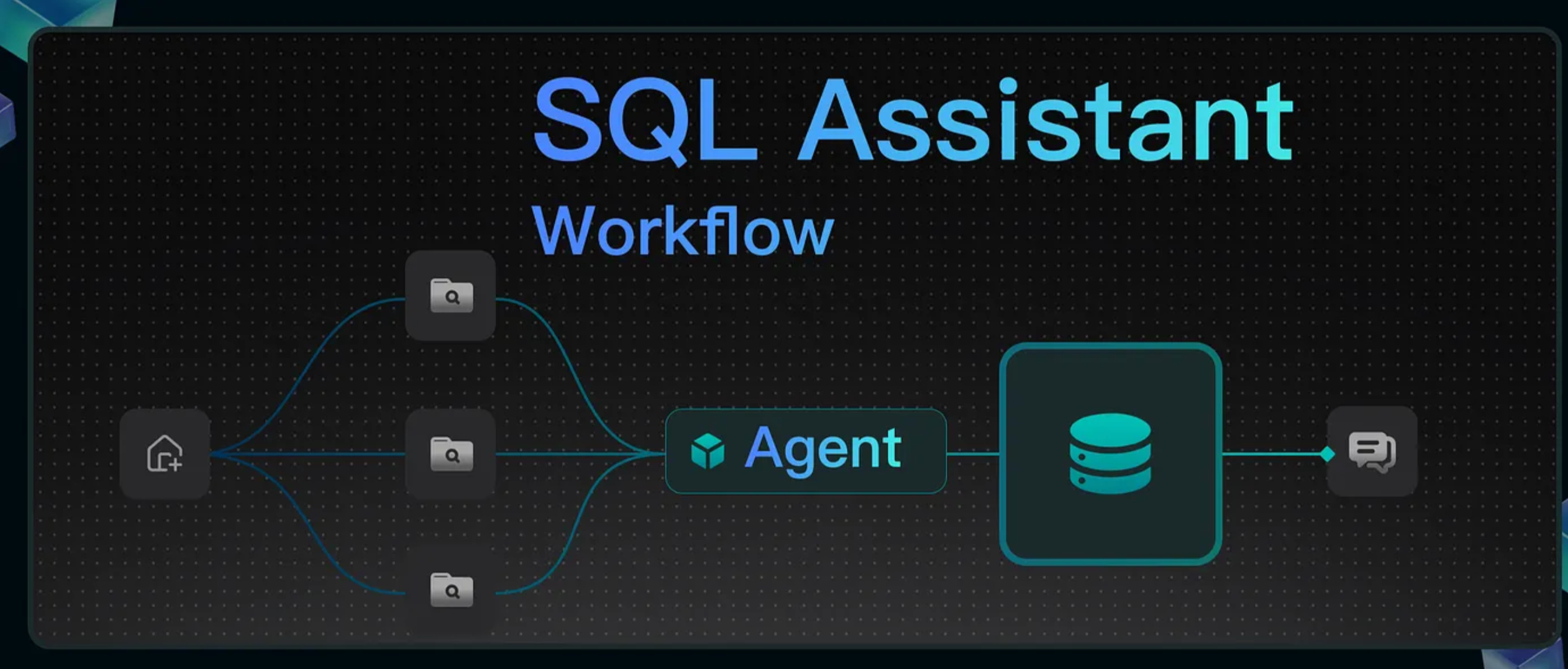
This tutorial shows how to create a SQL Assistant workflow that enables natural language queries for SQL databases. Non-technical users like marketers and product managers can use this tool to query business data independently, reducing the need for data analysts. It can also serve as a teaching aid for SQL in schools and coding courses. The finished workflow operates as follows:

Image

The database schema, field descriptions, and SQL examples are stored as knowledge bases in RAGFlow. Upon user queries, the system retrieves relevant information from these sources and passes it to an Agent, which generates SQL statements. These statements are then executed by a SQL Executor component to return the query results.

Procedure

1. Create three knowledge bases

1.1 Prepare dataset files

You can download the sample datasets from Hugging Face Datasets.

The following are the predefined example files:

  1. Schema.txt
CREATE TABLE `users` (
`id` INT NOT NULL AUTO_INCREMENT,
`username` VARCHAR(50) NOT NULL,
`password` VARCHAR(50) NOT NULL,
`email` VARCHAR(100),
`mobile` VARCHAR(20),
`create_time` TIMESTAMP NOT NULL DEFAULT CURRENT_TIMESTAMP,
`update_time` TIMESTAMP NOT NULL DEFAULT CURRENT_TIMESTAMP ON UPDATE CURRENT_TIMESTAMP,
PRIMARY KEY (`id`),
UNIQUE KEY `uk_username` (`username`),
UNIQUE KEY `uk_email` (`email`),
UNIQUE KEY `uk_mobile` (`mobile`)
);

...

Note: When defining schema fields, avoid special characters such as underscores, as they can cause errors in SQL statements generated by the LLM. 2. Question to SQL.csv

What are the names of all the Cities in Canada
SELECT geo_name, id FROM data_commons_public_data.cybersyn.geo_index WHERE iso_name ilike '%can%

What is average Fertility Rate measure of Canada in 2002 ?
SELECT variable_name, avg(value) as average_fertility_rate FROM data_commons_public_data.cybersyn.timeseries WHERE variable_name = 'Fertility Rate' and geo_id = 'country/CAN' and date >= '2002-01-01' and date < '2003-01-01' GROUP BY 1;

What 5 countries have the highest life expectancy ?
SELECT geo_name, value FROM data_commons_public_data.cybersyn.timeseries join data_commons_public_data.cybersyn.geo_index ON timeseries.geo_id = geo_index.id WHERE variable_name = 'Life Expectancy' and date = '2020-01-01' ORDER BY value desc limit 5;


...
  1. Database Description EN.txt
### Users Table (users)
The users table stores user information for the website or application. Below are the definitions of each column in this table:
- `id`: INTEGER, an auto-incrementing field that uniquely identifies each user (primary key). It automatically increases with every new user added, guaranteeing a distinct ID for every user.
- `username`: VARCHAR, stores the user’s login name; this value is typically the unique identifier used during authentication.
- `password`: VARCHAR, holds the user’s password; for security, the value must be encrypted (hashed) before persistence.
- `email`: VARCHAR, stores the user’s e-mail address; it can serve as an alternate login credential and is used for notifications or password-reset flows.
- `mobile`: VARCHAR, stores the user’s mobile phone number; it can be used for login, receiving SMS notifications, or identity verification.
- `create_time`: TIMESTAMP, records the timestamp when the user account was created; defaults to the current timestamp.
- `update_time`: TIMESTAMP, records the timestamp of the last update to the user’s information; automatically refreshed to the current timestamp on every update.

...

1.2 Create knowledge bases in RAGFlow

Schema knowledge base

Create a knowledge base titled "Schema" and upload the file Schema.txt.

Tables in the database vary in length, each ending with a semicolon (;).

CREATE TABLE `users` (
`id` INT NOT NULL AUTO_INCREMENT,
`username` VARCHAR(50) NOT NULL,
`password` VARCHAR(50) NOT NULL,
...
UNIQUE KEY `uk_mobile` (`mobile`)
);

CREATE TABLE `products` (
`id` INT NOT NULL AUTO_INCREMENT,
`name` VARCHAR(100) NOT NULL,
`description` TEXT,
`price` DECIMAL(10, 2) NOT NULL,
`stock` INT NOT NULL,
...
FOREIGN KEY (`merchant_id`) REFERENCES `merchants` (`id`)
);

CREATE TABLE `merchants` (
`id` INT NOT NULL AUTO_INCREMENT,
`name` VARCHAR(100) NOT NULL,
`description` TEXT,
`email` VARCHAR(100),
...
UNIQUE KEY `uk_mobile` (`mobile`)
);

To isolate each table as a standalone chunk without overlapping content, configure the knowledge base parameters as follows:

  • Chunking Method: General
  • Chunk Size: 2 tokens (minimum size for isolation)
  • Delimiter: Semicolon (;) RAGFlow will then parse and generate chunks according to this workflow:

Below is a preview of the parsed results from Schema.txt:

We now validate the retrieved results through retrieval testing:

Question to SQL knowledge base

Create a new knowledge base titled "Question to SQL" and upload the file "Question to SQL.csv".

Set the chunking method to Q&A, then parse Question_to_SQL.csv to preview the results.

We now validate the retrieved results through retrieval testing:

Database Description knowledge base Create a new knowledge base titled "Database Description" and upload the file "Database_Description_EN.txt".

Configuration (Same as Schema Knowledge Base):

  • Chunking Method: General
  • Chunk Size: 2 tokens (minimum size for isolation)
  • Delimiter: Semicolon ### Below is a preview of the parsed Database_Description_EN.txt following configuration.

We now validate the retrieved results through retrieval testing:

Note: The three knowledge bases are maintained and queried separately. The Agent component consolidates results from all sources before producing outputs."

2. Orchestrate the workflow

2.1 Create a workflow application

Once created successfully, the Begin component automatically appears on the canvas.

You can configure a welcome message in the Begin component. For example:

Hi! I'm your SQL assistant, what can I do for you?

2.2 Configure three Retrieval components

Add three parallel Retrieval components after the Begin component, named as follows:

  • Schema
  • Question to SQL
  • Database Description Configure each Retrieval component:
  1. Query variable: sys.query
  2. Knowledge base selection: Select the knowledge base whose name matches the current component's name.

2.3 Configure the Agent component

Add an Agent component named 'SQL Generator' after the Retrieval components, connecting all three to it.

Write System Prompt:

### ROLE
You are a Text-to-SQL assistant.
Given a relational database schema and a natural-language request, you must produce a **single, syntactically-correct MySQL query** that answers the request.
Return **nothing except the SQL statement itself**—no code fences, no commentary, no explanations, no comments, no trailing semicolon if not required.

### EXAMPLES
-- Example 1
User: List every product name and its unit price.
SQL:
SELECT name, unit_price FROM Products;

-- Example 2
User: Show the names and emails of customers who placed orders in January 2025.
SQL:
SELECT DISTINCT c.name, c.email
FROM Customers c
JOIN Orders o ON o.customer_id = c.id
WHERE o.order_date BETWEEN '2025-01-01' AND '2025-01-31';

-- Example 3
User: How many orders have a status of "Completed" for each month in 2024?
SQL:
SELECT DATE_FORMAT(order_date, '%Y-%m') AS month,
COUNT(*) AS completed_orders
FROM Orders
WHERE status = 'Completed'
AND YEAR(order_date) = 2024
GROUP BY month
ORDER BY month;

-- Example 4
User: Which products generated at least \$10 000 in total revenue?
SQL:
SELECT p.id, p.name, SUM(oi.quantity * oi.unit_price) AS revenue
FROM Products p
JOIN OrderItems oi ON oi.product_id = p.id
GROUP BY p.id, p.name
HAVING revenue >= 10000
ORDER BY revenue DESC;

### OUTPUT GUIDELINES
1. Think through the schema and the request.
2. Write **only** the final MySQL query.
3. Do **not** wrap the query in back-ticks or markdown fences.
4. Do **not** add explanations, comments, or additional text—just the SQL.

Write User Prompt:

User's query: /(Begin Input) sys.query  
Schema: /(Schema) formalized_content
Samples about question to SQL: /(Question to SQL) formalized_content
Description about meanings of tables and files: /(Database Description) formalized_content

After inserting variables, the populated result appears as follows:

2.4 Configure the ExeSQL component

Append an ExeSQL component named "SQL Executor" after the SQL Generator.

Configure the database for the SQL Executor component, specifying that its Query input comes from the output of the SQL Generator.

2.5 Configure the Message component

Append a Message component to the SQL Executor.

Insert variables into the Messages field to enable the message component to display the output of the SQL Executor (formalized_content):

2.6 Save and test

Click Save → Run → Enter a natural language question → View execution results.

Finale

Finally, like current Copilot technologies, NL2SQL cannot achieve complete accuracy. For standardized processing of structured data, we recommend consolidating its operations to specific APIs, then encapsulating these APIs as MCPs (Managed Content Packages) for RAGFlow. We will demonstrate this approach in a forthcoming blog.